7 Ways to Print Without a Printer
You don’t need a printer to get your documents or projects done. Printing without a printer is easier than you might think. You can visit local copy shops or rent Printbox machines to print and cut your files quickly.
Use mobile apps to upload and pay for kiosks nearby. These options save you time and hassle, especially when you’re on the go.
Check out free or cheap printing at public libraries, which often offer great resources for printing documents. Another option is to mail your PDFs to printing services and have them delivered right to your home.
Just be sure to prepare your files carefully for crisp, clear results. Or, if you want, go fully digital with annotations and sharing tools to avoid printing altogether.
Keep reading to uncover more helpful tips that make printing without a printer simple and convenient!
Key Takeaways
– Upload files to local copy shops or on-demand print services for professional printing without owning a printer.
It’s a simple way to get high-quality prints without the hassle of maintaining a printer yourself.
– Use mobile printing apps and kiosks to upload and pay for prints, then pick up at nearby locations.
These are super convenient when you’re on the go and need something printed fast.
– Send PDFs to mail printing services to receive printed documents delivered directly to your home.
No need to leave the house; just wait for your prints to arrive at your doorstep.
– Utilize public libraries or campus printing services with your library card or ID for low-cost or free printing.
This is a great option if you want to save some money and have access to these resources.
– Export projects as PDFs with exact sizing and no page scaling to ensure print-ready files for external printing options.
Making sure your files are print-ready helps avoid any surprises when you get your prints back.
Print Then Cut at Local Copy Shops
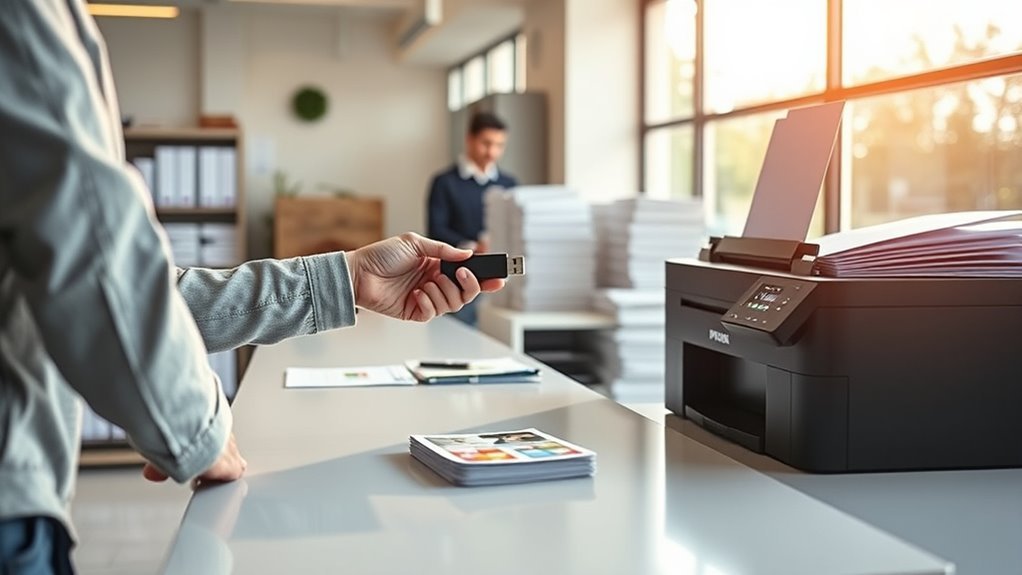
Head to a local copy shop to print your “Print Then Cut” designs on cardstock or your preferred paper weight. Export your Design Space project as a PDF to keep sizing and colors accurate.
Print your “Print Then Cut” designs on cardstock by exporting as a PDF to ensure perfect sizing and color accuracy.
When you get to the shop, ask them to print at actual size with no page scaling or fit-to-page options—this keeps the Cricut registration marks perfectly aligned. Request cardstock between 65–110 lb if you’re making stickers or tags.
Use an economical ink-friendly or draft mode for test prints to save ink, saving high-quality prints for your final run. Once printed, align the sheets on your Cricut mat with the top-left corner matching the registration window.
Make sure the registration marks are clear and untrimmed, so your Cricut can read them and cut precisely. This little attention to detail really makes a difference!
Use Mobile Apps to Send Files for Printing
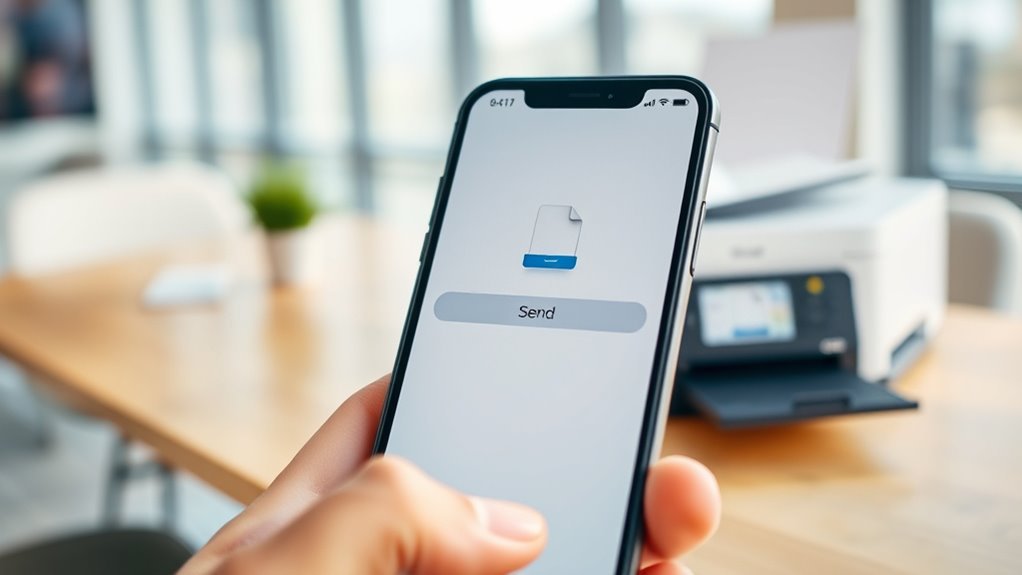
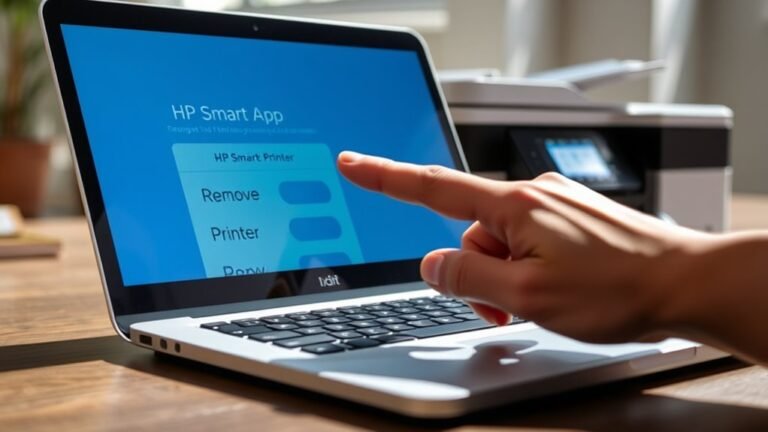
If visiting a local copy shop isn’t convenient, you can easily send your files for printing using mobile apps. These apps let you upload documents directly from your phone, pay in-app, and print at nearby kiosks or have your prints mailed to you.
This way, you skip owning a printer altogether. Pretty handy, right?
Here are some options to ponder:
- Use apps like Printbox to print at kiosks without a home printer.
- Try MappyMail to print and mail copies anywhere, perfect if you don’t need same-day pickup.
- Submit files remotely via library or campus printing apps, then release prints in person.
- Export documents as PDFs using free tools like CutePDF to upload to any mobile printing service.
Just a heads up—always check print quality and pricing before confirming your order. You don’t want any surprises!
Rent Printbox Machines for On-Demand Print Then Cut
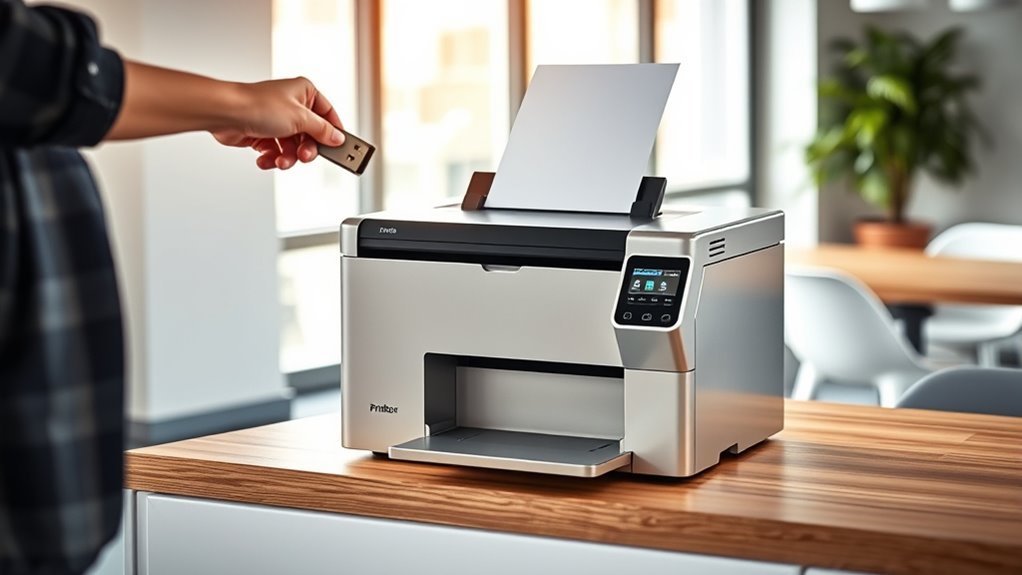
You can rent Printbox machines to print your designs on demand without worrying about ink or paper. Just upload your cut-ready files through their app, pay per print, and pick up high-quality pages ready for your home cutter.
It’s super convenient for handling occasional or bulk print-then-cut projects. No need to own a printer to get professional results.
Printbox Machine Features
A Printbox machine offers a convenient, pay-as-you-go printing solution that lets you upload documents via a mobile app and pick up your prints at the nearest kiosk. You don’t need to own a printer or worry about ink—Printbox handles the printer, paper, and maintenance for you.
It supports file types like PDFs, PNGs, and JPGs, making it perfect for quick, on-demand prints. Plus, it’s ideal for Cricut Print Then Cut projects, letting you print your designs at the kiosk and bring them home to cut.
Key features include:
- Mobile app for easy document upload and kiosk location
- Pay-per-print system with bulk credit discounts
- High-quality physical prints ready for crafting or professional use
- No cartridge or maintenance hassles for occasional printing needs
On-Demand Cutting Benefits
On-demand cutting gets a lot simpler when you rent a Printbox machine for your Print Then Cut projects. You can upload a PDF or image directly from your phone app, pay per print, and pick up your precise prints nearby—no printer ownership needed.
Since Printbox handles the printer, paper, and maintenance, you avoid buying cartridges and only pay per page or buy bulk credits. It’s perfect for occasional use.
To guarantee accuracy, export your design as a PDF or supported image format. Then upload it to the app following their resolution and bleed guidelines.
After printing, take your sheets home to your Cricut or Silhouette cutter for exact cutting. Renting Printbox machines streamlines your workflow and cuts costs for on-demand Print Then Cut tasks.
Print Documents for Free or Cheap at Public Libraries
Public libraries often provide affordable printing options that let you print documents without owning a printer. You usually need a library card and PIN to access printers, and many libraries let you upload files via USB, mobile, or on-site computers.
Public libraries offer budget-friendly printing with easy access through a library card and multiple file upload options.
Make sure to export documents to PDF beforehand to keep formatting intact. Some libraries even offer free monthly print credits or charge as low as $0.10 per black-and-white page.
Here’s how to make the most of library printing:
- Use common file formats like PDF, PNG, or JPG for easy uploads
- Check if your library offers free print credits or low-cost pages
- Take advantage of staff help or online tutorials for smooth printing
- Explore large branches for wide-format or poster printing options
That way, you save money and avoid buying a printer. It’s a smart, budget-friendly move!
Mail Printed PDFs to Your Home for Cutting
If you don’t have easy access to a library printer or want the convenience of home delivery, mail-printing services like MappyMail let you upload your PDFs and receive printed copies right at your doorstep. Simply export your design as a PDF, making sure the sizing and layout are correct. Then, upload it to the service.
Delivery times can vary, so plan ahead if you need your prints for cutting. Keep in mind that MappyMail prints document-style, not photo-quality. Also, they only accept certain file types, so be sure to convert all files to PDF before uploading.
Take a moment to review margins, colors, and print settings carefully to match your cutting machine’s requirements.
| Step | Action | Tip |
|---|---|---|
| 1 | Export design as PDF | Use “Print to PDF” feature |
| 2 | Upload to MappyMail | Check supported file types |
| 3 | Confirm print settings | Adjust margins & colors |
| 4 | Receive printed copy | Plan delivery time in advance |
Prepare Your Files for Print Then Cut Success
When preparing your files for Print Then Cut, make sure to export your design as a PDF with registration marks intact so your Cricut can read them accurately. In Cricut Design Space, select Make It → Printer and choose “Print to PDF” or use a virtual PDF printer like CutePDF.
Remember to keep scale at 100%, disable “fit to page,” and avoid cropping to guarantee precise cuts. Before printing a full batch, test one sheet to confirm your Cricut reads the marks correctly.
Provide print shops with PDF/X-1a or standard PDFs and verify actual size printing on your chosen stock. Use draft or grayscale settings for ink-sensitive projects.
Print only necessary pages to save ink, and consider cardstock for better feed and cut reliability. It really helps to keep things smooth!
Paperless Alternatives: View or Copy Without Printing
You don’t need to print to access or share documents anymore. You can view files directly on your device or use apps that make annotations easy and paper-free.
Plus, sharing via email, cloud links, or QR codes keeps everyone connected without a single sheet of paper. It’s super convenient and helps save the environment too!
Digital Document Viewing
Digital document viewing often lets you interact with files more efficiently than printing ever could. Instead of creating physical copies, you can zoom, search, and annotate directly on PDFs using apps like Adobe Acrobat Reader or Preview.
Cloud platforms such as Google Drive and OneDrive enable you to read, comment, and share documents from anywhere while maintaining version history. It’s super convenient when you want to keep everything synced across your devices.
You can also capture high-resolution screenshots or convert files to PDF for easy offline access. That way, you’ve always got your important docs handy, even without internet.
For handwritten notes and highlights, try apps like GoodNotes or OneNote. They let you organize your study materials digitally, making everything easier to find and review.
- Use PDF viewers to zoom, search, annotate, and copy text without printing.
- Access and share documents via cloud apps, keeping everything synced.
- Save screenshots or convert files to PDF for portable digital copies.
- Import PDFs into note-taking apps for handwriting and highlighting.
Mobile Device Accessibility
Many mobile apps let you access, edit, and share documents without printing a single page. You can save files as searchable PDFs, annotate them in apps like Adobe Acrobat Reader or Apple Notes, and even sign forms digitally.
Want to share a document quickly? Use AirDrop, Bluetooth, or screen-casting to transfer files instantly. You can also scan physical pages with your phone camera or apps like Microsoft Lens, creating clear digital copies.
Note-taking apps like GoodNotes or Notability let you replicate handwriting and annotations, perfect for planners or worksheets. These tools help you stay organized and eco-friendly without ever needing paper.
| Convenience | Eco-Friendly | Efficiency |
|---|---|---|
| Edit on the go | Save trees | Instant sharing |
| Annotate digitally | Reduce waste | Scan anytime |
| Sign forms easily | Cut paper costs | Access anywhere |
| Store safely | No clutter | Work offline |
| Share instantly | Preserve resources | Fast document use |
Virtual Copy Sharing
Sharing and reviewing documents has never been easier without printing a single page. You can use PDF viewers like Adobe Acrobat Reader or cloud apps such as Google Drive to share, annotate, and present files while keeping formatting intact.
Instead of printing, just send read-only copies via secure links or email. You can even add password protection for sensitive documents.
E-signature services let you complete forms electronically and legally. For collaboration or accessibility, real-time commenting and screen-reading tools replace physical markups and printed copies.
- Share and annotate PDFs with Adobe Acrobat or Preview
- Send read-only files via Google Drive or OneDrive with controlled access
- Use DocuSign or Adobe Sign for electronic signatures
- Collaborate using Google Docs comments or Microsoft Word Online track changes
Frequently Asked Questions
Does CVS Allow You to Print Things?
Yes, CVS lets you print photos and some documents at their Photo Kiosks. You can upload files online or via their app and pick them up in-store.
But keep in mind, services can vary by location, so it’s a good idea to check ahead before you go.
Can I Directly Print a PDF File?
You can absolutely print a PDF file directly, like handing over a finished painting.
Just export your document as a PDF, then upload it to a printer or print shop that accepts PDFs for seamless printing.
Is There a Printer That Can Print Without Ink?
No, you can’t find a mainstream printer that prints without ink. Thermal printers use heat-sensitive paper but require special paper and fade over time.
How Can I Print From My Phone?
To print from your phone, pick the print option, then press “Save as PDF” or select a nearby print shop app.
You’ll quickly queue your file and collect crisp copies without complicated connections or costly cartridges.
It’s super easy and saves you a lot of hassle! Just a few taps, and you’re good to go.
Conclusion
Why limit yourself to owning a printer when there are so many convenient alternatives? Whether you choose local copy shops, mobile apps, or public libraries, printing without a printer is easier than you think.
You can even rent machines or mail your files for home cutting. Plus, preparing your files correctly guarantees great results every time.
Embracing these options not only saves money but also reduces clutter. Ready to ditch the printer hassle? Printing without a printer opens up a world of flexibility and convenience, making it easier to get your documents and projects done without the stress of owning and maintaining a printer. So why not explore these alternatives and enjoy hassle-free printing today?