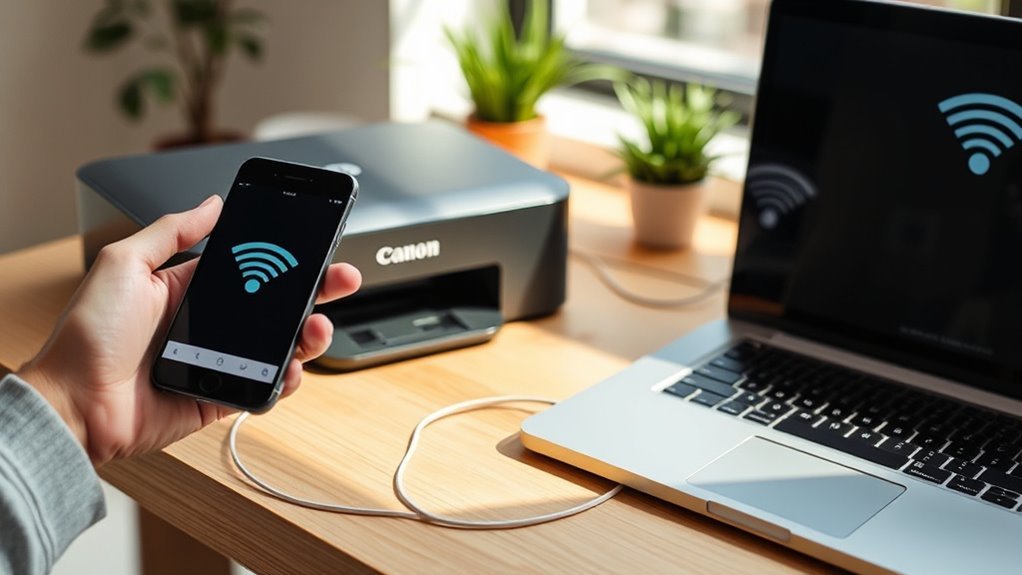
Connect Your Canon Printer to Your Computer Wirelessly in 3 Easy Steps
To connect your Canon printer wirelessly, start by placing it about 6 to 10 feet from your Wi-Fi router and powering it on. This helps ensure a strong signal for smooth wireless printing.
Next, make sure both your printer and computer are connected to the same 2.4 GHz or 5 GHz Wi-Fi network. Then, download and install the latest Canon driver or app from their official website to get everything set up correctly.
Finally, print a test page to confirm that your wireless connection is working perfectly. Follow these simple steps, and you’ll be ready to enjoy the convenience of wireless printing with your Canon printer.
Key Takeaways
- Position your Canon printer within 6 to 10 feet of the Wi-Fi router and power it on before setup.
- Connect your computer to the same 2.4 GHz or 5 GHz Wi-Fi network the printer will use.
- Download and install the latest Canon printer driver from Canon’s official Software & Drivers page.
- Use the printer’s wireless settings or WPS button to connect the printer to your Wi-Fi network.
- Print a test page or Wireless LAN Report to verify the printer is connected and on the same network.
Get Your Canon Printer and Computer Ready for Wireless Setup
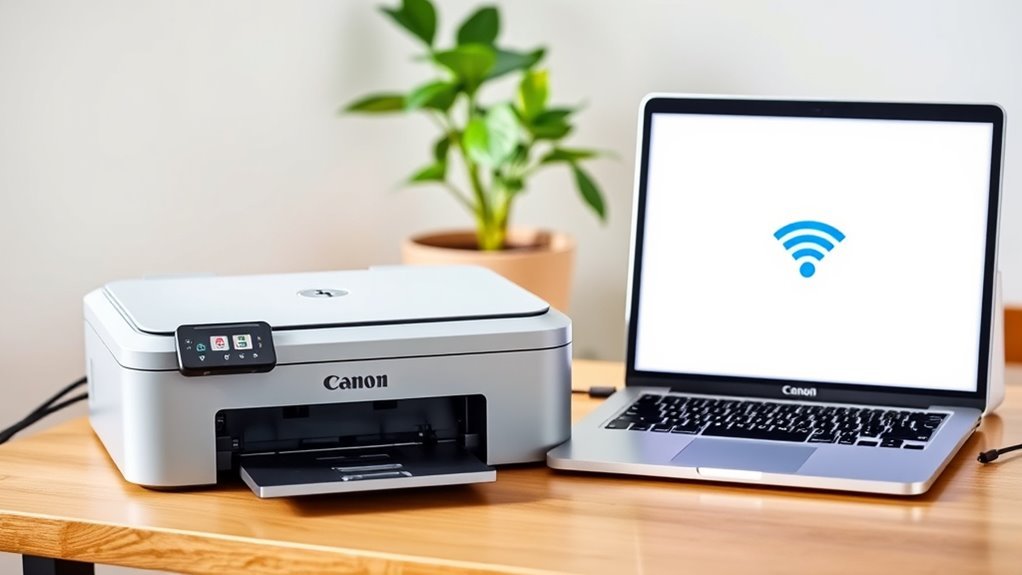
Position your Canon printer within 6 to 10 feet of your Wi-Fi router and power it on. This helps make certain it detects the network during setup.
Place your Canon printer 6 to 10 feet from your Wi-Fi router and turn it on for easy network detection.
Before you begin, make sure your computer connects to the same 2.4 GHz or 5 GHz Wi-Fi network that your printer will use. Check your printer’s specs to confirm compatibility.
Have your Wi-Fi network name (SSID) and exact password ready. They’re case-sensitive and essential for a smooth connection.
Download the latest Canon printer driver and Canon PRINT app from Canon’s Software & Drivers page for your model. This step is vital for seamless setup on Windows, macOS, iOS, or Android devices.
If you encounter connection or driver installation issues, try temporarily disabling VPNs and firewall or antivirus software on your computer. This often helps clear up any hiccups.
Connect Your Canon Printer to Wi-Fi and Install the Software
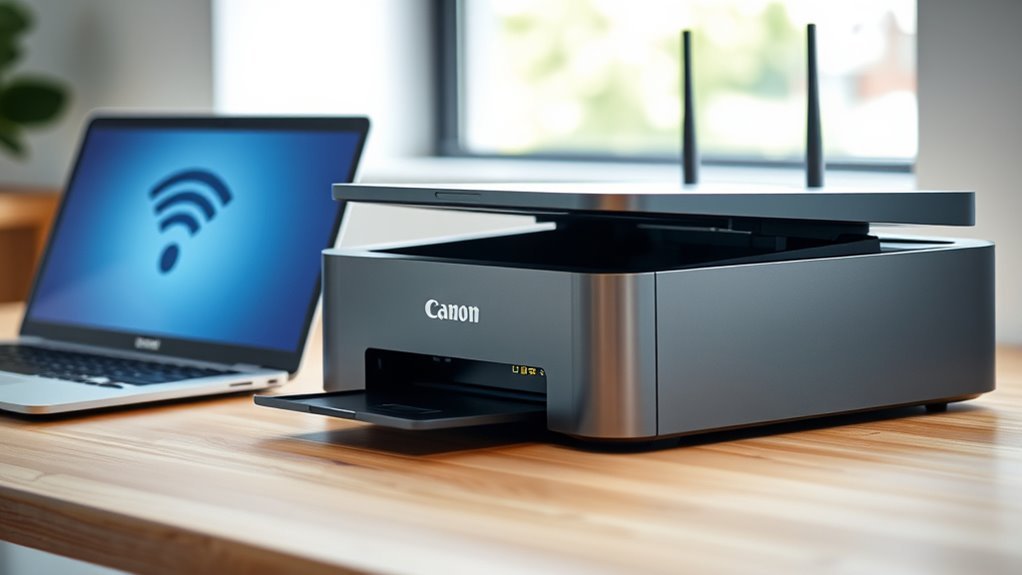
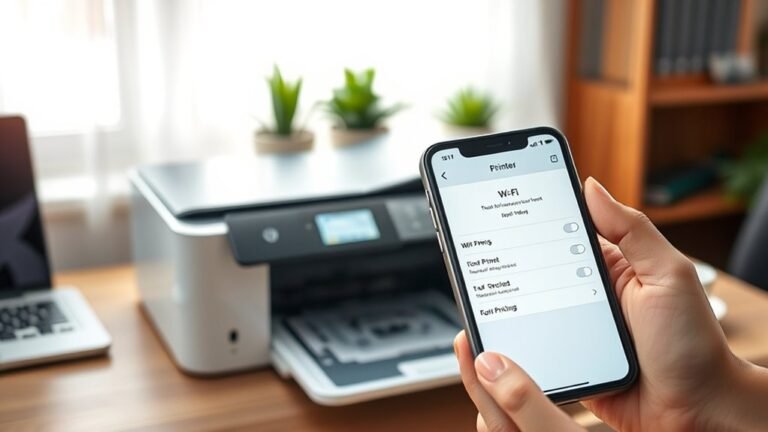
To get your Canon printer connected to Wi-Fi, start by accessing its Network or Wireless settings. Use the WPS push-button or scan for your Wi‑Fi network’s SSID, then enter the password if needed. If your router supports WPS, you can connect without a password.
Next, download the recommended drivers and Canon PRINT or Canon IJ Network Tool from Canon’s Software & Drivers page for your device and operating system. During installation, select the wireless connection option and follow the prompts to detect your printer on the same SSID as your computer.
If detection fails, don’t worry. You can use the Canon IJ Network Tool or add the printer manually via IP address. For mobile devices, just install Canon PRINT to print wirelessly over Wi‑Fi or Wi‑Fi Direct. It’s super easy!
Verify Your Canon Printer’s Wireless Connection by Printing a Test Page
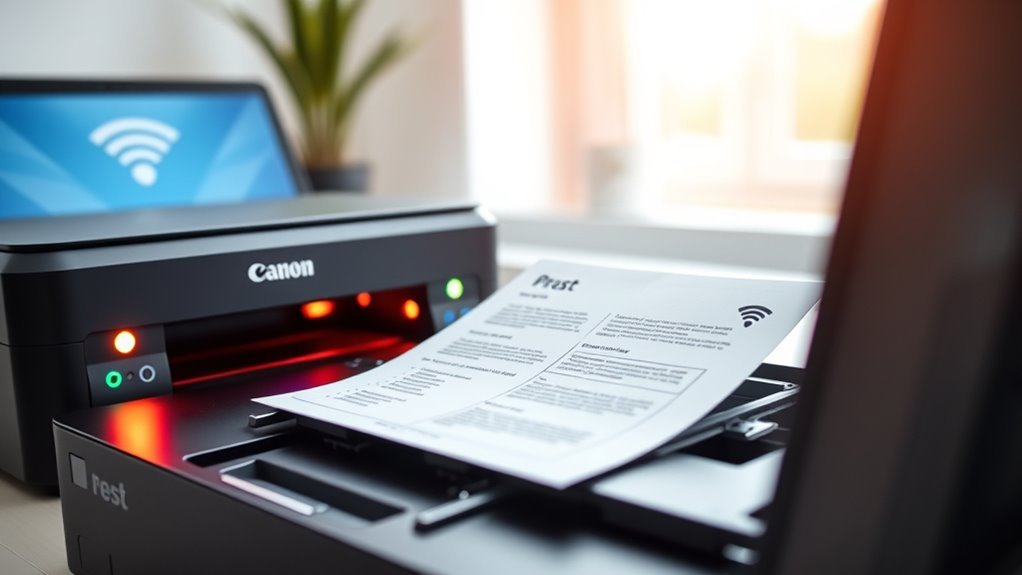
Check your Canon printer’s wireless connection by printing a test page or a Wireless LAN Report directly from its settings menu. The report shows essential details like the SSID, IP address, signal strength, and connection status.
Make sure the IP address matches your computer’s gateway subnet to confirm both devices are on the same network.
Next, print a test page from the printer’s maintenance menu or through Canon’s software. This will confirm that data transmission works and the output is correct.
If the test page fails or the network isn’t detected, double-check that the printer is connected to the correct SSID and has a strong Wi-Fi signal.
Try restarting your router, printer, and computer before trying again. This often resolves common connectivity issues.
Frequently Asked Questions
How Do I Connect My Canon Printer Wirelessly to My Computer?
You connect your Canon printer wirelessly by selecting your Wi-Fi network on the printer and entering the password. After that, you’ll need to install Canon’s wireless drivers on your computer.
If your router supports WPS, you can use that for a quicker setup. It’s super handy and saves you a few steps!
How Do I Connect My Canon Printer to My PC?
Think of your Canon printer and PC as dance partners—get them on the same Wi-Fi floor. Install Canon’s drivers, choose wireless setup, and follow the prompts.
Before you know it, they’ll waltz smoothly together, printing your documents effortlessly. It’s easier than it sounds! Just take it step by step.
How Do I Get My Computer to Recognize My Canon Printer?
You get your computer to recognize your Canon printer by ensuring both are on the same Wi-Fi. Next, make sure you have the latest drivers installed.
Also, check that network discovery is enabled on your computer. Sometimes, temporarily disabling firewall or antivirus settings can help if they’re blocking the connection.
Give these steps a try, and your printer should show up in no time!
How Do I Set up My Canon Printer Wirelessly?
Did you know over 70% of homes use wireless printers?
To set up yours, first activate Wi-Fi on the printer. Then, connect it to your network using the control panel or the app.
Next, install the drivers on your computer. It’s pretty straightforward once you get started!
Conclusion
Now that you’ve connected your Canon printer wirelessly, you’re part of the 85% of users who enjoy clutter-free printing without cables. It’s not only convenient but also saves time and space.
With just a few simple steps, you’ve made printing easier and more efficient. So go ahead, print your documents or photos effortlessly, knowing your setup is solid and ready whenever you need it.
Wireless printing just got that much simpler! Enjoy the freedom of printing from anywhere in your home or office without being tethered to cables. Your Canon printer’s wireless connection means less hassle and more productivity every day.