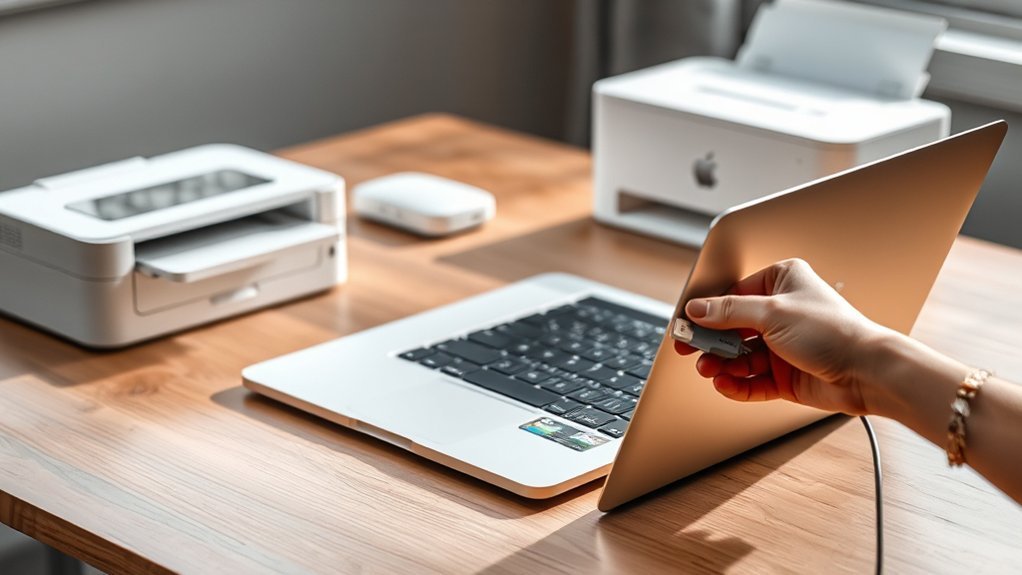
How to Install a Printer on a Mac in 5 Easy Steps
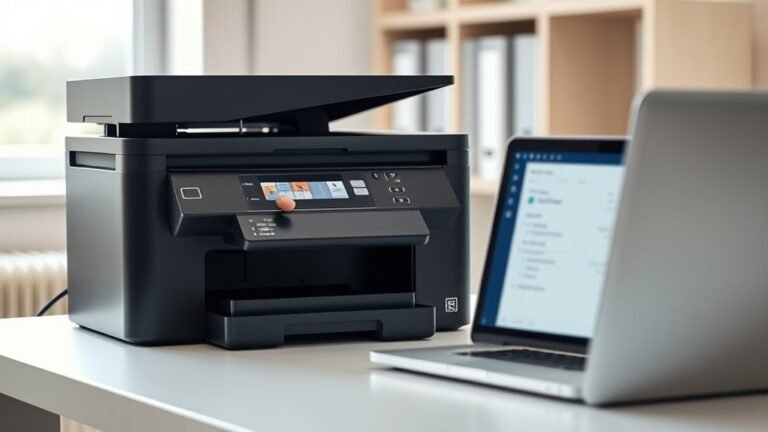
To install a printer on your Mac, start by connecting it via USB or Wi-Fi. Make sure your printer and Mac are on the same network for a smooth setup.
Next, open “Printers & Scanners” in System Preferences and click the “+” button to add your printer. This is where your Mac will search for available printers.
After that, select the correct driver from the dropdown menu and give your printer a clear, easy-to-remember name. This helps you identify it quickly when printing.
Finally, print a test page to make sure everything is working properly. Follow these easy steps, and you’ll have your printer set up in no time.
Plus, you’ll be ready to fine-tune your printer settings whenever you want!
Key Takeaways
- Connect the printer to your Mac via USB or make sure both are on the same Wi-Fi network if you’re setting it up wirelessly.
- Open “Printers & Scanners” in System Preferences, then click the “+” button to add a new printer.
- Pick your printer from the list that appears. If it doesn’t show up automatically, you can add it manually.
- Next, choose the right printer driver from the “Use” dropdown menu. If you don’t have the driver, you can download the latest one online.
- Finally, confirm everything is set up correctly by printing a test page. Adjust the printer settings if you need to.
Connect Your Printer to Mac Via USB or Wi-Fi
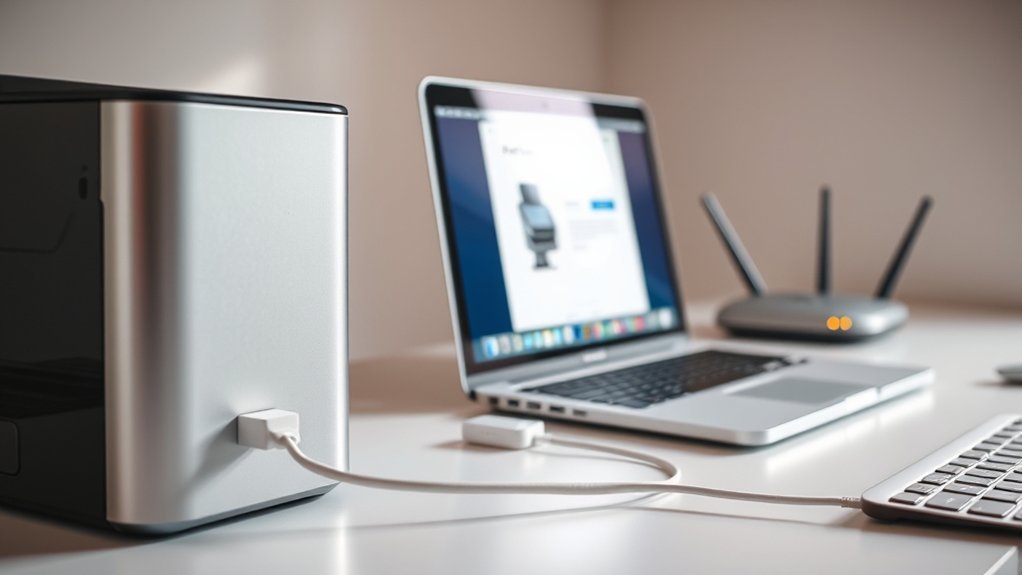
Wondering how to connect your printer to your Mac? You can easily connect it using a USB cable or Wi-Fi.
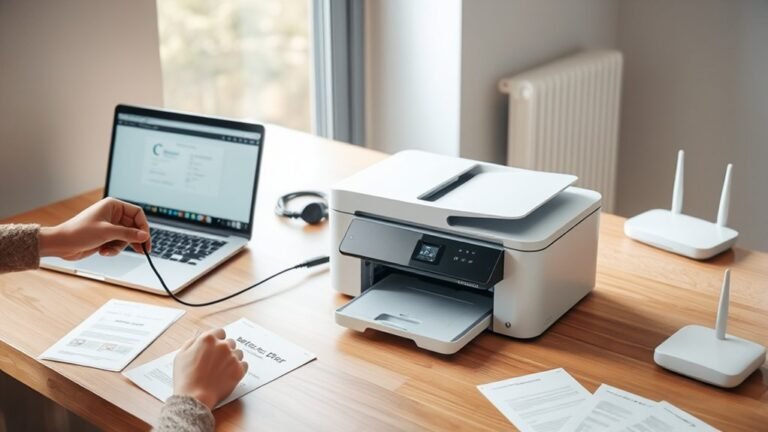
For a USB connection, simply plug one end of the USB cable into your printer and the other into your Mac’s USB port. If you prefer a wireless setup, make sure your printer is connected to the same Wi-Fi network as your Mac.
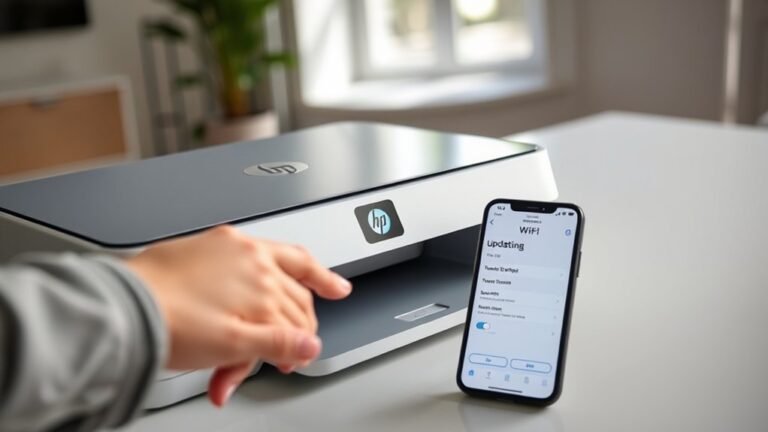
Use the printer’s control panel or interface to join the Wi-Fi network, following the instructions in the printer’s manual. After connecting via USB or Wi-Fi, your Mac might automatically recognize the printer.
If not, you’ll need to add it manually in System Settings. Either way, once connected, you’ll be ready to print without hassle.
Add a Printer on Mac Using Printers & Scanners
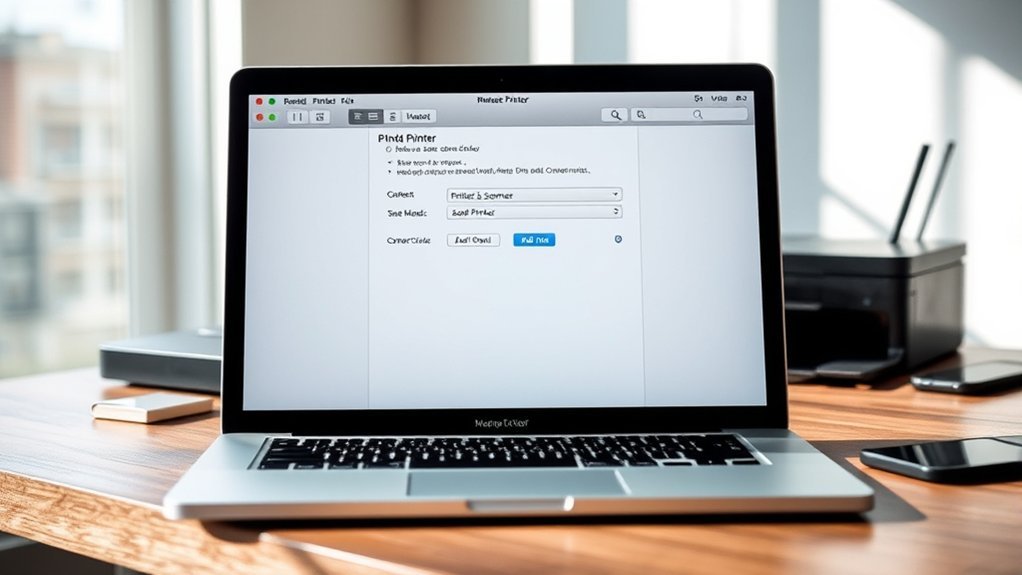
Although your Mac might detect your printer automatically, you’ll often need to add it manually through System Preferences.
Your Mac may find your printer automatically, but manual setup through System Preferences is often necessary.
To add a printer using Printers & Scanners, follow these steps:
- Open System Preferences and select “Printers & Scanners.” Click the “+” button below the printer list to start adding one.
- Connect one end of your printer’s USB cable if you’re using a wired connection, or select your printer from the list if it’s networked.
- Choose the correct driver from the “Use” dropdown menu to ensure compatibility, then click “Add” to confirm.
After completing these steps, test your printer to make sure it’s set up correctly. This method lets you connect one printer efficiently without relying solely on automatic detection.
Set Up a Network Printer With AirPort Utility and WPS
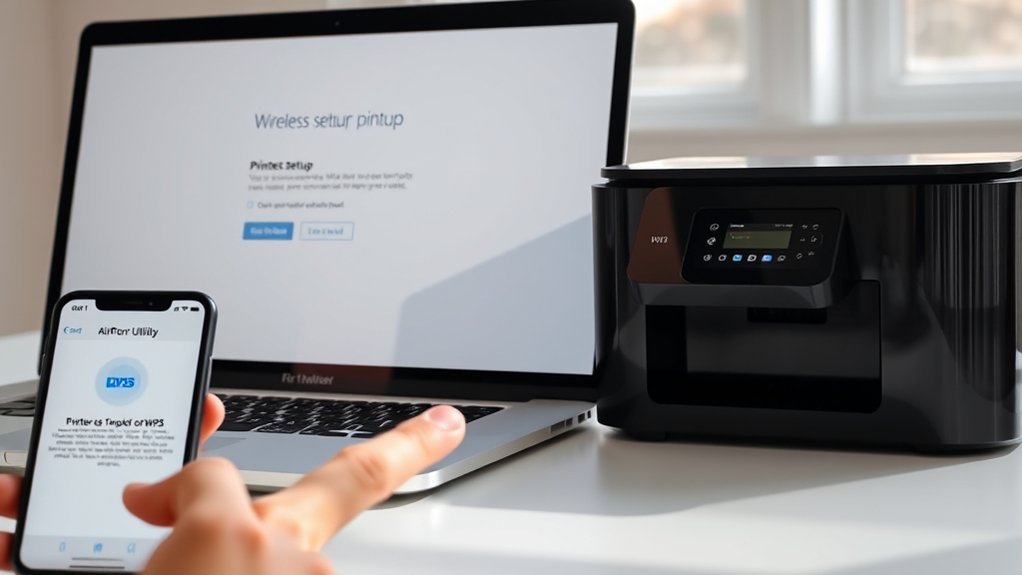
When you want to connect your network printer wirelessly, using AirPort Utility along with WPS can simplify the setup process. First, open the AirPort Utility app found in the Utilities folder.
Select your base station in the overview and click “Edit” to access network settings. Then, choose the WPS method—either enter your printer’s eight-digit PIN or select “First attempt” to start the connection.
Make sure your printer is powered on and within WPS range. Follow the prompts to complete the setup.
Once connected, your printer will appear in the Printers & Scanners section of System Settings on your Mac, ready for you to use without any extra hassle.
Choose the Right Driver and Name Your Printer
Choosing the right driver is essential to guarantee your printer works smoothly with your Mac. Start by using the “Use” field during setup to select the specific driver recommended for your printer model.
If possible, download the latest driver from the manufacturer’s website to maximize compatibility and functionality. Before clicking “Add,” confirm the driver selection to avoid setup issues.
Naming your printer clearly also helps you quickly identify it, especially if you manage multiple devices.
Follow these steps:
- Select the correct driver in the “Use” dropdown during setup.
- Download and install the newest driver from the printer maker’s site if available.
- Assign a descriptive, memorable name to your printer for easy identification.
This ensures peak performance and organization.
Test Your Printer and Manage Settings on Mac
Wondering how to confirm your printer is set up correctly on your Mac? Start by opening “System Settings” > “Printers & Scanners.” Then, select your printer and click “Print Test Page” or print a document to make sure it’s working.
Check printer setup on your Mac via System Settings > Printers & Scanners, then print a test page to confirm.
Make sure your printer is properly connected and recognized before testing. To manage settings, stay in the same menu and adjust options like default printer status and printing preferences to suit your needs.
If you run into issues, check the printer’s status and error messages here for troubleshooting tips. Don’t forget to regularly update your printer drivers through “Printers & Scanners” to guarantee peak performance and compatibility with your Mac.
This helps keep your printer running smoothly and reliably.
Frequently Asked Questions
How Do I Print From My Mac Book?
To print from your MacBook, open your document and press Command + P. Then, select your printer and adjust settings like copies or pages.
After that, just click Print. Make sure your printer has paper and ink so you don’t run into any issues.
How to Install Printer Software on Mac?
Installing printer software on your Mac is like planting a seed—download the latest driver from the manufacturer’s site, run the installer, then connect your printer.
Your Mac will guide you through the setup quickly and smoothly. It’s pretty straightforward once you get started!
How Do I Add a Printer to My Computer?
You add a printer by opening your computer’s printer settings and clicking “Add.” Make sure the printer’s on and connected.
Then, select your printer from the list or enter its IP address to connect it easily. It’s pretty straightforward!
How Do I Get My Printer Online Again on My Mac?
Think of your printer as a sleeping giant—wake it by restarting both devices. Then, remove and re-add it in System Settings to refresh the connection.
Check the print queue for errors, and it’ll spring back online. Just a few quick steps, and you’re good to go!
Conclusion
Now that your printer’s ready, imagine the crisp sound of pages sliding out perfectly, just like you envisioned. With a few simple clicks, you’ve connected, named, and tested your device, turning your Mac into a seamless printing hub.
Whether it’s last-minute documents or cherished photos, your printer stands ready. So go ahead—watch your ideas come to life on paper, effortlessly bridging the digital world with the tangible one right on your desk.
Installing a printer on a Mac is easier than you think. With your printer set up, you can enjoy hassle-free printing anytime. This simple process makes your Mac a powerful tool for handling all your printing needs. Your new printer isn’t just a device—it’s your partner in turning digital files into real, high-quality prints.