How to Connect a Wireless Printer to a Laptop in 10 Easy Steps
To connect your wireless printer to your laptop, first make sure both devices are powered on and connected to the same Wi-Fi network. This is essential for the devices to communicate properly without any hiccups.
Next, open your laptop’s Settings and navigate to Devices > Printers & scanners. Click on “Add a printer or scanner” and wait for your printer to show up in the list.
Once you see your printer, select it and follow the on-screen prompts to install any necessary drivers. After that, finish the setup by naming your printer and printing a test page to make sure everything works smoothly.
If things don’t go as planned or the setup isn’t straightforward, don’t worry! Keep reading to find detailed tips and troubleshooting steps to get your wireless printer connected in no time.
Key Takeaways
- Ensure both printer and laptop are powered on and connected to the same Wi-Fi network with strong signal strength.
- Open Settings on your laptop, navigate to Bluetooth & devices > Printers & scanners, and click “Add a printer or scanner.”
- Select your wireless printer from the detected devices list and click “Add device” to start installation.
- If printer is not detected, use the option “The printer that I want isn’t listed” to add it manually by IP address.
- Install the latest driver from the manufacturer’s website, complete setup, and print a test page to confirm successful connection.
That’s pretty much it! Once you’ve done these steps, your printer should be all set and ready to go.
Prepare Your Printer and Laptop for Connection
Before you connect your wireless printer to your laptop, make sure both devices are powered on and linked to the same Wi-Fi network. Check your wireless printer’s network settings to confirm it’s connected to the correct SSID and has a strong signal.
If needed, move the printer closer to your router. On your laptop, make sure Wi-Fi is enabled and connected to that same network. Avoid VPNs or guest network isolation that might block device discovery.
If your printer supports WPS, use the router’s and printer’s WPS buttons to connect automatically without a password. Also, install any recommended software or drivers from the printer’s manufacturer beforehand.
If your laptop doesn’t detect the printer, temporarily disable firewalls or network isolation. Then, enable printer sharing and re-enable protections after setup. It’s a bit of a hassle, but it usually gets things working smoothly!
Open the Settings App on Your Laptop
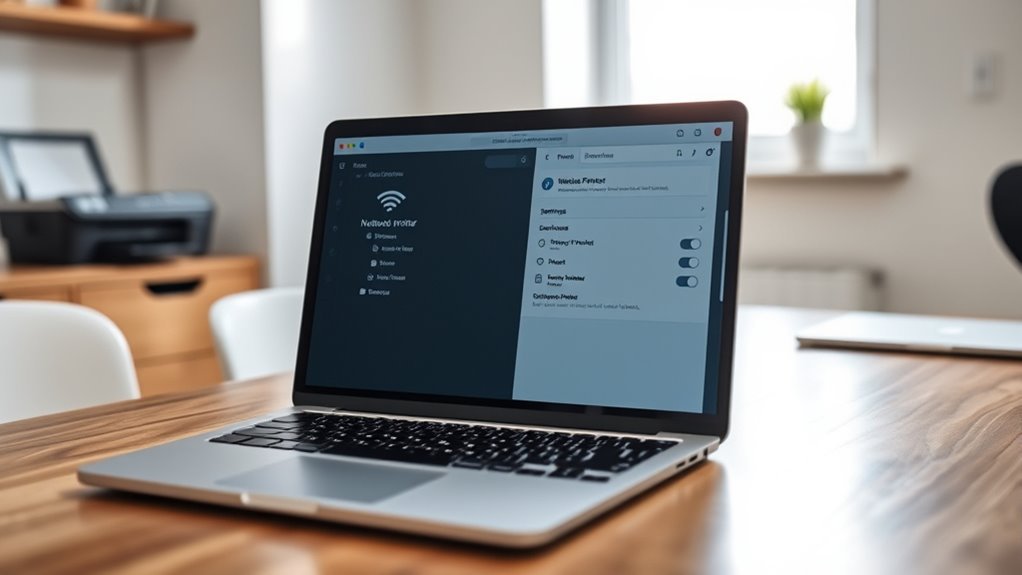
Once your printer and laptop are ready on the same Wi-Fi network, you can open the Settings app on your laptop to begin adding the wireless printer. Click the Start button (Windows logo), then the gear icon, or simply type “Settings” and press Enter.
This opens the Settings app where you’ll manage devices and printers. It’s pretty straightforward once you get there.
Here’s a quick guide to opening Settings:
| Action | Description |
|---|---|
| Click Start | Locate the Windows logo at the bottom-left corner |
| Select Gear Icon | Opens Settings directly |
| Search “Settings” | Type in search bar and press Enter |
| Confirm Wi-Fi Connection | Make sure laptop and printer share the same network |
Opening Settings is the first step to connecting your wireless printer seamlessly. Once you have it open, the rest is a breeze!
Navigate to Devices and Printers Settings
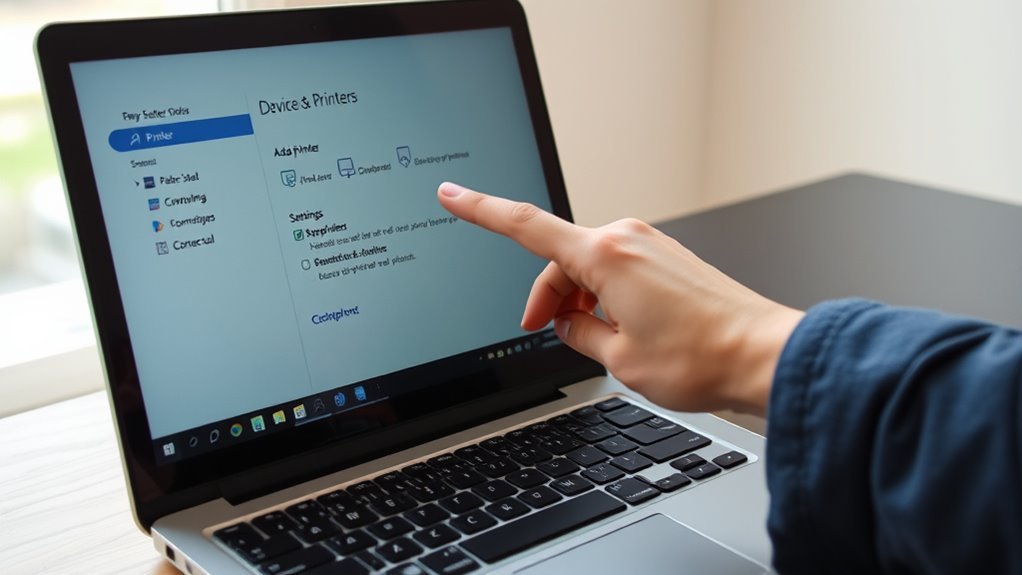
Head over to Start > Settings > Bluetooth & devices (or Devices on older Windows versions), then click Printers & scanners to see your installed printers and find the option to add a new one.
If you don’t see your printer listed, you can open the legacy Devices and Printers panel for more options.
Follow these steps:
- Scroll down and click the “Devices and Printers” link near the bottom to open the Control Panel view.
- From there, select “Add a printer” to launch the classic Add Printer wizard.
- Use this wizard to search for network or wireless printers, or enter an IP address manually if needed.
This approach gives you more control when automatic detection doesn’t work.
Start the Add a Printer or Scanner Process
After accessing the Devices and Printers settings, you can start adding your wireless printer or scanner. Open the Start menu, click Settings (gear icon), then navigate to Bluetooth & devices and select Printers & scanners.
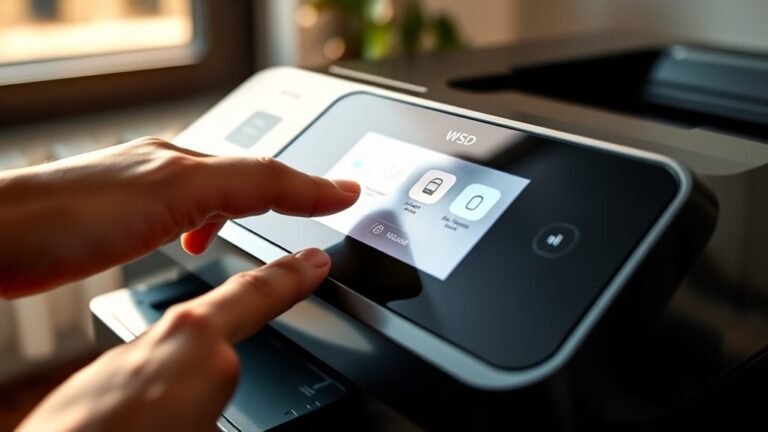
Click the “Add a printer or scanner” button to begin the search for available wireless printers on your local network. Make sure your printer is powered on and connected to Wi-Fi.
If it’s off or not connected, turn it on and enable wireless mode using the printer’s control panel or WPS button. Once your printer appears in the list, click it and select “Add device” to start the installation process.
If it doesn’t show up after a minute, choose “The printer that I want isn’t listed” to use manual setup options. This way, you can still add your printer even if it’s not detected automatically.
Wait for Your Laptop to Detect the Wireless Printer
Give your laptop a moment to find your wireless printer on the network by clicking “Add a printer or scanner” in your device settings. Your laptop will start scanning for printers connected to the same Wi-Fi network.
To make certain smooth detection:
- Make sure your printer is powered on, connected to the same Wi-Fi, and shows a solid network indicator.
- Wait patiently as your laptop browses nearby devices; this may take up to a minute.
- If the printer doesn’t appear, double-check that both devices share the same network name (SSID) and temporarily disable VPNs or firewalls that might block discovery.
Following these steps helps your laptop detect the printer effortlessly, paving the way for quick setup and printing.
Use Devices and Printers Control Panel if Printer Is Not Found
If your laptop doesn’t find the printer automatically, head to the Devices and Printers Control Panel. Click “Add a printer” to start the Add Printer Wizard. This wizard will scan your network for available devices.
From there, you can select your printer or enter its IP address to connect directly. It’s a pretty straightforward way to get things set up if automatic detection doesn’t work. Give it a try!
Access Devices and Printers
When Windows Settings doesn’t locate your wireless printer, you can turn to the Devices and Printers Control Panel for a more detailed view. Here’s how to access and use it:
Go to Start > Settings > Bluetooth & devices > Printers & scanners, then click the Devices and printers link at the page’s bottom to open the Control Panel.
In the Devices and Printers window, look for your printer among all connected devices and network printers.
If it’s not listed, click Add a printer to launch the Add a Device Wizard, which scans more thoroughly and may find your printer.
If your printer still doesn’t appear, check its documentation for specific setup instructions before trying the wizard again.
Start Add Printer Wizard
To kick off the process, open the Control Panel, navigate to Devices and Printers, and click Add a printer to launch the Add Printer wizard. This tool scans for available network and local printers automatically.
If your wireless printer doesn’t appear, click “The printer that I want isn’t listed” to access manual options. For a network printer, select “Add a printer using a TCP/IP address or hostname,” then enter your printer’s IP address, which you can find in its network settings or your router.
The wizard will try to locate the device. If it needs a driver, it’ll prompt you to install one from Windows Update or the manufacturer’s website.
Finish by naming the printer, setting it as default if you want, and printing a test page to make certain everything’s working. Easy, right?
Scan and Select Printer
Start by opening Control Panel and heading to Devices and Printers, then click “Add a printer” to launch the wizard that scans your network for available devices.
If your printer appears, select it and click Next to install the driver automatically. If it doesn’t show up, click “The printer that I want isn’t listed” and choose “Add a printer using a TCP/IP address or hostname.”
Enter the printer’s IP address found on its network settings page. Then:
- Let Windows search for the correct driver or select it manually from the list.
- If needed, use “Have Disk” to install drivers you downloaded from the manufacturer’s site.
- After installation, click Finish and print a test page from Devices and Printers to confirm everything works correctly.
Run the Add a Device Wizard to Locate the Printer
You can kick off the process by opening Settings and maneuvering to Bluetooth & devices, then clicking “Add a printer or scanner.” This starts the Add a Device Wizard, which scans your local network for available printers.
Give it a few seconds to a couple of minutes; most modern Wi-Fi printers broadcast automatically and will show up as “Printer — [model]” in the list. If the wizard doesn’t find your printer, click “The printer that I want isn’t listed” to access manual setup options.
You can add the printer using its IP address or hostname by selecting “Add a printer using a TCP/IP address,” then entering the details. Follow the wizard’s prompts to finish installing the printer drivers and complete the setup.
Select Your Printer From the List and Proceed
When the list of available printers appears, click the exact model of your wireless printer to select it. Make sure to pick the one that shows your printer’s IP address or mentions “Network” or “Wireless” if multiple entries look similar.
After that, just click Next to let the wizard guide you through installing the driver and confirming your choice. It’s pretty straightforward, so you’ll be all set in no time!
Printer Selection Process
Picking out your printer from the list is a pivotal step to guarantee a smooth connection. To make sure you select the right device, follow these steps:
- Click the exact printer name or model displayed (e.g., “HP OfficeJet Pro 9010”). If multiple options appear, match the MAC or IP address from your printer’s network settings to pick the correct one.
- Hit Next or Add right away to start installing the drivers and prevent another device from claiming the same network name.
- If your printer isn’t listed, choose “The printer that I want isn’t listed” and add it manually using its IP address or hostname.
Confirm your choice by printing a test page once setup finishes to verify proper installation and connection. Easy, right? Just follow these steps, and you’ll be all set in no time!
Navigating the Wizard
Although the Add Printer wizard might display several devices, focus on selecting the printer whose name matches the SSID or model number shown on your printer’s network settings screen.
If multiple entries look similar, check your printer’s IP address on its control panel and compare it to the IP column in the wizard before clicking Next.
After selecting the correct printer, click Next and let Windows automatically download and install the necessary driver. Keep an eye out for prompts to accept or install any manufacturer software.
If the printer you want doesn’t appear, use “The printer that I want isn’t listed” option to add it by IP address or hostname and continue with manual setup. This way, you’ll connect to the right device efficiently and without errors.
Confirming Printer Choice
To confirm your printer choice, click the exact model name from the list—such as “HP OfficeJet Pro 9020″—so Windows installs the correct driver. If you see multiple entries for the same model, pick the one with your network or IP address to connect via Wi-Fi.
If your printer isn’t listed, choose “The printer that I want isn’t listed” and add it using its IP address.
Follow these steps:
- Select the printer model labeled with your network or IP address.
- Click Next to let Windows download and install drivers automatically.
- Name your printer and decide if it should be the default before clicking Finish.
This guarantees your laptop connects correctly to your wireless printer. Easy, right? Just follow these steps, and you’ll be set up in no time.
Install Any Required Printer Drivers or Software
Start by visiting the printer manufacturer’s website to download the latest driver package compatible with your laptop’s operating system. Look for the exact model’s drivers and software, ensuring they match your OS version, like Windows 10/11 or macOS 12+.
Begin by downloading the latest drivers for your printer model from the manufacturer’s website, matching your OS version.
Some printers need initial setup software, often called a “printer assistant” or “setup utility,” to configure Wi-Fi and install essential services. Run this before adding the printer in your laptop’s settings.
If you’re using Windows, install the manufacturer’s INF or EXE driver first—many printers require vendor-specific drivers rather than built-in ones—and reboot if prompted. On macOS, use the downloadable PKG or add the printer via System Preferences after installing any needed software.
Also, consider installing the vendor’s app, like HP Smart, for guided setup and extra features. It really makes the whole process smoother and gives you more control over your printer.
Complete the Installation and Test the Connection
Once you’ve installed the necessary drivers and software, you can complete the installation by letting Windows detect your printer and guide you through the Add Printer wizard. After clicking Next, let the installer download and install the driver—it might take a few minutes.
When done, click Finish and print a test page to make certain the connection works.
Follow these steps to finalize and verify:
- Print a test page via Settings > Printers & scanners > your printer to check connectivity.
- If the test fails, confirm both devices share the same Wi-Fi and verify the printer’s IP address.
- For errors or missing drivers, download the full setup utility from the manufacturer’s site and rerun the installation.
Finally, print a common document to confirm everything runs smoothly.
Frequently Asked Questions
How to Use Wireless Printer With Laptop?
You connect your wireless printer by turning both devices on and enabling Wi-Fi on the printer. Make sure your laptop is connected to the same network.
Then, add the printer through your laptop’s settings. If it’s not detected automatically, you might need to install the necessary drivers.
What if My HP Printer Is Offline?
If your HP printer’s playing hard to reach, make sure it’s powered on and connected to Wi-Fi.
Then, check Windows settings to uncheck “Use Printer Offline.”
Restart your devices to refresh the connection.
That usually does the trick! If not, there might be more to troubleshoot.
How Do I Scan a Document Using My HP Printer?
To scan a document, open the HP Smart app on your laptop and select your printer. Then, place the document on the scanner glass.
Next, adjust the settings to fit your needs. When you’re ready, click Scan.
You’ll see a preview of your scanned document. Take a moment to review it before saving or sharing your file.
How Do I Set up My HP Printer on a New Wi-Fi Network?
Start by selecting your new Wi-Fi network on your HP printer’s Wireless Setup Wizard. Then, enter your password or use WPS for quick pairing.
Finally, update settings via the HP Smart app for smooth, seamless setup. It’s pretty straightforward once you get going!
Conclusion
Now that you’ve connected your wireless printer to your laptop, you might wonder if the common theory that wireless connections cause frequent printing errors holds true. In reality, with a strong Wi-Fi signal and updated drivers, your printer should work smoothly without glitches.
By following these simple steps, you’ve set up a reliable connection that lets you print effortlessly. So, go ahead—print your documents confidently, knowing wireless doesn’t mean unreliable!
Wireless printer setup can sometimes seem tricky, but with the right approach, it’s straightforward and hassle-free. Keeping your drivers updated and ensuring a stable Wi-Fi connection are key to avoiding common printing issues.
In short, connecting a wireless printer to your laptop is a great way to enjoy convenience and flexibility. Once set up, your wireless printer will provide consistent performance, making printing at home or work easier than ever.