How to Find Printer IP Address in 5 Simple Steps
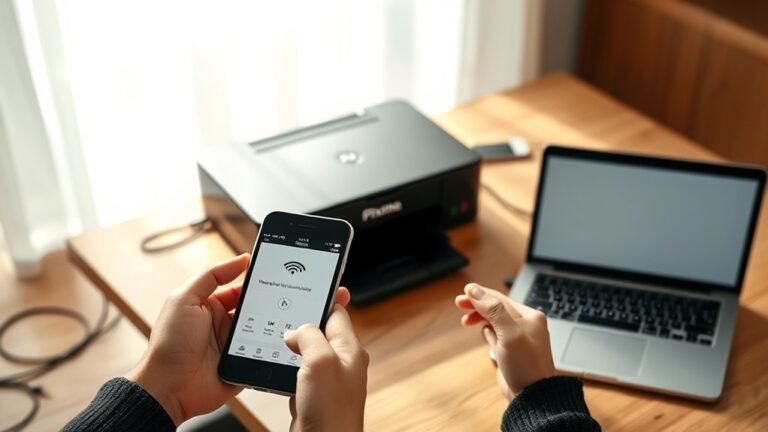
You can find your printer’s IP address by checking its built-in screen, usually under network or wireless settings. This is often the quickest way to locate it without any extra tools. If you don’t see the IP address there, no worries — there are other simple methods you can try.
For example, you can print a network configuration page right from the printer’s menu. This page typically shows all the important network details, including the IP address. Another easy option is to log into your router’s admin page and look for your printer in the connected devices list.
If you’re using Windows, you can check the printer properties under the ports tab. Or, you might want to use command prompt tools like ping and arp to spot the address. And if none of that works, try a network scanning app — they’re great for identifying devices on your network. Keep exploring to uncover more detailed methods.
Key Takeaways
– Check the printer’s built-in LCD screen under Settings → Network or Wireless for the displayed IP address.
It’s usually pretty straightforward to find it there if your printer has a screen.
– Print a Network Configuration Page from the printer’s menu to find the IP and MAC address.
This page gives you all the network details you need in one go.
– Access your router’s admin page, view connected devices, and identify the printer by hostname or MAC address.
This method works well if you can’t get the info directly from the printer.
– On Windows, go to Settings → Devices → Printers & scanners → select printer → Manage → Printer Properties → Ports tab to see the IP.
It’s a few clicks but pretty easy once you know where to look.
– Use a network scanning tool like Fing or Advanced IP Scanner to detect devices and find the printer’s IP address.
These apps make it simple by scanning your network and showing all connected devices.
Look at Your Printer’s Screen for the IP Address
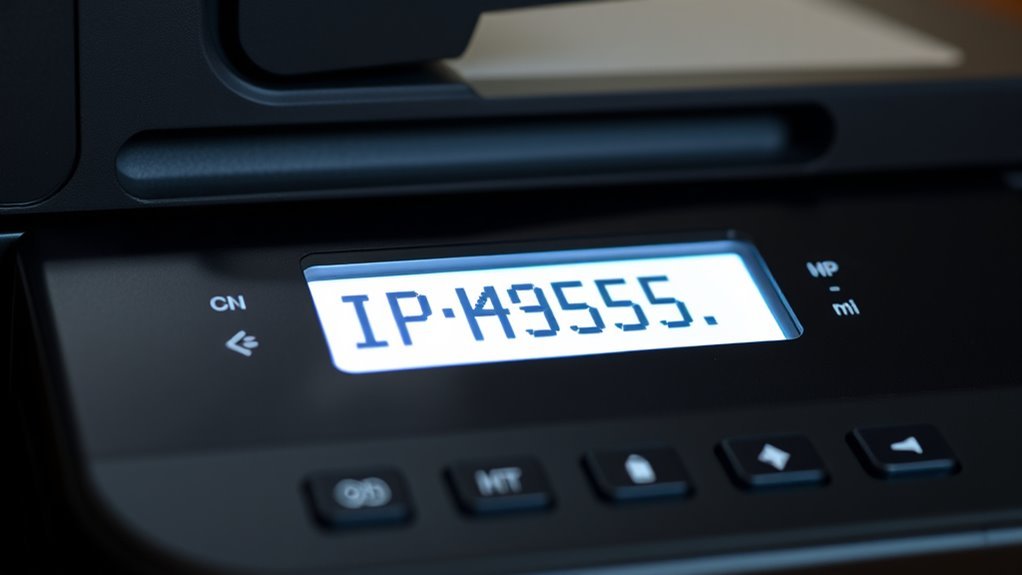
Check your printer’s built-in LCD screen to find its IP address quickly. Many modern printers display the printer IP address right on the home or network status screen.
Quickly find your printer’s IP address on its built-in LCD home or network status screen.
To locate it, navigate through the menus, usually by selecting Settings → Network or Wireless → Network Settings. Here, you’ll find the current IP along with subnet mask and gateway details.
If your printer has a Status or Info button, pressing it often reveals the IP immediately or offers a Network Configuration option. Some models even show the IP when you tap the Wi-Fi or connection icon.
If you don’t see the IP directly on the printer’s built-in LCD, you can access the Network Configuration or print a Configuration Page from the menus to view the assigned IP address. Easy, right?
Print a Network Configuration Page From Your Printer
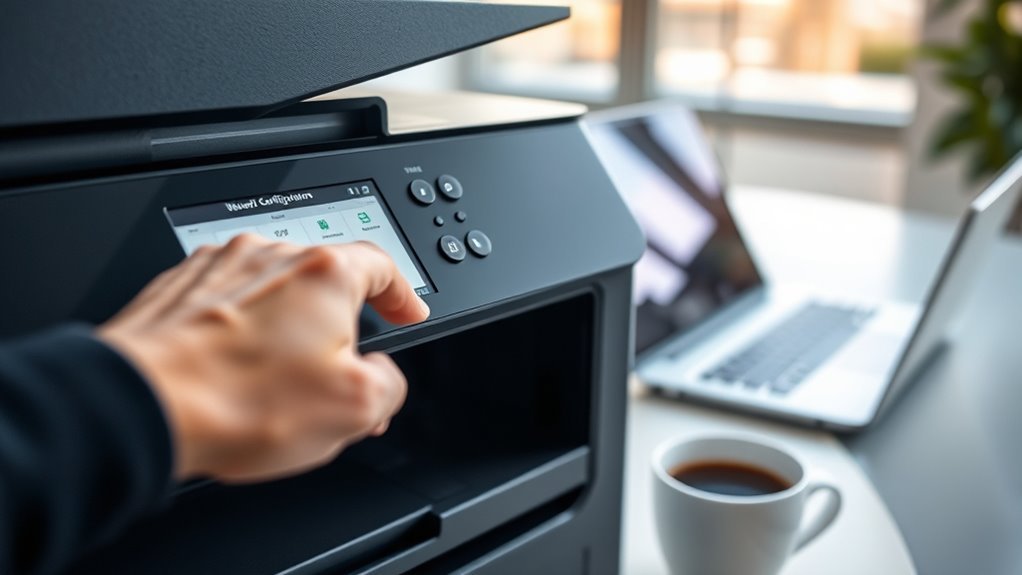
When you can’t find your printer’s IP address on its screen, printing a Network Configuration page is a reliable next step. This page lists essential details like your printer IP address, MAC address, and connection type.
To print the config page:
- Navigate to Settings → Network or Wireless on touchscreen models and select the option to print the Network Configuration page.
- For printers without a touchscreen, press the “Wireless” + “Information” buttons together or hold “Resume/Cancel” for 5–10 seconds.
- Some models require powering off, holding “Go” or “Cancel,” and powering on to print the config page—check your manual.
Use the MAC address from the printout to verify the IP via your router’s DHCP client list.
This process helps pinpoint your printer’s network details accurately.
Check Your Router’s Admin Page for the Printer IP
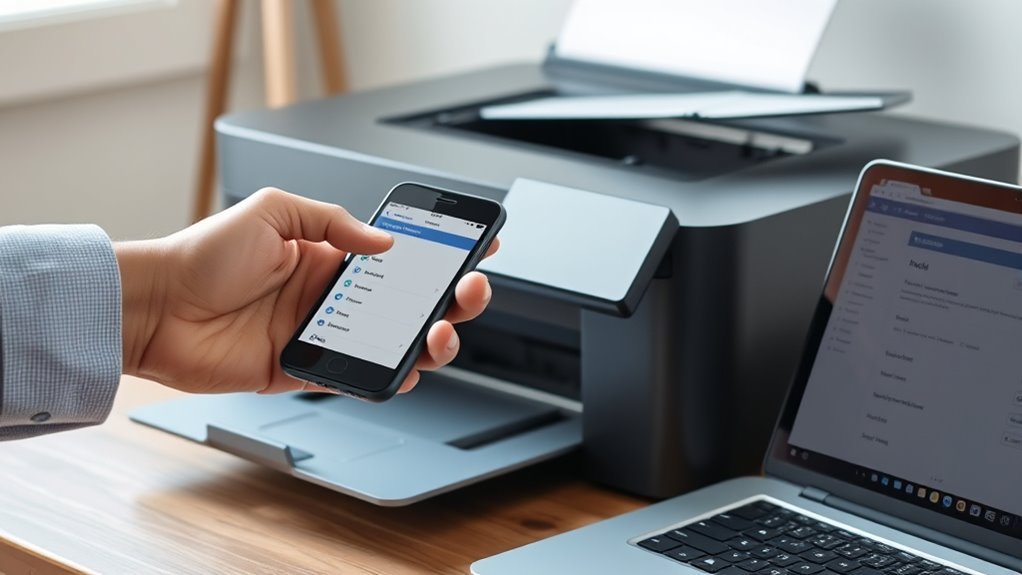
If you can’t locate your printer’s IP address directly on the device, logging into your router’s admin page is a straightforward way to find it. Open a browser and enter your router’s IP (like 192.168.0.1 or 192.168.1.1), then log in with your credentials.
Next, navigate to the “Connected Devices,” “DHCP Clients,” or “LAN Status” section to see all devices on your network. Look for your printer by matching its hostname, manufacturer, or the printer MAC address found on the device sticker.
If you’re unsure, try turning the printer off and on while watching the device list refresh. Once you find it, note the IP address. And if your router supports it, reserve a static IP for your printer to prevent future changes and guarantee stable access.
Find the Printer IP Using Windows Settings and Command Prompt
To track down your printer’s IP address on a Windows PC, start by opening Settings and heading to Devices → Printers & scanners. Select your printer, click Manage → Printer Properties, then the Ports tab to find your printer IP—note the checked port with an IP or WSD name.
You can also use Command Prompt for more details. It’s a handy way to get additional info if the Settings route doesn’t give you everything you need.
- Run `wmic printer list brief` to see installed printers and PortNames.
- Use `ipconfig /all` to confirm your PC’s subnet.
- Ping the printer’s hostname or IP to verify connectivity.
- Run `arp -a` after pinging to list MAC-to-IP mappings and identify the printer’s IPv4 address.
This approach helps you quickly locate the IP address on Windows using both Printer Properties and Command Prompt tools. It’s straightforward once you know where to look!
Scan Your Network With Apps When Other Methods Don’T Work
Sometimes, standard methods don’t reveal your printer’s IP address, so you’ll want to turn to network scanner apps. Use tools like Fing or Advanced IP Scanner to scan your LAN for devices with open port 9100 or names matching printer brands.
Also, check your router DHCP list to find MAC addresses matching printer vendors. If your network uses IPv6, make sure to enable IPv6 scanning in your network scanner to catch printers advertising only IPv6 addresses.
| Method | Tool Example | Key Feature |
|---|---|---|
| LAN Scan | Fing, Advanced IP | Detect devices, port 9100 |
| Router DHCP List | Router Interface | Identify MAC vendor |
| Subnet Sweep | nmap | IPv4 & IPv6 scanning |
These steps help you find your printer’s IP efficiently when conventional ways just don’t cut it.
Frequently Asked Questions
How Do I Find the IP Address of My HP Printer?
You can find your HP printer’s IP address by printing its network configuration page from the control panel. It’s a quick way to get all the details you need.
Another option is to check the printer’s onboard display under network settings. This usually shows the IP address right there.
Or, if you prefer, you can access your router’s connected devices list. There, you’ll find your printer’s IP among all the devices connected to your network.
Is 192.168.1.1 an IP Address?
192.168.1.1 is an IP address, but not your printer’s—it’s usually your router’s default gateway.
While your printer’s IP might look similar, 192.168.1.1 directs you to your router’s settings, not the device itself.
Why Is My Computer Not Finding My Printer?
Your computer isn’t finding your printer because it might be on a different network, blocked by firewall rules, using Wi-Fi Direct, or hidden behind a WSD port.
Check connections, network settings, and printer interfaces to fix it. Sometimes, it’s just a small setting causing the issue. Give those a quick look!
How to Get 192.168 IP Address?
You can get a 192.168 IP address by checking your router’s connected devices list, printing your printer’s network configuration page, or running a network scanner app on your Wi-Fi.
These methods reveal local IP addresses quickly. It’s pretty straightforward once you know where to look!
Conclusion
Now that you know five simple ways to find your printer’s IP address, you’re just a few steps away from seamless printing. But here’s the catch—if one method doesn’t work, don’t give up.
Each step uncovers a new path, and the solution might be closer than you think. Keep exploring, and soon enough, you’ll access that elusive IP address and get back to printing without a hitch.
Remember, finding your printer’s IP address is key to setting up and troubleshooting your printer effectively. Whether you’re using a Windows PC, Mac, or checking directly on the printer, these simple steps make the process easy.
So keep these tips handy, and you’ll be connected and printing smoothly in no time!