Blog

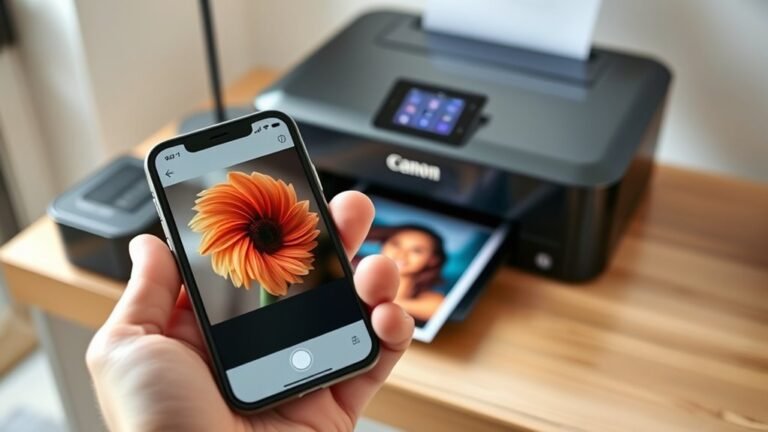
  • Print From iPhone to Canon Printer in 3 Easy Steps

    To print from your iPhone to a Canon printer, first connect both devices to the exact same Wi-Fi network.

    Next, open the photo or document you want to print, tap the share icon, select Print, and pick your Canon PIXMA printer from the list.

    Finally, customize your print settings and tap Print. You can also easily check and cancel print jobs via the Print Center on your iPhone.

    Keep following for tips on troubleshooting and maintaining your connection.
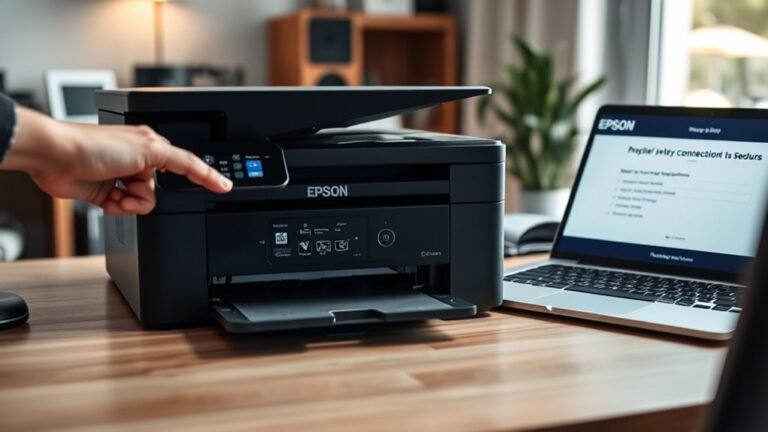
  • How to Get Epson Printer Online With a Step-By-Step Guide

    To get your Epson printer online, start by connecting it to your Wi-Fi using the printer’s network setup menu. Make sure to enter your exact password, or use WPS if that option is available.

    Next, create and register your Epson Connect account online. This links your printer so you can access all the cool cloud features.

    After that, update your printer’s firmware to keep everything running smoothly. Then, install the Epson iPrint or Smart Panel apps on your device for easier management.

    Finally, enable remote print and scan services. Test it out with a print to make sure everything’s working.

    Keep following for detailed setup and troubleshooting tips!

  • How Much Does a Metal 3D Printer Cost?

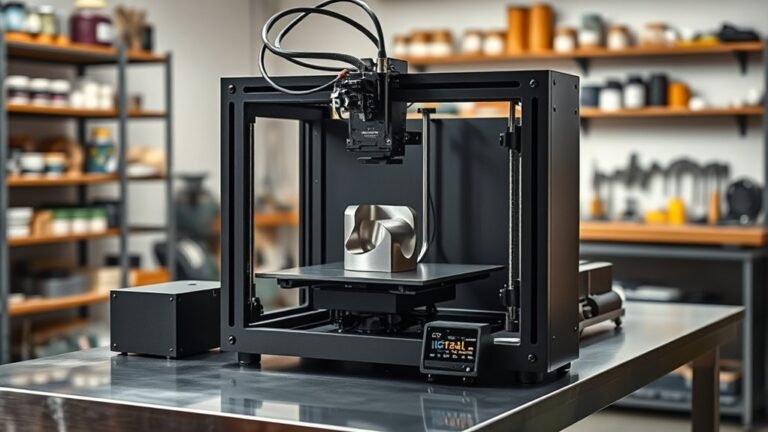
    Metal 3D printers can cost you anywhere from a few hundred dollars for entry-level filament systems to over half a million dollars for advanced industrial powder-bed machines.

    Keep in mind, post-processing gear like sintering furnaces and safety upgrades add significant expenses. Materials and ongoing consumables also impact your budget.

    Whether you’re considering buying or outsourcing, understanding these costs helps you make smarter choices. There’s a lot more to explore about what affects pricing and total ownership.

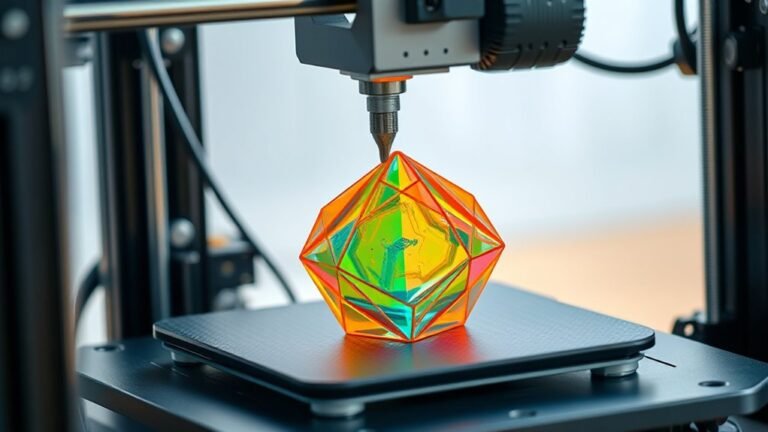
  • How Does a 3D Printer Work Step by Step

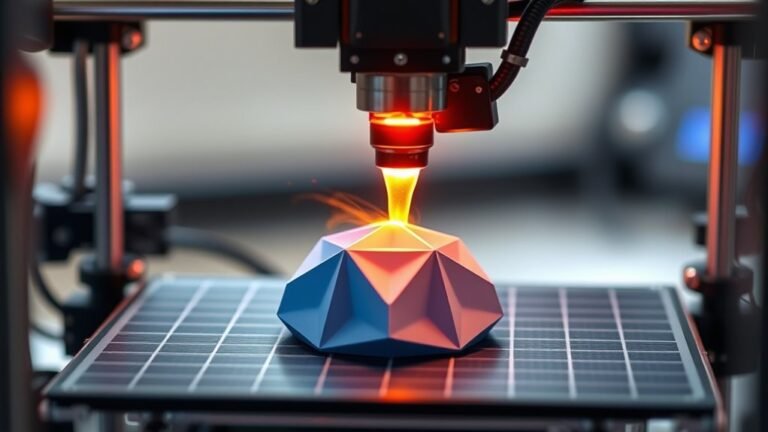
    You start by preparing a digital 3D model, ensuring it’s error-free and properly oriented for printing. Next, you slice the model into thin layers and set print parameters like speed and temperature.

    Then, you set up your printer and materials, leveling the bed and loading filament or resin. The printer builds the object layer by layer, adding supports if needed.

    After printing, you remove supports and finish the surface. Keep exploring to master each step and optimize your prints.

  • What Is the Maintenance Box on an Epson Printer and How Do You Replace It?

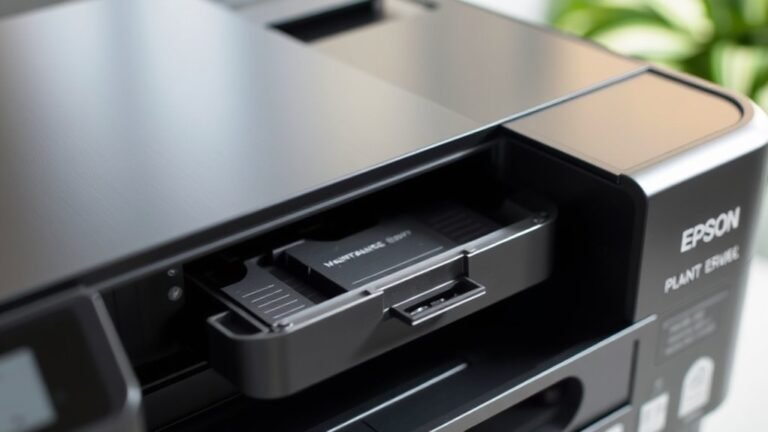
    The maintenance box on your Epson printer collects excess ink from cleaning cycles to prevent leaks and keep your device running smoothly. When the maintenance light blinks, it’s warning you to replace the box soon.

    You can still keep printing for a bit, but your options will be limited. To replace it, just open the printer, remove the old box carefully, and slide in a new one until it clicks.

    After that, press the maintenance button to reset your printer and avoid downtime. Keep following for detailed steps and tips.

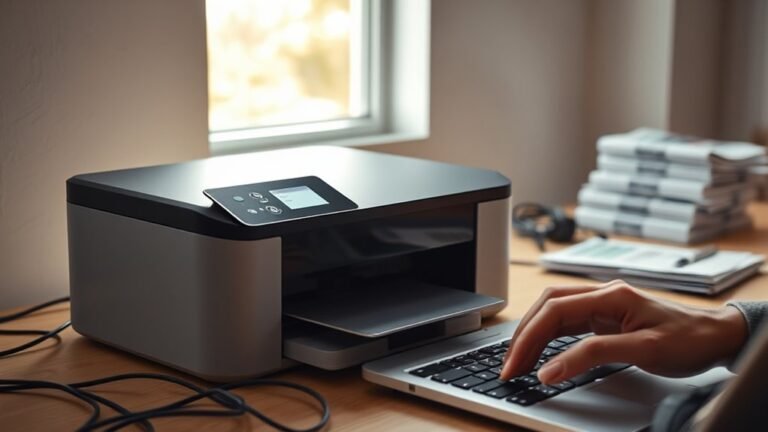
  • How to Connect Your Printer to Wi-Fi in 5 Easy Steps

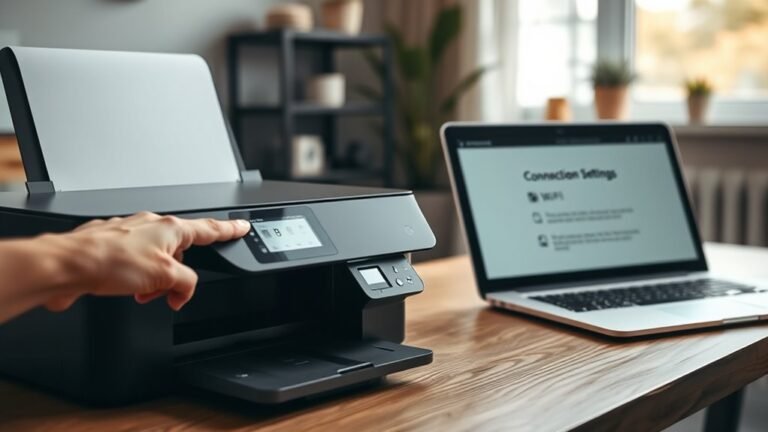
    First, check your printer’s Wi-Fi compatibility and find your network’s SSID and password. Next, connect your printer using WPS by pressing both device buttons or use the printer’s control panel or manufacturer app to enter your Wi-Fi details.

    Then, add the printer on your computer or mobile device through settings or AirPrint/Mopria. Finally, print a test page to confirm the connection.

    Once setup’s done, you can access advanced features and improve your wireless printing experience. It’s pretty straightforward, and you’ll be printing wirelessly in no time!

  • What Does Driver Unavailable Mean for Printer and How to Fix It

    The “Driver Unavailable” error means your PC can’t load the right driver for your printer. This usually happens because the driver files are missing, outdated, or just not compatible with your system.

    To fix it, start by uninstalling any old HP LaserJet Pro M15w drivers you have. Then, clear any stuck print jobs and update your Windows to the latest version.

    Next, go to HP’s website and download the correct driver for your printer. When you install it, make sure to run the installer as an admin. Also, only connect your printer’s USB when the installer asks you to.

    If you’re still having trouble after all that, don’t worry—there are more detailed steps you can try to get your printer working smoothly again. Just hang in there!

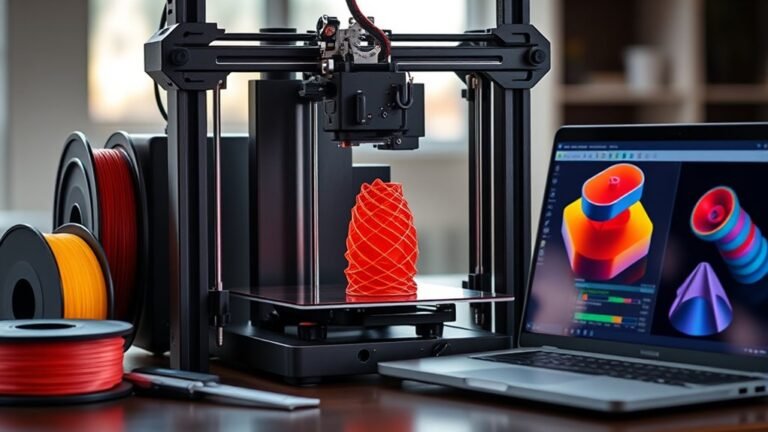
  • How a 3D Printer Works €“ Step by Step Guide

    A 3D printer builds objects by melting filament like PLA or ABS and laying it down layer by layer, guided by precise nozzle movements in X, Y, and Z directions.

    You start with a digital model, slice it into layers with software, then load the G-code to the printer. You’ll level the bed, preheat the nozzle and bed, and watch as your design transforms into a physical part.

    Keep exploring to uncover tips on finishing and perfecting your prints. It’s pretty amazing how a few simple steps can bring your ideas to life!

  • 10 Key Things to Know Before Buying a 3D Printer

    Before buying a 3D printer, know what you’ll print—fine details need resin, strong parts match FDM or SLS. Consider build volume carefully; bigger projects need larger beds plus margin.

    Resolution affects surface smoothness and speed, with resin offering finer layers. Dual extruders add complexity but enable multi-material prints.

    Factor in materials, ongoing costs, and post-processing needs. Ease of use, maintenance, and brand support can save headaches.

    Keep exploring to make a smart, confident choice.

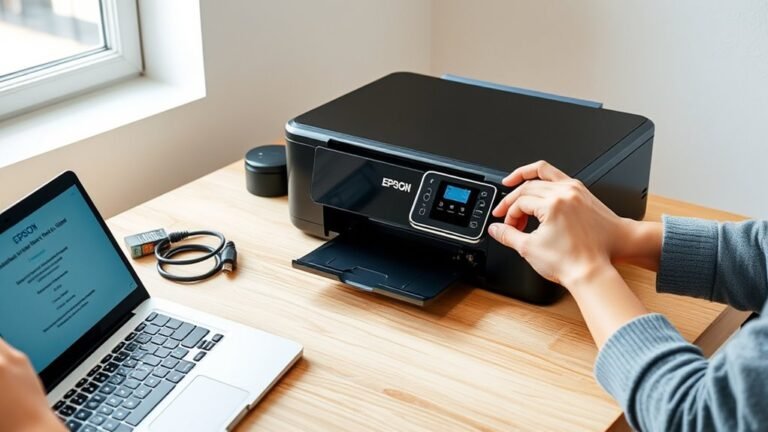
  • How to Set Up Epson Printer in 10 Easy Steps

    First, prepare your Epson printer and Wi-Fi details, powering on your printer with wireless enabled. Connect the printer to your Wi-Fi via its control panel using the Wi-Fi Setup Wizard.

    Next, download and install the Epson software from the official site. Then, run the Epson Connect utility to enable optional cloud features.

    After that, register your printer, set it as the default device, and print test pages from your apps. Troubleshoot common connection issues if they come up and verify that printing and scanning work smoothly.

    Keep following for more detailed steps to guarantee a perfect setup.