Author: Admin

  • What Is Printer Mapping and How Does It Work?

    Printer mapping lets you connect your workstation to network printers using IP addresses, hostnames, or shared server paths. This makes printers appear automatically in your print dialog for easy access.

    It installs the right drivers and can be managed centrally through Group Policy or print servers. This simplifies setup and reduces downtime.

    Whether you use direct IP or server-based mapping, it streamlines your printing experience. Keep going to explore how these methods work and how to troubleshoot common issues.
  • Does Dollar Tree Have Printer Paper?

    Yes, Dollar Tree does have basic white printer paper, but the availability and quality can vary by store. You’ll often find it in the office supplies aisle, with thinner, lightweight sheets best suited for simple printing tasks.

    If you’re into Cricut crafts, the paper’s thinness and finish may require tweaking your machine’s settings for better cuts. Keep in mind, testing small amounts first helps avoid wasted materials.

    Stick around to discover tips for choosing and using Dollar Tree paper effectively.

  • What Is an FDM Printer?

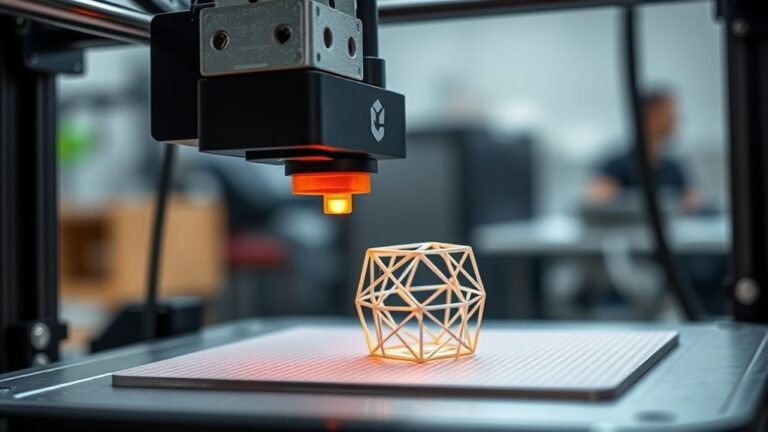
    An FDM printer lets you create 3D objects by melting thermoplastic filament like PLA or ABS and depositing it layer by layer through a heated nozzle. You control precise movements along three axes to build your model from a digital file.

    It’s an affordable, popular choice for beginners and pros due to its ease and material variety. If you want to understand how it works, its parts, and how to get the best results, keep exploring the details.

  • How to Add a Printer on Mac in 10 Easy Steps

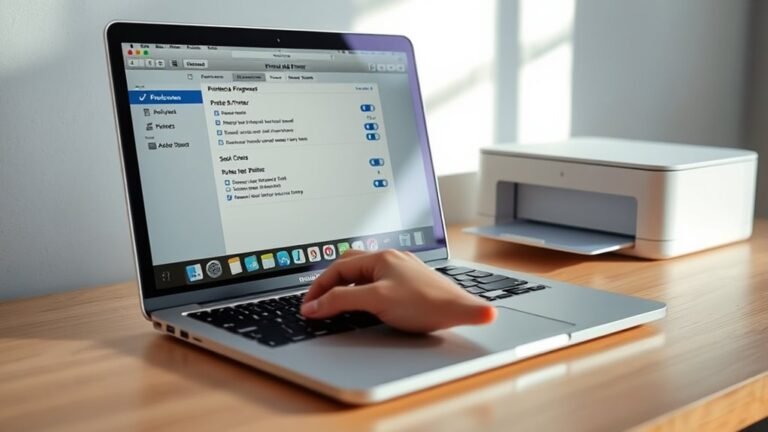
    To add a printer on your Mac, first open System Settings and make sure your Mac and printer share the same Wi-Fi network.

    Click on Printers & Scanners, then press “Add Printer, Scanner, or Fax.” Search for your printer in the list, select it, and click Add to start setup.

    Your Mac will automatically install necessary drivers. Confirm your printer appears as ready, then print a test page.

    Keep going to discover tips for managing print jobs and troubleshooting connections.

  • Where Can I Use a 3D Printer?

    You can use a 3D printer at local libraries, makerspaces, schools, and universities. These places often have beginner-friendly support and equipment available.

    Many public facilities offer printing for a fee, and they usually have rules about materials and file formats. Sometimes, you might need to register or complete training before you can use the printer.

    If you don’t have nearby access, don’t worry. Online and remote services can print your design and ship it straight to you.

    Keep exploring, and you’ll find plenty of tips to get your first successful print. It’s easier than you might think!

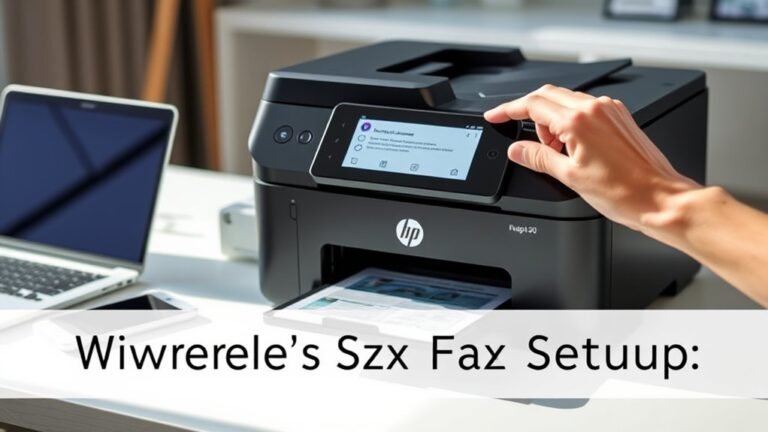
  • How to Setup Fax on HP Printer Without Phone Line in 5 Easy Steps

    To set up fax on your HP printer without a phone line, first connect your printer to a reliable Wi-Fi network. Next, create an online fax account with a trusted service like eFax, selecting a virtual fax number.

    Then, install the corresponding app and link your fax account to your printer. Configure your printer’s scan-to-email settings using the correct SMTP details.

    Finally, send a test fax to confirm everything works smoothly. Keep going to explore how to optimize and troubleshoot this setup.

  • How Does an AirPrint Printer Work?

    When you print with AirPrint, your Apple device finds compatible printers automatically over the same Wi-Fi network using Bonjour and mDNS protocols. You select your printer from the print dialog, choose settings, and the device creates a print job—usually a PDF—that sends directly to the printer via TCP/IP.

    The printer processes the data at native resolution and sends status updates back. It’s pretty seamless once you get the hang of it.

    If you want to understand setup steps, workflows, and troubleshooting, keep exploring to get the full picture. There’s more to learn that can make your printing experience even smoother!

  • How to Update HP Printer Firmware in 5 Easy Steps

    To update your HP printer firmware in five easy steps, first make sure your printer is on the Ready screen and not processing jobs.

    Next, visit HP’s support site, enter your model, and download the firmware file.

    Then, upload the .bdl file via the Embedded Web Server or copy it to a USB drive for installation from the printer’s Device Maintenance menu.

    After the update, the printer will reboot and return to Ready.

    Keep going to explore detailed instructions for a smooth update process.

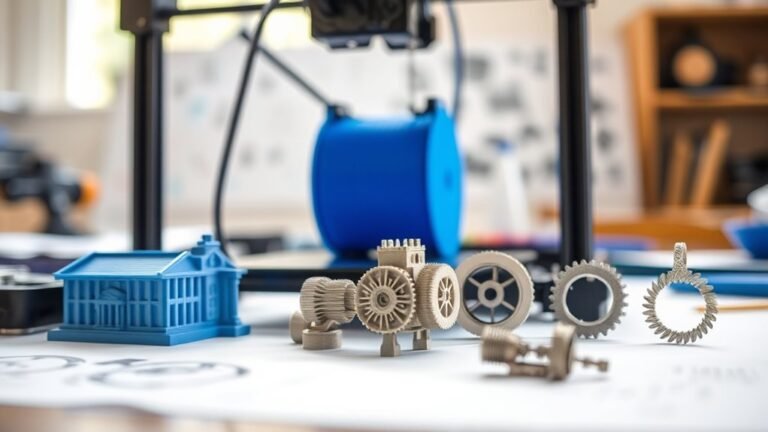
  • What Can a 3D Printer Do for Your Projects?

    A 3D printer lets you turn digital ideas into real, precise objects quickly. You can create prototypes to test designs fast, make custom tools tailored for your projects, and produce replacement parts without waiting weeks.

    It also helps build detailed architectural models, lightweight drone parts, and even personalized medical devices. Whether you’re starting simple or aiming for complex applications, 3D printing adapts to your needs.

    Keep exploring, and you’ll find how it transforms every step of your creative process. It’s pretty amazing what you can do once you get the hang of it!

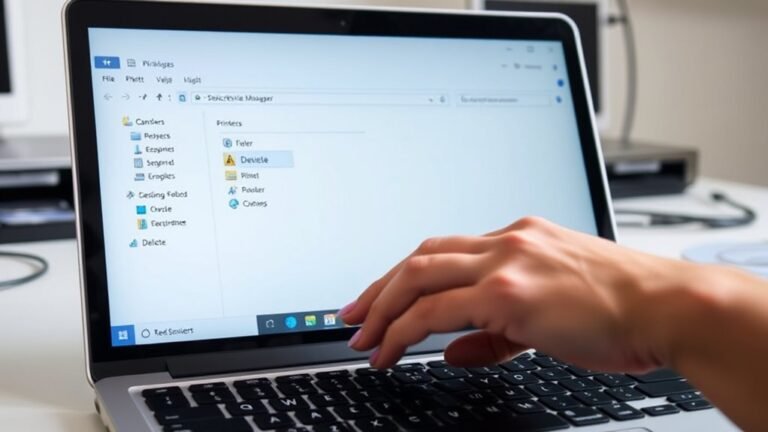
  • How to Uninstall Printer Driver in 3 Easy Steps

    To uninstall a printer driver in 3 easy steps, first sign in to an administrator account and right-click the installer (UPDSetup.exe or UPDSetup64.exe). Then, choose “Run as administrator.”

    Next, select the printers and drivers you want to remove from the list and click “Uninstall.” It’s pretty straightforward from here.

    Finally, confirm the removal and wait for the process to complete. If you want to make sure everything’s fully cleared, there are additional steps to clean up leftover files and settings you might find helpful.