How to Connect to a Canon Printer in 5 Easy Steps
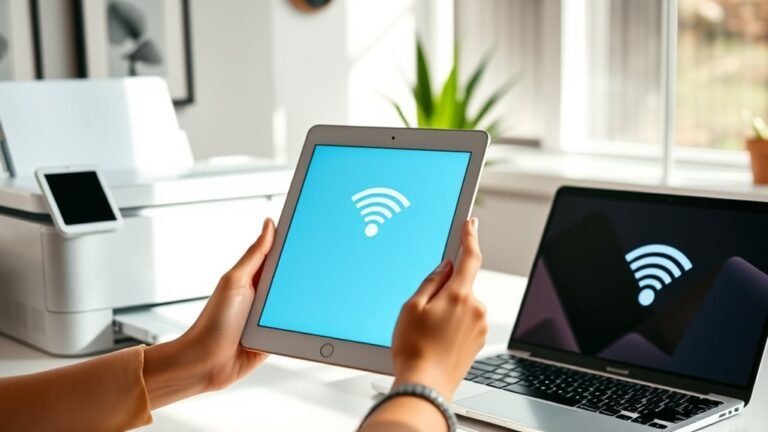
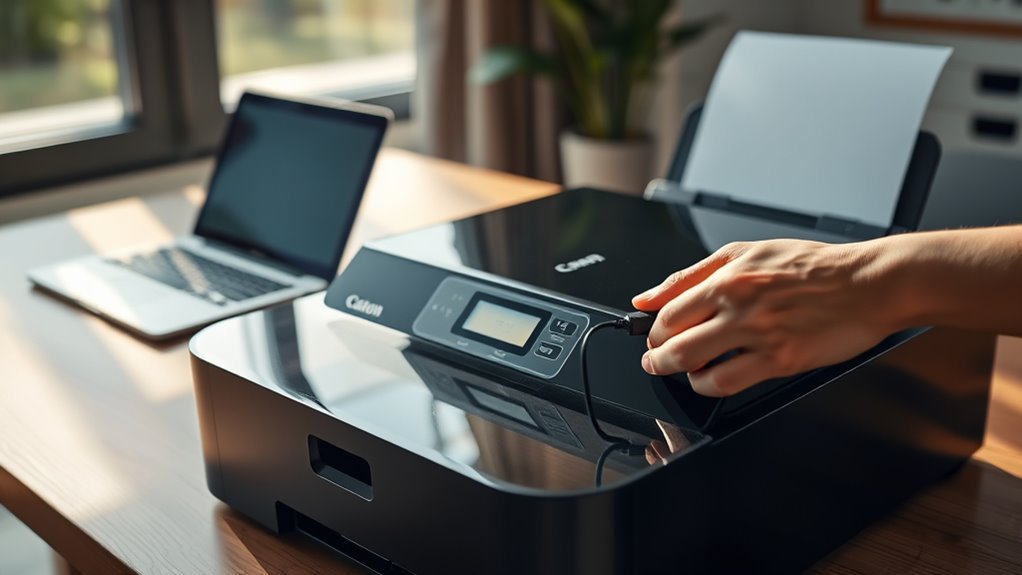
To connect your Canon printer quickly and easily, start by powering it on and loading plain paper. Make sure your printer is near your WPA/WPA2-secured router, and have your Wi-Fi password ready. This will help ensure a smooth wireless connection and save you time during setup.
If your router supports WPS, use it for a fast connection — it’s super convenient! If not, don’t worry. You can always use the standard setup by running the installer software on your computer.
Once connected, align the print head and run a test print to make sure everything looks great. If you run into any problems, try resetting the network settings or reinstalling the drivers. Keep reading for more detailed troubleshooting tips and step-by-step setup guidance!
Key Takeaways
- Place the printer near the router, load paper, and have the Wi-Fi name and password ready for setup.
- Use WPS by pressing the printer’s Wireless and router’s WPS buttons. Or, choose Standard Connection if WPS is unavailable.
- Run the printer installer on your computer and follow prompts to detect and connect the printer to your network.
- Align the print head and perform a test print to ensure proper setup and print quality.
- Print the network status page to verify connection. If needed, troubleshoot by resetting network settings or reinstalling software.
Prepare Your Canon Printer and Router for Wireless Setup
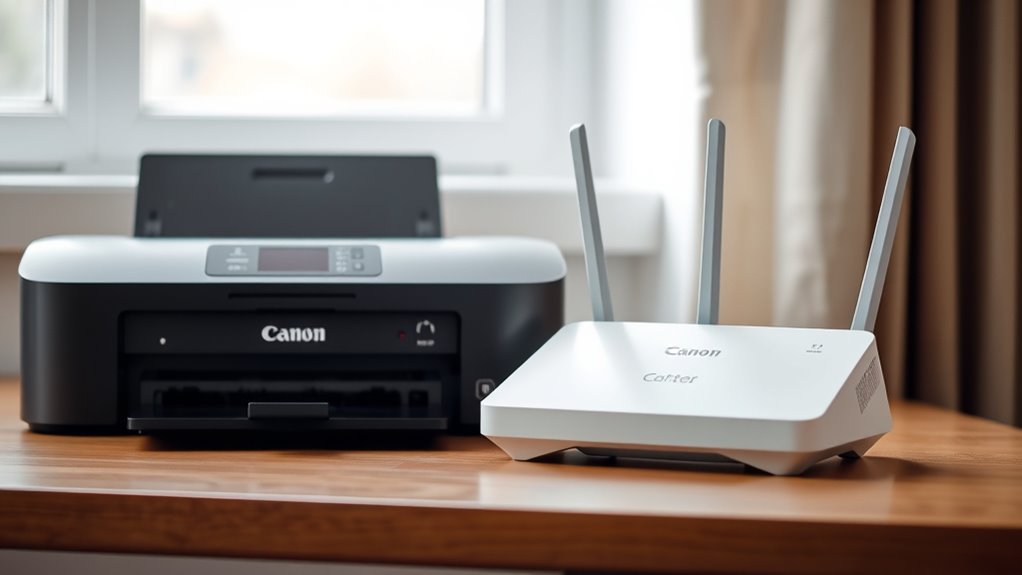
Before you start connecting your Canon printer wirelessly, make sure it’s powered on and positioned within 10 to 15 meters of your router. Also, load a sheet of plain A4 or Letter paper into the printer.
Ensure your Canon printer is on, near your router, and loaded with plain A4 or Letter paper before starting wireless setup.
Next, check your router’s service set identifier (SSID) and confirm your wireless network uses WPA or WPA2 security. WPS often fails with WEP or open networks, so keep that in mind.
Have your exact Wi-Fi password handy to avoid delays when setting up. If you need to reset your printer’s network settings, just press and hold the RESUME/CANCEL button until the ALARM lamp flashes 19 times.
This resets the printer to factory defaults and gives you a clean slate for setup. Getting these essentials ready beforehand helps you connect your Canon printer smoothly without interruptions or errors during the wireless configuration process.
Choose and Connect Your Canon Printer Using WPS or Standard Method
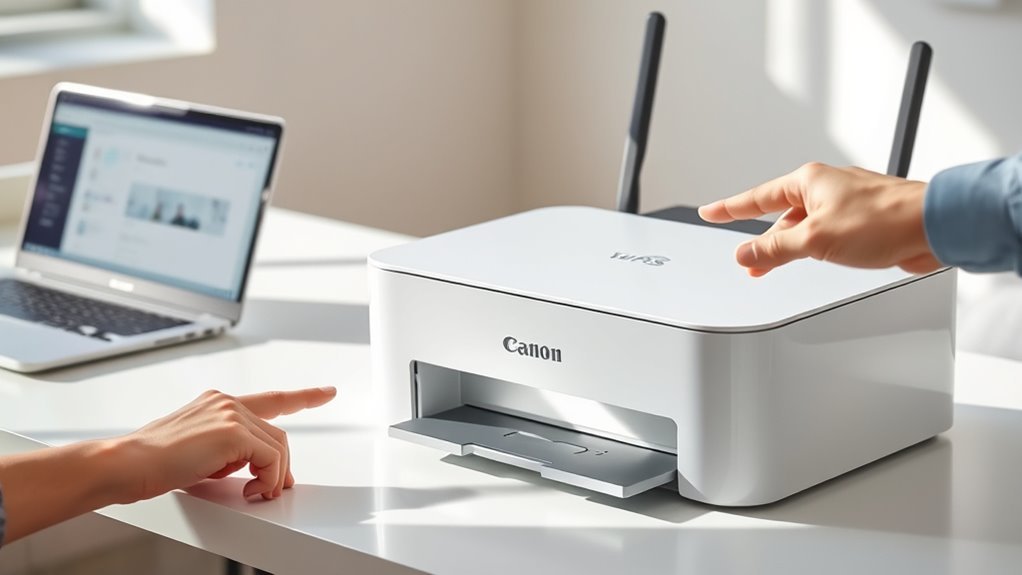
Although WPS offers a quick way to connect your Canon printer, you can also use the Standard Connection method if your router lacks a WPS button or if the WPS setup fails.
For WPS, press and hold your printer’s Wireless button until the lamp flashes. Then press Colour, Wireless until the Direct lamp lights, and Colour again.
Within two minutes, press the router’s WPS button. A steady Power and Wi-Fi lamp confirm success.
If WPS isn’t an option, run the Canon installer on your computer and select Wireless LAN Connection. Just follow the prompts—they’ll guide you through the process.
Your computer will briefly disconnect from Wi-Fi to configure the printer, then reconnect automatically.
- Press buttons in sequence for WPS setup
- Use installer for Standard method
- Print network info page to confirm connection
How to Install Your Canon Printer Software on Windows or Mac
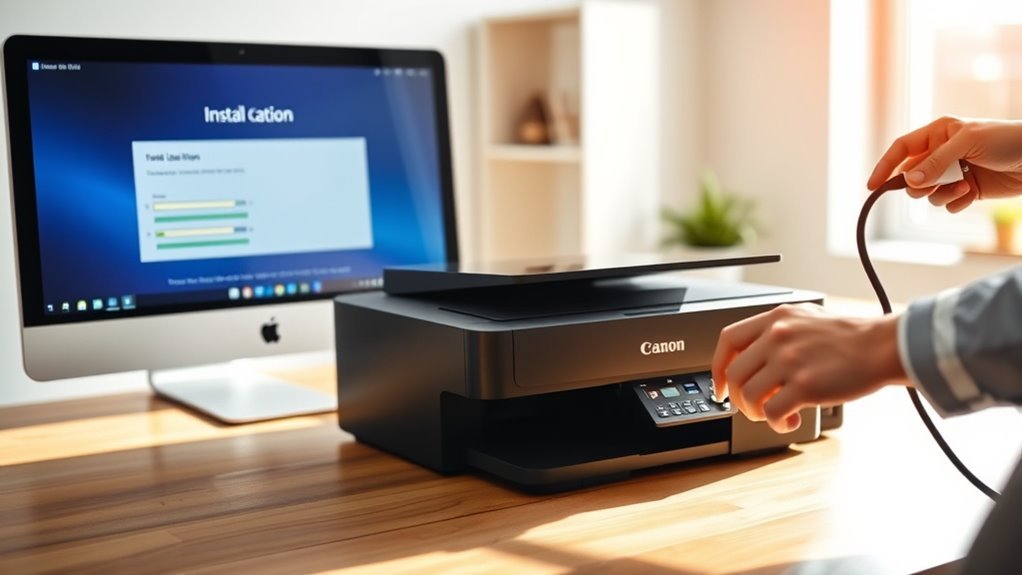
Start by running the downloaded installer file—.exe for Windows or by opening the .dmg and double-clicking Setup on a Mac—to initiate the software installation. Click Start Setup to let the software check for and download any updates.
On Windows, follow the prompts carefully, disabling any blocks as instructed, and let the installer search your network for the printer. If it doesn’t find your printer, choose “Set up the network connection according to the guide.”
On a Mac, allow the app to install the Helper Tool when prompted—enter your admin password if needed. Follow the on-screen Wireless LAN steps if your printer isn’t connected yet.
During wireless setup, your computer may disconnect temporarily—click Allow to reconnect automatically. After the connection, click Next to install drivers and optional software before exiting.
Complete Setup: Align Print Head and Run a Test Print
Complete the setup by clicking Execute to align the print head. Follow the on-screen instructions to make sure your nozzles are properly calibrated for the best print quality.
Click Execute to align the print head and follow instructions for optimal nozzle calibration and print quality.
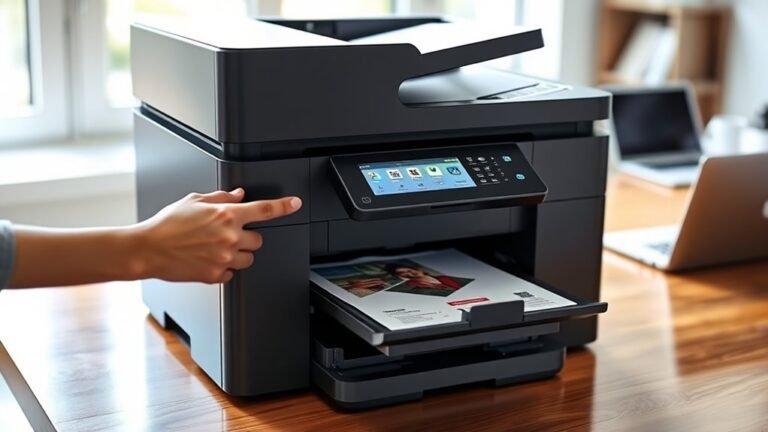
If the software tells you the print head is already aligned, just select Next to skip ahead. Once the alignment is set, click Start to run a test print.
Check the sample page for accurate colors and no banding. If you notice any issues, go ahead and re-run the print head alignment. Then, perform a nozzle check and clean the print head if needed.
After a successful test print, click Next and then Exit to finish the installation.
- Aligning the print head guarantees sharp, clear prints
- Test prints reveal any color or quality problems early
- Re-alignment and cleaning help maintain peak print performance
Fix Connection Problems and Reset Your Network Settings
Once you’ve finished aligning the print head and confirmed your test print looks good, it’s important to address any connection issues that might prevent your printer from communicating with your network.
If your printer supports WPS, press and hold the Wireless button until the lamp flashes. Then press Colour and Wireless until the Direct lamp lights.
Press Colour again and within two minutes press your router’s WPS button. A steady Power, Wi‑Fi, and network lamp confirm success.
To verify wireless status, print the network info page by holding Wi‑Fi until it flashes, pressing Colour, Wi‑Fi twice, then Colour or Black.
If setup fails, temporarily connect your computer directly to the printer or reset network settings by holding RESUME/CANCEL until the ALARM flashes 19 times.
After that, reinstall software and drivers.
Frequently Asked Questions
How Do I Setup a Canon Printer?
You start by running the Canon installer for your OS. Follow the prompts to download drivers and choose a wireless or WPS connection.
Next, complete setup tasks like alignment. Then, print a test page to confirm everything’s working perfectly. Easy, right?
Does a Canon Pixma Come With Ink?
Yes, your Canon PIXMA usually comes with starter ink cartridges, including black and color. These cartridges have less ink for initial setup and test prints.
How Do I Hook up My Canon Pixma Printer to My Computer?
You’ll download the latest driver from Canon’s website, run the installer, and follow prompts. Choose wireless or USB connection, then add the printer on your computer.
Once that’s done, finish setup with alignment and a test print to confirm the connection. It’s pretty straightforward!
How to Setup a Canon G7020 Printer?
You’ll power on your Canon G7020 and load some paper.
Next, connect it to Wi-Fi using either WPS or the Canon installer—whichever works best for you.
Just follow the on-screen prompts to install the necessary drivers.
After that, align the print heads to ensure everything prints perfectly.
Once that’s done, you’re all set for smooth, hassle-free printing!
Conclusion
Connecting your Canon printer is simpler than you think—just follow these five easy steps. Did you know that over 60% of printer connection issues come from skipped setup instructions?
By preparing your devices, choosing the right connection method, installing software correctly, and completing the setup, you’ll avoid common pitfalls. If problems arise, resetting your network settings usually does the trick.
With these tips, you’ll have your Canon printer ready to go in no time! Staying patient and following each step carefully ensures a smooth connection experience. Remember, a properly connected Canon printer means hassle-free printing whenever you need it. So, take your time, and soon enough, your Canon printer will be up and running without a hitch!