Day: November 9, 2026

  • How to Connect Printer to Computer With USB Cable in 3 Easy Steps

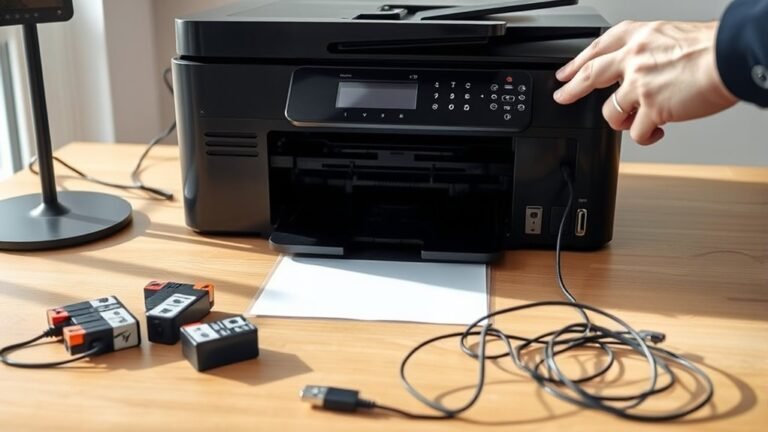
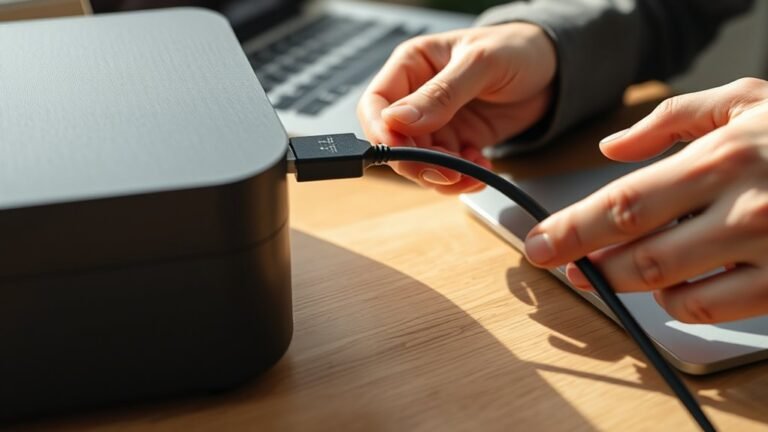
    First, power on both your printer and computer. Then, connect them using a quality USB A-to-B cable—ideally 3 to 5 meters or shorter.

    Next, download the correct driver from your printer manufacturer’s website and install it. Just follow the prompts carefully, and you’ll be good to go.

    Finally, add your printer through your computer’s settings. Print a test page, and set it as default if you want.

    Keep going to uncover tips for troubleshooting and ensuring smooth printing every time.
  • How to Fix HP Printer Offline in 5 Easy Steps

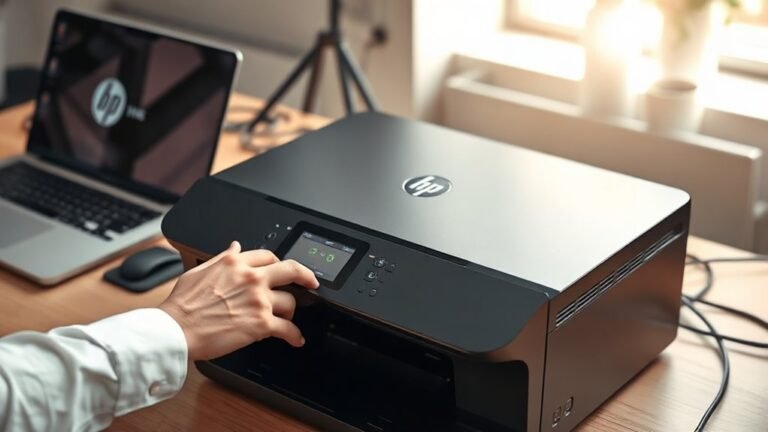
    To resolve your HP printer offline, first restart both your printer and computer by powering them off and on.

    Next, check your printer’s network or USB connections to ensure they’re secure and on the same network.

    Then, update or reinstall the latest printer drivers from HP’s website.

    After that, adjust printer settings by unchecking “Use Printer Offline” and setting it as default.

    Finally, run HP Print and Scan Doctor for deeper fixes. Keep going to explore detailed steps that can help.

  • What Makes a Printer an Output Device?

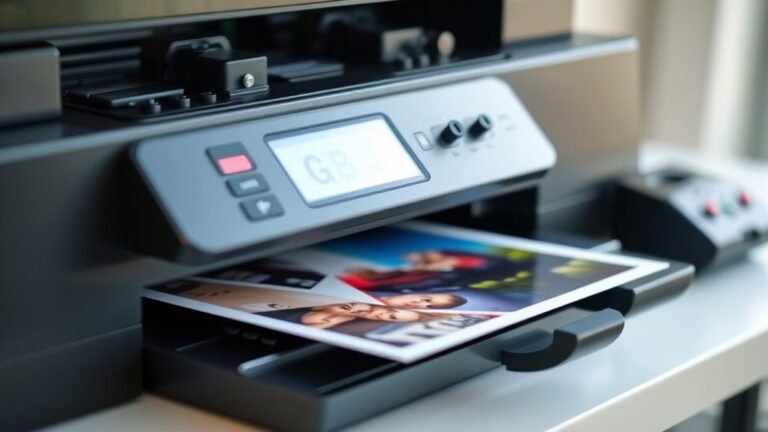
    Printers are output devices because they take your digital files and turn them into tangible, permanent copies you can hold, share, or archive. Unlike screens, they provide hard-copy results on paper or microfilm, making your information portable and stable without needing electronics.

    Whether using inkjet or laser technology, printers create images and text through precise mechanisms. If you want to understand how they differ, handle speed, and deliver quality, there’s more to explore beyond this overview.

  • What Is the Drum on a Brother Printer and How Do You Replace It?

    The drum on your Brother printer transfers toner onto paper to create your prints. Over time, it wears out, causing dull images and streaks. So, replacing it restores sharp, clear prints.

    To replace it, you first turn on the printer and open the front cover. Then, remove the combined toner and drum assembly. After that, separate the toner from the old drum.

    Next, insert the toner into the new drum before reinstalling it. Proper replacement helps keep your print quality consistent. There’s actually more to know for smooth maintenance and resetting the drum counter.

  • How to Clean a 3D Printer Nozzle in 7 Easy Steps

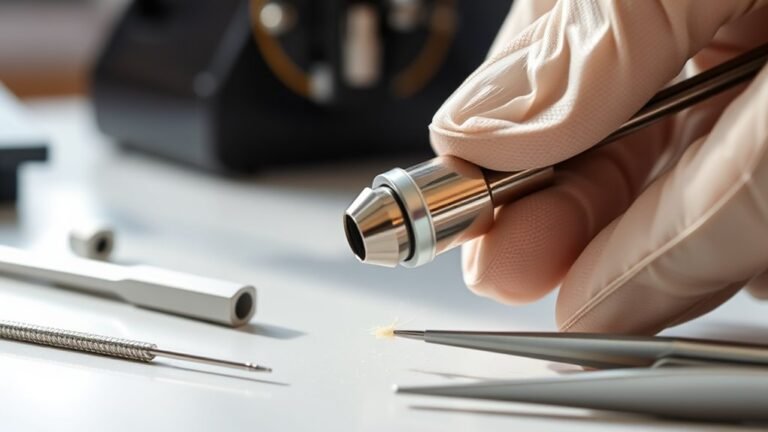
    Start by identifying nozzle clogs through extrusion issues or residue. Heat your nozzle to printing temperature and purge softened filament manually.

    Next, perform a cold pull by cooling and pulling filament to extract debris. Use a cleaning needle carefully to clear partial blockages while warm.

    For stubborn clogs, soak the removed nozzle in acetone overnight, then dry it. Apply thermal cleaning as needed, then reinstall and calibrate your nozzle.

    Keep following these steps to master deeper cleaning techniques. It gets easier with practice!

  • How to Repair Canon Printer Paper Jam in 7 Easy Steps

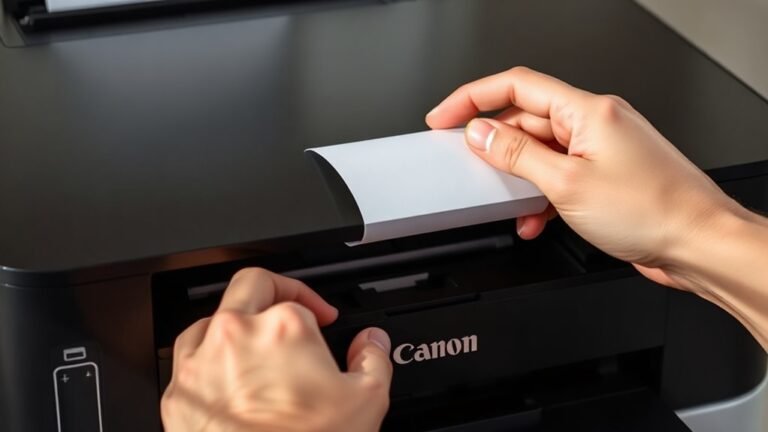
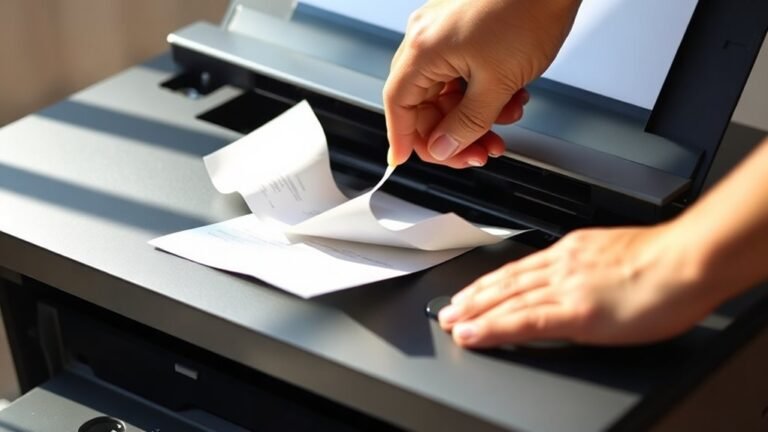
    To fix your Canon printer paper jam, first power off and unplug it for safety. Open all covers—front, rear, and paper trays—to locate and carefully remove stuck paper without tearing it.

    Check for small scraps inside and clean the rollers with a lint-free cloth. Reload paper properly, making sure it’s aligned and fanned before placing it in the tray.

    Finally, run a test print to confirm the jam’s cleared. Keep going to uncover tips for avoiding future jams and when to seek expert help.

  • How Is a Thermal Printer Used in Retail?

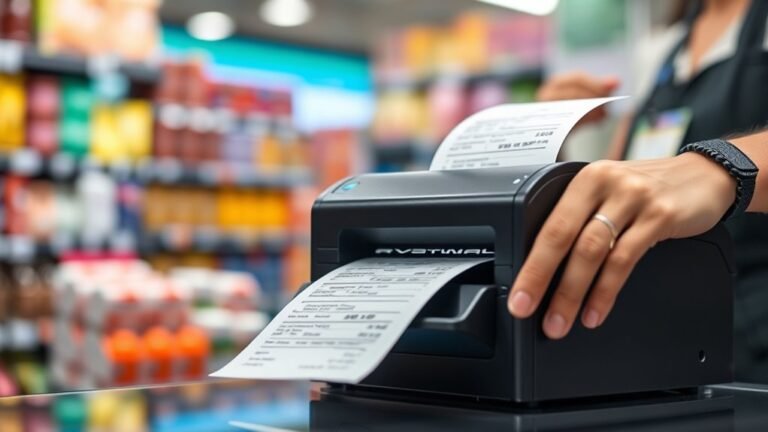
    You use thermal printers in retail to speed checkout by quickly printing high-quality receipts with crisp barcodes, QR codes, and coupons. They create price tags and shelf labels on demand, helping with inventory management.

    Thermal printers connect easily to POS systems and mobile devices via Bluetooth, Wi-Fi, or USB. Plus, they’re energy-efficient and low-maintenance, running smoothly with minimal downtime.

    Keep exploring to discover how to maximize their benefits and streamline your retail operations. It’s pretty cool how much they can help!

  • How Do You Map a Printer in 7 Easy Steps

    To map a printer in seven easy steps, first turn it on and connect it via USB, Wi-Fi, or Ethernet. Next, open your computer’s Printers & Scanners settings, then select “Add a printer” or “Add device.”

    Choose your printer from the list or enter its IP address manually. Install the correct drivers and set your preferences.

    Finally, print a test page to confirm everything works. Following these basics will get your printer ready, and there’s more to explore for fine-tuning your setup.

  • Why Is My Printer Not Printing and How to Fix It

    Your printer might not be printing due to paper jams, empty or dried-out ink cartridges, outdated drivers, or network connection issues. Start by checking for jams and clearing them safely.

    Also, inspect ink levels, restart the printer and your computer, and update or reinstall drivers. Don’t forget to clear any stuck print jobs in the queue.

    If these quick steps don’t work, you may need to check network settings or consider deeper troubleshooting. More detailed solutions can help you get your printer back on track.

  • How to Fix a Paper Jam in a Printer in 5 Easy Steps

    To fix a paper jam, first turn off and unplug your printer. Then, open all the panels to access the jammed paper.

    Gently pull out the stuck paper without tearing it, following the paper’s natural path. Be careful here!

    Check thoroughly for any tiny leftover scraps and remove them carefully. You don’t want any bits hiding inside.

    Reload the paper neatly, making sure not to overfill or misalign the stack. This helps prevent jams next time.

    Finally, run a test print to see if everything is working smoothly. Keep going for more tips to avoid future jams and keep your printer happy!