Day: October 28, 2026

  • What Does ADF Mean on a Printer?

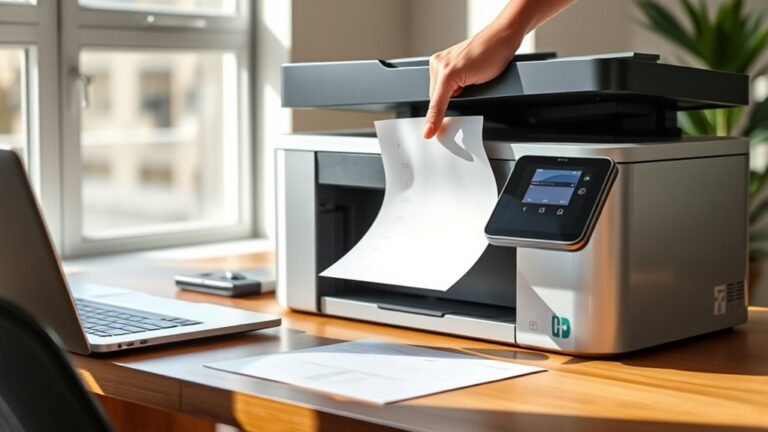
    ADF stands for Automatic Document Feeder on your printer or scanner. It lets you scan or copy multiple pages without handling each one, saving time and effort.

    You just load a stack of documents, and the ADF feeds pages one by one automatically. It even handles double-sided scanning if your device supports it.

    This feature is perfect for batch jobs like contracts or reports. Keep going, and you’ll discover how ADFs work, their types, and handy tips for smooth operation.
  • What Kind of Printer Does Staples Use for Printing Services?

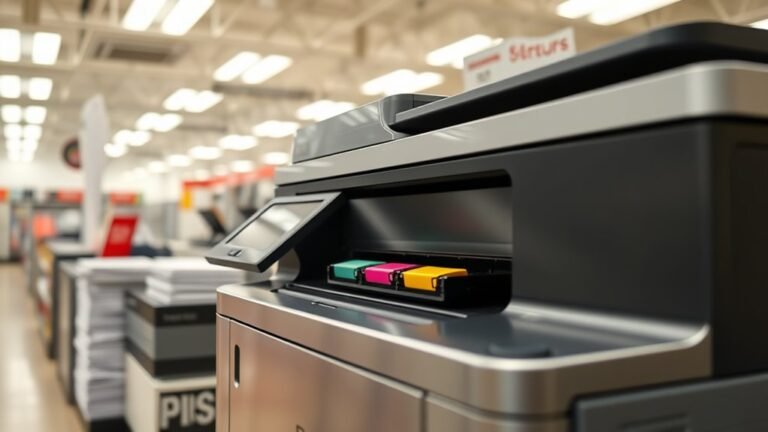
    Staples uses high-speed laser, inkjet, and tank printers designed to deliver crisp, professional-quality prints quickly and affordably. You’ll find business-class laser models for large volumes, versatile inkjets for vibrant color, and cost-effective tank printers with big ink reservoirs.

    These printers also feature duplex printing, wireless connectivity, and AI enhancements to streamline your workflow while keeping costs and environmental impact low. Keep exploring to see how Staples balances speed, security, and savings in their printer choices.

  • How to Setup a Wireless Printer in 10 Easy Steps

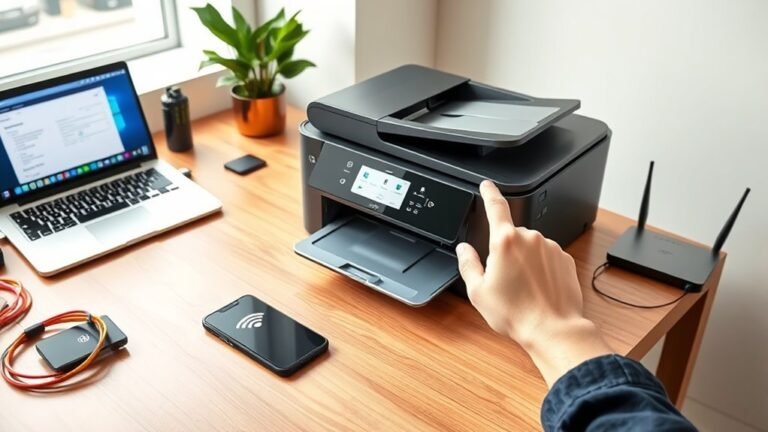
    Start by placing your printer within 10–30 feet of your router and powering it on. Use the printer’s Wireless Setup Wizard to find and connect to your Wi‑Fi network with the correct password.

    If needed, try WPS or the web interface for setup. Next, download and install the latest drivers on your device, then add the printer via system settings.

    Finally, print a test page and troubleshoot any issues. Keep going to discover tips for managing and maintaining smooth wireless printing.

  • How to Add HP Printer to Mac in 3 Easy Steps

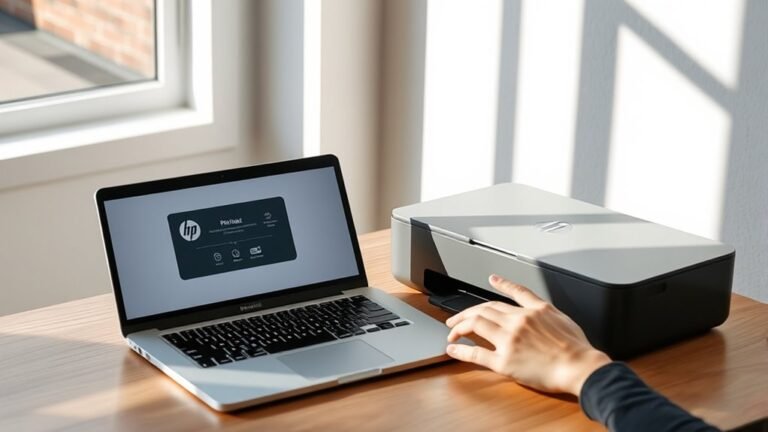
    To add your HP printer to your Mac in three easy steps, first download and launch HP Easy Start from the HP Support website. Then, follow the prompts to find and set up your printer.

    Next, open System Preferences and go to Printers & Scanners. Add your printer by clicking the plus sign.

    Finally, configure your printer’s network settings by entering its IP address. Make sure to select the right driver for smooth printing.

    Keep going to explore detailed setup tips and troubleshooting advice. You’ve got this!

  • How to Print From iPhone to Epson Printer in 3 Easy Steps

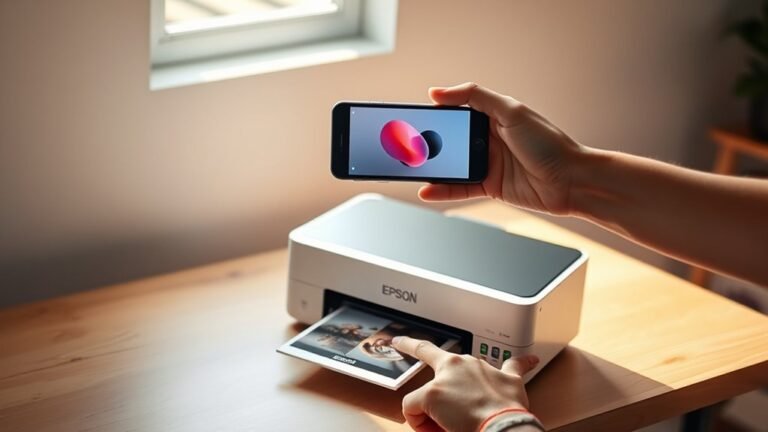
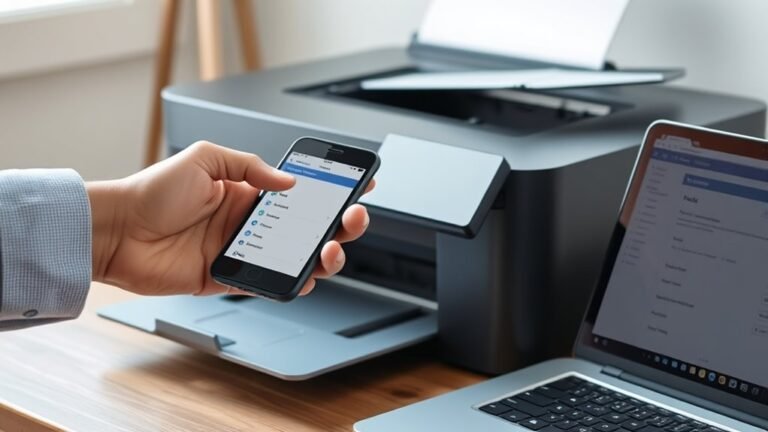
    To print from your iPhone to an Epson printer in three easy steps, first make sure your printer is set up, powered on, and within Bluetooth range.

    Next, connect your iPhone to the same Wi-Fi network as the printer and enable Bluetooth.

    Finally, open the Epson Smart Panel app, let it detect your printer, then enter your Wi-Fi details to complete the connection and start printing.

    If you run into any connection hiccups, don’t worry — keep following along for some handy tips!

  • How to Connect iPhone to Printer With USB in 3 Easy Steps

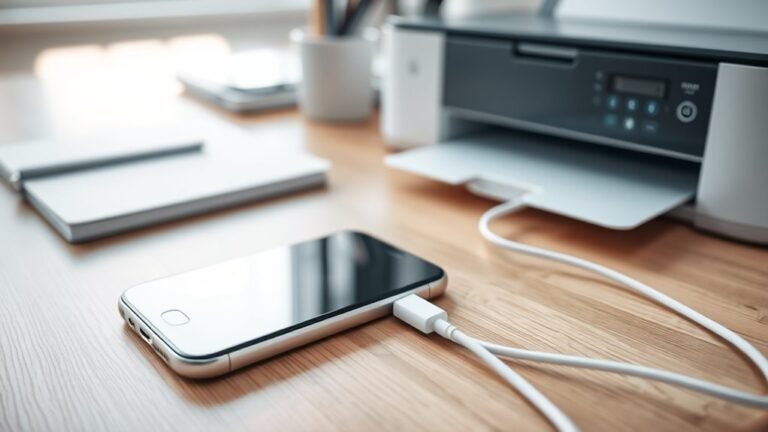
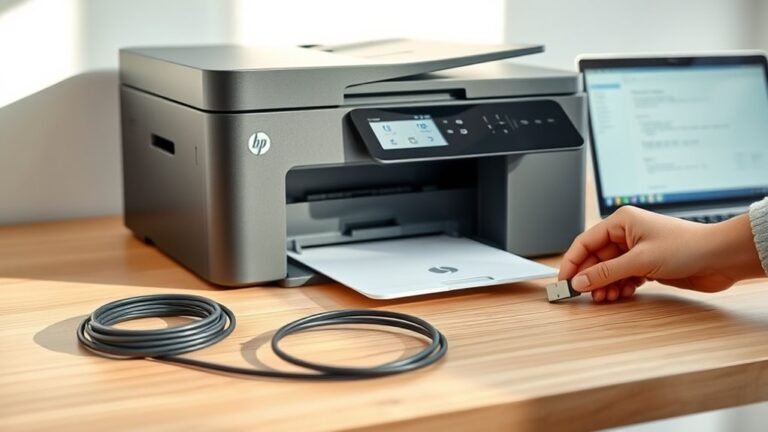
    To connect your iPhone to a USB printer, first make sure your printer is powered on. Then, identify its USB port type.

    Next, choose the right adapter. Use a Lightning to USB Camera Adapter for older iPhones or a USB‑C adapter for newer models, and connect them properly.

    Finally, use the printer’s app to set up and send a test print. Keep going to explore tips on overcoming common connection challenges and optimizing your setup.

  • Top 7 3D Printers to Buy in 2027

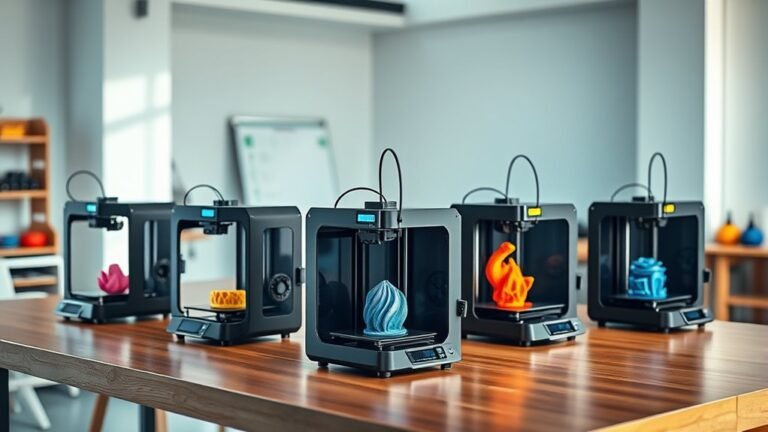
    You’ll find the top 3D printers in 2027 excel in reliability, budget-friendliness, and multicolor or multi-material features. Consider the Bambu Lab P2S for consistent, fast prints or the Elegoo Saturn 4 Ultra for high-detail resin work.

    Beginners can start with the Bambu Lab A1 Mini for easy setup and affordable multicolor prints. For larger projects, look at CoreXY designs with heated chambers.

    Keep exploring to discover which model fits your specific needs and budget best. There’s definitely a perfect printer out there for you!

  • How to Scan a Document From Printer to Computer in 10 Easy Steps

    First, power on your printer and connect it to your computer via USB or Wi-Fi. Install the full printer software package for scanner support and confirm device detection.

    Place your document face-down on the scanner glass or in the automatic feeder.

    Open the scanning app, select your printer, and choose file type and save location. Start the scan from your computer or printer panel, then review and save the file.

    Follow these steps, and you’ll find detailed tips to make scanning even easier.

  • How to Connect a Printer in 5 Easy Steps

    First, identify if your printer connects via USB or Wi-Fi/Ethernet. Make sure your devices share the same network.

    Next, open your computer’s printer settings and look for your printer. If you don’t see it, select the option to add it manually using its IP address.

    Follow the installation prompts to install drivers and complete setup. Finally, print a test page to confirm everything works.

    Keep going to uncover detailed tips and troubleshooting tricks for a smooth setup.

  • How to Find Printer IP Address in 5 Simple Steps

    You can find your printer’s IP address by checking its built-in screen, usually under network or wireless settings. If that’s not visible, print a network configuration page from the printer’s menu.

    You can also log into your router’s admin page to spot your printer in the connected devices list. On Windows, look in printer properties under ports or use command prompt tools like ping and arp.

    If these don’t work, network scanning apps help identify your printer’s IP. Keep exploring to uncover more detailed methods.