What Does Redirected Printer Mean and How to Use It
A redirected printer lets you print from a remote desktop session straight to your local printer without needing to install server drivers. When you connect using RDP with printer redirection turned on, your local printer shows up inside the remote session. It usually appears with a name like “PrinterName (redirected N).”
This makes printing way easier because you don’t have to worry about compatibility issues between the server and your printer. Plus, Easy Print helps by using your client’s printer driver and virtualizing the printing process on the server. This means smooth, driverless printing that just works.
If you want to get the most out of printer redirection, there’s a bit more to learn about setting it up properly. You can also explore tips for troubleshooting and optimizing your configuration to avoid common hiccups. It’s all about making remote printing simple and hassle-free!
Key Takeaways
- A redirected printer is a client-side printer that becomes accessible within a Remote Desktop session through RDP printer redirection.
- These redirected printers show up with dynamic names like “PrinterName (redirected N).” Keep in mind, the session numbers might change each time you log in.
- Remote Desktop Easy Print helps by enabling driverless printer redirection. It works by rendering the print jobs on your client and then sending EMF/XPS data over to the server.
- To enable printer redirection, just check the “Printers” box in the Remote Desktop Connection client. Also, make sure the server’s policies allow printer redirection.
- When you use redirected printers, connect through RDP with printer redirection turned on. Try not to log off your sessions if you want to keep your printer session mappings intact.
What Is a Redirected Printer in Remote Desktop Services
When you connect to a remote desktop, a redirected printer lets you print documents from the server directly to your local printer. In Remote Desktop Services, a redirected printer is your client-side device made available inside the RDP session. It appears with names like “PrinterName (redirected N)” and relies on printer redirection via the RDP channel instead of a network share.
For printer redirection to work, your RDP client must have it enabled, and the server must allow it through Group Policy. The process often depends on compatible printer drivers installed on the server or uses Easy Print for driverless redirection on newer systems.
Keep in mind, spooler permissions and security settings on the server can also affect redirected printer functionality. So, if things aren’t working right, these are good places to check.
Why Printer Drivers Matter on Both Client and Server
You need compatible printer drivers on both the client and server to avoid errors and guarantee smooth print redirection. The server relies on either the client’s driver via Easy Print or a locally installed native driver to process print jobs correctly.
Without proper driver management, you’ll face issues like missing printers, garbled output, or long delays. So, keeping your drivers in check really saves you from headaches down the line.
Driver Compatibility Challenges
Although printer redirection simplifies printing in remote sessions, driver compatibility remains a critical hurdle you must overcome on both the client and server sides. If the RD Session Host or print server lacks the correct drivers, your redirected printer might not appear or print correctly.
Easy Print helps by using the client’s driver, but fallback to native drivers is essential if Easy Print isn’t supported. Group Policy settings influence whether Easy Print or native drivers get priority, so aligning policies with your installed drivers is key to smooth printing.
Make certain both client and server have matching manufacturer drivers. Also, add 32-bit and 64-bit drivers to the print server if needed.
Use Group Policy to control Easy Print preferences. And try to avoid generic drivers to prevent print errors and spooling issues.
Server And Client Roles
Understanding the distinct roles of the server and client in printer redirection helps you troubleshoot and optimize printing in remote sessions. In RDP printer redirection, the client sends printer capabilities, but the server still needs compatible printer drivers or Remote Desktop Easy Print to process print jobs.
On modern Windows Server systems, Easy Print is preferred, simplifying driver issues. However, older clients like Windows XP require native drivers installed on both ends. Knowing these client-server roles guarantees you install the vendor’s drivers on the server via Print Management to avoid errors or fallback drivers causing garbled output.
Also, spooler security and Group Policy settings on the server can block redirected printers, so verify “Do not allow client printer redirection” and related ACLs to keep printing smooth. It’s a good idea to double-check these settings if you’re running into issues. That way, you can keep everything working without a hitch.
Impact On Print Redirection
When dealing with redirected printers in remote sessions, having compatible drivers on both your client and the remote host is essential. Printer redirection relies on Remote Desktop Easy Print or server-side drivers to function correctly.
Without matching drivers, you’ll face errors or invisible print jobs. The RD Session Host’s spooler ACLs and driver store, managed via Print Management, also impact printer creation and usability.
To guarantee smooth redirection, remember: Use Remote Desktop Easy Print on supported OS for client-side rendering. If Easy Print isn’t available, install matching native drivers on RD Session Host.
Also, verify printer driver compatibility to avoid fallback issues or errors. Don’t forget to manage spooler ACLs and drivers via Print Management for stable redirection.
This way, you minimize delays, failures, and garbled output during printing. It really helps keep your printing experience smooth and hassle-free.
How to Enable Printer Redirection in Your RDP Client
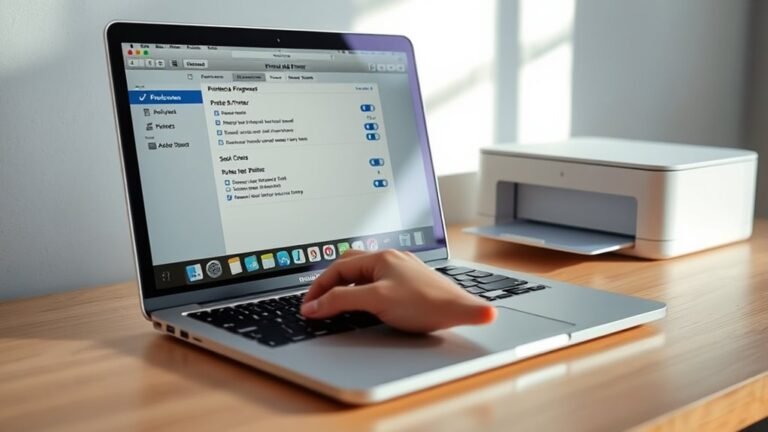
To enable printer redirection in your Remote Desktop Protocol (RDP) client, start by opening the Remote Desktop Connection application (mstsc.exe) on your computer. Click Show Options, go to the Local Resources tab, and check the “Printers” box to activate printer redirection.
Alternatively, you can set redirectprinters:i:1 in your .rdp file. Make certain your RDP client supports printer redirection—most Windows 10/11 clients do—and verify your local printer works before connecting.
On the server side, make certain Remote Desktop printer redirection policies are enabled, and allow Easy Print if you plan to use it. This setup lets you seamlessly print from your remote session using your local printers.
If issues arise, double-check these settings and confirm Easy Print driver availability on the server. It usually fixes most common problems quickly.
How Printer Redirection Works During Remote Desktop Sessions
After enabling printer redirection in your RDP client and server settings, you’ll notice your local printers appear within the remote session as redirected devices. Printer redirection sends your client printers over the RDP virtual channel so remote apps can print directly to your local hardware.
The remote host uses Remote Desktop Easy Print or matching printer drivers to process print jobs, making driver compatibility essential. This redirection depends on active RDP sessions, with printer names dynamically assigned per login.
Keep in mind:
- Enable “Printers” in the RDP client and allow redirection via Group Policy on the server.
- Remote Desktop Easy Print simplifies driver handling but requires support on both ends.
- Printer names can change between sessions, which might affect apps needing static names.
- Printer redirection won’t work if policies or security settings block the RDP printer channel.
Top Printer Redirection Issues and Solutions
Although printer redirection streamlines remote printing, you might run into issues like missing printers, failed print jobs, or garbled output. These problems often stem from RDP driver mismatch, print spooler issues, or group policy printer redirection settings blocking redirected printers.
Sometimes, security software can also interfere. It’s a good idea to check these areas if things aren’t working right.
| Issue | Solution |
|---|---|
| Missing redirected printers | Make sure Local Resources → Printers is checked; verify group policy allows redirection |
| Garbled or corrupted printouts | Install correct manufacturer drivers or use Remote Desktop Easy Print to avoid driver conflicts |
| Print jobs vanish or delay | Check print spooler on server; test with Easy Print; monitor network latency and logs |
Keep these points in mind to keep printer redirection running smoothly during your remote sessions. It’ll save you from a lot of headaches down the road.
How the Easy Print Driver Supports Printer Redirection
You rely on the Easy Print driver to simplify printer redirection by handling print jobs without installing native drivers on the server. It works smoothly when both your RDP client and server support it, usually on modern Windows versions.
But if you’re using older systems like Windows XP, you might need to install drivers manually to keep things compatible. It’s a bit more work, but it helps everything run properly.
Easy Print Driver Role
The Easy Print driver streamlines printer redirection by acting as a universal bridge between your client printer and the remote server. Remote Desktop Easy Print (msrdpdr) renders print jobs on your client, sending EMF/XPS data to the server without needing the native printer driver installed there. This simplifies setup and reduces compatibility issues.
To use Easy Print effectively, remember to enable printer redirection in your RDP client (mstsc’s Local Resources → Printers). Also, configure Group Policy to prefer Easy Print over native printer drivers on the server.
Make sure the server’s Remote Desktop Services settings allow redirection (fEnablePrintRDR/fEnableRDR). If Easy Print isn’t supported, you’ll need to install the native driver on the server.
This approach keeps printer redirection smooth and hassle-free. It really makes managing printers in remote sessions a lot easier.
Compatibility With Windows
Several key Windows versions and components support Remote Desktop Easy Print, making printer redirection smoother and more reliable. Easy Print works on Windows Server 2008 R2 and later, alongside modern RDP clients like Windows 7 SP1 and newer.
It uses the client’s printer driver and GDI virtualization on the server, eliminating the need to install specific printer drivers on the server. By enabling the “Use Remote Desktop Easy Print printer driver first” group policy on the RD Session Host, you guarantee Easy Print is preferred, falling back to native drivers only if necessary.
This compatibility simplifies management and reduces driver conflicts. However, if Easy Print isn’t supported due to client OS or features, the matching native printer driver must be installed on the Windows Server for successful printer redirection.
Managing Printer Redirection in Multi-Session Environments
When managing printer redirection in multi-session environments, you’ll quickly notice that redirected printers often change their session numbers between logins. This can really disrupt consistent printing workflows.
To keep things stable, you need to configure printer redirection carefully on the Remote Desktop Session Host. Also, make sure the RDP client Printers option is enabled.
Using Remote Desktop Easy Print makes driver management simpler. But, you still have to watch spooler permissions and Group Policy settings to avoid any failures.
Here are some tips to keep in mind:
- Avoid logging off sessions; disconnect instead to preserve redirected printers’ session mappings.
- Enable Remote Desktop Easy Print via Group Policy, especially for modern endpoints.
- Verify spooler permissions to prevent job losses.
- Make sure RDP client Printers redirection is active and supported by the server.
Following this approach helps you manage redirected printers smoothly across sessions.
How to Verify and Troubleshoot Redirected Printers on Windows Servers
Maintaining stable printer redirection across sessions is only part of the challenge; you’ll also need to verify and troubleshoot redirected printers on your Windows servers to make certain they function correctly. Start by confirming Remote Desktop Printer Redirection is enabled on the RDP Client Local Resources tab and that local printing works.
On the server, check Group Policy (Printer Redirection) settings to make certain Easy Print is prioritized and not blocked. Verify the Spooler Service’s security descriptor includes Authenticated Users and restart it if needed.
Look for printers named “Redirected Printer (redirected n)” in your session and print test pages. It’s a simple way to confirm things are working as expected.
Review Event Viewer for Easy Print driver errors and make certain client drivers support Easy Print—keep in mind, Windows XP doesn’t support this. If redirection channels seem blocked, try temporarily disabling endpoint security to see if that helps.
Frequently Asked Questions
How to Change Printer Settings to Online?
You can change your printer to online by opening Printers & scanners. Then, right-click the printer and select “See what’s printing.”
Next, click Printer and choose Use Printer Online. If it stays offline, try restarting the Print Spooler.
That usually does the trick!
What Does Auto Rotate Do on a Printer?
Auto Rotate on your printer automatically adjusts page orientation to fit content, switching between portrait and landscape. This helps prevent clipping and saves you from manually rotating pages before printing.
It makes sure your documents print correctly every time. So, you don’t have to worry about fiddling with settings or pages yourself. Pretty handy, right?
Why Isn’t My Printer Printing Even Though It’s Redirected on Remote Desktop?
Your printer might not print because the remote server lacks compatible drivers, or security settings block printing. Check if “Printers” is enabled in RDP, verify driver support, and temporarily disable firewalls to troubleshoot.
Sometimes, the remote desktop doesn’t have the right drivers installed. That can stop your printer from working properly. Also, security settings might be preventing printing altogether.
What Does Reverse Print Mean in Printer Settings?
Reverse print flips your page like a funhouse mirror, making text and images appear backward.
You’ll use it mainly for heat transfers or vinyl cutting—so your design looks perfect when flipped onto shirts or translucent media.
It’s pretty handy when you want everything to come out just right after the transfer.
Conclusion
Think of redirected printers like magical bridges connecting your remote workspace to your local printer. They let your documents travel instantly across worlds.
By understanding how to enable and troubleshoot this connection, you gain control over your printing journey. This ensures your tasks flow smoothly no matter where you log in.
Just like a skilled navigator, mastering printer redirection keeps your workflows seamless. It turns remote sessions into productive adventures without missing a single page.
In short, redirected printers are essential tools for anyone working remotely. Knowing how to use printer redirection effectively helps you avoid common glitches and saves time. Whether you need to print reports, invoices, or presentations during a remote session, this technology makes it easy and efficient. So, mastering printer redirection not only boosts your productivity but also ensures your printing needs are met reliably, no matter where you are.