How to Connect iPhone to Printer With USB in 3 Easy Steps
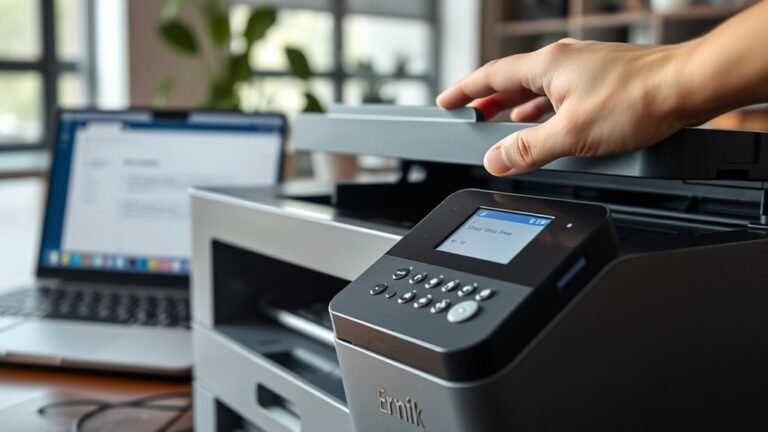
To connect your iPhone to a USB printer, first make sure your printer is powered on and identify its USB port type. This step is crucial because knowing the port type helps you pick the right adapter. Without the correct adapter, your iPhone won’t connect properly to the printer.
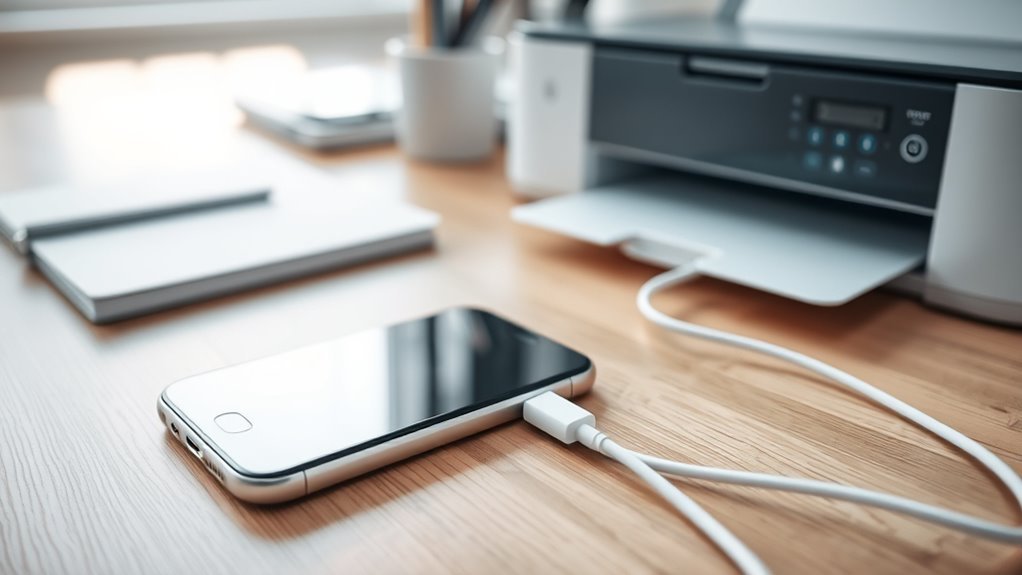
Next, choose the right adapter—use a Lightning to USB Camera Adapter for older iPhones or a USB‑C adapter for newer models—and connect them properly. It’s pretty straightforward once you have the correct adapter in hand. Just plug everything in carefully to avoid any connection issues.
Finally, use the printer’s app to set up and send a test print. This helps verify everything is working smoothly. Keep going to explore tips on overcoming common connection challenges and optimizing your setup. You’ll be printing from your iPhone in no time!
Key Takeaways
- Identify your printer’s USB port type and make sure it’s powered on before you connect it to your iPhone.
- Use the right adapter: a Lightning to USB Camera Adapter for older iPhones, or a USB-C adapter/cable if you have an iPhone 15 or later.
- Connect your iPhone to the printer using the adapter and the correct USB cable that fits your printer’s port.
- Next, download and open the printer manufacturer’s app to finish the setup. This will help confirm that your printer is detected.
- Finally, try a test print in the app to make sure your iPhone and printer are communicating properly. Easy, right?
Get Your iPhone and USB Printer Ready to Print
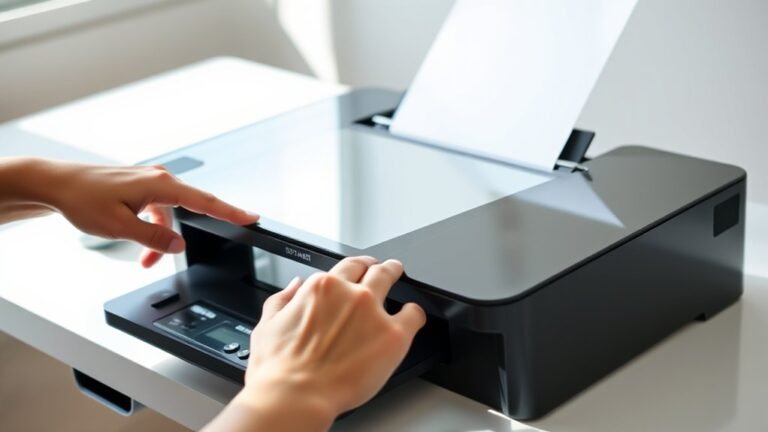
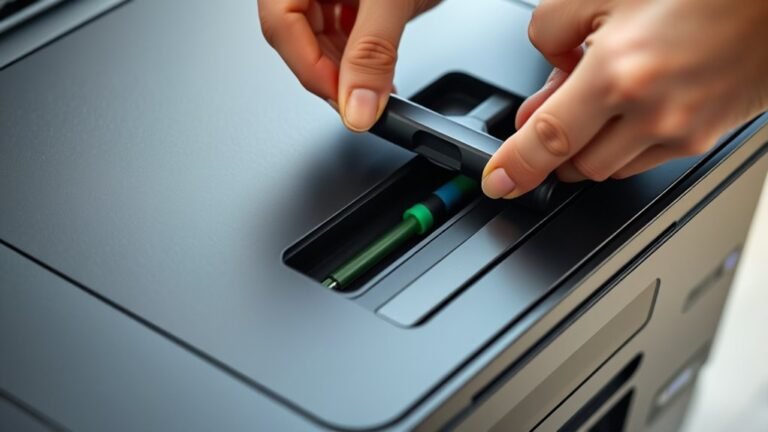
To get your iPhone and USB printer ready to print, start by checking the type of USB port on your printer—whether it’s USB Type-A, Type-B, Micro-B, or USB-C. This determines the cable you’ll need. Most label printers use USB-B, but some might have Micro-B or USB-C ports.
Next, make sure your printer is powered on. If it supports network printing, confirm it’s connected to the same Wi-Fi as your iPhone.
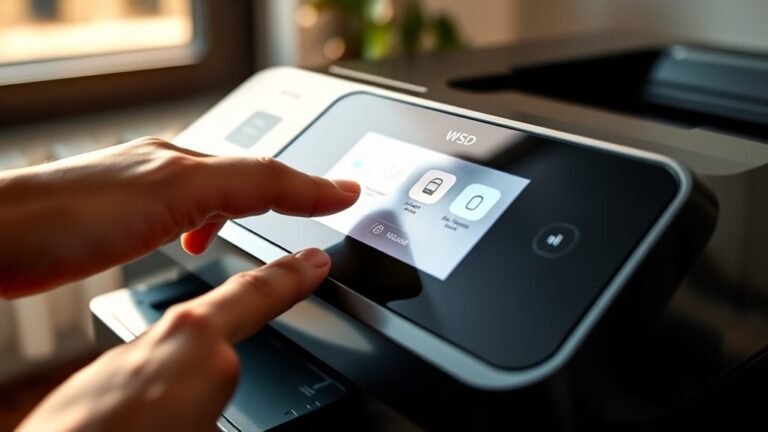
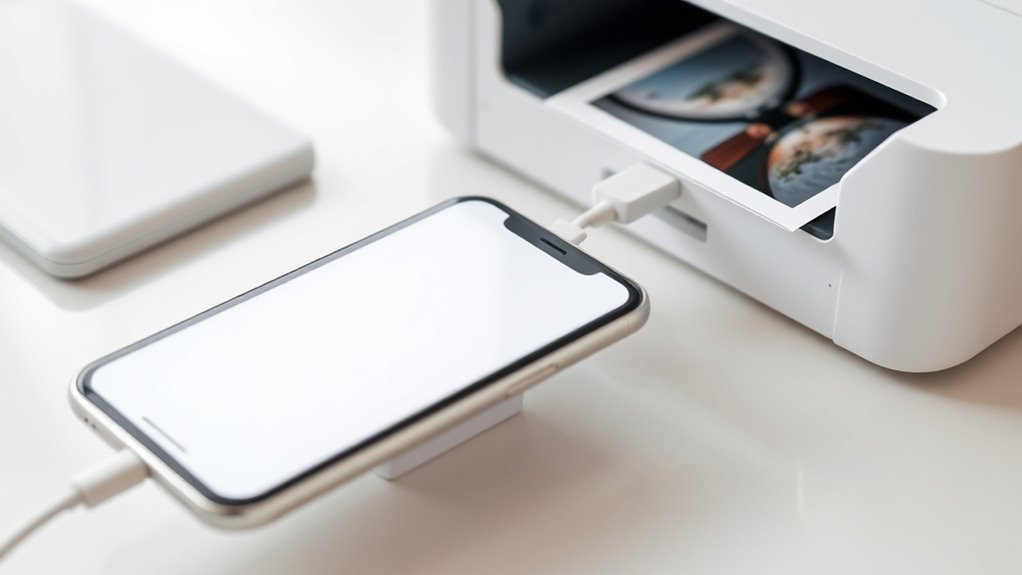
To print from your iPhone via USB, you might need to download the printer manufacturer’s app and complete a quick setup. Once you connect your iPhone using the correct adapter and cable, try a test print through the app.
This way, you’ll make sure your devices communicate properly and you can print from your iPhone without any hassle.
Pick and Connect the Right USB Adapter for Your iPhone
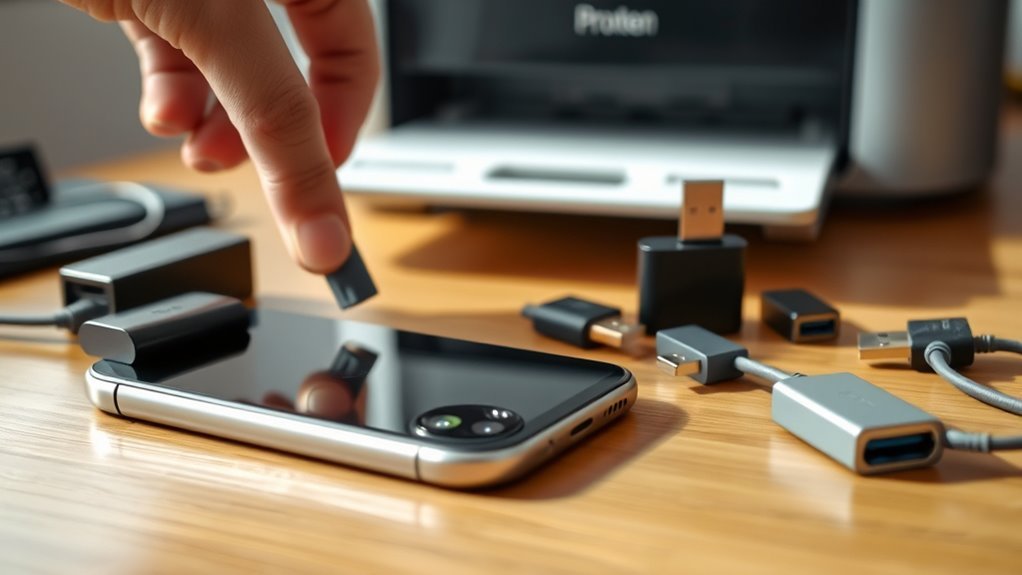
Now that your iPhone and printer are ready to communicate, focus on selecting the correct USB adapter to connect them. Most iPhones use a Lightning port, so you’ll likely need a Lightning to USB Camera Adapter (Apple model A1440/A1722) to connect to a USB-A printer.
For iPhone 15 or later with USB-C, use a USB-C to USB-A adapter or a USB-C to USB-C cable depending on the printer’s port. If your printer demands more power, consider the Lightning to USB 3 Camera Adapter with pass-through charging.
Check your printer’s USB type carefully—USB-A, USB-B, or USB-C—to pick the right cable or adapter. Setting up a new account with the printer’s app might help if direct printing isn’t supported.
This guarantees smooth, reliable connections for your printing needs. Easy, right? Just pick the right adapter and you’re good to go!
Send Print Jobs From Your iPhone to the USB Printer
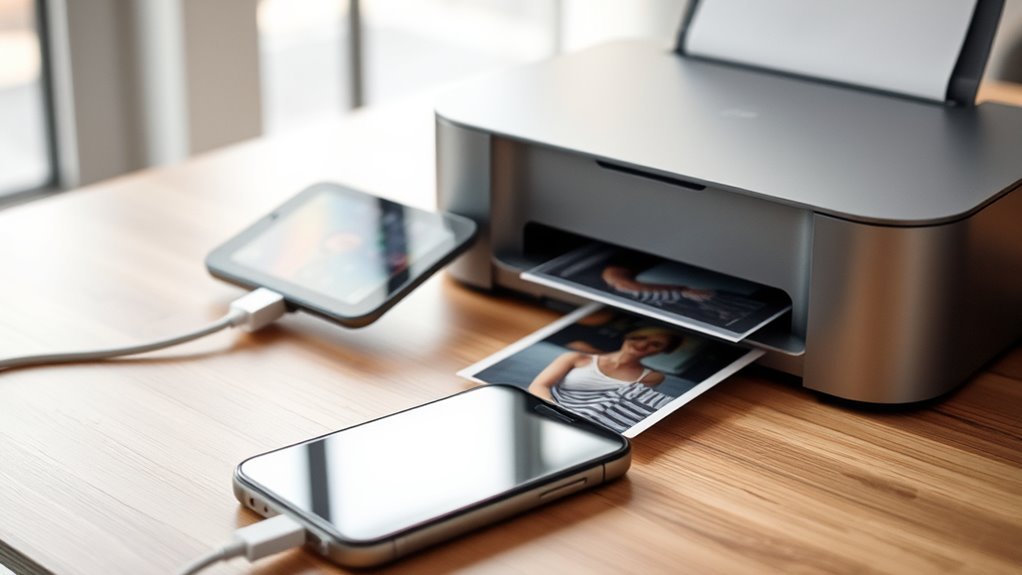
Sending print jobs from your iPhone to a USB printer usually requires a few extra steps since iPhones don’t support direct USB printing to most USB-only models.
Printing directly from an iPhone to a USB-only printer typically needs additional setup steps.
To print, you can connect the USB printer to a Mac, enable Printer Sharing (System Settings > Printers & Scanners), and make sure both devices share the same Wi-Fi network. Then, send your print jobs via AirPrint or the printer’s iOS app, which often can detect shared USB printers.
Alternatively, connect the USB printer to a router with USB-printer support to make it network-accessible.
These methods, often generated by AI suggestions, let you bypass direct USB limitations. Using your Mac as a bridge or the printer’s app makes for smooth, wireless printing from your iPhone to a USB printer.
Frequently Asked Questions
How to Connect USB to iPhone?
You connect USB to your iPhone using a Lightning-to-USB or USB-C adapter. Plug the adapter into your iPhone, then connect the USB cable from your device to the adapter.
Make sure both devices have power and are compatible. It’s pretty straightforward once you have the right adapter!
How to Print From iPhone to HP Printer?
Want to print from your iPhone to an HP printer? Just tap Share, select Print, pick your AirPrint-enabled HP printer on Wi-Fi, and hit Print.
No AirPrint? No worries! Use the HP Smart app to get it done easily.
Why Is My iPhone Not Finding My Printer?
Your iPhone isn’t finding your printer because it likely lacks AirPrint support, isn’t on the same Wi-Fi network, or the printer’s network features are disabled.
Check connections, network settings, and printer status to fix this. It’s usually a simple fix once you know where to look!
How to Print From iPhone Without Airprint?
Over 70% of iPhone users don’t rely solely on AirPrint. You can print by using your printer’s iOS app, connecting via Wi-Fi Direct, or pairing through Bluetooth with compatible apps—no AirPrint needed for seamless printing.
It’s pretty easy once you know the options. Just pick what works best for your setup and you’re good to go!
Conclusion
Connecting your iPhone to a USB printer is as simple as pie when you follow these easy steps. Once you’ve got your devices ready, the right adapter connected, and your print jobs sent, you’ll see how effortless printing can be.
Just like snapping your fingers, you can quickly turn digital files into physical copies. So go ahead, print away with confidence and enjoy the convenience right at your fingertips! Connecting your iPhone to a printer with USB has never been easier. With the right setup, you can easily manage your print jobs without any fuss. Whether it’s for work or personal use, this method offers a straightforward way to get your documents printed fast.
Embrace the simplicity of connecting your iPhone to a USB printer and enjoy seamless printing anytime you need it!