How Do You Put a Printer Back Online in 5 Easy Steps
To put your printer back online quickly, start by checking that all cables are securely connected and that the printer is powered on. These simple steps can often solve the problem right away.
If everything looks good, the next move is to restart both your printer and computer. This helps refresh the connection and clear any temporary glitches.
After that, make sure your printer is set as the default device in your system settings. This ensures your computer sends print jobs to the right machine.
Don’t forget to clear any stuck print jobs from the queue — they can cause errors and prevent printing.
Finally, update or reinstall the printer drivers. Sometimes software issues can keep your printer offline, and fresh drivers usually fix that.
Keep going if you want to explore detailed troubleshooting tips!
Key Takeaways
- Check all power and connection cables are securely plugged into the printer and computer or network. Make sure nothing is loose or disconnected.
- Restart both the printer and computer to refresh their communication and clear temporary errors. This simple step often fixes many offline issues.
- Set the printer as the default device in your computer’s printer settings to ensure proper job routing. It helps your computer know exactly where to send the print jobs.
- Clear any stuck print jobs from the print queue and resolve any displayed printer errors. Sometimes, a jammed job can cause the printer to go offline.
- Update or reinstall the printer drivers from the manufacturer’s website to fix offline issues. Keeping drivers updated can prevent many common problems.
Fix Printer Offline: Check Connection and Power
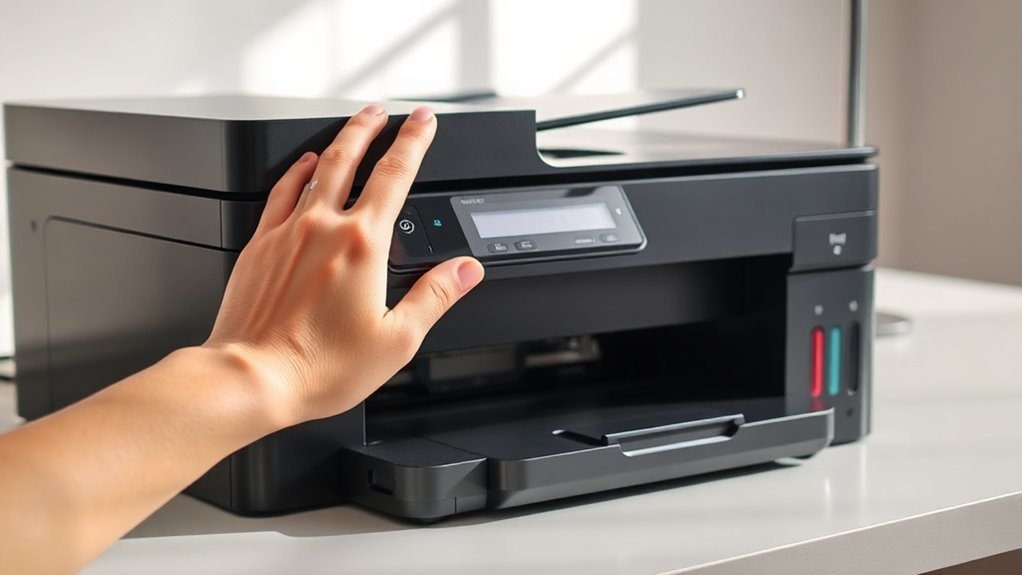
Before troubleshooting further, make sure your printer is correctly connected and powered on. First, check the power cable and ensure it’s securely plugged into both the printer and the electrical outlet.
If the printer has a power button, press it to turn the device on. Next, confirm that the USB or network cable is firmly connected to your computer or router.
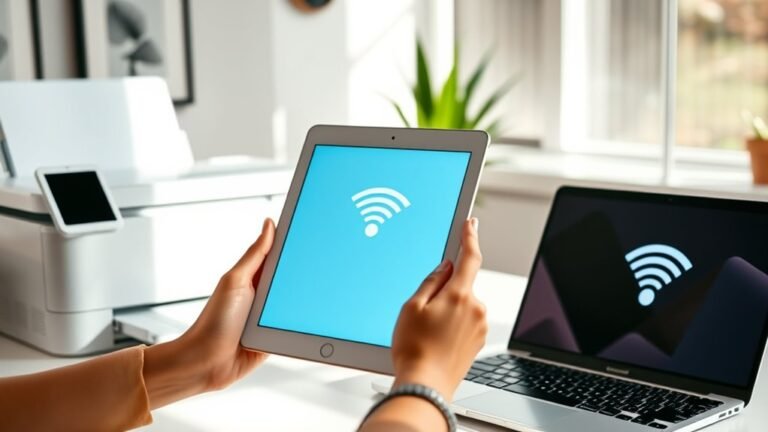
If you’re using Wi-Fi, verify the printer is connected to the correct network by checking its display panel or settings. Loose or faulty cables often cause offline status, so replacing damaged cords might help.
Restart Printer and Computer to Fix Offline Status
Once you’ve verified the printer is properly connected and powered, restarting both your printer and computer can often resolve the offline status. This simple step refreshes the devices and clears minor glitches.
First, turn off your printer and wait 30 seconds before turning it back on. Then, restart your computer to reset its communication with the printer. It’s pretty straightforward!
| Step | Action | Tip |
|---|---|---|
| 1 | Turn off the printer | Wait 30 seconds |
| 2 | Turn printer back on | Ensure it’s fully powered |
| 3 | Restart your computer | Close all apps before restarting |
After these steps, check if your printer shows as online. Restarting often fixes connectivity issues quickly. Hopefully, this gets you printing again without a hitch!
Make Your Printer the Default
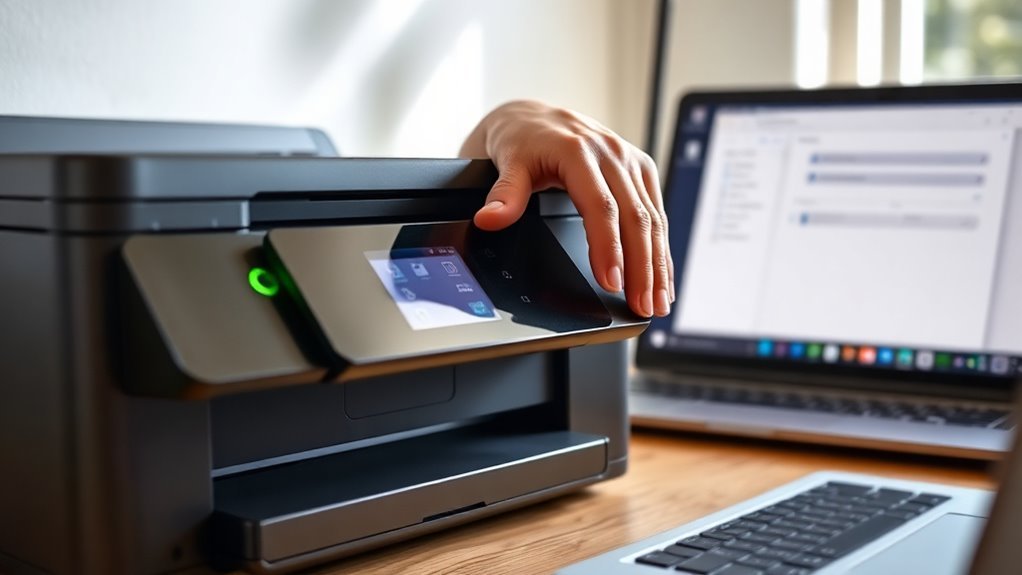
If your printer still shows offline after restarting, setting it as the default printer can help ensure your computer sends documents to the right device.
To do this, open the Control Panel on your computer and navigate to “Devices and Printers.” Find your printer in the list, right-click it, and select “Set as default printer.” This action tells your system to prioritize this printer for all print jobs, reducing confusion caused by multiple printers.
On Windows 10 or 11, you can also go to Settings > Bluetooth & devices > Printers & scanners, select your printer, and click “Set as default.” Making your printer the default ensures your documents won’t accidentally go to another offline or disconnected printer.
This simple step can often resolve offline status issues effectively.
Clear Stuck Print Jobs and Fix Errors
You’ll often find that stuck print jobs cause your printer to appear offline or unresponsive. Clearing these jobs can quickly fix errors and bring your printer back online.
Start by opening the print queue on your computer. From there, you can cancel or delete any stuck jobs causing the issue. Also, check your printer’s display for error messages and fix them as needed.
Here’s how to clear stuck print jobs and fix errors:
- Open the print queue via the Control Panel or printer icon.
- Select and cancel all pending print jobs.
- Restart the Print Spooler service on your computer.
- Power cycle your printer to reset its internal memory.
Following these steps should get your printer back to normal in no time.
Update or Reinstall Printer Drivers to Fix Offline Issues
A common cause of offline printer issues is outdated or corrupted drivers. When your printer won’t connect properly, updating or reinstalling its drivers often fixes the problem.
Start by visiting the printer manufacturer’s website to download the latest driver compatible with your operating system. After downloading, run the installer and follow the prompts to ensure the driver is updated.
If updating doesn’t help, uninstall the current driver through your computer’s Device Manager, then reinstall the fresh version. This process clears corrupted files that might be causing the offline status.
Remember to restart your computer after installing drivers to ensure changes take effect. Keeping your drivers updated not only resolves offline errors but also improves printer performance and compatibility.
Frequently Asked Questions
How Can I Connect My Printer to Wi-Fi Initially?
You connect your printer to Wi-Fi by turning it on and accessing the wireless setup option on its control panel. Next, select your network and enter the password.
Just follow the on-screen instructions to complete the connection easily and quickly. It’s pretty straightforward!
What Should I Do if My Printer Displays a Paper Jam?
Around 70% of printer issues involve paper jams. To fix it, turn off your printer, and carefully remove the stuck paper.
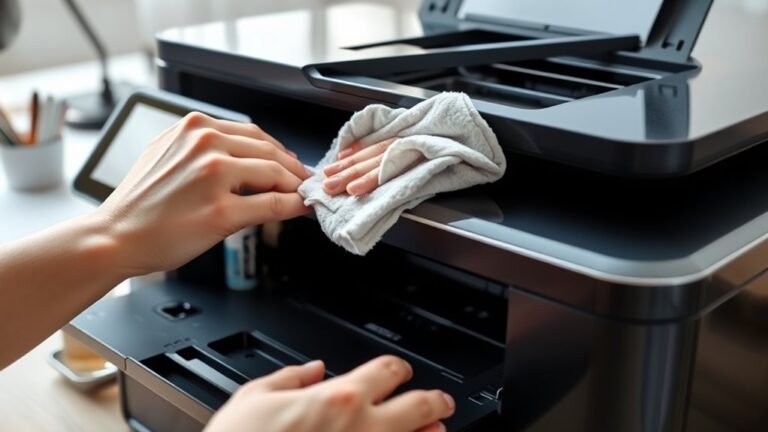
Make sure to check for any debris inside the printer. Then, close all trays properly before you restart.
This helps prevent damage and keeps your printer running smoothly. It’s a simple step that goes a long way!
How Do I Replace Ink or Toner Cartridges?
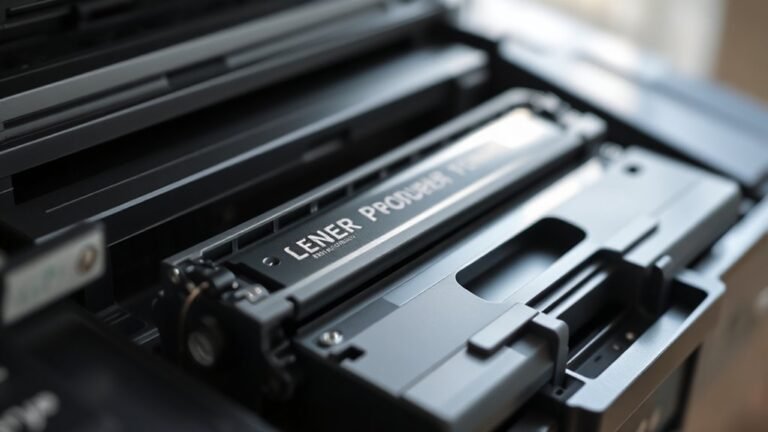
You’ll open the printer’s cartridge access door, carefully remove the old cartridge, and unseal the new one.
Then, insert it firmly into place and close the door. Don’t forget to run a test print afterward!
Can I Print From My Smartphone to This Printer?
If your printer supports wireless or Bluetooth connections, you can print from your smartphone. Just connect both devices to the same network, and you’ll be off to the races in no time.
It’s pretty straightforward once you get everything set up. So, no worries—printing from your phone is easier than you might think!
How Do I Scan Documents Using My Printer?
To scan documents, place your paper on the scanner glass or feeder. Then, open your printer’s scanning software on your computer or app.
Select scan, choose your settings, and start the scan. It’s pretty straightforward once you get the hang of it.
After that, you can save or share your scanned file easily. Just pick what works best for you!
Conclusion
You might think your printer going offline is just bad luck, but it’s usually a simple fix. By checking connections, restarting devices, setting your printer as default, clearing stuck jobs, or updating drivers, you can get it back online quickly.
Don’t let a technical hiccup stop you—these easy steps prove that most printer issues aren’t permanent. With a little patience, your printer will be ready to go in no time. Getting your printer back online doesn’t have to be frustrating.
Just follow these quick and easy steps, and you’ll be printing again before you know it. Whether it’s connection problems or driver updates, these fixes cover all the common reasons your printer might go offline. So don’t stress—putting a printer back online can be simple and fast!