How Does a Wireless Printer Work?
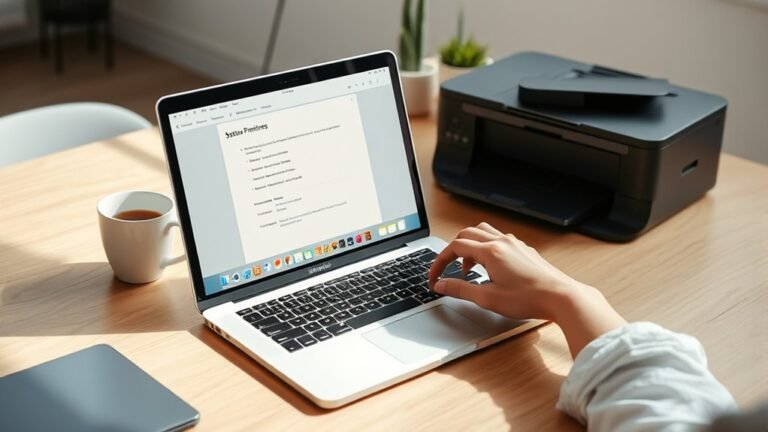
You connect your wireless printer to your Wi-Fi or Bluetooth network, so you can print from multiple devices without cables. Wireless printers offer a flexible way to print documents and photos without being tied down by cords.
Wi-Fi printers join your local network, letting all devices on it send jobs, while Bluetooth pairs directly with one nearby device. This means you can easily print from your laptop, smartphone, or tablet without any hassle.
Your device sends print commands via drivers or apps, and the printer processes and prints them. Some models also offer cloud printing for remote access.
Keep going to find out how setup, connections, and printing actually work. It’s simpler than you might think!
Key Takeaways
- A wireless printer connects to a local Wi‑Fi network or pairs via Bluetooth so you can print without any cables. This means multiple devices can send print jobs easily.
- It gets an IP address on the network, which lets devices communicate with it using protocols like IPP over TCP/IP. This is how your device knows where to send the print job.
- Wi‑Fi Direct is another option. It creates a temporary network that connects your device directly to the printer without needing a router. Plus, it usually offers faster speeds than Bluetooth.
- Some printers are cloud-enabled. They register with online services so you can send print jobs from anywhere. These connections are encrypted to keep your data safe.
- When you print, your device converts the document into a format the printer understands. Then, the printer handles things like scheduling jobs, checking for errors, and letting you know its status.
What Is a Wireless Printer and Why Use It?
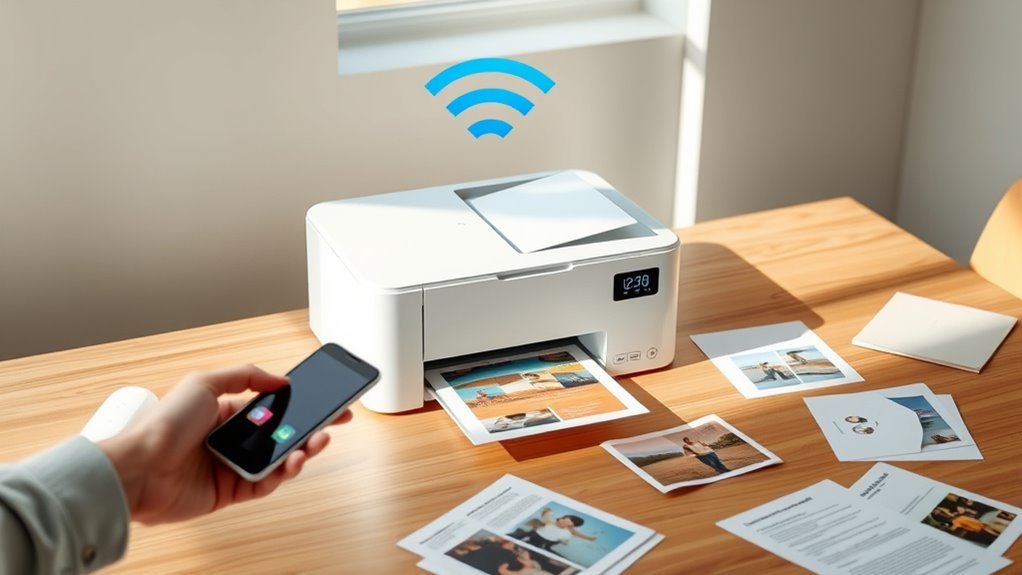
A wireless printer lets you send print jobs without plugging in cables, using Wi‑Fi or Bluetooth to connect multiple devices seamlessly. When you use a wireless printer, it links to your local WiFi network, allowing your computer, phone, or tablet to print without needing direct cables.
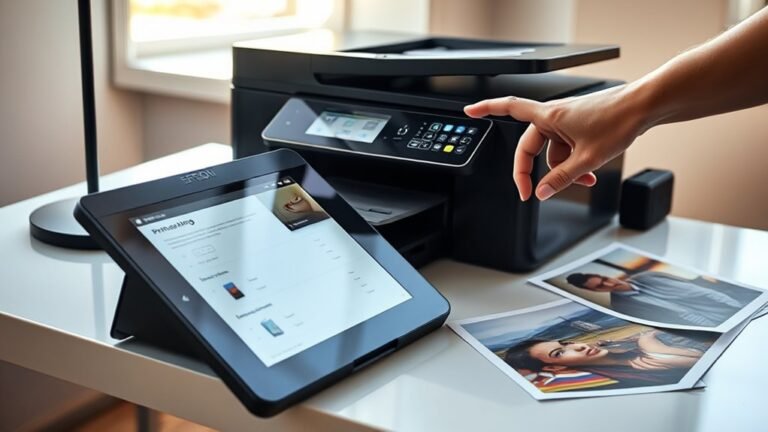
This means you can place the printer anywhere within the network’s range, making your workspace more flexible. Many wireless printers also support mobile apps, letting you print, scan, or manage documents right from your smartphone.
These apps simplify setup and let you control tasks remotely. Plus, multifunction wireless printers often include scanning and faxing capabilities, enhancing productivity without extra wiring.
How Does a Wireless Printer Connect to Your Devices?
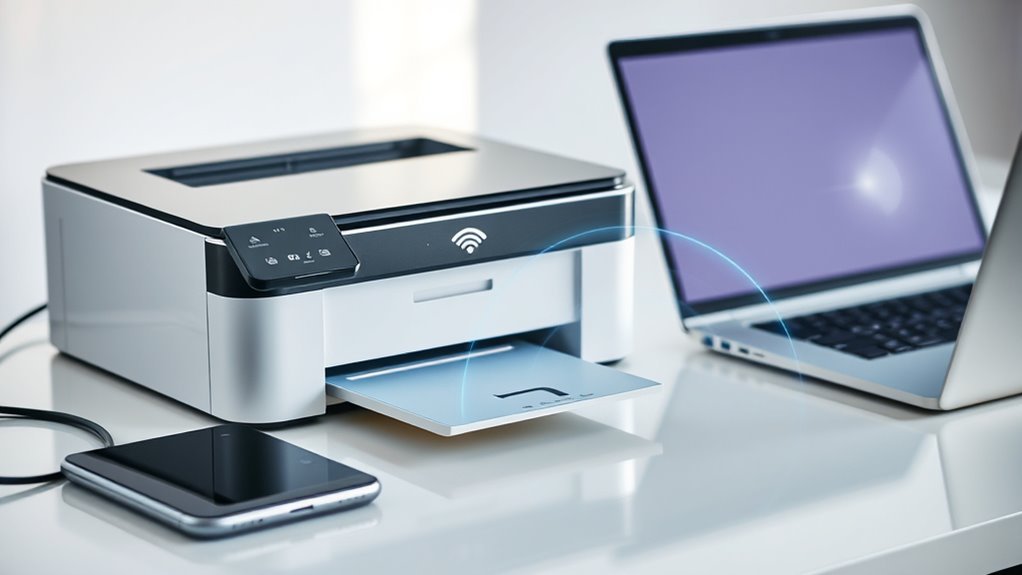
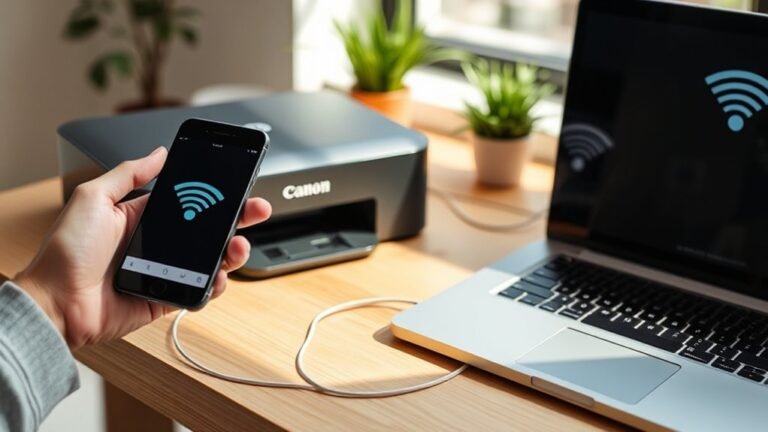
Connecting your wireless printer to your devices is easier than you might think. Wi‑Fi printers join your local wireless network by entering your network’s SSID and password via the printer’s control panel or mobile app. This usually takes less than a minute when your device is within about 30 meters of the router.
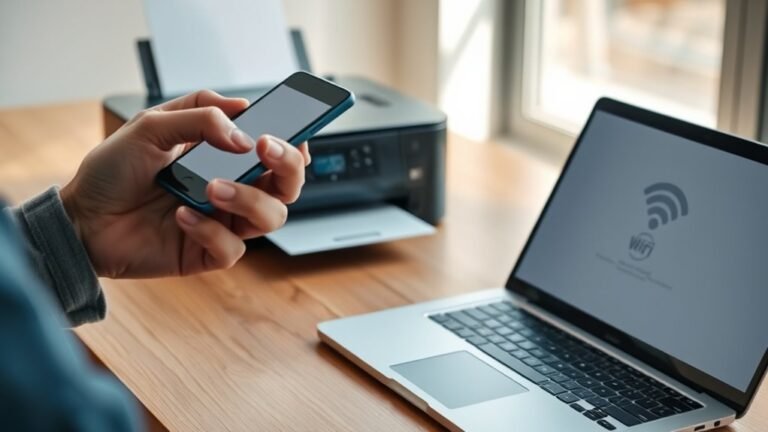
Bluetooth wireless printers pair directly with a single device using a pairing code. This is perfect for short ranges and doesn’t require Wi‑Fi. Some printers use Wi‑Fi Direct, which creates a temporary network so your smartphone or laptop can connect without an existing router.
Cloud-enabled wireless printers register with cloud services, allowing you to send print jobs from anywhere. Once your device is connected, print commands go through installed drivers or mobile apps to the printer for processing and printing. It’s really that simple!
How Wi-Fi Enables Wireless Printing
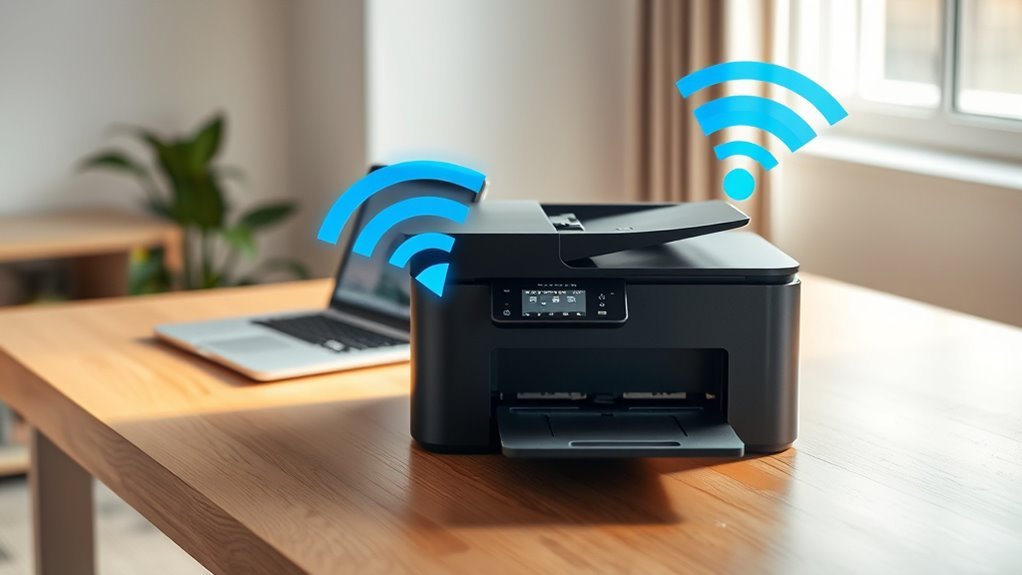
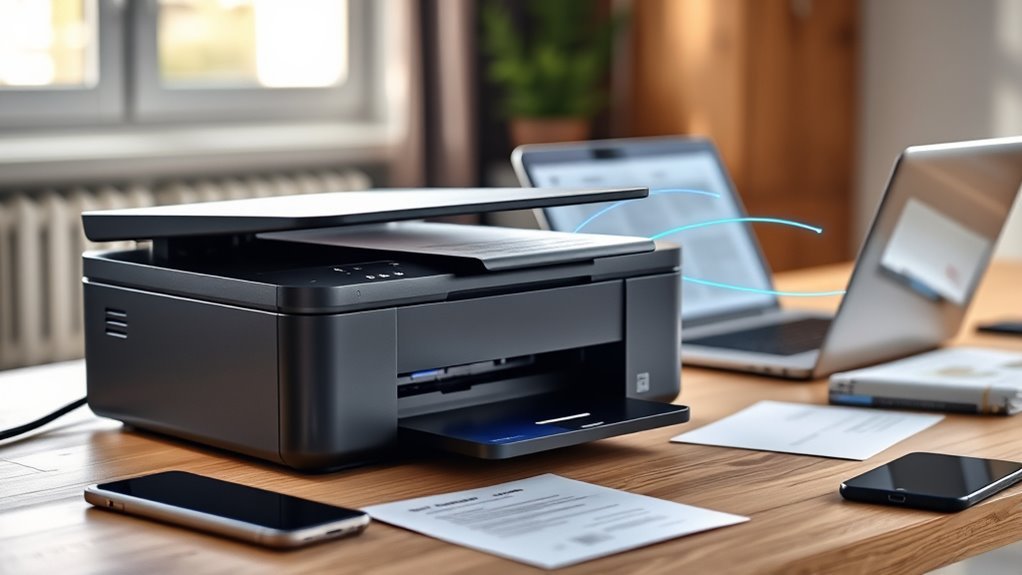
When you connect your printer to your Wi-Fi network using its control panel or app, it joins the same local network as your devices. Your devices then use specific communication protocols and drivers to send print jobs through the router directly to the printer.
This seamless connection lets you print wirelessly without needing cables or physical connections. It’s pretty convenient once everything is set up, right?
Wi-Fi Connection Process
Although setting up a Wi-Fi printer might seem technical, it’s actually pretty straightforward. You just need to select your network’s SSID and enter the password through the printer’s control panel or app.
This wireless connection lets the printer join your local network securely. It gets an IP address so devices can connect easily.
When your device connects to the same network, it finds the printer using that IP address and sends print jobs over the wireless connection. Many printers even advertise themselves automatically, so your device can find them without any hassle.
Whether you use a mobile app or a computer, once you’re connected, sending print jobs is seamless. You can print wirelessly from anywhere in your home or office, no cables or drivers needed.
Network Communication Protocols
Because Wi-Fi printers use established network communication protocols, they seamlessly integrate into your local network and make wireless printing simple. When your printer joins the network via IEEE 802.11 standards, it gets an IP address through DHCP, allowing your devices to find it over TCP/IP.
Your print jobs travel using IPP (Internet Printing Protocol), a standard that guarantees reliable communication. To discover printers without typing IP addresses, your devices use mDNS/Bonjour, which automatically locates and connects to printers on your network.
This zero-configuration approach means you can start wireless printing almost instantly. Together, these protocols create a smooth, secure experience, letting you print from laptops, smartphones, or tablets without complicated setup or cables.
Bluetooth vs. Wi-Fi Printers: What’s the Difference?
Choosing between Bluetooth and Wi-Fi printers depends on how you plan to print and the environment you’re in. Bluetooth printers connect directly to a single nearby device within about 30 feet, making them perfect for quick, mobile, or single-user printing without needing a wireless network.
Choosing Bluetooth or Wi-Fi printers hinges on your printing needs and nearby device connections.
They use less power and have simple setups but offer slower data transfer and limited simultaneous connections. So, if you want something straightforward and don’t need multiple devices printing, Bluetooth could be your go-to.
On the other hand, Wi-Fi printers join your local wireless network through a router, allowing multiple devices to print from up to 100 feet away. They support faster transfers, higher-resolution jobs, and advanced features like cloud printing, security protocols, and firmware updates.
Wi-Fi Direct even lets you connect without a router, combining convenience with higher bandwidth than Bluetooth. Basically, if you want more robust wireless capabilities and don’t mind a bit more setup, Wi-Fi printers are the way to go. Your choice depends on whether you need simplicity or more robust wireless capabilities.
How Wireless Printers Process Your Print Jobs
Once you’ve selected the right wireless printer for your needs, understanding how it handles your print jobs can help you troubleshoot issues and optimize performance. When you send a print job, your device converts the document into a printer-readable format and connects over Wi-Fi, Bluetooth, or Wi-Fi Direct to send the data.
The printer then processes the job by buffering, rendering, and applying specific settings before printing. It might sound complicated, but knowing these steps makes things clearer.
Here’s what happens inside your wireless printer:
- Converts data into PCL, PostScript, or raster format
- Connects via local network or device-to-printer pairing
- Buffers incoming jobs and schedules printing based on priority
- Applies settings like duplexing, color management, and scaling
- Checks for errors and reports status back to your device
Knowing this flow helps you manage your printers efficiently. So next time you hit print, you’ll have a better idea of what’s going on behind the scenes.
Using Cloud Printing to Enhance Wireless Printing
Leveraging cloud printing lets you send print jobs to your wireless printer from anywhere with an internet connection, bypassing the need to be on the same Wi-Fi network. This means you can print documents securely via encrypted connections, as long as your printer’s firmware is up to date and registered with the cloud service.
Cloud printing also simplifies driver management, letting you print PDFs, photos, or Office files from mobile devices without installing extra software. It really makes wireless printing more convenient and hassle-free.
| Feature | Benefit | Requirement |
|---|---|---|
| Remote Access | Printing from anywhere | Internet connection |
| Secure Transmission | Encrypted HTTPS and authentication | Updated printer firmware |
| Driver Management | No local drivers needed | Cloud-enabled service |
| Scan to Cloud | Auto-store scans online | Compatible printer |
| Admin Controls | Print quotas, auditing | Vendor subscription |
How to Set Up Your Wireless Printer
Start by placing your printer near your Wi-Fi router and powering it on with enough paper and ink.
Then, connect it to your network using the printer’s wireless setup wizard and enter your Wi-Fi password.
Finally, install the printer software or app on your device to complete the setup and start printing.
Connecting to WiFi
Within about 100 feet of your wireless router, place your printer and power it on to begin the Wi-Fi setup. Use the printer’s control panel or mobile app to launch the Wi‑Fi setup wizard.
Select your network’s SSID, enter the Wi‑Fi password, and wait until the printer shows it’s connected. If your router supports WPS, you can press the push-button on both devices for easier connection.
Remember to confirm your device is on the same network before printing.
To connect your wireless printer to Wi-Fi:
- Choose your network’s SSID
- Enter the Wi-Fi password (WPA/WPA2 recommended)
- Use WPS push-button if supported
- Wait for “connected” confirmation
- Enable Wi‑Fi Direct for direct device printing without a router
Installing Printer Software
Download the manufacturer’s driver and setup utility compatible with your operating system before beginning the wireless setup. This guarantees your device can communicate properly with the printer.
During installation, select “Wireless” or “Network” connection so the software automatically detects your printer on the local Wi-Fi. If your printers connect via Wi-Fi Direct or need initial setup, you may temporarily connect the device to your computer using a USB cable to transfer settings, then remove it once connected.
After installation, confirm your device are connected by printing a test page. Finally, check that the printer appears in your OS’s Printers & Scanners list and the manufacturer’s app.
Once done, you’re ready to print documents wirelessly with ease.
Troubleshooting Common Wireless Printer Issues
When your wireless printer acts up, the first step is to make sure both the printer and your device are connected to the same Wi-Fi network. Many printers only support 2.4 GHz and won’t show up if your device is on 5 GHz or a different network.
Ensure your printer and device share the same Wi-Fi network, preferably on the 2.4 GHz band, for smooth connectivity.
To help users send print jobs smoothly and be able to connect without issues, follow these troubleshooting tips:
- Verify both devices use the same Wi-Fi band and SSID.
- Update the printer’s firmware and drivers regularly.
- Restart the printer, router, and device to refresh connections.
- Check Bluetooth pairing or Wi-Fi Direct settings if used.
- Confirm the correct Wi-Fi password and enable WPA/WPA2 security.
Printers support these steps to reduce common connectivity issues and make certain reliable printing. It’s a simple way to keep things running without a hitch.
Frequently Asked Questions
What’s the Difference Between a Wifi Printer and a Wireless Printer?
A wireless printer uses any wireless method like Bluetooth or Wi-Fi, while a Wi-Fi printer specifically connects through your local Wi-Fi network. This lets multiple devices print and access advanced features like cloud printing and updates.
How to Connect a Wireless Printer to Your Wifi?
Connecting a wireless printer to your Wi-Fi is like pairing Bluetooth earbuds—simple and quick. Just select your network on the printer, enter the password or use WPS,
then install drivers on your device to start printing wirelessly. Easy, right? It usually only takes a few minutes.
Do You Need Internet for a Printer?
You don’t always need internet for a printer. If your device and printer share the same Wi-Fi or connect via Bluetooth or Wi-Fi Direct, you can print locally.
Internet’s only necessary for remote or cloud printing features. So, if you’re printing from the same network, you’re good to go without internet.
What Are the Disadvantages of a Wireless Printer?
You’ll face security risks if you don’t secure your wireless printer, plus connection dropouts and slower speeds in busy networks.
Updates need your attention, and multi-user limits might slow office workflows, increasing costs and downtime.
It’s a bit of a hassle sometimes, but staying on top of these issues helps keep things running smoothly.
Conclusion
Wireless printers make printing easier by cutting the cords and letting you print from anywhere in your home or office. Did you know that over 60% of households now own a wireless printer? That means more people are enjoying the convenience of printing without being tied to a desk.
Once you set yours up, you’ll see how simple and efficient wireless printing truly is. It saves you time and reduces clutter, making your workspace neater and more organized. Plus, the freedom of wireless connectivity means you can print documents, photos, or labels right from your smartphone, tablet, or laptop without hassle.
In short, wireless printers bring flexibility and convenience to your daily tasks. By eliminating cables and enabling remote printing, they help streamline your workflow and make printing effortless. Whether at home or in the office, a wireless printer is a smart investment for anyone looking to enhance productivity and enjoy easy, clutter-free printing.