How to Connect Your Printer to Wi-Fi in 5 Easy Steps
First, check your printer’s Wi-Fi compatibility and find your network’s SSID and password. Knowing these details is key to a smooth setup. Without them, connecting your printer to Wi-Fi can be tricky.
Next, connect your printer using WPS by pressing both device buttons. If your printer doesn’t support WPS, you can use the printer’s control panel or the manufacturer’s app to enter your Wi-Fi details manually. This way, your printer will join your network securely and quickly.
Then, add the printer on your computer or mobile device through settings or use AirPrint or Mopria if your device supports them. These options make it easy to connect without extra software.
Finally, print a test page to confirm the connection. Once the setup is done, you can explore advanced features and enjoy a better wireless printing experience at home or in the office.
Key Takeaways
- Confirm your printer supports Wi-Fi and locate your home network’s SSID and password. This info is key to getting started.
- Use WPS by pressing the router and printer WPS buttons within two minutes for a quick connection. It’s super handy if you want to avoid typing in passwords.
- Alternatively, use the printer’s Wireless Setup Wizard or manufacturer app to enter Wi-Fi credentials. Just follow the on-screen prompts to connect.
- Add the printer on your device via system settings or use AirPrint/Mopria for mobile printing. It’s pretty straightforward once the printer is online.
- Print a test page from the printer or device to verify successful Wi-Fi connection. This step ensures everything is working perfectly.
Check Printer Wi-Fi Compatibility and Network Details
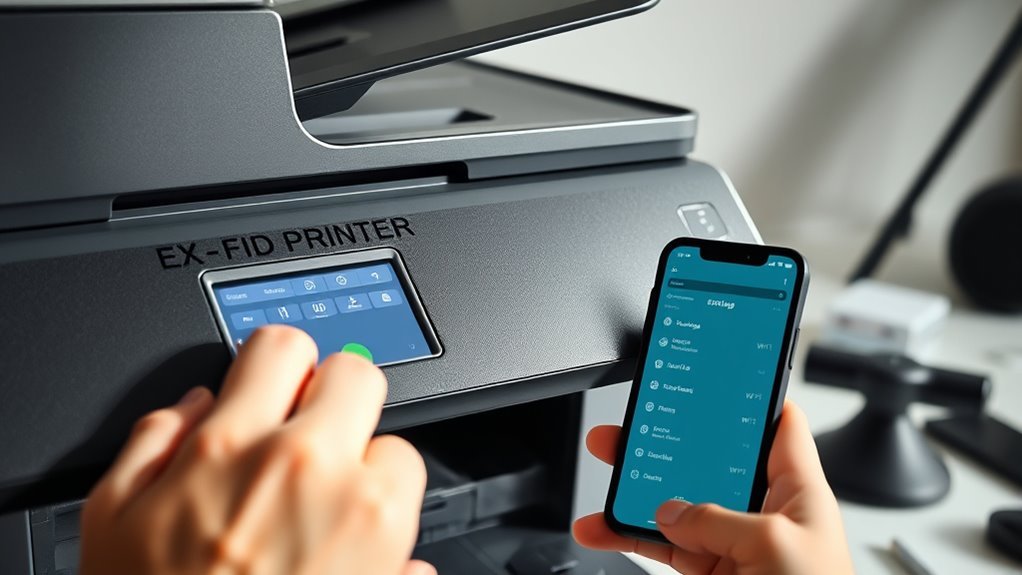
Before connecting your printer to Wi-Fi, make sure your device supports wireless networking by checking for a Wi-Fi symbol or reviewing its specifications. Confirm printer Wi-Fi compatibility by looking for this symbol on the device or in the manual.
Next, locate your home network’s SSID and password, which are typically found on the router label or in the router’s admin page. Make sure your printer is within a strong signal range—usually within 50–100 meters indoors. But closer is better to avoid interference.
If both your router and printer support WPS, you can simplify setup without typing the password. Finally, decide whether to use a manufacturer app or the printer’s control panel for setup. Be ready to create an account if the app requires one.
Connect Your Printer Using WPS, Control Panel, or Manufacturer Apps
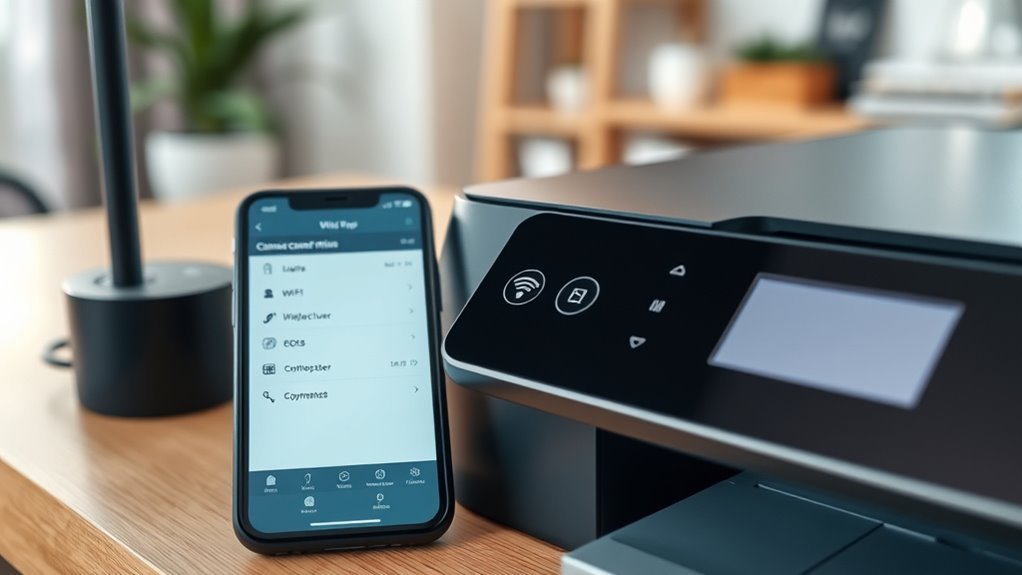
Once you’ve confirmed your printer supports Wi-Fi and have your network details ready, you can connect your printer using one of three methods: WPS, the printer’s control panel, or manufacturer apps.
With WPS, press your router’s WPS button, then the printer’s WPS button within two minutes. The printer’s WiFi light should go solid, confirming connection.
Press your router’s WPS button, then your printer’s within two minutes to quickly connect via Wi-Fi.
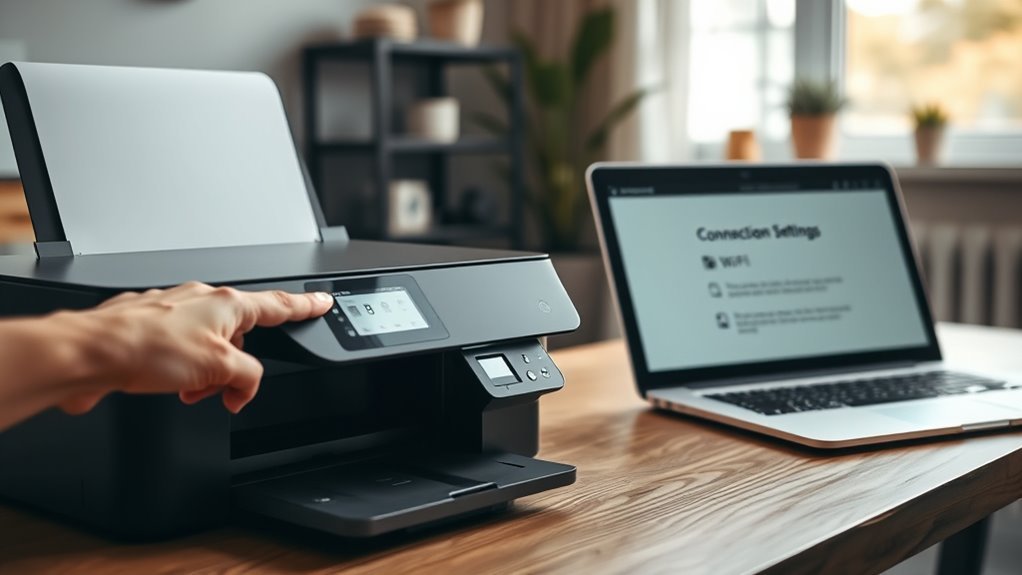
If your printer lacks WPS, use the printer control panel’s Wireless Setup Wizard to select your SSID and enter the WPA/WPA2 passphrase manually.
Manufacturer apps like HP Smart or Epson Smart Panel guide you through wireless setup. They often auto-detect your printer or may require a temporary USB or Ethernet connection.
After connecting, you’ll need to add the printer on your devices via settings or just use AirPrint for driverless printing on compatible mobile devices. Easy, right?
Add and Set Up Your Wireless Printer on Your Devices
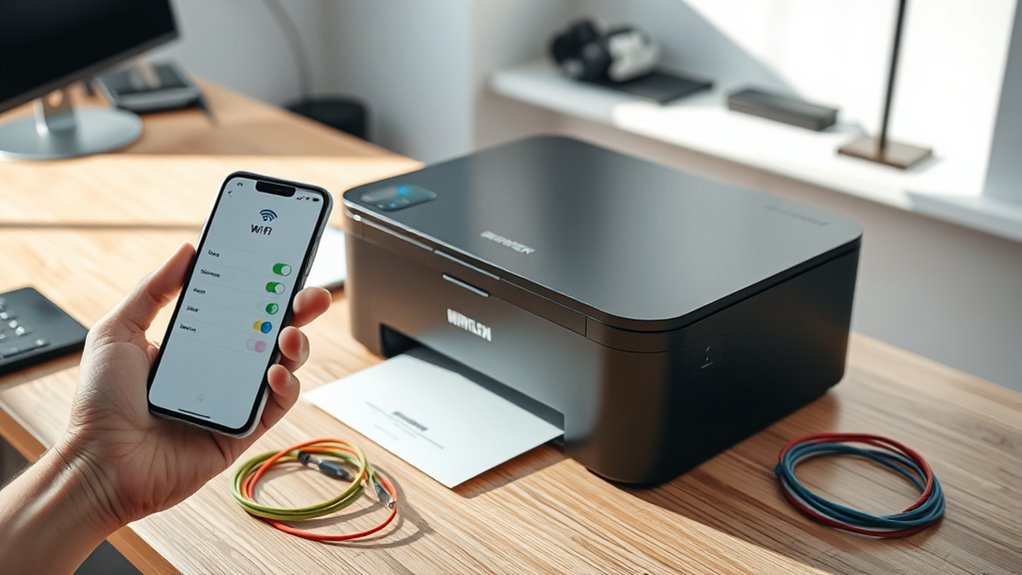
Add your wireless printer to your devices by finding your way to the appropriate settings menu and selecting your printer from the detected list. On Windows, go to Start → Settings → Devices → Printers & Scanners → Add a printer or scanner.
On macOS, open System Settings → Printers & Scanners and click the + button. For iPhone/iPad, use AirPrint by selecting the printer in any app’s Share/Print option.
Android users should enable Mopria Print Service or use the manufacturer’s app. If the printer isn’t found, make sure all devices share the same WiFi connection and network name.
Then, you can add the printer manually using its IP address with TCP/IP.
| Device | Setup Method |
|---|---|
| Windows | Add a printer or scanner |
| macOS | Printers & Scanners (+ button) |
| iPhone/iPad | AirPrint |
| Android | Manufacturer’s app / Mopria |
| Manual Add | Printer IP address (TCP/IP) |
Print a Test Page to Confirm Your Wi-Fi Printer
Verifying your Wi-Fi printer’s connection is essential to make sure everything works smoothly. Start by using the printer’s control panel to print a printer test page, network configuration, or wireless report. This shows the assigned IP address and confirms the printer’s status.
On a Windows PC, open Settings > Devices > Printers & scanners, select your printer, click Manage, then Print a test page. For Mac, go to System Settings > Printers & Scanners, select the printer, and click Print Test Page.
To test mobile printing, use the manufacturer app or AirPrint/Mopria on iOS/Android devices. If the test page fails, print the network configuration page to check the SSID and IP address. Also, make sure your device and printer are on the same Wi-Fi network before troubleshooting further.
Explore Your Wi-Fi Printer’s Features After Setup
After connecting your printer to Wi-Fi, you can access a range of convenient features right from its control panel or web interface. Explore options like scan-to-email, cloud scanning, and file transfers via FTP or SMB.
Access handy features like scan-to-email and cloud scanning directly from your printer’s control panel or web interface.
Use the manufacturer app to monitor ink or toner levels, perform maintenance, reorder supplies, and access advanced scanning. It’s pretty handy to have all that info right at your fingertips.
Enable AirPrint for iOS or Mopria for Android to print wirelessly without needing drivers. Checking your printer’s network settings for its IP address is a good idea too.
Don’t forget to enable Bonjour or UPnP for easy device discovery. And be sure to visit the firmware menu regularly to install updates.
Doing this helps improve security by letting you change default passwords and disable unused services. These simple steps make your wireless printer more efficient and secure for everyday use.
Frequently Asked Questions
How Do I Connect My Phone to My Printer?
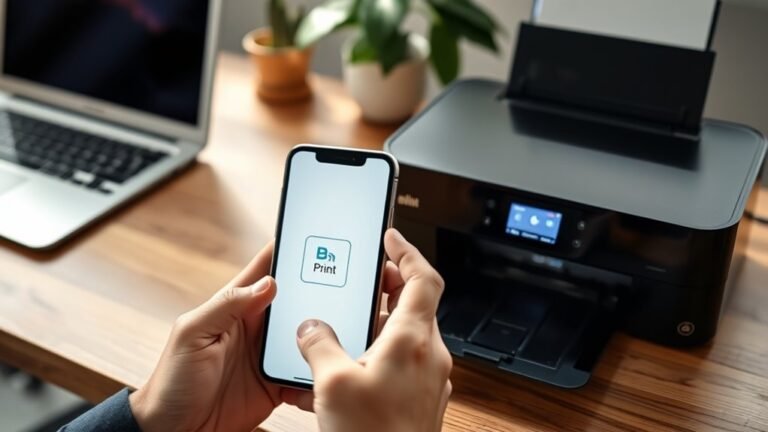
You connect your phone to your printer by making sure both are on the same Wi-Fi network. This is super important because they need to be able to talk to each other.
If you have an iPhone, use AirPrint to find your printer. For Android, the Mopria Print Service is the way to go.
Once you’ve found your printer, just select it and you’re all set for wireless printing. It’s pretty simple!
How to Print Without Connecting to Printer Wifi?
You can print without connecting to printer Wi-Fi by using USB cable sharing, printing through a computer on the same network, or setting up the printer with Ethernet.
AirPrint or Mopria also work if the printer’s network-connected.
Pretty handy options when you don’t want to join the printer’s Wi-Fi directly!
How to Connect Printer to Same Wi-Fi Network?
To connect your printer to the same Wi-Fi, select your network’s SSID and securely submit your password.
Look for the solid Wi-Fi signal and synchronize your devices. This simple setup swiftly supports seamless sharing and printing.
It’s an easy way to get everything talking to each other without any hassle!
How Do I Know if My Wireless Printer Is Connected to My Wi-Fi?
You’ll know your wireless printer’s connected when its Wi-Fi light is solid.
Also, check the network settings—they should show “Connected” along with your SSID.
Or, try printing a test page from your device using the printer’s IP address or app.
If it prints successfully, you’re good to go!
Conclusion
Now that you’ve connected your printer to Wi-Fi, isn’t it great to enjoy wireless printing freedom? You’ve checked compatibility, connected your printer, and set it up on your devices.
You even printed a test page—so you’re all set! Take a moment to explore your printer’s features and make the most of your new setup.
With just a few easy steps, you’ve simplified your printing experience and made your workspace more efficient. Wireless printing means you’re ready to print anything, anytime, without the hassle of cables or complicated setups.
Enjoy the convenience of your Wi-Fi printer and discover how it can streamline your daily tasks. Now, printing from your smartphone, laptop, or tablet is easier than ever. Ready to experience seamless, wireless printing? You’ve got this!