How a 3D Printer Works €“ Step by Step Guide
A 3D printer builds objects by melting filament like PLA or ABS and laying it down layer by layer, guided by precise nozzle movements in X, Y, and Z directions. This process is called additive manufacturing, and it allows you to create complex shapes that would be hard to make any other way. It all starts with a digital model, which you slice into layers using specialized software.
Once you have your sliced file, usually in G-code format, you load it into the printer. Before printing, you’ll need to level the bed and preheat both the nozzle and the bed to the right temperatures. Then, you can watch as your digital design gradually transforms into a real, physical part.
Keep exploring to uncover tips on finishing and perfecting your prints.
Key Takeaways
– A 3D printer builds objects layer by layer by melting and extruding filament through a moving nozzle. The nozzle moves in X and Y axes to deposit material.
Then, the Z-axis adjusts for each new layer. It’s like stacking very thin sheets on top of each other to create the final shape.
- Filament, typically PLA or ABS, is fed from a spool into a heated extruder for melting and extrusion. This melted material is what forms each layer.
- The printer bed is leveled and preheated to make sure the first layer sticks properly. Without this, the print might not hold together well.
- Digital 3D models are sliced into layers by software. This software generates G-code, which tells the printer exactly how to move and when to extrude.
Understanding 3D Printers and Their Operation
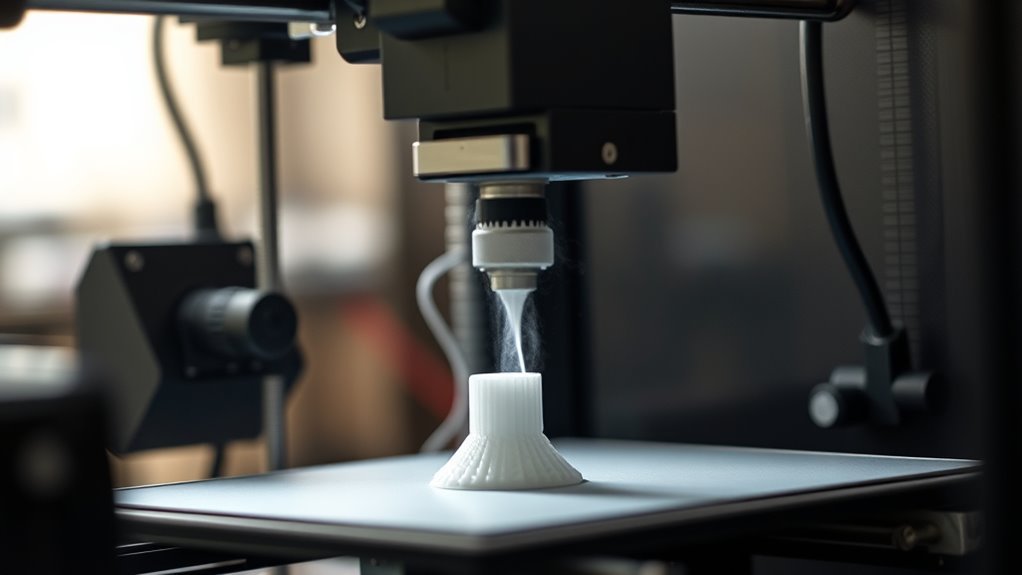
Although 3D printing might seem complex at first, understanding how a 3D printer works becomes straightforward when you know it builds objects layer by layer from a digital model.
3D printing may appear complex, but it simply creates objects layer by layer from a digital design.
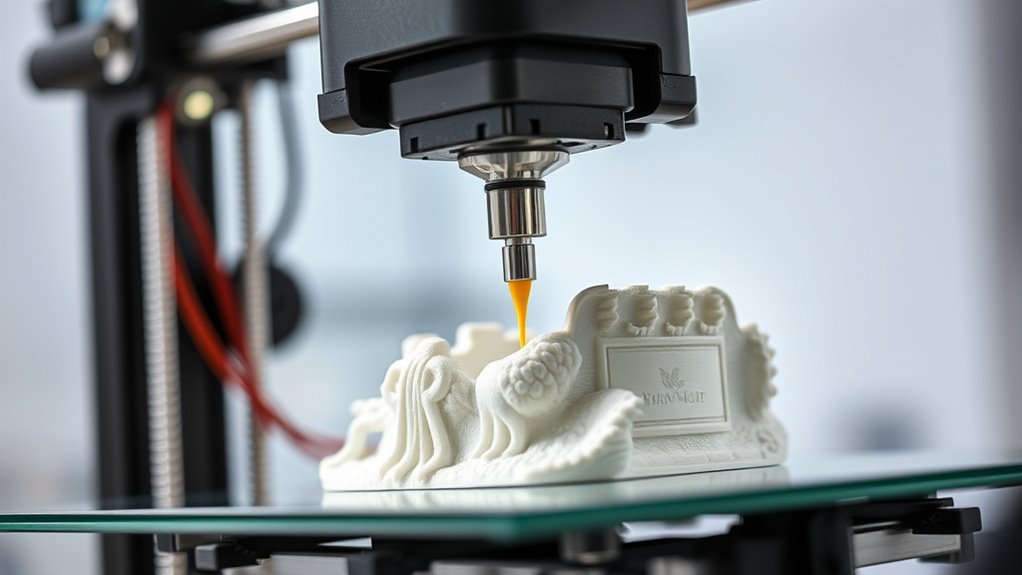
You start with a spool of filament, usually thermoplastic like PLA or ABS, which feeds into the extruder. The extruder heats the filament to melt it and pushes it through a small nozzle.
As the nozzle moves in the X-Y directions, it deposits melted filament on the build plate, tracing each horizontal layer. After completing one layer, the build plate lowers (or the print head raises) to add the next layer on top.
This precise layering process continues until your object is fully formed. Managing filament feed, temperature, and layer height guarantees smooth printing and strong layer adhesion.
Creating 3D Models for Printing
Designing a precise 3D model is the essential first step in creating a printable object. You start by crafting your design in CAD software like Fusion 360, then export it as an STL file, the standard format for 3D printing.
To guarantee print success, your model must have watertight geometry, correctly oriented normals, and no features smaller than your nozzle diameter. Next, consider these vital points:
- Verify your model is manifold and free of errors.
- Orient your part to minimize overhangs and support needs.
- Use slicing software to define infill patterns and layer height.
- Preview the slicing results to spot gaps or issues before printing.
This process prepares your design perfectly for the slicing stage ahead. It might seem like a lot, but taking these steps ensures your print comes out just right.
Preparing Your Model: Slicing and Printer Code
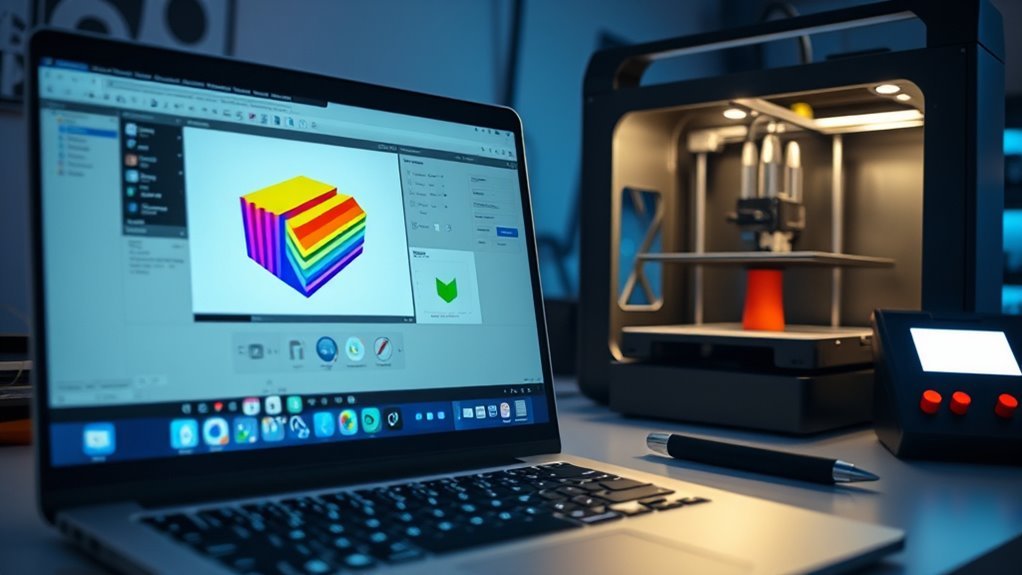
Once you’ve finalized your 3D model, the next step is to prepare it for printing by slicing it into layers and generating the printer code. First, export your model as an STL file, the standard format that converts surfaces into triangles for the slicer software.
Load this STL into your slicer, like Ultimaker Cura or SelfCAD’s built-in slicer, which slices the model horizontally and creates the printer toolpath. The slicer lets you adjust settings such as layer height, infill, and support structures.
After you’ve configured everything, the slicer outputs G-code—a set of precise instructions that control motion, extrusion, and temperature layer by layer. Always preview the sliced layers and estimated print time to catch any errors before transferring the G-code to your printer. This way, you can ensure a smooth print.
Selecting Printer Settings and Materials
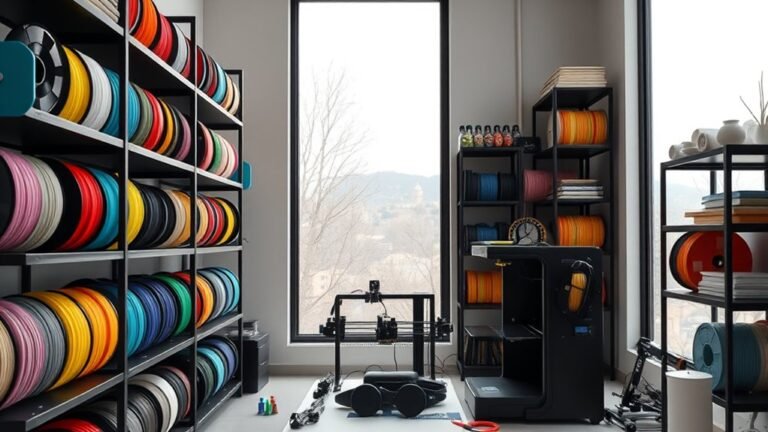
You’ll start by choosing the right material based on your part’s needs, like PLA for easy prints or ABS for durability. Then, you’ll adjust your printer settings—nozzle temperature, layer height, and print speed—to match the filament and desired quality.
Getting these settings right guarantees your print turns out strong and accurate every time. It’s all about finding that sweet spot that works best for your specific project.
Material Types Overview
Although choosing the right material might seem straightforward, it directly affects your printer settings and the quality of your final print. You’ll find common options like PLA, ABS, and specialty filaments each demand unique care.
PLA prints easily at lower temperatures with minimal odor, making it perfect for beginners. ABS needs a heated bed and enclosure to prevent warping but offers greater strength.
Specialty filaments like carbon-fiber or flexible TPU require slower speeds and sometimes hardened nozzles.
Here’s a quick overview to visualize your choices:
- PLA – low temp, biodegradable, easy to print
- ABS – high temp, needs heated bed/enclosure, strong odor
- PVA – water-soluble support for complex prints
- Specialty filaments – composites needing specific hardware and slower speeds
Picking the right filament sets your print’s success in motion.
Optimizing Print Settings
Start by selecting the right filament type since it directly determines your printer’s nozzle temperature, bed temperature, and cooling requirements.
Next, set the layer height to balance detail and speed: lower values for fine prints, higher for faster output. Adjust print speed based on filament and nozzle size to optimize quality and time.
Don’t forget to tune cooling and retraction settings to avoid defects. Below is a quick overview:
| Filament | Layer Height (mm) | Print Speed (mm/s) |
|---|---|---|
| PLA | 0.1 – 0.3 | 20 – 80 |
| ABS | 0.1 – 0.3 | 30 – 60 |
| TPU | 0.1 – 0.2 | 15 – 30 |
| PETG | 0.15 – 0.3 | 30 – 50 |
| Nylon | 0.1 – 0.3 | 20 – 40 |
This guarantees your prints come out strong and precise.
Matching Material and Printer
When selecting printer settings and materials, matching your filament type to your printer’s capabilities is essential for successful prints. Different filaments require specific temperatures and hardware features.
For example, PLA prints well between 160–220°C without an enclosure, while ABS needs 210–250°C plus a heated bed to prevent warping.
Consider these key points:
- Match filament type to your printer’s temperature range and heated bed availability.
- Set nozzle diameter and layer height together—use 0.1–0.3 mm layer height for a 0.4 mm nozzle.
- Adjust slicer temperatures and print speeds based on filament; PLA typically runs at 200°C with a 50–60°C bed.
- Enable cooling fans for PLA; use adhesives or brims for ABS to improve adhesion.
These steps guarantee your printer and filament work perfectly together. Easy, right? Just a few tweaks, and you’re set to print like a pro!
Setting Up Your 3D Printer
Before you begin printing, you need to set up your 3D printer on a stable, level surface and connect its power supply correctly. This will guarantee the unit and control board power up without issues.
Start by loading PLA filament—feed the spool into the filament holder and through the extruder’s cold end until it reaches the hot end. Next, level the print bed manually or with automatic mesh leveling.
Use a piece of paper to adjust the nozzle gap until you feel slight drag for a perfect first layer. Then, preheat the nozzle to about 200°C and the heated bed to 50–60°C for best adhesion.
Finally, transfer your sliced file to the printer and confirm all settings before moving on to printing. You’re almost ready to start your first print!
3D Printing: From Filament to Finished Part
Feeding filament into the extruder sets the 3D printing process in motion. A stepper motor pushes PLA through a heated hot end that melts it into a precise, flowing bead.
Filament feeds into the extruder, where a stepper motor melts it into a smooth, flowing bead.
Your printer deposits this molten plastic layer by layer onto a heated build plate. It follows exact X–Y movements while the Z-axis lowers incrementally.
Before printing, slicer software converts your STL model into G-code. This G-code details every movement and setting.
Here’s what happens next:
- The extruder feeds filament steadily through the hot end nozzle.
- Molten filament is laid down in thin lines, building each layer.
- Layers fuse as the build plate cools, forming your part.
- You remove the finished print once complete.
This process transforms raw filament into a tangible, functional object. Pretty cool, right?
How to Finish Your 3D Print for the Best Results
Once your print cools, you’ll want to carefully remove any support structures using the right tools. This helps avoid damaging the surface and keeps your print looking great.
Next, smooth out those layer lines with some sanding. You can also apply primers and paints to get a polished finish. These simple steps will help you achieve a clean, professional-looking result.
Support Removal Techniques
Removing supports is an essential step to reveal your 3D print’s true shape and detail. Support structures like breakaway supports and soluble supports need careful removal to avoid damage.
For breakaway supports, gently snap them off, trim with flush cutters, and smooth remaining marks with 220–400 grit sandpaper. Soluble supports dissolve in water or limonene depending on material.
Follow these steps for clean removal:
- Snap off breakaway supports carefully to avoid harming the print.
- Soak soluble supports in water (PVA) or limonene (HIPS), agitating occasionally.
- Use precision tools—needle files, dental picks—to reach tight spots.
- Smooth rough areas with sandpaper, working along layer lines.
Always wear protective gear and work patiently for the best results. It really pays off to take your time with this part!
Surface Finishing Methods
Sanding your 3D print through progressively finer grits is a key step to eliminate layer lines and prepare the surface for primers or paint. Start with 120–220 grit to smooth rough areas, then move up to 400–1000 grit for a refined finish.
For ABS prints, chemical smoothing using acetone vapor melts outer layers, creating a glossy, seamless surface—though this doesn’t work well with PLA. After sanding, priming with a filler primer helps fill small gaps and enhances paint adhesion, especially on PLA and similar plastics.
You can also use controlled heat to slightly reflow surfaces, but be cautious to avoid warping. For extra durability, consider post-print machining or coating with epoxy resin to seal porosity and achieve a smooth, strong finish.
Measuring and Verifying the Accuracy of Your 3D Print
Although 3D printing allows for rapid prototyping, you need to measure and verify your print’s accuracy carefully to guarantee it meets design specifications. Start by comparing your printed part to the Standard Tessellation Language (STL) file, checking dimensions layer at a time.
Ensure your 3D print matches design specs by carefully measuring each layer against the STL file.
Use a vernier caliper to measure external dimensions precisely, taking multiple measurements to average out errors. Calculate total readings using the caliper’s least count and compare to true values for dimensional errors.
Here’s how to verify accuracy:
- Measure external dimensions with a vernier caliper and average results.
- Check heights using a vernier height gauge or sine bar.
- Inspect hole diameters with screw or plug gauges.
- Assess flatness and warping with a dial indicator across the build plate.
Frequently Asked Questions
How Do I Troubleshoot a Clogged 3D Printer Nozzle?
You’ll want to heat the nozzle first, then carefully use a needle or cleaning filament to clear the blockage. This usually helps get things moving again.
If that doesn’t work, try doing cold pulls. And if it’s still clogged, you might need to disassemble the nozzle for a thorough clean. It’s a bit more involved, but it gets the job done.
What Maintenance Is Required for 3D Printer Stepper Motors?
When Jake noticed his printer’s stepper motors overheating, he cleaned their gears and applied lubricant.
You should regularly clean, lubricate, and check wiring to keep your stepper motors running smoothly. This helps prevent overheating or failure.
It’s a simple routine, but it makes a big difference in the long run. Just a little care can save you from bigger issues down the road.
Can I Use Recycled Filament for 3D Printing?
Yes, you can use recycled filament for 3D printing, but it might affect print quality.
Just make sure the filament is clean, properly dried, and compatible with your printer. This helps avoid clogs or weak prints during your projects.
How Do Ambient Temperature and Humidity Affect Printing Quality?
Think of ambient temperature and humidity as the weather for your print’s journey—they directly impact quality.
If it’s too cold or damp, your filament can warp or clog, so keep conditions stable to guarantee smooth, flawless prints.
What Safety Precautions Should I Take While 3D Printing?
You should wear safety goggles and make certain there is proper ventilation. Avoid touching hot parts to keep yourself safe.
Keep your workspace clean, and never leave the printer unattended. It’s really important to handle materials carefully to prevent inhaling fumes or skin irritation.
Conclusion
So, now that you’ve mastered turning digital dreams into plastic reality, remember: 3D printing is just like cooking—if your oven occasionally melts the furniture. Don’t stress the occasional blob or string; it’s all part of the charm.
With patience, a little tweaking, and maybe some colorful swear words, you’ll soon be the proud parent of perfectly imperfect creations. Embrace the chaos—it’s the only way to truly appreciate your new 3D printing hobby!
Learning how a 3D printer works can feel a bit overwhelming at first, but trust me, every little hiccup is just part of the journey. The magic happens when your digital designs come to life layer by layer, and each print teaches you something new.
So keep experimenting, adjusting your settings, and enjoying the process. After all, 3D printing is all about creativity, discovery, and having fun while making your ideas tangible. Stick with it, and soon enough, you’ll be crafting amazing projects with confidence!