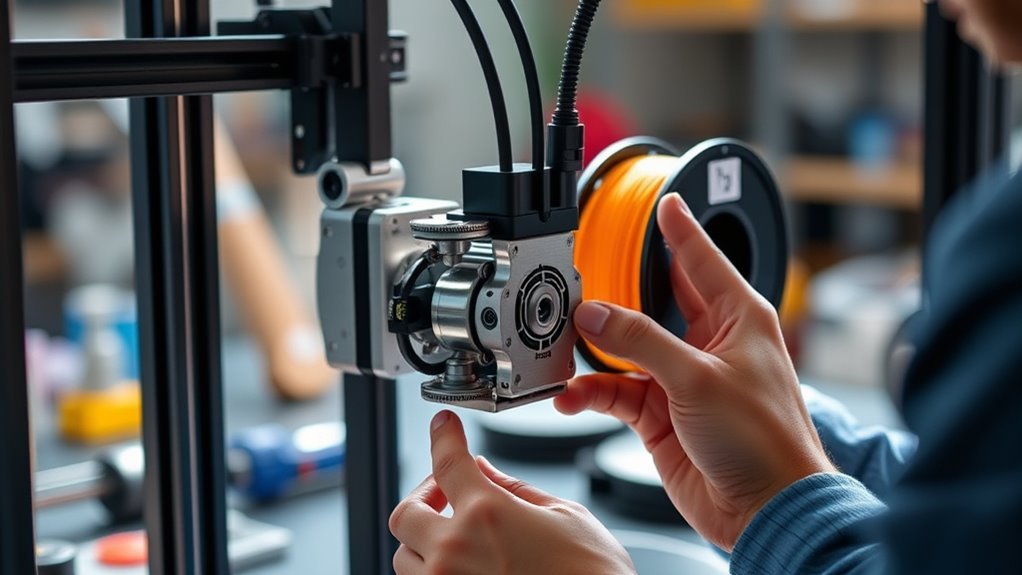
What Is AMS Lite for 3D Printer and How to Use It
AMS Lite is a handy automatic material system made for your Bambu Lab A1 or A2 3D printer. It helps you manage up to four filament spools, which is great for multi-color or multi-material 3D printing projects. With AMS Lite, switching between different filaments is smooth and easy, so your prints come out just right.
You load the spools into spring-loaded rotary holders and carefully connect PTFE tubes. Then, you pre-load about 40 cm of filament to make sure everything feeds smoothly during printing. Sensors keep track of filament movement and can detect when a spool runs out. When this happens, AMS Lite can automatically switch to a backup spool if you’ve set it up that way.
Keep reading to find tips on setup, compatibility, and troubleshooting. This will help you get the best experience and avoid common issues with your AMS Lite system.
Key Takeaways
- AMS Lite is a compact automatic material system designed for Bambu Lab A1/A2 printers. It holds up to four filament spools, making multi-material printing a breeze.
- It uses feeder motors and PTFE tubes to preload and feed filament smoothly to the tool head. This setup helps reduce start delays and prevents jams.
- Sensors keep an eye on filament movement. They can detect slippage, jamming, and run-out, plus enable automatic spool switching with purge routines during prints.
- AMS Lite works with filaments like PLA, PETG, ASA, and more. Bambu Lab filaments are auto-identified via RFID, but if you’re using third-party filaments, you’ll need to set them up manually.
- Installing AMS Lite is pretty straightforward. Just mount it on the printer, route the PTFE tubes correctly, load the spools on the rotary holders, and configure the slots in your slicer.
Understanding AMS Lite and Its Role in 3D Printing
The AMS Lite is a compact automatic material system designed to expand your Bambu Lab A1/A2 printer’s capabilities by holding up to four filament spools for multi-color or multi-material printing. This system uses a two-part feed architecture that pushes filament through PTFE tubes—about 580 mm for slots 1 and 2, and 700 mm for slots 3 and 4—into a central tool-head filament hub.
You’ll appreciate how the AMS Lite preloads roughly 40 cm of filament into these tubes, ensuring smooth feeding. It also features sensors that monitor filament movement and detect issues like slippage or run-out.
During printing, the extruder motor drives the filament while the AMS feeder motors stay inactive, with sensors continuously tracking filament flow. This design streamlines multi-material printing with reliable filament management.
Compatible Printers and Filaments for AMS Lite
Expanding your printing options with AMS Lite means knowing which printers and filaments work seamlessly with it. The Bambu Lab AMS Lite is compatible printers limited to the Bambu Lab A1 and A2 series, supporting a single AMS Lite connection per printer for up to 4-color printing.
It accepts 1.75 mm filament spools sized 40–68 mm wide with inner diameters of 53–58 mm, held securely by spring-loaded rotary spool holders.
Supported filaments include PLA, PETG, ASA, PA, PC, PP, POM, HIPS, dry PVA, dry BVOH, and Bambu PLA-CF. However, TPE/TPU, wet PVA/BVOH, and carbon/glass fiber blends like PET-CF are unsupported.
Bambu Lab filaments auto-identify via RFID, while third-party filaments need manual setup in the printer or Bambu Studio. So, if you’re using non-Bambu filaments, just a little extra setup is required, but it’s pretty straightforward.
Installing and Loading Filament Into AMS Lite
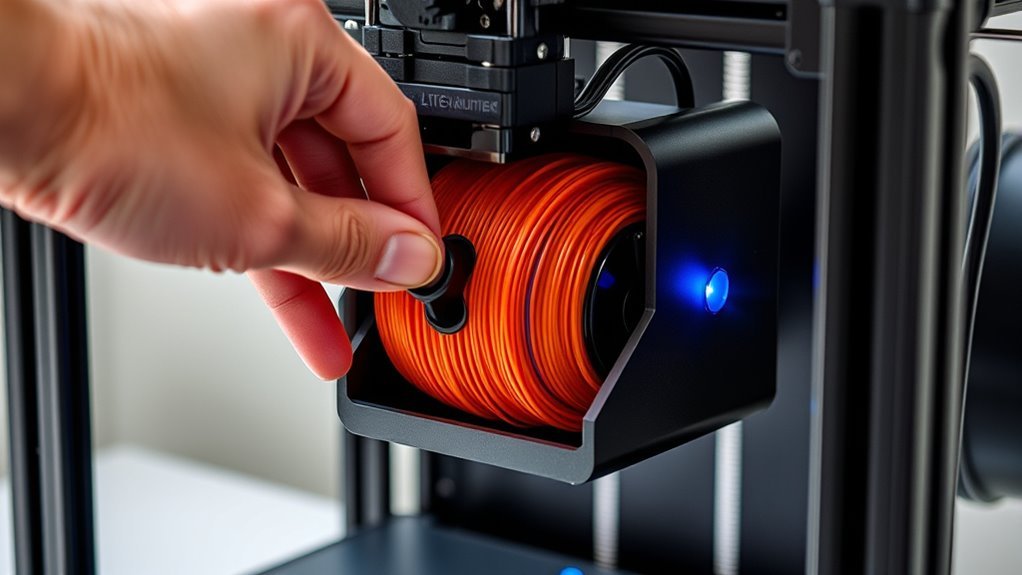
To install and load filament into your AMS Lite, start by mounting it properly on an A1 or A2 printer and identifying each slot for correct filament placement. Make sure to load one spool per rotary holder with the filament end facing the AMS center.
Then, use the feed button to guide the filament through the PTFE tube. Pay attention to slot lengths and RFID settings to guarantee smooth feeding and accurate filament detection before printing.
This way, you’ll avoid any issues and get your print started without a hitch!
Filament Loading Steps
Getting your filament loaded into the AMS Lite starts by properly mounting the spool on the rotary holder. Make sure the open end faces the AMS center, and check that the spool dimensions fall within the specified range.
Press and hold the yellow button on the feeder block to feed filament through the PTFE hole until the filament sensor activates and feeding continues.
Check the PTFE tube routing to avoid tight bends and guarantee correct tube lengths. After loading, the AMS pre-loads about 40 cm of filament into the tube.
Don’t forget to note the slot number for slicer mapping.
| Step | Action | Tip |
|---|---|---|
| Mount Spool | Open end faces AMS center | Spool width 40–68 mm |
| Feed Filament | Hold yellow button | Sensor detects filament |
| Verify Routing | Avoid tight bends | Tube length per slot |
Slot Identification Tips
Before loading filament into the AMS Lite, make sure you’ve identified each slot’s number by looking for the illuminated arrow on the PTFE collector block. Each AMS slot is numbered 1 to 4, so note which number corresponds to which physical post.
This helps you match the slots correctly in your slicer. When placing spools, orient the open end facing the AMS center; the spring-loaded rotary spool holder will position higher slots like a “d” and lower ones like a “b.”
Also, make certain PTFE tube lengths match the slots—slots 1 and 2 use about 580 mm tubes, while slots 3 and 4 require roughly 700 mm. Keeping the AMS about 50 mm from the printer avoids excess PTFE bending and feeding resistance.
Proper slot identification guarantees smooth filament handling.
Feeding Filament Procedure
Start by securely placing each filament spool onto the rotary spool holder, making sure the open end faces the AMS center. Check that the spool width is between 40–68 mm and the inner diameter is 53–58 mm for a proper fit.
Next, press and hold the yellow button on the feeder block to feed the filament into the PTFE hole. The feeder will preload about 40 cm of filament into the tube when idle.
Install the correct PTFE tube lengths—580 mm for slots 1–2 and 700 mm for slots 3–4. Also, keep the AMS about 50 mm from the printer to reduce feeding resistance.
Before printing, make sure to match each AMS slot to your printer or slicer filament settings. This AMS filament backup guarantees smooth filament feed and reliable printing.
How AMS Lite Feeds and Pre-Loads Filament Smoothly
AMS Lite guarantees smooth filament feeding by pre-loading about 40 cm of filament into its PTFE tube while idle. This means your extruder has ready material as soon as printing begins.
This pre-load helps reduce delays at the start of printing and keeps the filament path clear. The PTFE tube length varies by slot—slots 1–2 use 580 mm, while slots 3–4 use 700 mm.
It’s important to install the tube properly to avoid resistance or misalignment. You should also position AMS Lite about 50 mm from the tool head to prevent excessive bending.
Why? Because too much bending can cause feed failures. During printing, AMS Lite’s feeder motor stays inactive while the extruder drives filament.
Meanwhile, the odometer wheel passively rotates to monitor filament movement and the length dispensed. This setup guarantees smooth and reliable feeding throughout your print.
Preventing Filament Tangles With Rotary Spool Holder and Detection
To keep your filament feeding smoothly, the rotary spool holder automatically swivels up to 150° to maintain tension and prevent tangles caused by long rollback. This feature, combined with filament tangle detection, guarantees reliable printing.
Here’s how it helps: during unload, the spool holder rotates as filament is pulled, preventing loose loops. Plus, a detection module using a magnet and Hall sensor triggers an alert if tension gets too high.
Proper placement—about 50 mm from the printer—and the right PTFE tube lengths help reduce bending resistance. The system also compares feeder data to spot filament slipping or jamming, so you can pause and fix tangles promptly.
Handling Filament Run-Out and Automatic Backup Switching
You’ll rely on AMS Lite’s filament run-out detection at the tool head to know when a spool is empty. When enabled, the system can automatically switch to a matching backup spool to keep your print going smoothly.
In multi-material prints, it handles run-out by purging leftover filament before switching. Plus, there are clear on-screen alerts to keep you informed every step of the way.
Filament Run-Out Detection
Filament run-out can frequently interrupt your printing process, but clever detection methods help prevent wasted time and material. AMS Lite uses the feeder’s Hall switch and the toolhead’s filament detection module to monitor filament presence continuously.
Here’s how it works:
- The feeder motor stays inactive while the toolhead’s odometer wheel confirms filament movement.
- If filament runs out, AMS Lite detects it through sensors before interruption.
- The system prompts a filament run-out alert and may purge the nozzle to clear residual filament.
- Proper PTFE tube routing and length prevent false run-out signals caused by feeding resistance.
Backup Spool Auto-Switch
When your spool runs out mid-print, AMS Lite doesn’t just stop—it can switch automatically to a backup spool to keep your project moving. To make this work, you need to enable “AMS filament backup” in the settings and define the backup spool in an AMS slot with matching filament properties.
Brand, material type, color, and nozzle temperature must all be identical. AMS Lite uses filament detection sensors to monitor the current spool, and when it detects a run-out, the tool head may purge remaining filament before switching.
Keep in mind, backup spool switching requires pre-configuration, especially for non-Bambu filaments which lack RFID auto-read. By setting this up properly, AMS Lite guarantees your print continues smoothly without manual intervention.
Multi-Material Run-Out Handling
Although run-out detection can halt a print, AMS Lite handles multi-material runs smoothly by monitoring each feeder’s filament presence through Hall switches. When a run-out occurs, AMS Lite can automatically switch to a backup spool—if enabled and matching in brand, material, color, and nozzle temperature.
Here’s how AMS Lite manages multi-material run-out:
- It detects filament presence via Hall switches in each feeder.
- On run-out, the system flushes remaining filament before switching to the next slot.
- Backup spools must be configured in the same AMS slot settings for automatic switching.
- Pre-loading feeders (~40 cm filament) reduce run-out risks during handovers or purges.
Setting up AMS Lite and Syncing Filament With RFID
To get your AMS Lite up and running, start by placing your spools on the rotary holders with the open end facing the AMS center. Make sure your spools fit the holder dimensions (width 40–68 mm, inner diameter 53–58 mm).
Press and hold the yellow button on the feeder block to feed filament into the PTFE tube. AMS Lite will automatically read the RFID tag on Bambu Lab spools, syncing the filament’s material type and color with the printer.
For third-party spools, you’ll need to manually enter this info in the printer or slicer. Make sure the PTFE tube lengths are correct for each slot, and keep the AMS about 50 mm from the printer to prevent feeding issues.
The feeder then preloads filament, pushing about 40 cm toward the tool head for a smooth printing start. This helps everything run nice and smooth from the get-go.
Maintenance Tips and Troubleshooting for AMS Lite
Proper maintenance and timely troubleshooting keep your AMS Lite running smoothly and prevent printing interruptions. To optimize your AMS filament system, follow these tips:
Keep PTFE runs short (around 50 mm) and use the correct lengths (580 mm for 1/2 slots, 700 mm for 3/4) to avoid misalignment and feeding resistance. This little detail makes a big difference in performance.
Keep PTFE runs short and use precise lengths to ensure smooth filament feeding and optimal AMS Lite performance.
Inspect the filament tangle detection module regularly. Make sure the feed bracket spring, magnet, and Hall sensor move freely to prevent false alarms—no one likes unnecessary stops.
When extrusion issues arise, compare the odometer wheel rotation to the feeder motor speed. If the speeds don’t match, it usually means slipping is happening.
Use filament backups only if the brand, type, color, and nozzle temperature exactly match. Also, double-check that RFID reads correctly or manually set non-Bambu spools to avoid any hiccups.
Don’t forget to clean feeder areas regularly and replace worn PTFE tubes. Doing this helps prevent jams and false runout alerts, keeping your printing sessions hassle-free.
Frequently Asked Questions
How to Use an AMS Lite?
You load filament spools onto AMS Lite’s holders, then press the yellow feed button to insert the filament. Make sure to keep the AMS about 50 mm from the printer using the correct PTFE tube lengths.
Next, enable RFID and AMS backup to ensure smooth printing. This setup makes your printing process much easier and more reliable.
Is the AMS Lite Worth It?
Isn’t upgrading your color options worth it? You’ll save time with automatic spool handling and filament backup. But keep in mind, there are some filament compatibility limits.
If you print multi-color often, AMS Lite’s convenience really pays off. It makes the process smoother and less hands-on, which is a big plus.
Does AMS Lite Work With Any Filament?
No, AMS Lite doesn’t work with every filament. You’ll need to avoid soft, flexible, or abrasive types like TPE/TPU and fiber-filled ones.
It’s best to stick to supported, dry, higher-quality filaments for reliable feeding and printing. That way, you’ll get the best results without any hassle.
Which Is Better for My A1 Printer, the AMS or AMS Lite?
Since AMS Lite supports up to 4-color prints with smaller spools at $159, it’s better if you want simplicity and cost savings.
Choose full AMS for larger spools and advanced multi-material needs on your A1 printer. It’s great if you need more versatility and bigger capacity.
Conclusion
AMS Lite isn’t just a filament feeder; it’s your 3D printing lifesaver. Without it, you’d be tangled in filament nightmares and endless pauses, struggling to keep prints alive.
By mastering AMS Lite, you’re basically wielding superpowers—smooth feeding, automatic backups, and hassle-free maintenance become your new norm. It makes managing your filament so much easier.
So, don’t just use AMS Lite; let it transform your printing experience into an unstoppable, seamless creative journey. With AMS Lite, you get reliable filament feeding and less downtime, which means better prints and more time to focus on your projects.
You’ll wonder how you ever printed without this essential 3D printer accessory! Embracing AMS Lite truly upgrades your workflow and brings convenience to every print.