How to Scan a Document on an HP Printer in 5 Easy Steps
To scan a document on your HP printer, first place it face-down on the scanner glass. Then, open the HP scanning software on your computer to get started.
Next, set your scan preferences to save as a PDF and pick a resolution—150 dpi works well for standard text, while 300 dpi is better for more detailed images. Choose the folder where you want to save your file, then start the scan.
After the scan is complete, preview your PDF to make sure it’s clear and complete. If everything looks good, you’re all set!
Keep going to discover helpful tips for perfect scans every time. Scanning with your HP printer is easy once you know the simple steps.
Key Takeaways
- Place the document face-down on the scanner glass and close the lid to block out light.
- Open the HP scanning software from the desktop icon or Start menu.
- Select “Scan to File” and set the file type to PDF in Scan Settings.
- Choose the desired resolution (150–300 dpi) for a clear and appropriately sized scan.
- Click Scan, preview the output, and save the PDF to your chosen folder.
Get Your Document Ready and Open HP Scanning Software
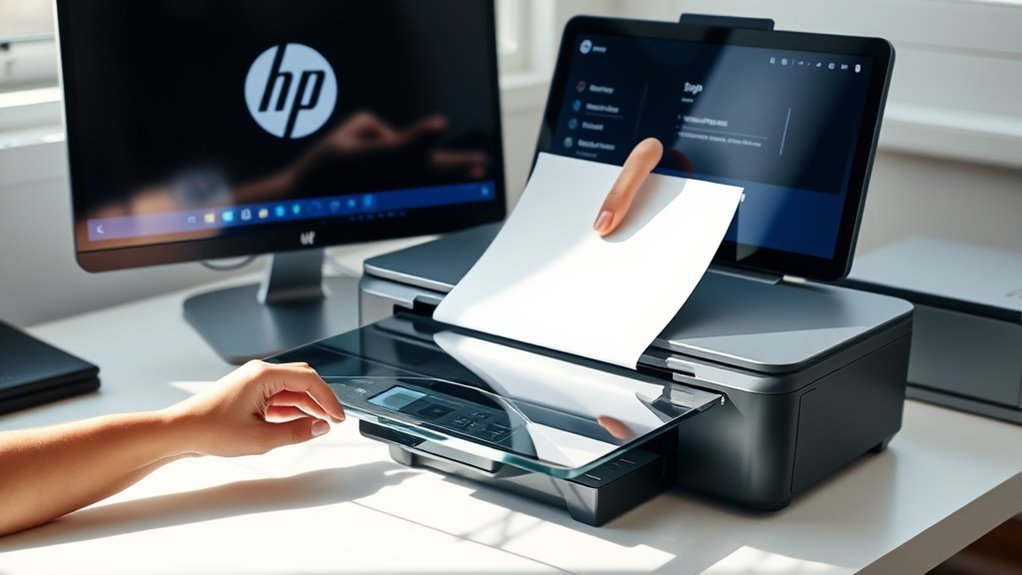
Before you start scanning, place your document or photo face-down on the scanner glass and close the lid to block out light. This helps guarantee a clear, high-quality scan.
Next, open the HP scanning software on your computer. You can do this by clicking the HP printer icon on your desktop or finding your way through Start > All Programs > HP > HP Solution Center.
Once the software is open, you’ll see the scanning window where you can adjust settings before scanning. This initial step gets your document ready and lets you access all the tools needed to create a perfect scan.
Configure HP Scan Settings to Save as PDF
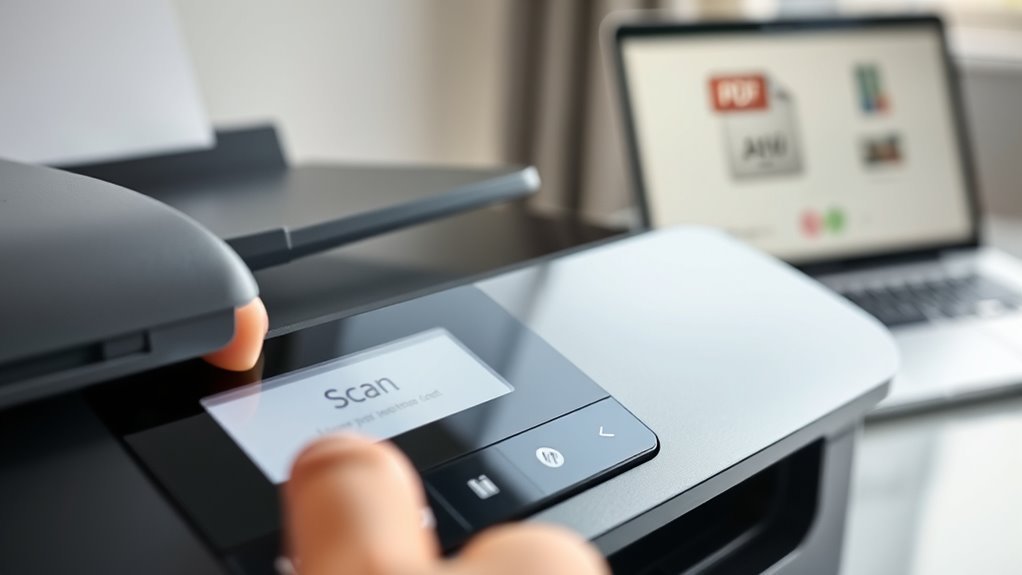
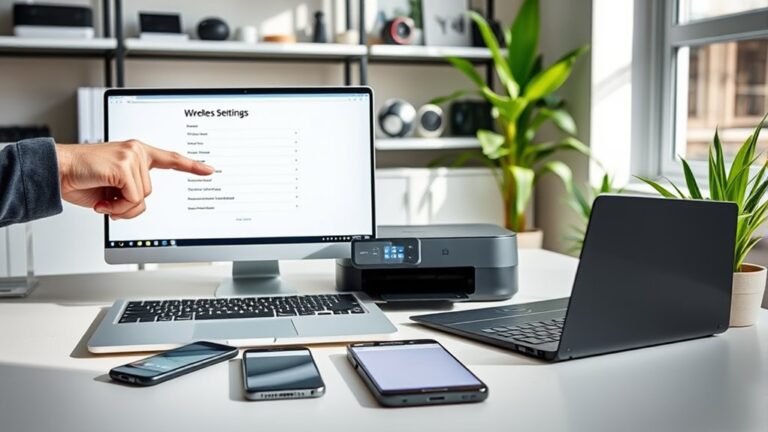
Once your document is positioned and the HP scanning software is open, you can configure the scan settings to save your file as a PDF. Start by clicking Scan Settings, then Scan Settings and Preferences.
Position your document, open the HP scanning software, and access Scan Settings to begin saving your scan as a PDF.
Under Scan Document Settings, choose “Save to File” and set the File Type to PDF. This guarantees your scanned documents will save correctly as PDFs.
Next, select your preferred PDF resolution to balance quality and file size. Use the Browse button to pick the exact folder where you want your PDF saved.
After confirming these settings—file type, resolution, and save location—click Scan. Your HP printer will then scan documents and save them as PDF files in the specified location, making it easy to access and share your scanned files.
Pick the Best Resolution for a Clear Scan
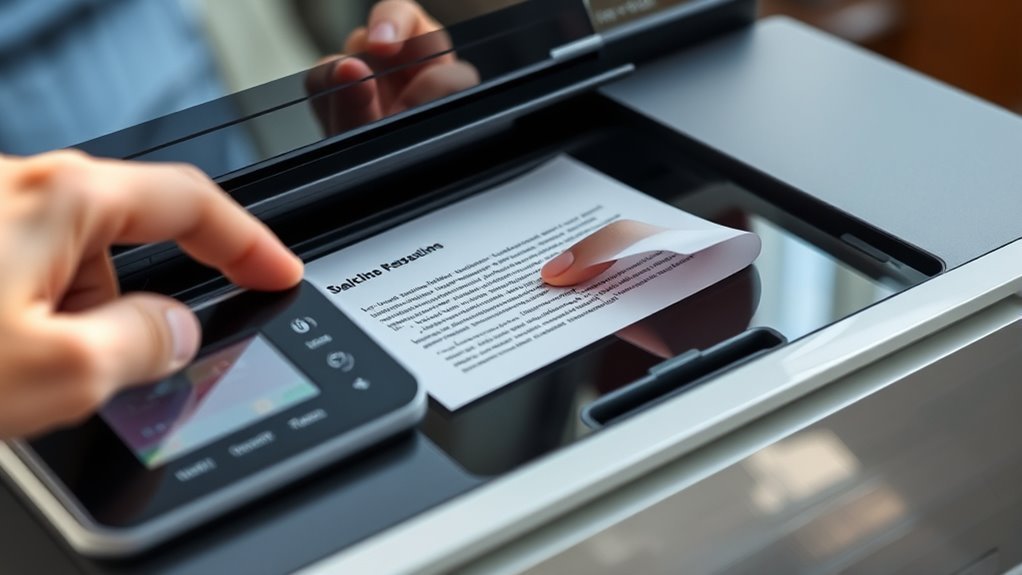
Choosing the right resolution is essential for achieving a clear scan that meets your needs. When using your Wireless Printer, set the resolution in the HP Scan settings before scanning.
For standard text, 150–200 dpi keeps files small while ensuring legibility. Opt for 300 dpi for small fonts or detailed graphics. This is perfect for archiving or printing.
Choose 600 dpi or higher only for high-detail images or photos. But be aware that file size and scan time increase.
| Resolution | Best Use |
|---|---|
| 150-200 dpi | Standard text documents |
| 300 dpi | Small fonts, detailed graphics |
| 600 dpi+ | High-detail images, photographs |
Balance quality with file size to get the most from your Wireless Printer.
Choose Where to Save Your PDF
After setting the ideal resolution for your scan, you’ll want to decide where to save your PDF file. To do this, open the HP scanning utility and navigate to Scan Settings > Scan Settings and Preferences.
Set your scan resolution, then choose where to save your PDF in the HP scanning utility settings.
Under Scan To, choose Save to File and set PDF as the file type. Then, click Browse or the Save Location field to pick the folder where the PDF will be stored. Remember to find the printer in your software if you’re scanning from a different device.
Here’s a quick checklist to guide you:
- Select Save to File and choose PDF as the format
- Set your preferred resolution before saving
- Click Browse to pick the save location
- Confirm the folder to avoid misplaced files
- Verify the save path each time you scan
This way, you’ll always know exactly where your PDF goes.
Start Scanning and Check Your PDF Output
Place your document on the scanner glass or in the automatic document feeder. Then, open the HP scanning software and select “Scan to File” with PDF as your file type.
Set your preferred PDF resolution—150 dpi for smaller files or 300 dpi for clearer quality—then click OK. Use the Browse option to pick a save location on your computer, so you can easily find it later.
Click Scan and watch the progress; a preview will appear. After scanning, open the PDF to check the output quality, page order, and completeness.
If needed, just adjust the settings and re-scan. Also, make sure your Printer on Your Network is connected to avoid any interruptions.
| Step | Action |
|---|---|
| 1 | Select “Scan to File” with PDF format |
| 2 | Set resolution (150 or 300 dpi) |
| 3 | Choose save location using Browse |
| 4 | Scan and verify PDF output |
Frequently Asked Questions
How to Scan a Document on an HP Printer?
You place your document on the scanner, open the HP scanning software, and select PDF as the file type. Then, choose where you want to save it.
After that, just click Scan. Your document quickly turns into a PDF and gets saved on your computer. Easy, right?
What Is the Easiest Way to Scan a Document?
The easiest way to swiftly scan is setting, selecting, and saving. You simply place your paper, pick PDF format, press scan, and promptly preserve your perfect PDF.
Simple steps secure speedy, seamless scanning success. It’s really that straightforward!
How to Scan Documents on HP Deskjet 4255E?
You place your document on the scanner glass or ADF, then open HP Smart on your computer. Next, select your scan settings and choose PDF as the file type.
Pick where you want to save the file, then click Scan. After that, review the PDF and rescan if it’s not clear enough. Easy, right?
Why Am I Not Able to Scan From My HP Printer?
You’re likely not scanning because your printer isn’t properly connected, the scanner software isn’t open, drivers are outdated, or scan settings are incorrect.
Also, check for paper jams, dirty glass, or an unclosed lid blocking the scan.
Sometimes, it’s just a simple connection issue or a setting that got changed without you noticing. Give these a quick look and you might get it working in no time!
Conclusion
Now, with your document nestled on the glass and the scanner’s light humming to life, you’re just moments away from a crisp, clear PDF. Picture your file smoothly sliding into your chosen folder, ready to share or save.
By following these simple steps, scanning with your HP printer becomes as easy as a gentle breeze—quick, seamless, and satisfying. So, go ahead, bring your documents to life with just a few clicks!
Scanning a document on an HP printer is truly straightforward when you know how. Whether you need a quick PDF or a high-quality image, these steps make the process hassle-free. With your HP printer’s scanning feature, managing your documents digitally has never been easier. Just follow along, and you’ll have your files scanned and saved in no time. Enjoy the convenience of turning paper into digital with ease!