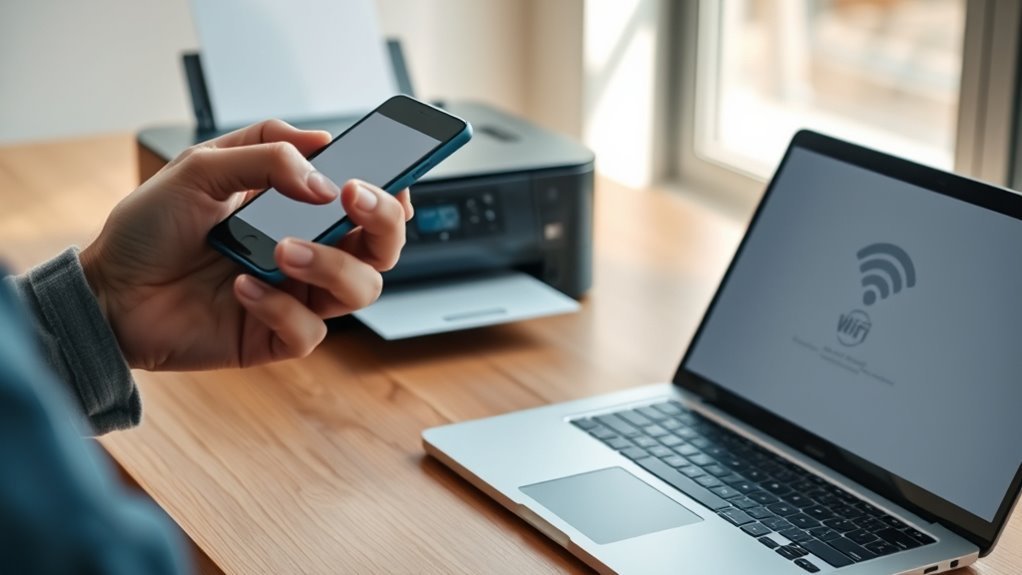
Connect to a Wireless Printer in 5 Easy Steps
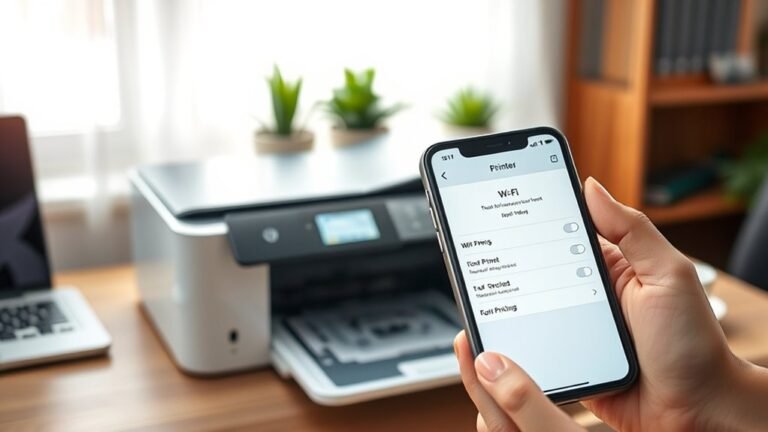
First, check that your printer supports Wi-Fi and matches your router’s 2.4 or 5 GHz network. This is key because your devices need to be on the same frequency band to communicate properly.
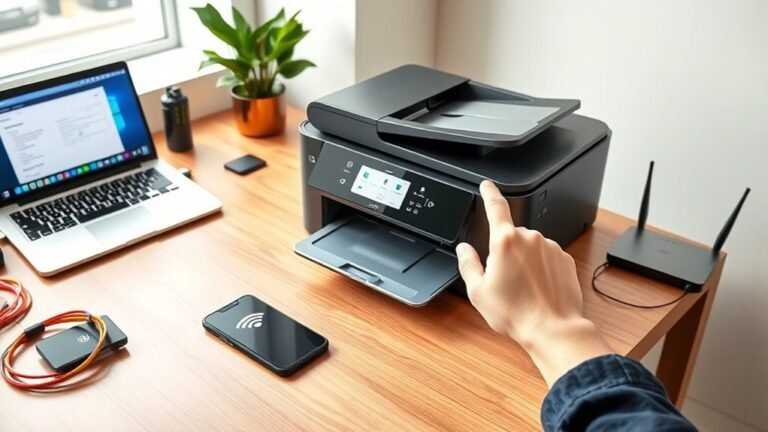
Next, connect both your printer and computer to the same Wi-Fi SSID. Make sure the passwords and security types match on both devices to avoid connection issues.
Then, open Windows Settings and add your printer under “Printers & scanners.” Your computer will usually find the right drivers and install them automatically, so just follow the prompts.
Finally, print a test page to confirm everything is working. If you run into issues, don’t worry—simple troubleshooting steps can help you get back on track seamlessly.
Key Takeaways
- Confirm your printer supports Wi-Fi and connect it to the same Wi-Fi network as your computer.
- On your Windows PC, open Settings > Bluetooth & devices > Printers & scanners.
- Click “Add a printer or scanner” and select your wireless printer from the list.
- Allow Windows to install the necessary drivers automatically for your printer.
- Print a test page to verify the printer is properly connected and ready to use.
It’s really that simple! Once you’ve done these steps, you should be all set to print wirelessly without any hassle.
Check Wireless Printer Compatibility and Network Requirements
Before connecting your printer wirelessly, make sure it supports Wi-Fi or Wi-Fi Direct by checking its manual or specifications. Look for IEEE 802.11b/g/n/ac and keywords like “wireless” or “Wi-Fi Direct.”
Make sure your home router broadcasts a 2.4 GHz or 5 GHz network supported by your wireless printer, as many older models only work with 2.4 GHz. You’ll also want to confirm that both your printer and computer or mobile device can connect to the same SSID on the same local network—avoid guest or isolated networks.
Have your Wi-Fi network name (SSID), password, and router security type (WPA2/WPA3) ready. If your printer lacks USB ports or cables, check for alternative setup options like WPS buttons or manufacturer apps to connect a wireless printer smoothly.
Connect Your Printer and Computer to the Same Wi-Fi Network
To connect your printer and computer successfully, make sure they’re both on the exact same Wi-Fi network. Check your printer’s network or wireless settings menu to confirm the SSID it’s connected to. If needed, re-enter the Wi-Fi password to make certain it joins your router properly.
Next, verify your computer’s Wi-Fi settings to confirm it’s connected to that same SSID. Keep in mind many printers only support the 2.4 GHz band, so if your router uses separate SSIDs for 2.4 GHz and 5 GHz, connect both devices to the same band.
If your computer still can’t find the printer despite matching networks, temporarily disable VPNs, client isolation, or guest-network restrictions on your router to avoid connection issues. Sometimes, these settings get in the way more than you’d expect!
Open System Settings and Add Your Wireless Printer
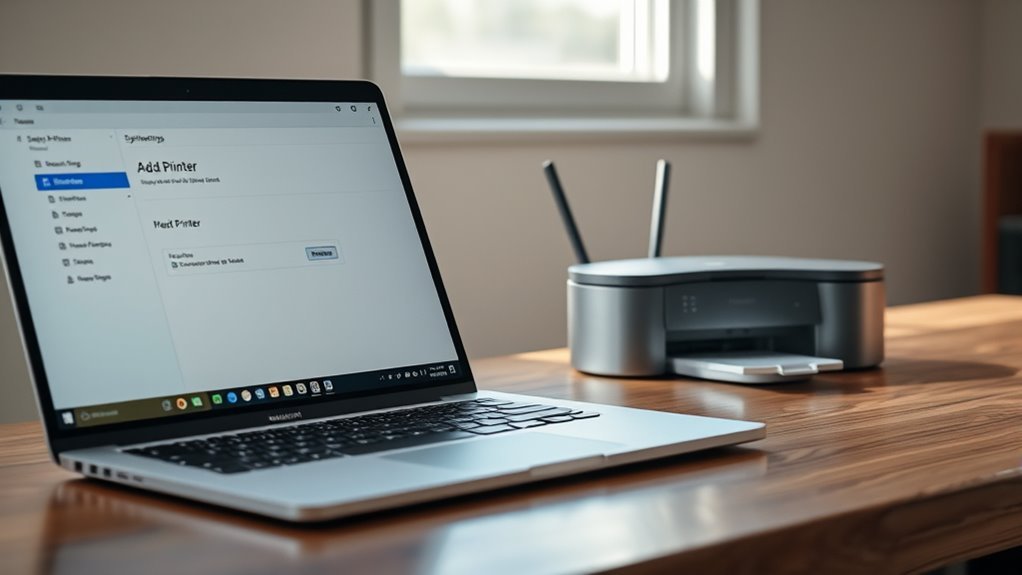
Head into your computer’s Settings by pressing Windows key + I, then click on “Bluetooth & devices” and scroll down to “Printers & scanners.” Click “Add device” or “Add a printer or scanner,” and Windows will start searching for printers on your local network.
Make sure your wireless printer is powered on and connected to the same Wi-Fi network as your PC. Once your printer appears in the list, select it and click “Add device.”
Windows will automatically download and install the necessary drivers. After installation, check that your printer shows as “Ready” in the Printers & scanners section.
This confirms your computer has recognized the printer and is set to communicate with it over the network. You’re now ready to move on to finalizing the setup.
Finish Installation and Get Your Printer Ready to Use
Once Windows finishes installing the driver, you’ll see your printer listed as “Ready” in the Printers & scanners settings, signaling that it’s prepared for use. Now, it’s time to complete the setup and make sure everything works smoothly.
Print a test page by selecting your printer in Settings > Printers & scanners and clicking “Print a test page.” This verifies alignment, ink levels, and network connectivity.
If the driver didn’t install automatically, download the latest version from the manufacturer’s website matching your model and OS. Then, just run the installer.
Set your printer as default if you want it to be your primary device. You can also explore options like sharing or cloud printing for added convenience.
With these steps done, your wireless printer is ready to handle all your printing needs. Easy, right?
Fix Common Wireless Printer Connection Problems
Wireless printer connection issues can crop up unexpectedly, but you can quickly troubleshoot by checking a few key settings. First, make sure your printer and computer are connected to the same Wi-Fi SSID—avoid guest networks or frequency splits, as many printers only support 2.4 GHz.
If your printer doesn’t show up in Windows’ “Printers & scanners,” run the wireless setup wizard on the printer’s control panel to re-enter the Wi-Fi password. You might want to try WPS pairing too if your router supports it for a hassle-free connection.
Also, keep your printer firmware and PC drivers updated to fix bugs and improve compatibility. For those annoying intermittent drops, try moving the printer closer to the router and reducing interference.
Another tip? Assign a static IP via the router to maintain a stable connection. That way, your printer won’t keep losing track of its spot on the network.
Frequently Asked Questions
How to Connect to a Wireless Printer?
You connect to a wireless printer by ensuring both devices share the same Wi-Fi. Then, select the printer on your computer or app.
If it asks for a password, just enter it. After that, follow the on-screen prompts to complete the setup.
It’s a quick and easy process once you get the hang of it!
How Do I Manually Connect to Wifi?
Over 80% of users manually connect to Wi-Fi by selecting networks in settings. You just open Wi-Fi settings, pick your network, enter the password exactly, and confirm.
If it fails, restart devices and try again. Sometimes, a quick reboot does the trick!
Why Is My Computer Not Finding My Wireless Printer?
Your computer isn’t finding your wireless printer because they might not be on the same Wi-Fi network. The printer’s Wi-Fi could also be off.
Sometimes, firewall settings might block the connection. Or maybe your drivers and firmware are outdated and need updating.
It’s a good idea to double-check these things to get your printer connected smoothly.
How to Share a Printer on a Network Step by Step?
A stitch in time saves nine—start by enabling printer sharing on your PC or Mac. Then, select the printer you want to share.
Next, choose the users or groups allowed access. After that, confirm your network settings so everyone on your network can print effortlessly.
It’s really that simple! Once set up, printing from any device on your network becomes a breeze.
Conclusion
Connecting to a wireless printer is easier than you think—just follow these five simple steps. Did you know that over 70% of households now use wireless printers to streamline their tasks?
First, make sure your printer is compatible with your device. Then, connect both your printer and device to the same Wi-Fi network. After that, add your printer in the settings menu. If you run into any issues, don’t worry—troubleshooting common problems is usually quick and easy.
By following these steps, you’ll be printing wirelessly in no time. Wireless printing saves you time and adds convenience, letting you print from anywhere in your home or office. So, get connected today and enjoy the freedom and efficiency that comes with a wireless printer!