Does a Printer Need WiFi?
You don’t need WiFi to use a printer since most printers work great through wired connections like USB or Ethernet. These wired options are often overlooked but can actually make your printing experience smoother. Connecting directly to your computer or network keeps printing simple, fast, and more secure.
Wired setups reduce risks from WiFi attacks and offer stable performance, especially for large jobs or busy offices. Plus, they tend to be more reliable without the interruptions that can happen with wireless signals. You can even print from phones using USB adapters or network cables, which is pretty handy.
If you want to explore how wired and wireless printing truly compare, there’s more to discover. Each method has its pros and cons, so knowing the differences can help you choose what works best for your needs.
Key Takeaways
- A printer does not need WiFi; it can print via direct USB or Ethernet wired connections without wireless setup. Most modern printers include USB Type-B ports for reliable, plug-and-play wired printing without any network.
- Wired connections offer more stable, secure printing and reduce exposure to wireless network attacks. So, if you’re worried about security, wired might be the way to go.
- Wireless printing is great because it lets multiple devices connect and gives you flexible placement options. But honestly, it’s totally optional—not something you have to have.
- And if you have a hybrid printer, you can even disable WiFi. That way, you get secure, offline printing through USB or Ethernet cables whenever you want.
Does a Printer Need WiFi to Work?
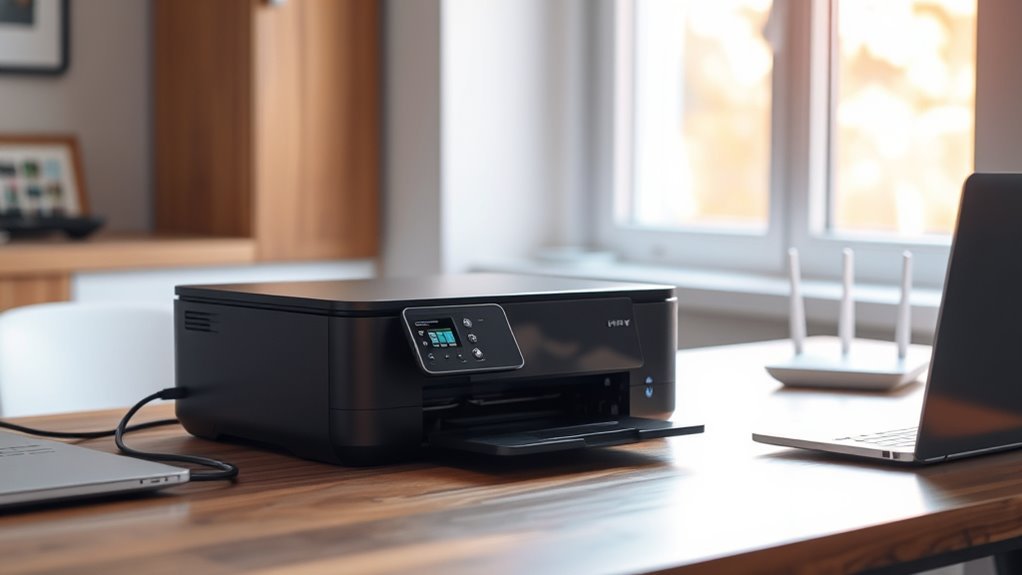
Although many people assume WiFi is essential for printing, your printer doesn’t actually need it to work. You can use a printer without connecting to a WiFi network by simply plugging it directly into your computer with a USB connection.
Most modern printers, even those marketed as WiFi models, include a USB Type-B port that lets you print instantly without wireless setup. This direct method often installs automatically through your computer’s operating system, making it quick and hassle-free.
Plus, using a wired connection can offer more stable and secure printing, especially in environments where wireless connections might be unreliable or pose security concerns. So, if you’re wondering whether WiFi is necessary, rest assured that a wired USB connection is a perfectly valid option.
How Do Wired Printers Connect Without WiFi?
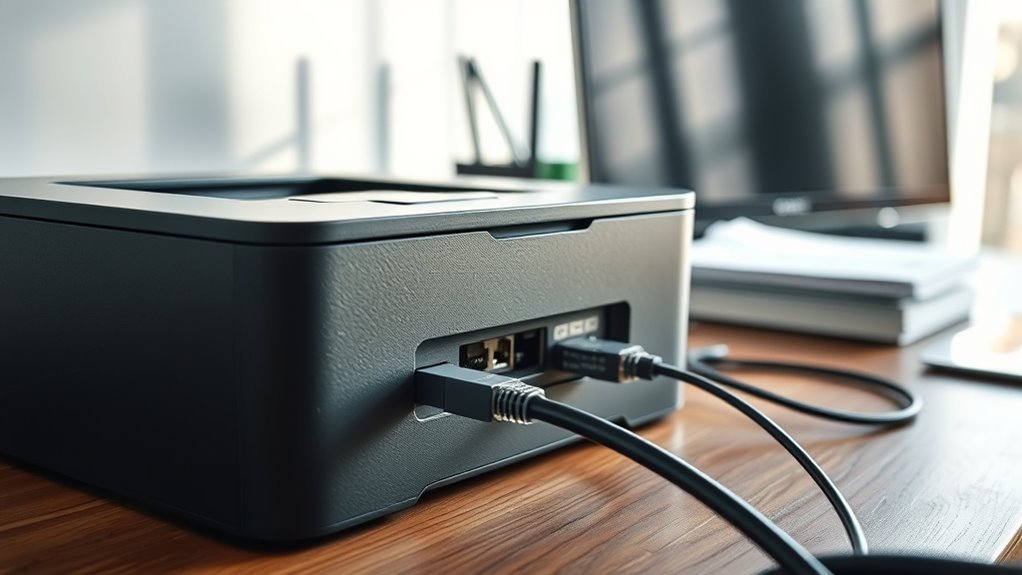
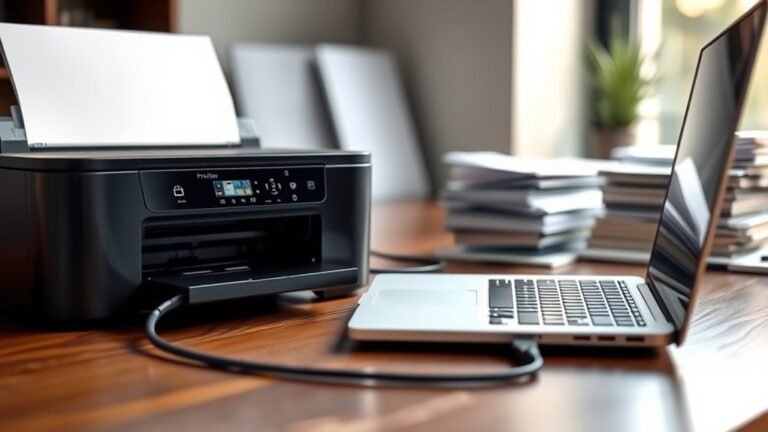
Wired printers connect without WiFi by using physical cables like USB or Ethernet to link directly to your computer or network. When you connect via USB, the printer typically uses a USB-B to USB-A cable for a direct, low-latency connection to your PC.
Wired printers connect seamlessly using USB or Ethernet cables, ensuring reliable, direct links without needing WiFi.
You’ll usually need the correct printer driver installed, though many operating systems detect and handle this automatically.
Alternatively, if your printer has an Ethernet port, you can plug it into your router or switch to join your Local Area Network (LAN). This lets multiple devices send print jobs over the network.
Your printer can get an IP address via DHCP or a static assignment. This setup allows you to share the printer across your LAN without relying on WiFi.
Wireless Printing Technologies: Bluetooth and WiFi Explained
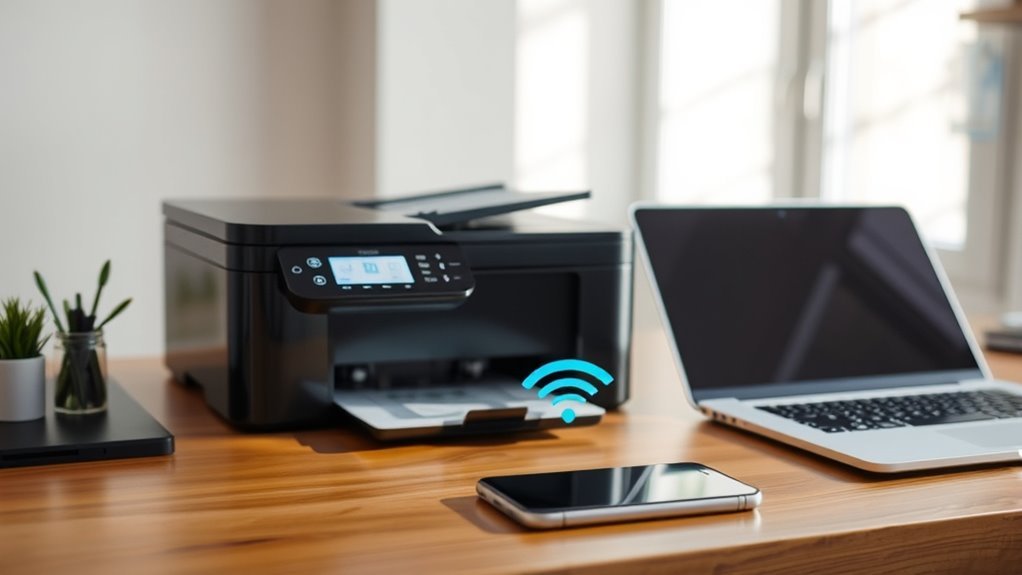
When you use Bluetooth for printing, you’re limited to a short range and must pair devices directly.
WiFi printing, on the other hand, connects your printer to a network, letting multiple devices print from anywhere within range.
Understanding these differences helps you decide which setup fits your needs best.
Bluetooth Printing Range
How far can you print using Bluetooth? Bluetooth printing typically works up to about 10 meters (≈33 feet) in open space. This makes it perfect for a single room but not ideal for whole-building coverage.
You’ll enjoy a straightforward Bluetooth connection without needing a router or access point. However, keep in mind that Bluetooth printing supports basic jobs and transfers data slower than WiFi. So, large files might take longer.
| Feature | Bluetooth Printing | Your Experience |
|---|---|---|
| Range | ~10 meters (≈33 feet) | Works well in the same room |
| Setup | One-time pairing required | Simple but necessary |
| Speed | Lower throughput | Best for documents, small images |
| Network Need | No router needed | Convenient for quick prints |
| Use Case | Basic print jobs | Great for casual, nearby printing |
WiFi Network Setup
Setting up WiFi printing lets you send jobs to your printer over your home or office wireless network without any cables. To get started with Wi-Fi printers, you’ll enable the printer’s wireless setup mode, select your Wi‑Fi network’s SSID, and enter the password.
This setup connects your printer to the router, allowing multiple devices to print within the typical 30–100 meter indoor range. Make sure to keep your printer’s firmware updated and use WPA2 or WPA3 encryption to secure your connection.
If your Wi‑Fi network is down, Wi‑Fi Direct lets you connect your phone or tablet directly to the printer’s own hotspot. That way, you can still print without relying on the network. This flexibility makes WiFi network setup convenient and reliable.
Wireless Printing Advantages
Connecting your printer to a wireless network opens up different options for printing, each with its own strengths. Wireless printers give you flexibility.
Bluetooth lets you print directly from a nearby phone or tablet within about 10 meters without needing a router. It’s perfect for quick, low-volume jobs with a single device.
On the other hand, Wi‑Fi printing connects your printer through a router, allowing multiple devices to print from roughly 100 meters away.
If you want direct connections without a router, Wi‑Fi Direct lets your printer create its own secure network for smartphones or laptops to connect instantly.
While Bluetooth is simpler, Wi‑Fi and Wi‑Fi Direct offer better range and multi-user convenience. So, they’re ideal for homes or offices with many devices.
Printing From Your Phone Without WiFi
Printing from your phone without WiFi doesn’t have to be complicated. You can use Wi‑Fi Direct, which lets your phone connect straight to the printer’s Wi‑Fi Direct network, bypassing your home WiFi.
Printing from your phone without WiFi is easy with Wi‑Fi Direct, connecting straight to your printer’s network.
If your phone and printer both support Bluetooth printing, just pair them and send print jobs over Bluetooth using the printer’s app or Android’s print services. It’s pretty straightforward once you get them connected.
For USB-only printers, Android devices with USB OTG support can connect via an OTG adapter. This lets you print directly with the right app or driver, so no WiFi needed.
If none of these work, you can always transfer your files to a USB-connected computer and print from there. Just a little extra step, but it gets the job done.
Always check your printer’s manual or app for compatibility since features like Wi‑Fi Direct, Bluetooth, and USB OTG vary by model. It’s worth making sure your devices can handle it before you start.
Benefits of Wireless Printing for Home and Office
If you’ve explored ways to print without WiFi, you might appreciate how wireless printing can simplify your setup even more. Wireless printers connect to your Wi-Fi network, letting multiple devices like laptops and smartphones print without cables.
This reduces clutter and allows flexible placement, perfect for home or office use.
Here’s a quick look at key benefits:
| Benefit | Description |
|---|---|
| Multi-device Access | Print from PCs, tablets, and phones easily |
| Long Range | Up to 100 meters, better than Bluetooth |
| Mobile Convenience | Use apps for direct printing and monitoring |
Wireless printers boost productivity and streamline workflows, especially in collaborative or mobile environments. Just make sure your Wi-Fi has strong security to keep print data safe.
When Is a Wired Printer the Better Choice?
Although wireless printers offer convenience, wired printers often prove better when you need consistent reliability and faster performance. A wired printer avoids Wi-Fi dropouts and reduces latency, especially with large print jobs.
If you work from a single computer, a USB-only printer is ideal for its simplicity—just plug it in, install drivers, and you’re set. In multi-user offices, an Ethernet printer lets you share the device via a network switch or router without relying on wireless coverage.
This ensures stable access and easier management. You should also consider wired models in high-security environments since offline USB or Ethernet connections reduce risks of network-based attacks.
Setting Up a Printer Without WiFi
You can easily set up a printer without WiFi by connecting it directly to your computer with a USB cable or using a wired Ethernet connection for network access. This offline setup often improves security and stability.
Plus, it still lets you print from multiple devices through sharing. Let’s explore how these wired options work and the benefits they bring.
USB Connection Setup
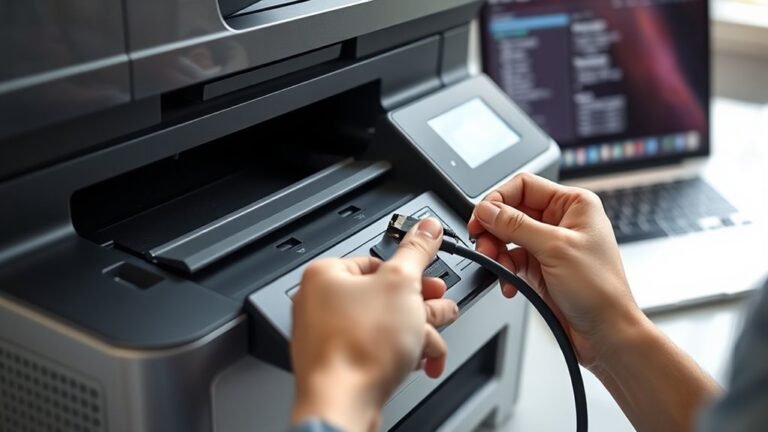
Setting up a printer without WiFi often means hooking it up directly to your computer using a USB cable. Most printers have a USB port (usually USB-B) for this.
After connecting, your system typically auto-detects the printer, but installing the manufacturer’s driver guarantees full features.
If you want to print from a phone or tablet, a USB‑OTG adapter can help connect directly. For printer sharing on a network without WiFi, connect the printer via USB to a PC that stays on and enable printer sharing.
| Benefit | Feeling | Why It Matters |
|---|---|---|
| Reliable | Confident | No network interruptions |
| Private | Secure | No data sent over WiFi |
| Easy Setup | Empowered | Plug-and-play simplicity |
| Mobile Friendly | Convenient | USB‑OTG for phones |
| Shared Access | Connected | Printer sharing enabled |
Wired Ethernet Options
When connecting a printer without WiFi, using a wired Ethernet option offers a stable and secure way to share printing across your local network. Many printers come with a Gigabit Ethernet (RJ‑45) port, letting you plug directly into your router or switch for reliable, wired connectivity.
This setup supports multiple users and maintains consistent access with a static IP or reserved DHCP. It’s a straightforward way to keep your printer accessible without interruptions.
To set up your wired printer, follow these steps:
- Connect the printer’s RJ‑45 cable to your router or network switch.
- Install the manufacturer’s drivers on each computer or add the printer via its IP address.
- Optionally, configure SNMP for remote monitoring and management.
Wired Ethernet provides longer range, better stability, and enhanced security compared to WiFi. It’s a solid choice if you want dependable printing without worrying about wireless issues.
Offline Printing Benefits
Besides wired Ethernet connections, offline printing offers a reliable way to keep your printer accessible without relying on any wireless network. You can connect a non-wireless printer directly to your computer via USB for instant plug-and-play printing. Most modern operating systems auto-detect devices and install drivers automatically, which makes setup a breeze.
If you want to share printing across multiple users without WiFi, Ethernet connections to a network switch or router provide stable, predictable throughput. It’s a great way to keep things running smoothly without worrying about wireless interference.
Mobile devices can print offline by transferring files to the connected PC or using a USB OTG cable if supported. This means even your phone or tablet can join in without needing a WiFi connection.
Offline printing also enhances security by reducing exposure to external networks, making it ideal for sensitive documents. Just make sure you have the proper USB or Ethernet cables, install the right drivers, and disable WiFi on hybrid models to maintain purely wired operation.
Security Differences: Wired vs Wireless Printing
Although wireless printing offers convenience, it also introduces several security risks that wired connections largely avoid. When you connect wirelessly, your printer communicates over a Wi‑Fi network, increasing exposure to attacks like weak passwords or outdated firmware.
Wireless printing is convenient but exposes your printer to risks like weak passwords and outdated firmware.
In contrast, wired printers connect directly via USB or Ethernet, keeping print jobs off the internet and most local networks. So, it’s a bit safer by default.
To secure your setup, consider these points:
- Wireless printing needs strong Wi‑Fi encryption, updated firmware, and disabled WPS or PINs to prevent unauthorized access.
- Wired connections benefit from physical access control and endpoint hardening but still require network segmentation if shared on LAN.
- Bluetooth and Wi‑Fi Direct create short-range links that must be secured to avoid interception.
Choosing wired or wireless impacts your security approach markedly. It’s all about knowing the risks and managing them smartly.
Frequently Asked Questions
Is It Better to Connect a Printer by Wifi or USB?
It depends on your needs. You’ll want USB if you print from one device and prefer simplicity and privacy.
Choose WiFi if you need multiple devices to print wirelessly. It’s great for convenience and mobility around your home or office.
What Are the Disadvantages of a Wireless Printer?
Using a wireless printer can be a double-edged sword—you’ll face signal drops, security risks, and frequent troubleshooting.
If your Wi-Fi acts up, printing slows or fails. Plus, sensitive info could slip through weak network defenses.
It’s kind of a hassle sometimes, but knowing these issues helps you stay prepared.
Does All Printers Have Wifi?
No, not all printers have WiFi. You’ll find many budget or older models connect only via USB or Ethernet.
Always check specs to see if WiFi, Bluetooth, or just wired options are available before buying.
It’s a good idea to know what kind of connection you need, so you don’t end up with a printer that won’t work the way you want.
Do Printers Use Wifi or Bluetooth?
WiFi and Bluetooth dance like two wings of wireless freedom. You’ll use WiFi for longer, shared flights across rooms,
while Bluetooth keeps it close, whispering prints directly from your device without needing a network’s embrace.
Conclusion
You don’t always need WiFi to make your printer sing; sometimes, a wired connection is the steady heartbeat your setup craves. Think of wireless printing as a breeze—light and freeing—while wired printing is the solid ground beneath your feet.
Whether you choose the dance of signals or the firm grip of cables, knowing your options lets you print with confidence. In fact, having both wired and wireless printing options can be a real game-changer. It means you’re not tied down to one method and can adapt to whatever your workspace needs.
So, does a printer need WiFi? Not necessarily. While WiFi adds convenience and flexibility, a wired connection can offer reliability and speed. Understanding these options helps you pick the best printer setup for you, ensuring your ideas turn into reality without missing a beat.