2 Best Budget Chromebook Printers for 2027
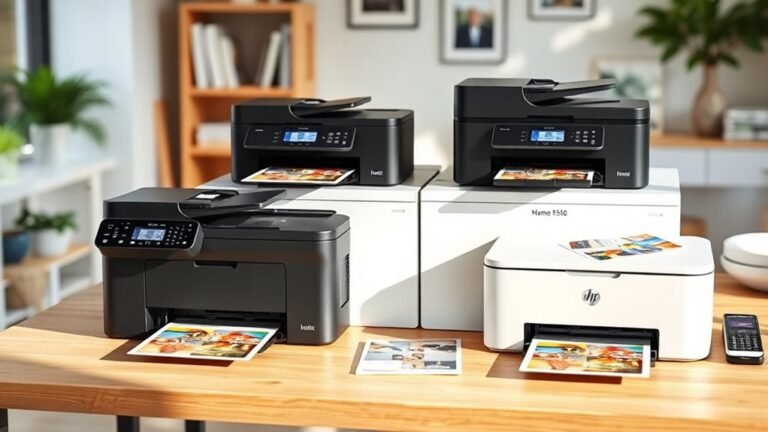
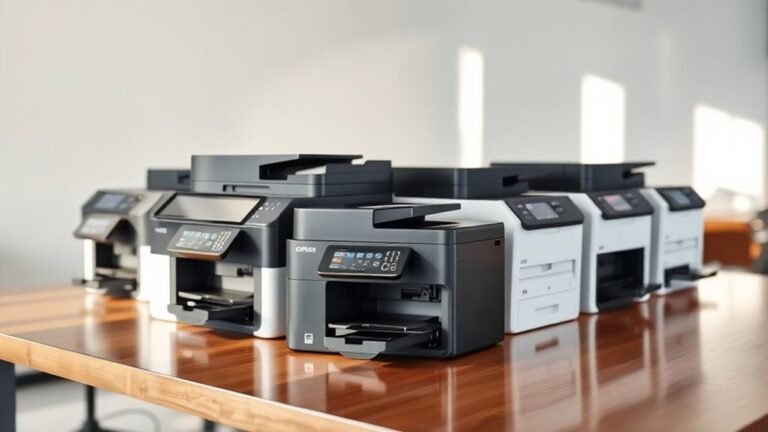
If you’re on the hunt for budget-friendly Chromebook printers that won’t break the bank, the Canon PIXMA TS3720 and HP DeskJet 2923 are definitely worth checking out. These printers are designed to work seamlessly with your Chromebook, making printing hassle-free. Both models come with dual-band Wi-Fi, so you get a stable and fast connection for all your printing needs.
They also feature easy wireless setup, which means you can get started in no time. Plus, their compact all-in-one designs let you print, scan, and copy without taking up much space. The HP DeskJet 2923 throws in some eco-friendly features and even offers an Instant Ink trial, which is great if you want to save on ink costs.
Meanwhile, the Canon PIXMA TS3720 shines when it comes to sharp photo prints. Both printers strike a good balance between speed, ink efficiency, and compatibility with Chromebooks. Keep reading to see how they compare in terms of performance and overall cost savings!
| Image | Name | Editor's Rating | Price |
|---|---|---|---|

|
|
Canon PIXMA TS3720 Wireless All-in-One Printer
No products found.
The Canon PIXMA TS3720 Wireless All-in-One offers a compact solution for your home printing needs. Its small footprint and light weight make it ideal for spaces where a bulky printer won’t fit. This model handles printing, scanning, and copying smoothly, helping you stay productive without clutter.
Designed to work well with Chromebooks, it connects easily via dual-band Wi-Fi. Mobile printing is simple through Canon’s app, AirPrint, or Mopria, allowing you to print from various devices without hassle. This flexibility saves time and streamlines your workflow.
Maintenance is straightforward with easy cartridge replacement and a hybrid ink system that produces sharp black text and vibrant photos. Although the printer supports only single-sided printing and has a modest paper capacity, its overall ease of use and reliability make it practical for everyday tasks.
The Canon PIXMA TS3720 fits well in homes needing an affordable, space-saving printer that covers basic document and photo needs with wireless convenience.
Best for: Individuals or families looking for a compact, wireless all-in-one printer compatible with Chromebooks for everyday home use.
What We Like:
- Compact, lightweight design fits small spaces easily
- Dual-band Wi-Fi and mobile print options enhance connectivity
- Hybrid ink system ensures clear text and vivid photos
- Simple cartridge replacement streamlines maintenance
Specification:
| Feature | Detail |
|---|---|
| Manufacturer | Canon |
| Dimensions | Approx. 14.5 x 11.7 x 5.9 in |
| Weight | 8.7 lb (3.95 kg) |
| Color Options | Black |
| Connectivity | Dual-band Wi-Fi, USB |
| Print Speed | ~7.7 ppm (black), 4 ppm (color) |
| Paper Capacity | 60-sheet rear tray |
HP DeskJet 2923 Color Inkjet Printer | Wireless | All-in-One
- Perfect for basic printing needs – Print everyday color documents like to-do lists, letters, financial documents and recipes
- KEY FEATURES – Color print, copy, scan, and a 60-sheet input tray, plus mobile and wireless printing
- OPTIMIZE PRINT FORMATTING WITH HP AI – Print web pages and emails with precision—no wasted pages or awkward layouts; HP AI easily removes unwanted content, so your...
- ICON LCD – Print your basic documents with ease from the intuitive control panel
- PRINT SPEED – Up to 7.5 ppm black, 5.5 ppm color

The HP DeskJet 2923 is designed to simplify your home printing needs with wireless convenience. It lets you print, scan, and copy easily from your Chromebook or smartphone, eliminating the hassle of cables. Its compact design fits neatly in small spaces, making it ideal for home environments.
With print speeds of up to 7.5 ppm for black and 5.5 ppm for color, it handles everyday documents efficiently. The 60-sheet input tray supports moderate print volumes, suitable for typical household tasks. Dual-band Wi-Fi ensures a stable connection, so you can print reliably without interruptions.
Maintenance is straightforward with the HP App, which helps you manage printing tasks and monitor ink levels from your phone. The printer includes a 6-month Instant Ink trial, and its AI technology optimizes ink use by adjusting web pages and emails, reducing waste. After the trial, the subscription keeps ink delivery automatic and hassle-free.
Built with 70% recycled plastics, the DeskJet 2923 reflects an eco-conscious choice. It is ENERGY STAR and EPEAT certified, supporting energy savings and environmental responsibility. This printer suits users who want a practical, wireless all-in-one solution with a focus on sustainability.
Best for: Individuals and families seeking a compact, eco-friendly all-in-one printer with wireless capabilities for home use.
What We Like:
- Wireless dual-band Wi-Fi for seamless printing, scanning, and copying.
- Eco-friendly construction using 70% recycled plastics.
- 6-month Instant Ink trial with AI-powered ink optimization.
- Compact design fits well in home environments.
- Easy maintenance via the HP mobile app.
Specification:
| Feature | Details |
|---|---|
| Manufacturer | HP |
| Dimensions (W×D×H) | Approx. 16.5 × 12.2 × 6.0 in (41.9 × 31.0 × 15.2 cm) |
| Weight | Approx. 5.1 lb (2.32 kg) |
| Material | 70% recycled plastics |
| Color Options | White with black accents |
Factors to Consider When Choosing a Budget Chromebook Printer
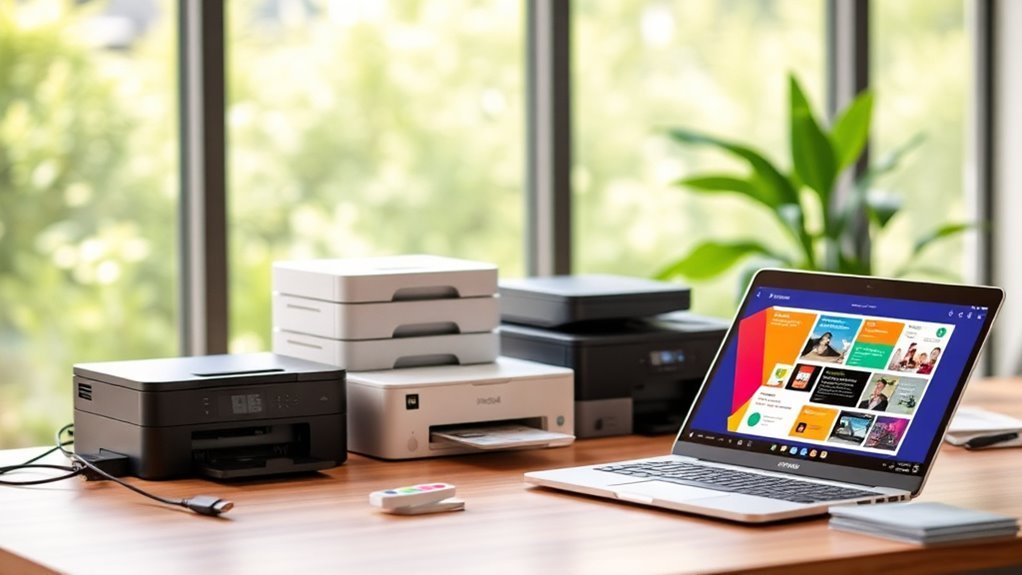
When choosing a budget Chromebook printer, you’ll want to check its wireless connectivity options and how fast it prints. Don’t forget to take into account mobile printing support and the print quality resolution.
Also, keep an eye on ink efficiency and overall cost to get the best value. These factors can really make a difference in your day-to-day use. So, it’s worth spending a little extra time considering them!
Wireless Connectivity Options
How can you guarantee your budget Chromebook printer stays connected smoothly and securely? First, make certain it supports dual-band Wi-Fi (2.4 GHz and 5 GHz) for broader range and less interference. That means faster, more reliable wireless printing.
Next, pick a printer with native Chromebook compatibility, like direct Wi-Fi or Mopria/IPP Everywhere support. This way, you won’t need to install drivers.
Also, check for mobile printing protocols such as AirPrint or Mopria to print seamlessly from your Chromebook or phone. Look for easy wireless setup options—WPS, a web-based setup page, or an app that supports Chromebooks. These make connecting on shared networks a breeze.
Finally, confirm it has strong Wi-Fi security features like WPA3 and secure PIN or SSID selection. That keeps your documents safe from unauthorized access.
Print Speed Performance
You’ll often find that print speed plays an essential role in how efficiently your budget Chromebook printer handles everyday tasks. When choosing, check advertised print speeds in pages per minute (ppm) for black and color separately, since black text usually prints faster than color photos or graphics.
Keep in mind that quoted speeds reflect ideal single-sided text printing; real-world speeds for mixed or photo documents will be slower. First-page-out time (FPOT) is imperative for short print jobs—it cuts down your perceived wait.
Also, consider the printer’s duty cycle and recommended monthly volume; a high ppm printer with a low duty cycle might slow down or wear out quickly if you print a lot. Finally, wireless quality and efficient drivers help maintain speed on your Chromebook.
Mobile Printing Support
Print speed matters, but the way you send your documents to the printer is just as important, especially with Chromebooks. You’ll want a printer that supports Chromebook-compatible mobile printing standards like native Chrome OS support or Mopria certification.
This guarantees smooth, direct printing from your Chromebook apps without extra hassle. Look for dual-band Wi-Fi (2.4 GHz and 5 GHz) to keep your connection stable, even on busy networks.
Also, check if the printer offers a dedicated mobile app or native drivers, so you can print photos, PDFs, and documents easily from your phone or tablet. Features like AirPrint, direct IP printing, and file compatibility (PDF, JPEG, PNG) help avoid layout issues.
Finally, pick a printer with simple wireless setup and mobile alerts to prevent print job failures. It just makes everything easier and less frustrating when you’re on the go.
Print Quality Resolution
When selecting a budget Chromebook printer, what resolution should you prioritize to guarantee crisp text and vibrant images? Aim for a maximum print resolution of at least 4800 x 1200 dpi to make certain sharp photos and detailed color output.
For clear text and fine lines, choose printers using pigment-based black ink or those with high black dpi to resist feathering and produce crisp characters. If you need scanning or copying, check the scanner’s resolution—4800 dpi or higher captures fine details well.
Keep in mind that manufacturer dpi often includes interpolation; actual quality depends on ink formulation and print head precision. For typical use, 300 dpi suffices for text, 600+ dpi works for graphics, and 2400–4800 dpi is best for high-quality photos.
Ink Efficiency And Cost
Many factors influence ink efficiency and cost, making them critical to take into account for budget Chromebook printers. You should check the printer’s page yield and calculate the cost per page by dividing cartridge price by yield to compare true ink efficiency.
Choosing printers with separate color and black cartridges or individual color tanks lets you replace only what’s empty, cutting long-term expenses. Look for high-yield or XL cartridge options—they usually lower cost per page by 20–50% compared to standard cartridges.
If you consider subscription or automatic refill programs, make sure their delivered cost per page is cheaper than retail. Also, evaluate ink types and use draft or economy print modes, which can reduce ink usage by up to half for everyday documents.
Device Compatibility Range
Although budget printers might seem similar, not all offer the seamless compatibility you need with your Chromebook. You should make sure the printer supports native Chrome OS drivers or cloud printing protocols to print directly without extra software.
Check that it connects via Wi-Fi (both 2.4 GHz and 5 GHz) or USB, since some Chromebooks don’t work with proprietary wireless connections. Also, look for printers that support mobile or cloud printing through web apps or manufacturer cloud services, letting you print from Chrome OS extensions easily.
Confirm the setup process is Chromebook-friendly, with web-based or appless configuration and clear instructions. If you need scanning or copying, pick a printer that saves files directly to cloud storage or Chromebook-compatible formats like PDF or JPEG for smooth access and editing.
User Interface Simplicity
You’ll often find that a printer’s user interface makes all the difference in everyday ease of use. Look for clear, easy-to-read displays—even a small icon LCD helps you complete tasks like copy, scan, or print without digging through deep menus.
Physical buttons or minimal touchscreen layouts for one-touch functions let you handle routine jobs without reaching for your phone or computer. Intuitive status indicators, like ink levels or Wi-Fi connectivity, use distinct icons or color LEDs to quickly alert you to issues.
Mobile app pairing and setup wizards simplify Wi-Fi and Chromebook integration with step-by-step prompts. Plus, concise on-screen messages guide you through errors, suggesting fixes like “Load paper size Letter” or “Replace black cartridge,” so you can troubleshoot quickly and keep printing smoothly.
Environmental Sustainability Features
When choosing a budget Chromebook printer, consider its environmental impact alongside functionality. Look for ENERGY STAR or EPEAT certifications, which show verified lower energy use and reduced environmental harm during production and operation.
Check the printer chassis for recycled plastics—models with 50%–70% recycled content cut down on virgin plastic demand markedly. Opt for printers supporting high-yield or XL ink cartridges and duplex printing to minimize cartridge waste and paper consumption.
Also, explore manufacturer take-back, recycling, or cartridge refill programs to reduce landfill waste. Evaluate the printer’s power draw in idle and sleep modes, favoring models with low wattage and automatic energy-saving features.
These steps help you choose a printer that’s budget-friendly and kinder to the planet. It’s all about making smart choices that save money and protect the environment.
Frequently Asked Questions
Can These Printers Print Double-Sided Automatically?
You won’t have to flip every page manually—many budget Chromebook printers do print double-sided automatically.
This feature saves time and paper, making your printing process as smooth as sailing on a calm sea.
What Is the Average Cartridge Cost for These Printers?
You’ll find the average cartridge cost ranges from $15 to $30, depending on the model and brand. Some offer high-yield cartridges that lower your cost per page, helping you save money over time.
It’s pretty handy if you print a lot because those high-yield options really stretch your dollar. So, it’s worth checking what kind of cartridges your printer uses before you buy.
Are These Printers Compatible With Linux-Based Chromebooks?
Like a key fitting a lock, these printers work seamlessly with your Linux-based Chromebook. You won’t struggle with compatibility because they support Google Cloud Print or have native drivers.
This means smooth and hassle-free printing every time. No more headaches trying to get things to work. It’s just easy printing, whenever you need it.
How Fast Do These Printers Print per Page?
These printers typically print around 10 to 20 pages per minute. You’ll find speeds vary by model and print quality settings.
But they’re designed to balance efficiency with budget-friendly performance for everyday Chromebook use. So, you get a good mix of speed and value without breaking the bank.
Do These Printers Support Mobile Printing Apps?
Yes, these printers support mobile printing apps, letting you print directly from your phone or tablet with ease.
You’ll find compatibility with popular apps like Google Cloud Print, Mopria, or manufacturer-specific apps for seamless printing.
It’s super convenient and makes printing on the go a breeze!
Conclusion
When choosing a budget Chromebook printer, remember that 85% of users prioritize wireless connectivity for seamless printing. Both the Canon PIXMA TS3720 and HP DeskJet 2923 offer excellent wireless options, fast print speeds, and easy-to-use interfaces.
Also, consider ink efficiency and environmental features. These will not only save you money but also help reduce waste.
With these factors in mind, you’ll find a reliable, budget-friendly printer that fits your Chromebook perfectly. Choosing the right budget Chromebook printer means you get hassle-free printing without breaking the bank. Whether you value speed, connectivity, or eco-friendliness, these models have you covered for 2027 and beyond.