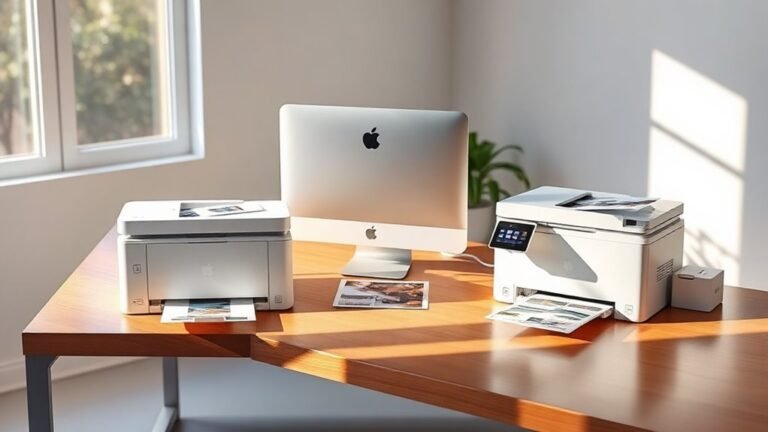

3 Best and Most Economical Inkjet Printers for 2027
If you want to save big on ink and get crisp, reliable prints in 2027, the Canon MegaTank G3270, Epson EcoTank ET-4800, and Canon PIXMA TR4720 are top picks.
These best and most economical inkjet printers come with high-capacity refillable tanks that significantly cut ink costs. Plus, they offer wireless convenience and sharp 4800 × 1200 dpi output for stunning results every time.
Each model supports versatile all-in-one functions, making them perfect for home use or small office setups.
Whether you need to print, scan, or copy, these printers handle it all without breaking the bank. Take a closer look at their features and cost-efficiency to find the perfect match for your printing needs and usage patterns.
| Image | Name | Editor's Rating | Price |
|---|---|---|---|

|
|
||

|
|
||
|
|
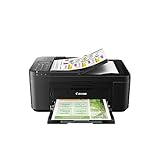
Canon MegaTank G3270 All-in-One Wireless Color Printer
- Wireless Print/Copy/Scan
- Up to 2 years of ink included (2)
- Print up to 6,000 black & white / 7,700 color pages using a single set of inks! (1)
- Save up to $1,000 on ink (1)
- 1.35” Square LCD display

The Canon MegaTank G3270 All-in-One Wireless Color Printer is designed to keep your workflow smooth with minimal interruptions. Its refillable MegaTank system offers a high ink capacity, letting you print thousands of pages before needing a refill. This reduces the hassle and cost of frequent ink replacements, making it a practical choice for home or small office use.
Wireless connectivity allows you to print and scan effortlessly from your smartphone or tablet. The printer’s compact 1.35″ LCD screen simplifies operation, providing intuitive control without complicated menus. It handles printing, copying, and scanning tasks with sharp 4800 × 1200 dpi resolution, accommodating various paper sizes and types for versatile use.
Maintenance is straightforward thanks to the easy-to-refill ink tanks, which help you avoid messy cartridge changes. Energy-efficient operation ensures it doesn’t consume excessive power during use. While it supports only simplex printing and has moderate copy speeds, its overall design balances functionality with convenience.
Best for: Users seeking a cost-effective, high-yield wireless inkjet printer for home or home office environments.
What We Like:
- High ink yield with refillable MegaTank system, supporting up to 6,000 black and 7,700 color pages per refill.
- Wireless printing and scanning via smartphone and tablet apps.
- Supports multiple paper sizes and types, including borderless printing.
- Compact LCD screen for easy control and monitoring.
Specification:
| Feature | Details |
|---|---|
| Manufacturer | Canon |
| Dimensions | Not specified |
| Weight | Not specified |
| Ink System | Refillable MegaTank |
| Print Resolution | Up to 4800 × 1200 dpi |
| Connectivity | Wireless |
| Display | 1.35″ LCD screen |
Epson EcoTank ET-4800 Wireless Color All-in-One Supertank Printer
- INNOVATIVE CARTRIDGE-FREE PRINTING — High-capacity ink tanks mean no more dealing with lots of tiny ink cartridges; Epson’s exclusive EcoFit ink bottles make filling...
- CLEAR AND VIBRANT PRINT QUALITY ― Create memorable prints and projects; Unique Micro Piezo Heat-Free Technology allows wireless color printer to produce sharp text and...
- ZERO CARTRIDGE WASTE — By using an Epson EcoTank printer you can help reduce the amount of cartridge waste ending up in landfills
- BUILT IN SCANNER AND COPIER ― All-In-One Epson EcoTank is more than a printer; High-resolution flatbed scanner and color display come together for easy document copying...
- LESS FREQUENT INK REPLACEMENT — Replacement ink bottles don't have to be changed nearly as often as ink cartridges¹; Printer, scanner and copier lets you print up to...
Experience hassle-free printing with the Epson EcoTank ET-4800, designed to eliminate the frustration of frequent cartridge changes. Its cartridge-free design uses high-capacity ink tanks, helping you print thousands of pages before needing a refill. This means less interruption and reduced waste, making your printing more efficient and eco-friendly.
The printer’s Micro Piezo Heat-Free Technology ensures crisp text and vibrant colors on a variety of paper types, whether for documents or photos. It’s perfect for users who want professional-quality output without complicated setups or costly consumables.
Maintenance is simple with Epson EcoFit ink bottles that make refilling quick and mess-free. Just remember to use genuine Epson ink to maintain print quality and keep the printer functioning smoothly over time.
With a built-in flatbed scanner, copier, and fax, the ET-4800 offers versatile all-in-one functionality tailored for home office environments. Its compact design fits well in small spaces while covering all your essential document handling needs.
Best for: Home office users seeking an eco-friendly, cartridge-free all-in-one printer that delivers high-volume printing and versatile features.
What We Like:
- High-capacity ink tanks reduce refill frequency and waste
- Sharp text and vibrant prints on various paper types
- All-in-one design with scanner, copier, and fax
- Easy, mess-free refilling with Epson EcoFit ink bottles
Specification:
| Feature | Detail |
|---|---|
| Manufacturer | Epson |
| Dimensions (W×D×H) | 14.8 × 13.7 × 9.9 in (37.6 × 34.8 × 25.1 cm) |
| Weight | 9.5 lb (4.3 kg) |
| Color Options | White |
Canon PIXMA TR4720 Wireless All-in-One Printer
- Wireless 4-in-1 (print | copy | scan | fax)..Power Consumption: 7W (0.8W Standby / 0.3W Off)
- Print speed up to: 4" x 6" Borderless Photo (PP-201): Approx. 65.0 Seconds / Black Document (Letter/Simplex): Approx. 8.8 ipm / Color Document (Letter/Simplex): Approx...
- Designed for easy ink cartridge installation and replacement.
- Auto 2-sided printing and auto document feeder.
- Produce quality documents, photos and boarderless prints up to 8.5" x 11".
The Canon PIXMA TR4720 offers a practical solution for users seeking a compact all-in-one printer that handles everyday tasks with ease. Its 4-in-1 capability covers printing, copying, scanning, and faxing, reducing the need for multiple devices. This versatility is ideal for managing home or small office workloads efficiently.
Wireless and USB connectivity allow flexible placement and easy setup. The printer supports automatic duplex printing, saving time and paper on double-sided documents. A 100-sheet front paper tray and an auto document feeder simplify multitasking, especially when handling multi-page jobs.
Maintaining the PIXMA TR4720 is straightforward with Canon’s app, which provides real-time alerts for low ink and supports smart ink reordering. The high print resolution of 4800 x 1200 dpi ensures clear text and vibrant photos up to letter size, meeting both professional and personal needs.
While its print speed is moderate, especially for color prints, and USB connectivity is limited to one port, the device balances functionality and convenience well. Its ENERGY STAR certification also helps keep energy use efficient, aligning with cost-conscious users.
Best for: Home users and small office environments needing an affordable, versatile all-in-one wireless printer with scanning, copying, faxing, and duplex printing capabilities.
What We Like:
- 4-in-1 functions with wireless and USB connectivity
- Automatic duplex printing and 100-sheet paper capacity
- High print resolution for sharp text and vibrant images
- Easy maintenance with app-based ink monitoring and reordering
- ENERGY STAR certified for efficient power consumption
Specification:
| Feature | Details |
|---|---|
| Manufacturer | Canon |
| Dimensions | Approx. 17.7 x 12.7 x 7.5 in (W x D x H) |
| Weight | Approx. 11.5 lb |
| Color Options | Black |
Factors to Consider When Choosing the Most Economical Inkjet Printer
When choosing the most economical inkjet printer, you’ll want to weigh ink cost efficiency and print quality standards carefully. Don’t overlook connectivity options and print speed, since they affect convenience and productivity.
Also, consider how flexible the paper handling is to match your typical printing needs. It’s all about finding the right balance that fits your budget and printing habits.
Ink Cost Efficiency
Calculate the true ink cost-per-page by dividing the price of replacement ink or refill bottles by their estimated page yield. You should favor printers with high-capacity or refillable tank systems since they drastically lower ink costs compared to small cartridges.
Remember, color prints consume multiple color reservoirs, so calculate the combined color cost-per-page for mixed printing. Don’t overlook maintenance expenses—include costs for print heads, cleaning cycles, and wasted ink during priming when estimating long-term ink expenses.
To get a realistic picture, project your monthly page volume and multiply it by the ink cost-per-page. This approach helps you compare printers over several years, ensuring you choose the most economical inkjet printer that fits your printing habits and budget.
Print Quality Standards
Balancing ink cost efficiency with print quality guarantees you get the most value from your inkjet printer. You should look for models offering at least 4800 × 1200 dpi optical resolution to produce sharp color photos and detailed graphics.
Don’t forget to check color depth—16-bit per channel support—and coverage of color gamuts like sRGB or Adobe RGB for accurate, vibrant prints. If your printer has scanning or copying features, verify their resolution matches print quality standards, ideally up to 4800 × 1200 dpi.
Pay attention to print technology specifics, such as nozzle count and droplet size, since finer droplets and higher DPI yield smoother gradients and clearer text. Finally, balance speed and quality by reviewing manufacturer print speed ratings for various modes to guarantee your output meets expectations without sacrificing efficiency.
Connectivity Options Available
How do you guarantee your inkjet printer stays connected seamlessly in your home or office? Start by considering Wi‑Fi (802.11), which lets multiple devices print and scan wirelessly. It’s convenient but can suffer from signal interference.
If you need stable, secure connections in a busy office, Ethernet is your best bet for consistent performance. USB 2.0 or 3.0 offers the fastest link for single-device use, perfect for large jobs or setup, but limits sharing.
For mobile printing, Wi‑Fi Direct and Bluetooth let you print straight from smartphones without network access. Though, keep in mind, range and speed are limited.
Finally, cloud and app-based printing allow remote job submission but require internet access and raise privacy considerations. Choose connectivity based on your environment and device needs.
Print Speed Performance
When choosing the most economical inkjet printer, you’ll want to take into account print speed performance carefully. Print speed is measured in pages per minute (ppm), with higher values (like 8–11 ppm) meaning faster output for standard black-and-white or color text.
Remember, scanner and copier speeds don’t reflect print speed, so check the specific ppm for printing. Speeds are usually given for single-sided printing at standard resolution—two-sided or high-quality prints will slow things down.
Also, consider first-page-out and warm-up times if you print occasionally. While sustained ppm and duty cycle matter for bigger jobs.
Keep in mind, manufacturer speeds assume ideal conditions, but real-world results vary based on resolution, connectivity type, file complexity, and printer hardware. So, it’s always good to read reviews or test the printer yourself if you can.
Paper Handling Flexibility
You’ll often find that paper handling flexibility plays a key role in choosing the most economical inkjet printer. Start by checking supported paper sizes and maximum media dimensions to make sure the printer fits your typical print jobs, whether legal documents, A4 sheets, or 4×6 photos.
Also, consider input and output tray capacities. If you print frequently, larger trays reduce how often you need to reload paper.
Look for duplex printing to save paper on multi-page documents. But keep in mind, many budget models only print single-sided.
Confirm the supported media types, like envelopes, cardstock, and glossy photo paper. Don’t forget to check any thickness limits to avoid jams.
Finally, special features such as borderless photo printing and automatic document feeders can add valuable convenience. These are especially handy for handling photos and multi-page scans.
Device Durability Features
Although many inkjet printers look similar at first glance, their durability features can vary markedly, impacting your total cost of ownership. To choose the most economical model, look for metal-reinforced paper paths or steel chassis components—they reduce wear from frequent paper handling.
Check the rated duty cycle and monthly page volume to make certain the printer can handle your peak printing without early mechanical strain. Opt for printers with user-replaceable print heads and accessible maintenance parts like belts and rollers to extend service life and cut repair costs.
Also, verify spare parts availability and the manufacturer’s specified service life to keep repairs affordable as the printer ages. These factors help you avoid premature replacements and maximize value over time.
Warranty And Support
Durability plays a big role in keeping your inkjet printer running longer, but warranty and support options can protect you from unexpected costs and downtime. When choosing a printer, check the warranty length and what it covers, including parts and labor—but watch for exclusions like consumables or damage from third-party ink.
Make certain replacement parts and service support remain available for several years to reduce repair expenses. Also, look for convenient repair options like on-site or mail-in service, plus turnaround times and the availability of extended or accidental damage plans.
Finally, verify the vendor’s support channels—phone, chat, email—and ensure they provide firmware updates and driver support for your operating system to keep your printer running smoothly. It’s all about making sure you’re covered and your printer stays in tip-top shape.
Frequently Asked Questions
How Do Inkjet Printers Compare to Laser Printers in Print Quality?
You’ll find inkjet printers deliver richer colors and finer details, especially for photos. They really shine when you want vibrant, high-quality images.
On the other hand, laser printers excel at sharp, crisp text and faster black-and-white prints. So, if speed and clear text are your priorities, laser might be the way to go.
You’ll choose based on whether you prioritize color or speed. It all depends on what matters most for your printing needs.
Can Inkjet Printers Print on Fabric or Other Non-Paper Materials?
Yes, you can print on fabric, plastic, and even wood with inkjet printers. You just need the right ink, the right settings, and the right surface preparation.
That way, you’ll get vibrant, lasting results every time you print. It’s all about matching the materials and adjusting your printer properly.
What Is the Average Lifespan of an Inkjet Printer?
You can expect an inkjet printer to last around 3 to 5 years, depending on usage and maintenance.
If you take care of it and avoid heavy daily printing, it’ll serve you well longer.
Are Third-Party Ink Cartridges Safe to Use With Inkjet Printers?
Yes, you can use third-party ink cartridges, but you should be cautious. They often save money but might cause clogs or void warranties.
Always check compatibility and reviews before deciding to avoid printer damage. It’s better to be safe than sorry!
How Do Environmental Factors Affect Inkjet Printer Performance?
Like a plant needs the right conditions, your inkjet printer struggles in extreme heat or humidity. These factors can cause ink to smudge or clog nozzles, so keep your printer in a stable, moderate environment.
Trust me, it makes a big difference. When the environment is just right, your printer works smoothly and your prints come out crisp every time.
Conclusion
Choosing the right inkjet printer doesn’t have to feel like searching for a needle in a haystack. With the Canon MegaTank G3270, Epson EcoTank ET-4800, and Canon PIXMA TR4720, you’re getting excellent quality without breaking the bank.
Remember to weigh factors like ink cost, print volume, and features to find your perfect match. Trust me, picking the right printer will save you tons of money and headaches down the road!
When looking for the best and most economical inkjet printers for 2027, focus on affordability and reliability. These models offer great value by combining low ink expenses with solid print performance.
So, whether you need a printer for home or small office use, choosing wisely ensures you get quality prints without frequent costly ink replacements. In the end, selecting one of these top inkjet printers means smart spending and hassle-free printing for years to come!