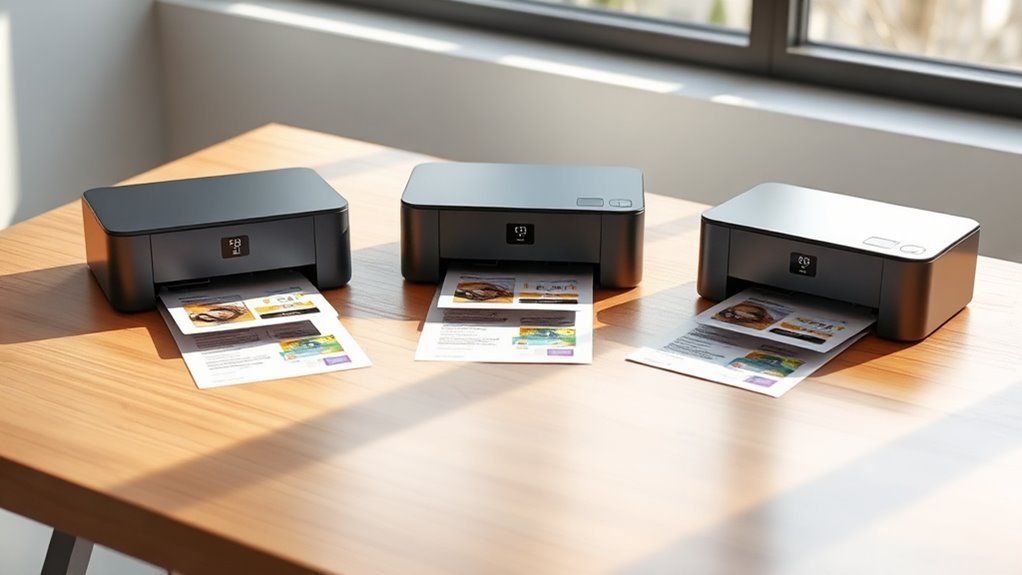
3 Best AirPrint Printers for 2027 According to Wirecutter
If you’re on the hunt for reliable AirPrint printers for 2027, you’ve come to the right place. AirPrint compatibility means you can print directly from your Apple devices without any hassle. That’s a game-changer for convenience, especially if you juggle multiple tasks or work from home.
Consider the Canon PIXMA TR8620a—it’s perfect for busy home offices. It offers multitasking with a 20-sheet automatic document feeder (ADF) and a large paper capacity. This means fewer interruptions when you’ve got a lot to print.
If space is tight, the TS6420a might be your best bet. It’s compact, stylish, and smart about ink usage, helping you keep costs down. Plus, it fits nicely in smaller spaces without sacrificing quality.
For a balanced option, the TR7520 blends wireless color printing with ease of use. Each of these models supports seamless Apple device printing, fast speeds, and duplexing. Keep exploring to find the one that fits your specific printing needs best!
| Image | Name | Editor's Rating | Price |
|---|---|---|---|

|
|
||

|
|
Canon PIXMA TR8620a All-in-One Printer Black
- Never run out of ink. Connect your printer to Alexa and receive notifications when you’re running low. Alexa can even place a smart reorder from Amazon on your behalf...
- Enrolling in Smart Reorders with Alexa ensures that you never have too much or too little ink supplies. No subscription needed.
- Wireless 4-in-1 (Print | Copy | Scan | Fax)
- 15 / 10 ipm Print Speed
- 200 Sheet Capacity (100 Cassette, 100 Rear Feed)

Experience seamless printing, scanning, copying, and faxing with the Canon PIXMA TR8620a, designed to simplify your daily tasks. Its 20-sheet auto document feeder and automatic duplex printing make handling multi-page documents quick and efficient, saving you time and effort.
The printer’s five individual ink tanks offer a practical solution for replacing only the colors you need, reducing waste and cost. It supports borderless printing up to 8.5 x 11 inches, delivering vibrant photos and sharp documents with a resolution of 4800 x 1200 dpi.
Wireless connectivity options like AirPrint, Android compatibility, and Alexa integration ensure you can print easily from various devices without hassle. The dual paper trays hold up to 200 sheets, which helps minimize interruptions during large print jobs.
While it weighs 17.4 pounds and has a larger footprint, making it less suited for very tight spaces, it is an excellent fit for home offices or small businesses that need a versatile all-in-one printer with robust features.
Best for: individuals and small offices seeking a versatile all-in-one printer with efficient multi-page handling and convenient wireless printing.
What We Like:
- Efficient multi-page processing with a 20-sheet auto document feeder and duplex printing
- Cost-effective ink management thanks to five individual ink tanks
- Wireless printing support including AirPrint, Android, and Alexa integration
- Dual paper trays with a total 200-sheet capacity for reduced reloads
- High-resolution printing up to 4800 x 1200 dpi for sharp, clear output
Specification:
| Feature | Details |
|---|---|
| Manufacturer | Canon |
| Dimensions (W x D x H) | 15.0 x 12.0 x 6.0 inches |
| Weight | 17.4 lb (7.9 kg) |
| Color | Black |
| Paper Capacity | 2 trays, 200 sheets total |
| Print Resolution | Up to 4800 x 1200 dpi |
Canon PIXMA TS6420a Wireless All-in-One Printer
No products found.
The Canon PIXMA TS6420a Wireless All-in-One Printer is designed to simplify your printing tasks at home or in a small office. It handles printing, scanning, and copying with ease, helping you stay productive without complicated setups. Its wireless connectivity and smart home compatibility mean you can print using Alexa voice commands, saving you time and effort.
This printer boosts efficiency with auto-duplex printing and speeds up to 13 images per minute in black and white. It supports a variety of paper types and sizes through two 100-sheet trays, so you can switch between documents, envelopes, or cardstock effortlessly. The compact design fits neatly in tight spaces, making it ideal for homes or small offices.
Maintenance is straightforward thanks to the PIXMA Print Plan, which helps manage ink costs and keeps you stocked without frequent trips to the store. The OLED touchscreen provides easy control, allowing you to navigate settings and monitor ink with just a few taps. However, the printer has only one USB port and the Print Plan requires an internet connection and regional availability.
Best for: individuals and small office users who need a compact, wireless all-in-one printer with smart home features and efficient document handling.
What We Like:
- Alexa voice command support for hands-free printing and ink alerts.
- Auto-duplex printing enhances productivity by saving paper and time.
- Two 100-sheet trays accommodate multiple paper types and sizes.
- OLED touchscreen offers intuitive control and monitoring.
- Compact design fits well in limited spaces.
Specification:
| Feature | Details |
|---|---|
| Manufacturer | Canon |
| Dimensions (W×D×H) | Approx. 17.1 × 12.7 × 5.8 in |
| Weight | Approx. 10.7 lb (4.85 kg) |
| Connectivity | Wi-Fi, USB |
| Paper Capacity | Two 100-sheet trays |
| Print Speed | Up to 13 ipm (black and white) |
| Display | OLED touchscreen |
Canon PIXMA TR7520 Wireless All-in-One Printer
Discover the ease of wireless printing with the Canon PIXMA TR7520, designed for users who need a versatile all-in-one printer at home or in the office. This model simplifies your workflow by combining printing, scanning, copying, and faxing in one compact device. Its high-resolution output ensures every document and photo looks sharp and vibrant.
Managing different paper types is effortless thanks to the dual trays, which accommodate both plain and photo paper. Duplex printing helps you save paper and time, making it ideal for busy environments. The printer supports multiple control methods, including a clear LCD screen, voice commands via Alexa, and the Canon Print App, granting flexibility in how you interact with your device.
Maintenance is straightforward, but keep in mind the moderate paper capacity means more frequent refills if you print large volumes. While the fast print speed of up to 40 ppm supports everyday tasks well, it may not be suitable for very high-volume printing needs. This printer is perfect for those looking to balance functionality with convenience in a compact package.
Best for: Home and office users needing a reliable all-in-one printer that offers wireless connectivity and high-quality color printing.
What We Like:
- Crisp 4800 x 1200 dpi print resolution for vibrant colors
- Dual paper trays with duplex printing for efficiency
- Multiple control options: LCD, Alexa voice commands, and mobile app
- Compact design fits well in small spaces
- Easy wireless setup and operation
Specification:
| Feature | Details |
|---|---|
| Manufacturer | Canon |
| Dimensions | Approx. 17.7 x 12.7 x 7.5 in (45 x 32.3 x 19 cm) |
| Weight | Approx. 13.7 lb (6.2 kg) |
| Color Options | Black |
| Connectivity | Wireless, USB, AirPrint, Google Cloud Print |
Factors to Consider When Choosing an Airprint Printer Wirecutter
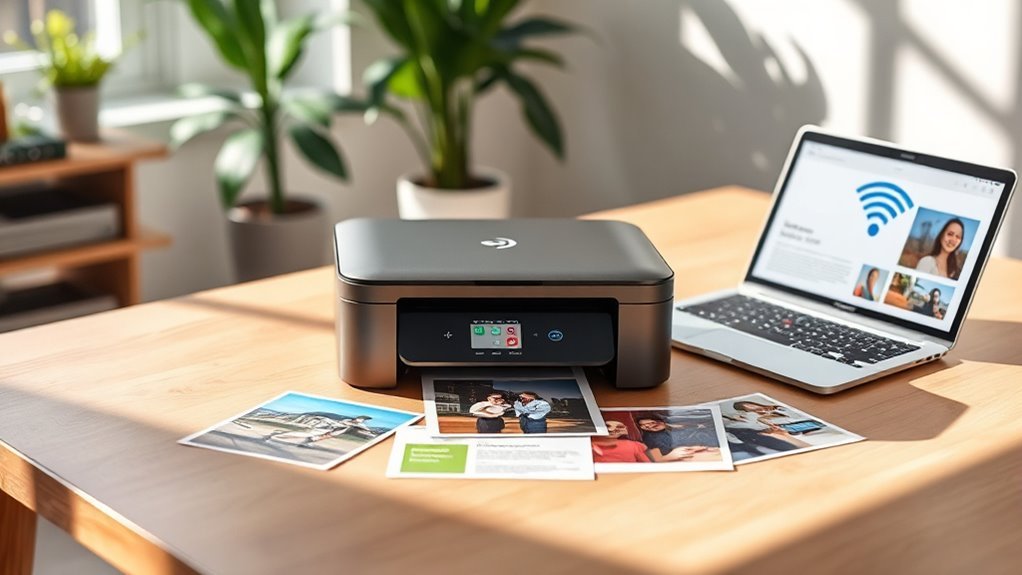
When choosing an AirPrint printer, you’ll want to check if it’s compatible with all your devices and offers high print quality with sharp resolution.
Consider wireless options that fit your setup, along with printing speed and efficiency to save time. Don’t forget to weigh the ink system and overall cost to keep your printing affordable.
Compatibility With Devices
Ensuring your AirPrint printer seamlessly works with your devices means confirming it supports AirPrint natively. This way, your iPhone, iPad, or Mac can print without needing extra drivers or apps.
Make sure your printer and device connect to the same local Wi‑Fi network. AirPrint doesn’t function across separate subnets or VPNs, so keeping them on the same network is key.
Check that your printer supports the specific iOS or macOS versions you use. AirPrint features and fixes can vary with updates, so staying current helps avoid issues.
It’s also wise to look for additional wireless options like Bluetooth or Wi‑Fi Direct. These come in handy if AirPrint isn’t available or if the network restricts access.
Finally, if multiple users share the printer, verify it can handle simultaneous connections without bottlenecks. That way, everyone enjoys smooth printing across all devices.
Print Quality and Resolution
Although print quality depends on various factors, focusing on resolution and color depth can markedly enhance your results. Aim for a high maximum optical printing resolution—like 4800 x 1200 dpi or higher—if you want sharp photos and fine detail in both color and grayscale prints.
Don’t overlook color depth; higher bits per channel mean smoother gradients and more accurate colors. Check the printer’s ink setup, too. Individual multi-ink systems with separate color tanks usually deliver better color accuracy and tonal shifts than single-cartridge combos.
Also, consider micro droplet size and dot placement precision, which affect sharpness and detail. If you plan to scan or copy, look for higher dpi specs there as well to preserve fine details in reproductions.
Wireless Connectivity Options
Print quality matters, but your printer’s wireless connectivity can make or break the overall experience. Make sure your printer supports Wi-Fi standards like 802.11n or ac, plus Wi-Fi Direct for printing without a router.
AirPrint compatibility is vital since it uses mDNS/Bonjour to let your iOS or macOS devices find your printer seamlessly. Dual-band Wi-Fi (2.4 GHz and 5 GHz) helps avoid interference, while WPA2 or WPA3 security keeps your connection safe.
Also, consider if the printer offers Ethernet or USB ports for backup wired connections when Wi-Fi falters. If you need mobile or guest printing, check for Wi-Fi Direct, Bluetooth, or cloud options.
And see whether it can create a guest hotspot or SSID for easy access without compromising your main network. That way, everyone stays connected without any hassle.
Speed and Efficiency
When choosing an AirPrint printer, you’ll want to pay close attention to speed and efficiency to keep your workflow smooth. Look at black and color print speeds in pages per minute (ppm); higher ppm means faster completion for documents.
Check if the printer offers duplex printing—auto-duplexing saves time and effort on double-sided jobs. Also, consider warm-up and first-page-out times, especially if you print small jobs frequently.
Evaluate paper handling capacity, including input, output trays, and ADF size, to reduce constant reloads during busy tasks. Finally, review the monthly duty cycle and recommended print volume to make certain the printer can handle your workload reliably over time.
These factors will help you pick an AirPrint printer that keeps up with your demands. It’s all about finding a model that works as hard as you do!
Ink System and Cost
Speed and efficiency matter, but understanding the ink system and costs can have an even bigger impact on your overall printing experience.
Printers with separate CMYK cartridges let you replace only the empty color, which can lower your per-page cost compared to multi-color cartridges.
If you print a lot, look for high-capacity or XL cartridges and subscription refill plans—they can cut your ink costs by 30–70%.
Dye-based inks offer cheaper photo prints but tend to fade faster.
On the other hand, pigment black inks provide sharper, longer-lasting text, though they come at a slightly higher cost.
Check the printer’s monthly duty cycle and cartridge yield to estimate your total ink expense.
Also, keep in mind that models with five or six inks improve photo quality, but they increase replacement frequency and overall ink costs.
Additional Features and Functions
Although ink quality and cost are essential, additional features can greatly enhance your printing experience. Look for built-in duplexing and an automatic document feeder (ADF) to save time and paper when handling multi-page documents.
If you often print from your phone or remotely, make sure your printer supports mobile and cloud printing options like AirPrint and alternatives. Integrated memory card slots or USB/SD inputs come in handy when printing photos or specialty media without a computer.
Evaluate the control interface—touchscreen or physical buttons—and check for onboard apps or voice assistant compatibility for quick access to scanning or faxing. Also, prioritize printers offering ink subscription services and Energy Star or EPEAT certifications to reduce costs and environmental impact.
Size and Portability
Picking the right AirPrint printer means paying close attention to its size and portability. You should consider the printer’s footprint—typically 6″–8″ tall and 12″–18″ deep—to guarantee it fits your desk or shelf space.
If you plan to move it often, check the weight; lighter models weigh around 10–14 pounds, while larger all-in-ones top 20 pounds, making them harder to carry. Look for features like built-in handles, compact foldable trays, or slim profiles that simplify moving and save space.
Also, make sure it supports both USB and Wi-Fi with minimal cables for quick setup. For mobile use, prioritize quick warm-up times and energy efficiency to keep printing convenient and cost-effective wherever you go.
Frequently Asked Questions
How Does Airprint Differ From Other Wireless Printing Technologies?
AirPrint lets you print directly from Apple devices without installing drivers. Unlike some wireless options, it uses your local Wi-Fi network and works seamlessly with iOS and macOS.
This makes printing faster and hassle-free for you. So, if you’re using an iPhone, iPad, or Mac, AirPrint just works without any extra setup. It’s pretty convenient!
Can Airprint Work Without a Wi-Fi Network?
You’d think AirPrint could work anywhere, but it can’t work without a Wi-Fi network.
You need your iPhone and printer connected to the same network for AirPrint to function properly—no exceptions or magic shortcuts here.
Are There Any Security Risks With Using Airprint Printers?
Yes, you might face security risks with AirPrint, like unauthorized access if your network isn’t secure.
Make sure you use strong Wi-Fi passwords and keep your printer’s firmware updated to protect your data and privacy.
It’s a good idea to regularly check for updates and monitor who’s connected to your network. That way, you can keep your printing safe and sound.
What Devices Are Compatible With Airprint Printers?
You can use AirPrint printers with Apple devices like iPhones, iPads, and Macs running iOS, iPadOS, or macOS. Just connect to the same Wi-Fi network, and you’re ready to print wirelessly and effortlessly.
It’s super easy! No need to install extra drivers or software. Just tap print from your device, and you’re good to go.
How Do Firmware Updates Affect Airprint Functionality?
Firmware updates can improve your AirPrint functionality by fixing bugs, adding features, or enhancing security.
However, outdated or faulty updates might cause compatibility issues. So, you should always keep your printer’s firmware up to date for smooth printing.
Conclusion
Choosing the right AirPrint printer doesn’t have to feel like searching for a needle in a haystack. Whether you pick the Canon PIXMA TR8620a, TS6420a, or TR7520, you’re getting reliable wireless printing with premium quality.
Keep your needs in mind—like speed, features, and budget—and you’ll find the perfect match. These printers make printing from your Apple devices super simple and hassle-free.
With these options, AirPrint printing becomes as easy as pie, making your tech life smoother than ever. So, if you’re looking for the best AirPrint printers in 2027, these models offer excellent performance and convenience that fit right into your wireless setup.