How Do You Properly Dispose of a Printer in 7 Easy Steps?
To properly dispose of your printer, start by checking if it has internal storage like a hard drives or memory chips. These can hold confidential data, so it’s crucial to keep your privacy safe. Back up any important settings or data you want to keep before moving forward.
Next, use built-in secure erase features if your printer has them. If not, you might need to physically remove and destroy the storage devices. This step helps protect your personal information from falling into the wrong hands.
After that, separate consumables such as toner or ink cartridges. These parts need to be recycled properly to avoid environmental harm. Keep track of all components during disassembly so nothing gets lost or mixed up.
If you’re unsure or want extra security, consider using certified services for data destruction. Always ask for proof of destruction to be sure your information is safe.
By following these simple steps, you’ll ensure a safe, responsible printer disposal while protecting your privacy. Stick with these guidelines, and you’ll handle the process smoothly from start to finish.
Key Takeaways
- Power down, unplug, and let the printer cool before starting disassembly to ensure safety. This step helps prevent any electrical hazards or burns.
- Remove and separately handle toner cartridges and other consumables for proper recycling. These parts often require special disposal methods, so don’t just toss them in the trash.
- Identify and remove internal storage devices like hard drives or memory modules carefully. These components can store sensitive information, so handle them with care.
- Use built-in secure erase features or physically destroy storage to prevent data recovery. It’s better to be safe than sorry when it comes to your data.
- Recycle the printer responsibly through manufacturer take-back programs or certified e-waste recyclers with disposal proof. This way, you help protect the environment and get a record of proper disposal.
Why Secure Printer Data Disposal Matters
Although printers may seem like simple devices, they often store sensitive data such as names, addresses, and financial information in their memory or hard drives. You can’t assume that data disappears quickly after use; it may remain on the device for a long time, even if the printer malfunctions.
Printers often retain sensitive data long after use, so don’t assume information disappears automatically.
Because printers function similarly to computers, you need to treat their data with the same security concerns. To protect your information, make sure to wipe or physically destroy any internal storage before disposal.
Simply recycling without proper data removal puts your personal details at risk. Using a trusted electronics recycler or shredding service that provides documented destruction helps ensure your data won’t be recovered later.
Taking these steps is essential to secure printer data disposal. It might seem like extra work, but it’s definitely worth it to keep your information safe.
Identify If Your Printer Has Internal Storage or Memory
Before you dispose of your printer, check if it has internal storage like a hard drive or memory for saved print jobs. This storage can hold sensitive data that puts your privacy at risk if not properly wiped.
It’s a good idea to review your printer’s settings and documentation to confirm what kind of data it might store. That way, you can make sure nothing important gets left behind.
Printer Storage Components
Since many printers contain internal storage like flash memory, system memory, or even hard drives, you should check if your device holds any data before disposal. Printers often store templates, address books, and past print jobs, similar to a computer.
Networked and multifunction models are especially likely to have larger storage components for buffering or persistent content. To identify these, review your printer’s manual or model specs for terms like “hard drive,” “internal storage,” or “replaceable drive bay.”
Also, explore the printer’s menu for “data overwrite” or “secure erase” options. If your printer supports network, fax, or scan-to-email features, it probably uses persistent memory for configurations or queued jobs—even if you don’t see a physical drive.
Knowing your printer’s storage helps you handle it properly before disposal. So, it’s worth taking a few minutes to look into it!
Risks Of Stored Data
When you dispose of a printer, you might not realize it still holds sensitive data in its internal storage or memory. Many printers store print jobs, configs, and even personal info like bank or tax details. This data can remain accessible, especially if your printer has a hard drive or SSD.
Even without one, temporary caches can hold data, so don’t assume it’s safe to toss it out.
Check your printer’s specs for these storage indicators:
| Storage Type | Description |
|---|---|
| Hard Drive/SSD | Persistent data storage |
| Internal Memory | Temporary data and print jobs |
| Embedded Storage | Configurations and queued documents |
| System Cache | Short-term data retention |
Always wipe or destroy storage to protect your information. It’s better to be safe than sorry!
Back Up and Securely Wipe Printer Data
To protect your sensitive information, start by figuring out if your printer has an internal hard drive or if it stores data in memory—many models do. Think of it like a computer when it comes to security.
Before wiping anything, back up any important settings, address books, or scan-to-email lists. You can usually do this through the printer’s menu or management software.
Next, use the printer’s built-in secure erase or data overwrite feature to clear stored documents and job histories. If your printer doesn’t have a reliable wipe option but has a removable drive, check the manufacturer’s guidelines on how to remove it safely.
And if you decide to use a third-party service for wiping or destruction, always make sure to keep proof—like a destruction certificate. This confirms your data was handled securely before you dispose of or recycle the printer.
How to Safely Remove and Destroy Your Printer’s Hard Drive
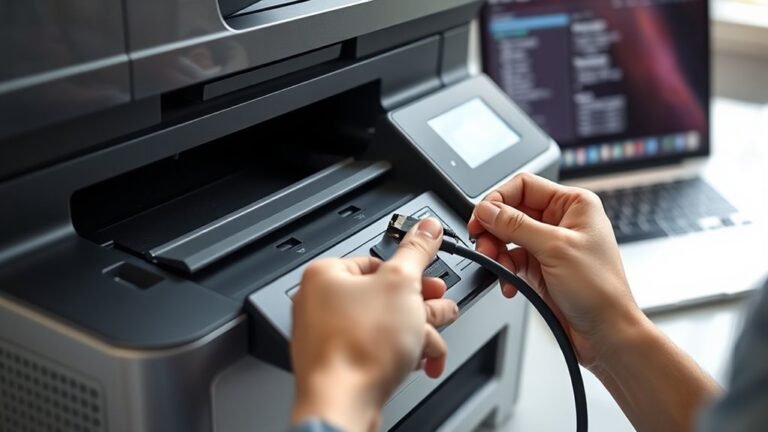
Before you do anything else, unplug your printer and check its service manual to see if it has a removable hard drive. Many models don’t have one, but if yours does, follow the manual’s instructions carefully to disconnect and remove it.
Keep the hard drive in an anti-static bag until you’re ready to wipe or destroy it. If wiping is an option, run the manufacturer’s secure erase to clear all data. Only donate or refurbish your printer after you’ve confirmed this step.
If you decide to destroy the drive instead, physically crush it using a certified shredder. You can also drill and crush it, but make sure to follow documented procedures.
For the best security and proof, ask your disposal service for a certificate confirming the drive’s destruction. This way, you can be sure your sensitive data stays safe when you dispose of your printer.
Verify Secure Data Handling by Third Parties for Your Printer
Although handing over your printer to a third party might seem straightforward, you need to verify their policies on device condition and how they handle internal storage like hard drives or flash memory. Before you trust a recycler or donation program, ask about their secure data handling practices.
Make sure they securely wipe or physically destroy storage, providing proof like a certificate or documented method. They should use recognized processes to remove and shred drives instead of just partial resets or print tests.
Also, check that they clearly state their device acceptance criteria and data security policies in writing or online. If they can’t provide documentation, choose a recycler with transparent security standards you can verify.
That way, you protect your sensitive data and avoid risks from improper handling. It’s better to be cautious and ensure your information stays safe.
Clean and Disassemble Your Printer for Safe Recycling
Before you recycle your printer, make sure to remove any sensitive data by wiping or securely restoring it. This step is important to protect your privacy.
Take out consumables like ink or toner cartridges. Handle them according to local recycling requirements to avoid any issues.
Finally, disassemble only as much as needed. Separate components properly to ensure safe and effective recycling. It’s all about doing it right and keeping things simple!
Remove Sensitive Data
Since printers often store sensitive information, you’ll want to unplug the device and remove any SD cards, USB drives, or external storage to protect your personal data. Next, check if your printer has an internal or removable hard drive.
Follow the manufacturer’s instructions to securely erase data using built-in utilities or remove the drive for destruction. If wiping isn’t reliable, physically destroy the drive to prevent data recovery.
Remember to use the printer’s secure erase or an approved data-erasure method. Also, confirm the device reports completion of the wipe.
Keep documentation if you use a shredding service for destruction. Avoid assuming broken printers are data-free—always remove or erase sensitive storage before recycling.
This step safeguards your privacy effectively. It’s definitely worth the extra effort!
Separate Components Properly
After you’ve secured your data by removing or wiping storage devices, it’s time to prepare your printer for recycling by separating its components properly. First, switch off the printer, unplug it, and let it cool to avoid damage or injury.
Next, check your model for user-accessible parts like memory or hard drive bays and carefully take them out with the right tools. Treat any storage devices as sensitive—wipe or physically destroy them before recycling.
Remove toner cartridges and other consumables separately, recycling them through manufacturer or electronics take-back programs. Keep track of screws and covers so you can reassemble only what’s necessary for safe transport.
This careful separation ensures your printer is clean, safe, and ready for responsible recycling. It’s a smart way to handle your old tech!
Keep Proof of Proper Disposal and Data Destruction
When you dispose of a printer, keeping evidence of proper disposal and data destruction is essential to protect sensitive information and comply with regulations. First, confirm if your printer has internal storage like a hard drive. Then wipe or physically destroy it to prevent data recovery.
If you’re using a third-party service, always request a certificate of proof that matches the printer’s device ID or serial number. Keep all documentation, including receipts and destruction certificates, to show compliant disposal.
To ensure proper proof, you should:
- Use certified hard-drive destruction methods and keep detailed records.
- Retain all paperwork from third-party services verifying secure data destruction.
- Document your own data-wiping or drive removal steps if you handle disposal yourself.
This evidence safeguards you from liability and supports regulatory compliance. So, make sure you keep everything organized and accessible just in case you need to prove it later.
Frequently Asked Questions
Do You Need to Wipe a Printer Before Recycling?
Yes, you need to wipe your printer before recycling if it stores data. Use the factory reset or secure erase option.
If you’re not sure how to do that, physically destroy the storage. This way, you protect your personal information from being recovered.
Does Best Buy Still Take Old Printers to Recycle?
Yes, Best Buy still takes old printers for recycling, but acceptance varies by location and printer condition. You should check with your local store first to confirm their current policies and any requirements for broken or data-bearing devices.
It’s always a good idea to call ahead or visit their website to get the most up-to-date info. That way, you won’t make an unnecessary trip or have any surprises when you get there.
How to Wipe a Printer Memory?
You wipe a printer’s memory by accessing its menu to find the “Reset to Factory Defaults” or secure erase option.
If it has removable storage, remove and physically destroy it to ensure all data’s removed.
That way, you can be sure nothing sensitive is left behind. It’s a simple but important step to protect your information.
What Should I Do With My Old Computer Before I Throw It Away?
Back up your files and wipe your data. If needed, remove or destroy your hard drive to keep your information safe.
Also, check the recycling rules in your area. Then, recycle responsibly and ask for proof.
Or, consider donating securely. This way, you protect your personal info before tossing your old computer.
Conclusion
Properly disposing of your printer means protecting your data, checking for internal storage, and backing up and wiping information. You also need to remove and destroy the hard drive, verify third-party security, and clean and disassemble the device.
Don’t forget to keep proof of disposal. By following these steps, you’re safeguarding your privacy, helping the environment, and ensuring responsible recycling.
Taking action now is important. Stay vigilant and dispose of your printer the right way every time. Proper printer disposal not only protects your sensitive data but also supports eco-friendly recycling practices. So, make sure you handle each step carefully—from wiping your information to verifying secure disposal methods—to keep your personal data safe and reduce electronic waste responsibly.