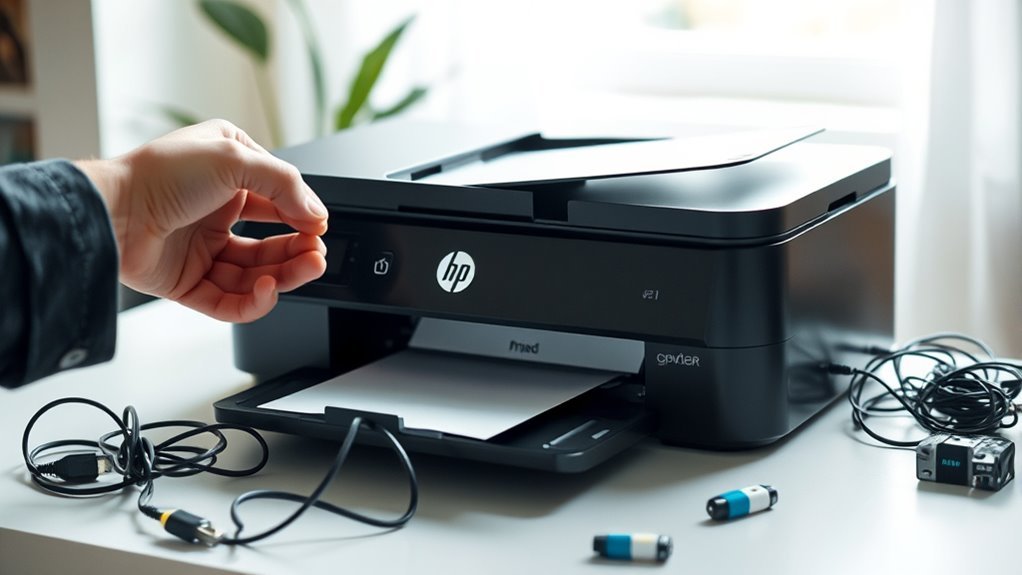
Why Is My HP Printer Not Printing?
Your HP printer might not print because it isn’t getting stable power—always plug it directly into a known-good wall outlet, not a power strip.
Connection issues like faulty USB cables or incorrect network settings can also cause problems.
Sometimes, print jobs get stuck in the queue, or outdated drivers and firmware interfere.
Proper power cycling often fixes issues too.
If these steps sound familiar, keep going to uncover detailed solutions that can get your printer back on track.
Let’s dive into common reasons why your HP printer is not printing and how you can fix them quickly.
Don’t worry, most printing problems are easier to solve than you think!
Key Takeaways
- Ensure the printer is plugged into a direct wall outlet. Avoid using power strips to keep the power stable and help the printer start up properly.
- Check and clear any stalled print jobs in the print queue. This often fixes issues where jobs are blocking the queue.
- Verify USB or network connections. Make sure cables are connected directly, and double-check the printer’s IP address or connection status.
- Confirm the printer driver is installed correctly and up to date. If needed, reinstall the driver using HP Smart or the official HP website.
- Perform a proper power cycle by unplugging the printer. Wait for about 60 seconds before plugging it back in to reset and clear any errors.
How To Check If Your HP Printer Is Properly Powered
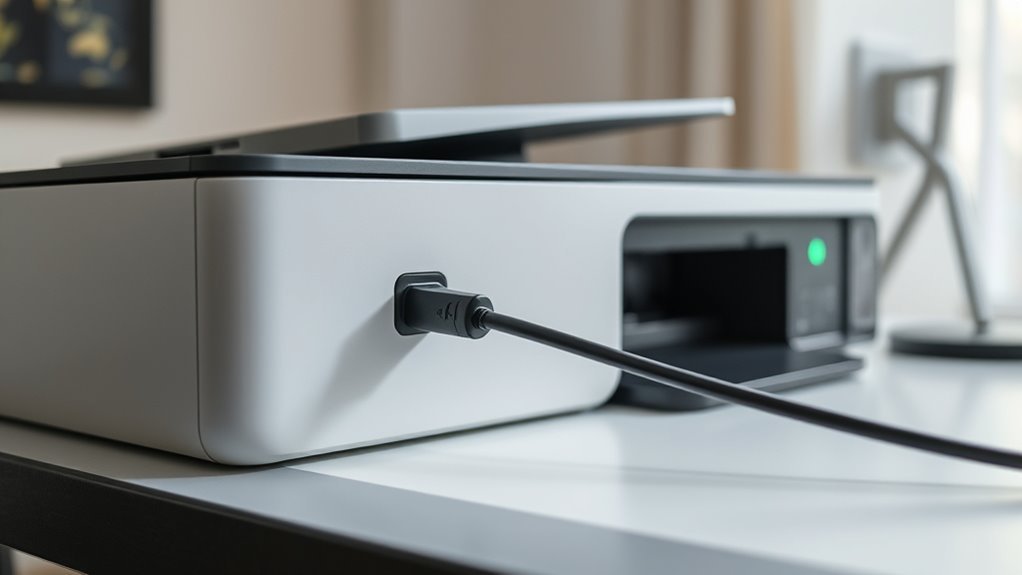
Always start by confirming your HP printer is plugged directly into a known-good wall outlet, not a power strip or surge protector. Test the outlet with another device to make sure it’s actually supplying power.
Begin by ensuring your HP printer is connected directly to a reliable wall outlet, avoiding power strips or surge protectors.
Next, check that the printer’s power switch is on and look for the display or power LED to light up. If you don’t see any light, unplug the printer first from the rear, then from the wall outlet.
Wait about 60 seconds before reconnecting the cords. If there’s an adapter, plug the cord into the adapter first, then into the wall. After that, power it back on.
Take a moment to inspect the power cable and adapter for any damage or loose connections. Replace them if you notice anything off.
Listen for startup noises and keep an eye on the control panel. If your printer powers on properly, it should handle print jobs smoothly without shutting down randomly or acting erratically.
Why You Should Plug Your HP Printer Directly Into a Wall Outlet
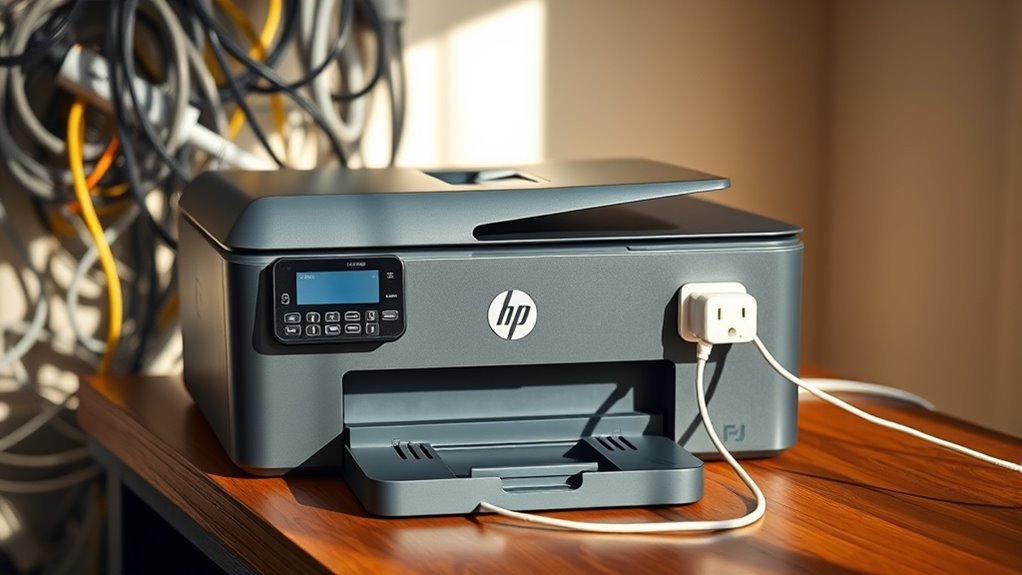
You should plug your HP printer directly into a wall outlet to avoid power strip issues that can cause errors or false shutdowns. Doing this guarantees a stable power supply, which is vital for firmware updates and smooth operation.
It also helps prevent interruptions that might leave your printer unresponsive. So, it’s really worth skipping the power strip and going straight to the wall outlet for a hassle-free experience.
Avoid Power Strip Issues
When dealing with printer issues, plugging your HP printer directly into a grounded wall outlet can make a significant difference. Power strips and surge protectors may limit power delivery or cause voltage drops, disrupting printer startup or operation.
They can also degrade over time, causing communication errors. Connecting directly prevents residual charges from interfering during power cycles and helps isolate power-related problems.
| Issue | Power Strip Effect | Direct Wall Outlet Benefit |
|---|---|---|
| Voltage Stability | May introduce noise or drop | Provides steady, clean voltage |
| Startup Current | Can trip or limit inrush current | Supports full startup power demand |
| Surge Protection Aging | Degrades and affects grounding | Maintains clean reference ground |
| Power Cycling | Residual charge interference | Proper reset without residual load |
| Troubleshooting Ease | Adds complexity | Simplifies issue identification |
Ensure Stable Power Supply
Guaranteeing a stable power supply by plugging your HP printer directly into a grounded wall outlet helps prevent voltage drops and electrical noise that can disrupt printing.
Power strips, surge protectors, and extension cords introduce extra connection points, increasing resistance and the risk of momentary interruptions. These interruptions can leave your printer locked or unresponsive, especially during startup when stable voltage is critical.
If your printer won’t print, unplug it from both the printer and outlet, wait 60 seconds to discharge capacitors, then reconnect first to the printer and then the wall outlet to power-cycle it.
If issues persist, check the outlet’s voltage and continuity to rule out power problems. Using a direct wall outlet is a simple, effective step to guarantee your HP printer runs smoothly.
How To Power Cycle Your HP Printer Correctly
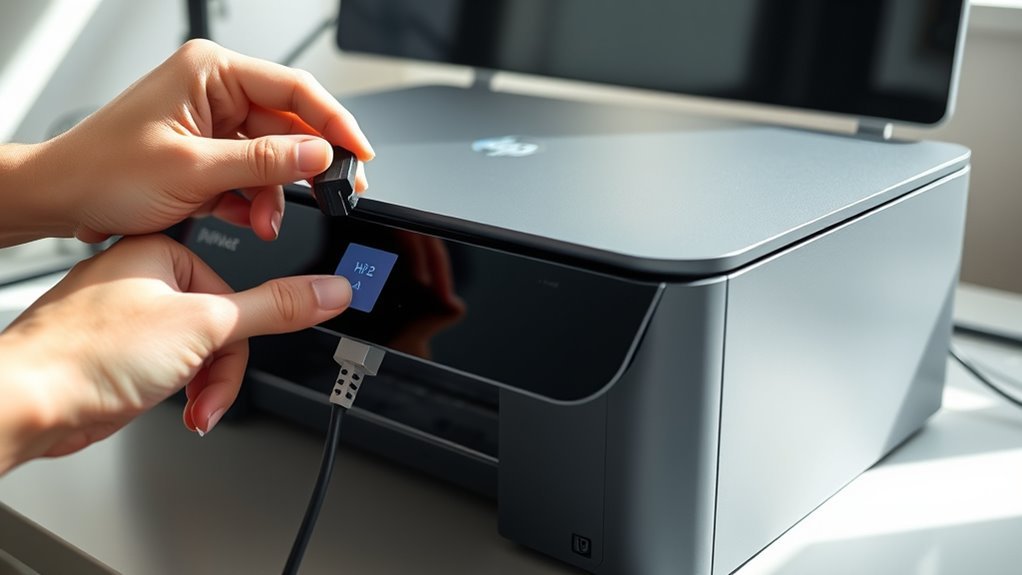
To power cycle your HP printer correctly, always turn it off and unplug it directly from the wall outlet. Avoid using a power strip to guarantee complete power removal.
Wait at least 60 seconds before reconnecting the cords in the proper order. This helps reset the internal electronics fully.
Once the printer restarts, clear any stuck print jobs before trying again. That way, you’ll avoid any printing hiccups.
Proper Power Cycle Sequence
Although it might seem simple, correctly power cycling your HP printer can resolve many printing issues quickly. Start by turning the printer on, then unplug the power cord from the rear of the printer first, followed by the wall outlet.
Wait a full 60 seconds to let capacitors discharge and clear residual power. Next, reconnect the power cord to the supply or adapter, plug it back into the wall outlet, and finally connect it to the printer.
Turn the printer on if it doesn’t power on automatically, and wait for its initialization to finish before printing. If printing still stalls, open the printer queue on your computer, delete all pending jobs, and try printing again.
This precise sequence guarantees a thorough hardware reset. It might take a little patience, but it’s worth it to get your printer working smoothly again.
Avoid Power Strip Use
When you power cycle your HP printer, skip plugging it into a power strip or surge protector. These devices can cause voltage irregularities, which might prevent a proper reset.
Instead, follow these steps for a reliable power cycle:
- Turn the printer on if it’s off.
- Unplug the power cord from the printer’s rear to cut power.
- Disconnect the power cord from the wall outlet or power adapter and wait 60 seconds to let capacitors discharge.
- Reconnect the power cord to the printer (and adapter if used), plug it into a grounded wall outlet, and then turn the printer back on.
Using a direct wall outlet minimizes power issues and helps clear temporary faults efficiently. So, avoid USB hubs or multi-outlet strips during this process.
How To Verify USB and Network Connections for Your HP Printer
Start by checking the physical and network connections of your HP printer to rule out common connectivity issues.
Begin by inspecting your HP printer’s physical and network connections to eliminate basic connectivity problems.
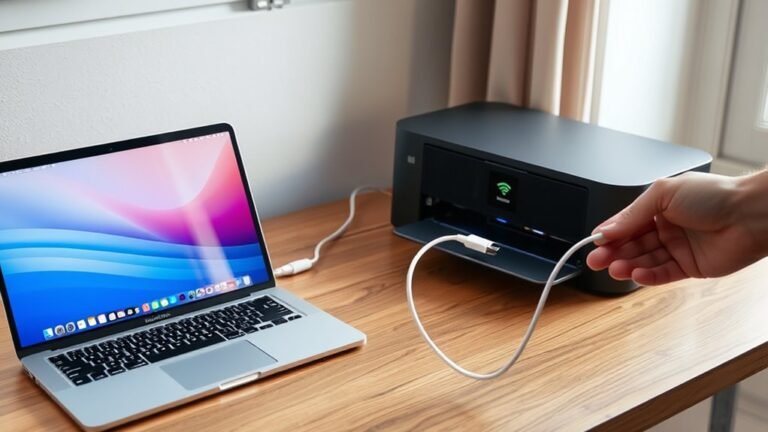
If you’re using a USB connection, make sure the printer is directly connected to your computer with a USB 2.0 or 3.0 A-to-B cable—avoid USB hubs. Try switching USB ports and confirm the printer appears in Device Manager (Windows) or System Information (macOS).
For networked printers, verify the printer’s IP address on its control panel under Settings > Network. From your computer, ping that IP or open it in a browser to access the Embedded Web Server.
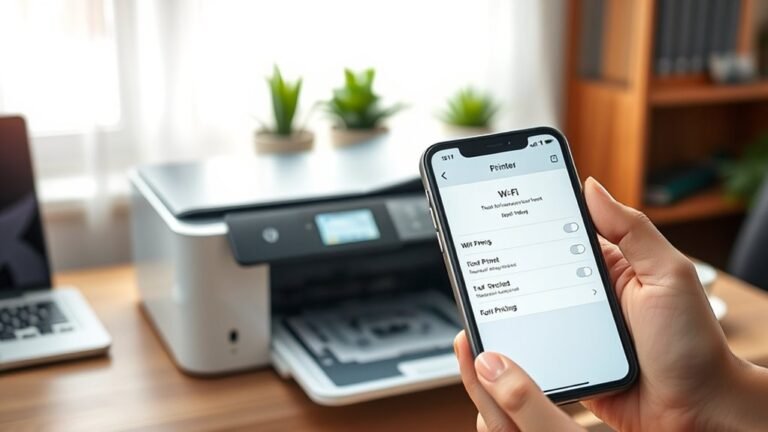
If connected via Wi-Fi, make certain the printer’s SSID matches your router’s network and shows a solid connection icon. If disconnected, run the wireless setup wizard and re-enter your Wi-Fi password.
Finally, check your computer’s printer connection type and consider using a static IP to prevent conflicts.
How To Clear the HP Printer Print Queue on Your Computer
If your HP printer isn’t responding, clearing the print queue on your computer can often fix the problem. Here’s a quick way to do it:
On Windows, open the print queue by double-clicking the printer icon. Or you can go to Settings > Devices > Printers & scanners > your HP printer > Open queue. Then, just select and cancel any stalled jobs.
If those jobs won’t delete, don’t worry. Open Services (services.msc), stop the “Print Spooler” service, delete the files in C:WindowsSystem32spoolPRINTERS, and then restart the service.
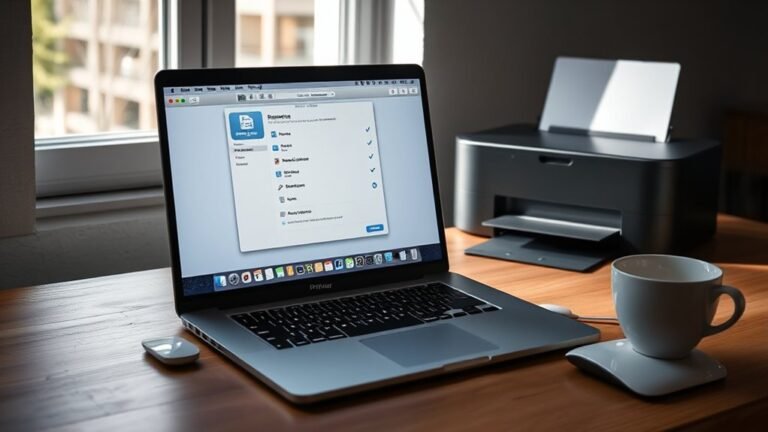
For macOS, head over to System Settings > Printers & Scanners. Select your HP printer, open the print queue, and remove any pending jobs by hitting the Delete button.
Once you’ve cleared everything, try printing a test page. This helps confirm the queue is clear and your printer is back in action.
How To Reinstall or Update HP Printer Drivers
After clearing the print queue, the next step to fix printing issues is to reinstall or update your HP printer drivers. Download the latest driver for your exact printer model and OS from support.hp.com.
On Windows, uninstall your current printer software via Settings or Control Panel, reboot, then run the HP installer or HP Smart. On macOS, remove the printer in System Settings, delete HP software from system folders, then reinstall the latest driver or add the printer again.
Always make sure your printer is connected during installation. If problems persist, try the Universal Print Driver (UPD) from HP.
| Step | Windows | macOS |
|---|---|---|
| Uninstall | Settings > Apps or Control Panel | System Settings > Printers & Scanners |
| Delete Software | N/A | /Library/Printers and ~/Library/Printers |
| Install Driver | Run HP installer or HP Smart | Install latest hp-driver package |
| Troubleshoot UPD | Download full Universal Print Driver | Check HP compatibility charts |
How To Update HP Printer Firmware
Before updating your HP printer’s firmware, you’ll want to check the current version. You can do this by printing a Configuration or Jetdirect page from the control panel. Or, you can view the Settings > About section on the embedded web server (EWS).
Then, follow these steps:
- Download the firmware only from HP’s official site (support.hp.com). Just enter your model and OS, and make sure to verify the file size and release date.
- For networked printers, update via the EWS Firmware/Software tab. You can also use HP Smart or HP Easy Start on Windows or Mac.
- Connect the printer directly to a wall outlet, and keep it powered on and idle during the 5–15 minute update. Don’t interrupt the process or power-cycle the printer.
- After updating, restart the printer and verify the new firmware version. If you run into issues, try clearing the print queue.
When to Contact HP Support for HP Printer Diagnostics
When basic troubleshooting steps like power-cycling, checking cables, and clearing your print queue don’t bring your HP printer back to life, it’s time to contact HP Support for diagnostics.
If your printer shows persistent error codes or blinking lights identified by HP as needing service, reach out immediately.
Also, if updating drivers and firmware doesn’t fix printing issues, HP Support can remotely diagnose whether it’s a software problem or hardware fault.
Contact them if you notice strange noises, repeated paper jams, or hot components, as these signs often require technician evaluation.
When your printer is under warranty or covered by an HPCare plan, HP Support can authorize parts replacement or on-site repair, ensuring your printer gets the professional help it needs.
Frequently Asked Questions
What Is the HP Support Website?
The HP Support website is your go-to place for printer drivers, manuals, troubleshooting guides, and firmware updates. You can quickly find model-specific help and use diagnostic tools.
Need to contact support? It’s all there to help you fix any HP device issues easily. Just a few clicks, and you’re good to go!
Why Is My Printer Printing Blank Pages When It Has Ink?
Your printer’s blank pages are like a clogged brush—ink isn’t reaching the paper. You’ll want to run cleaning cycles and reseat cartridges.
Also, check ink levels to make sure there’s actually ink in there. Sometimes the drivers need updating, so don’t forget to do that.
Clearing the print queue can help too if things are stuck. Give these a try and your printer should start printing properly again!
Why Has the Printer Stopped Working?
Your printer stopped working because it might have lost power, a stuck print job, faulty cables, or outdated drivers.
Try power cycling, checking connections, clearing the print queue, and updating drivers to get it printing again.
My HP Deskjet 2700 Printer Isn’t Printing. What Can I Do to Fix This?
First, give your DeskJet 2700 a quick power-cycle like restarting an old typewriter.
Then, clear the print queue, check ink levels, and reseat cartridges.
Make sure your driver’s updated and connected properly.
You’ll be printing again soon!
Conclusion
If your HP printer suddenly stops printing, it might just be waiting for a quick power reset or a simple driver update—coincidence or not, these small fixes often do the trick.
Before you stress, check connections, clear the print queue, and update firmware. Sometimes, the solution is right under your fingertips, quietly waiting.
If all else fails, reaching out to HP Support can turn that frustrating pause into smooth printing again. Troubleshooting your HP printer not printing issue usually comes down to simple steps like these. So, don’t worry—most problems are easy to fix with a little patience and the right guidance.