How to Print Large Scale Images on a Regular Printer in 5 Steps
To print large-scale images on a regular printer, start by preparing your image at a high resolution—aim for at least 150 DPI. This ensures your final print looks sharp and detailed.
Next, split your image into printable tiles using software like Acrobat or Illustrator. Don’t forget to add some overlap to help with alignment later on.
Then, set up your printer for poster or tiled printing, making sure not to scale the image. Print each tile at actual size, and trim the margins carefully once printed. This step takes a bit of patience, but it’s worth it!
Finally, assemble the tiles precisely using the overlaps you created.
Once everything fits together nicely, tape your poster and mount it for a seamless finish. Keep at it, and you’ll pick up some handy tips along the way for a flawless result!
Key Takeaways
- Prepare your image at high resolution, aiming for at least 150 DPI for large prints to ensure clarity. This helps keep your print sharp and detailed.
- Export the image as a PDF and use Adobe Acrobat’s Poster feature to split it into multiple letter-sized tiles. It makes printing big images way easier.
- Set printer options to 100% scale, disable “Fit to Page,” and add ¼”–½” overlap for easier alignment. These settings help your tiles line up perfectly.
- Print all tiles, trim outer margins carefully, and align pages starting from the top-left corner for seamless assembly. Taking your time here really pays off.
- Tape tiles together using clear tape at overlaps, then mount and laminate the assembled poster for durability. This keeps your masterpiece looking great for a long time.
Prepare Your Image for Large Format Printing
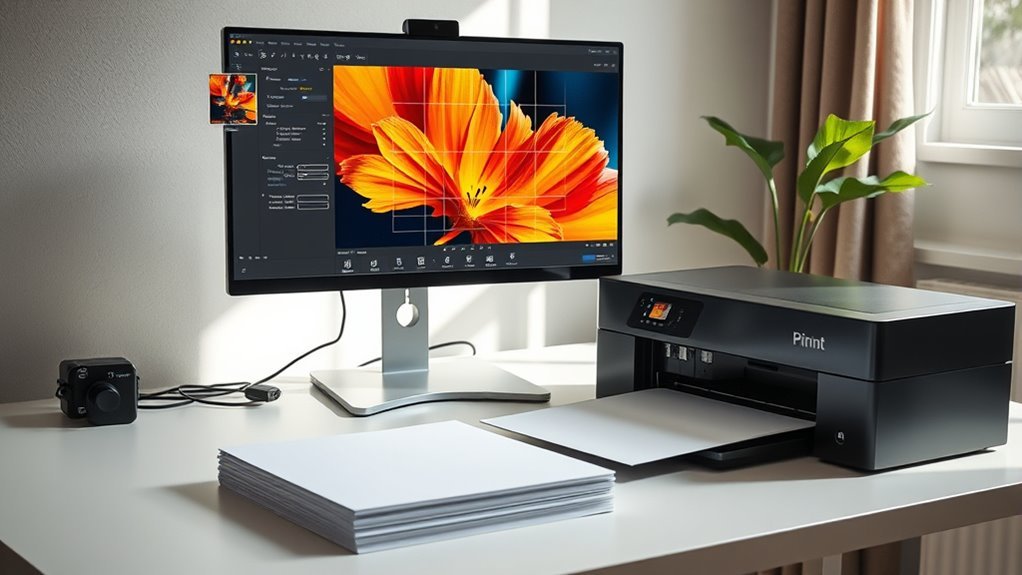
Before you start printing, make sure your image is properly prepared for large format output. You’ll want to check the resolution and aim for at least 150 DPI for images viewed from about 3 feet or more, and 300 DPI for close-up viewing.
To print large without losing quality, calculate the pixel dimensions by multiplying the desired print size by your target DPI. Keep your aspect ratio consistent to avoid distortion.
Save your file in a print-friendly format like PDF, TIFF, PSD, or EPS to preserve detail, especially since large file size is common for these high-res images. Once everything’s set, your image will be ready to print, ensuring sharpness and color accuracy before moving on to splitting it into printable tiles.
Split Your Image Into Printable Tiles Using Software
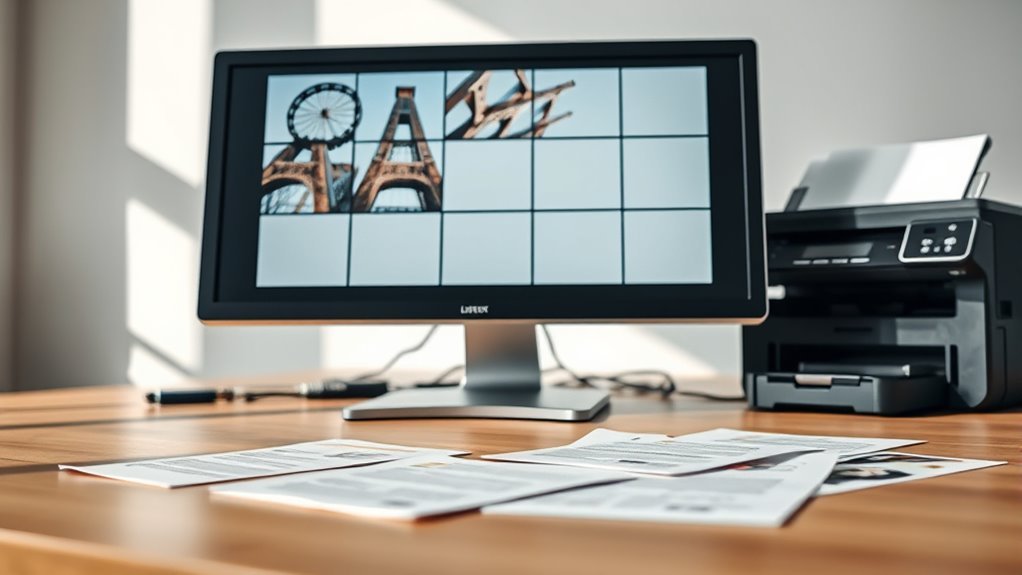
Breaking down your large image into printable tiles is key to producing a high-quality poster using a regular printer. Software like Acrobat Reader offers a handy Print → Poster feature that automatically splits your large PDF into letter size tiles. It also adds overlap (usually ¼”–½”) to help pages align perfectly when assembled.
If you use Photoshop, export your canvas as a PDF, then open it in Acrobat to set scaling and tiling options, such as 2×2 or 3×3 pages. Illustrator handles tiling natively, letting you specify sheet size and overlap for precise repeats.
Don’t have Adobe tools? No worries! Free online options like BlockPosters.com or Microsoft Paint can help you tile your image manually. Just avoid slicing images into separate files, as they lack overlap and complicate the print process.
Configure Your Printer for Poster or Tiled Printing
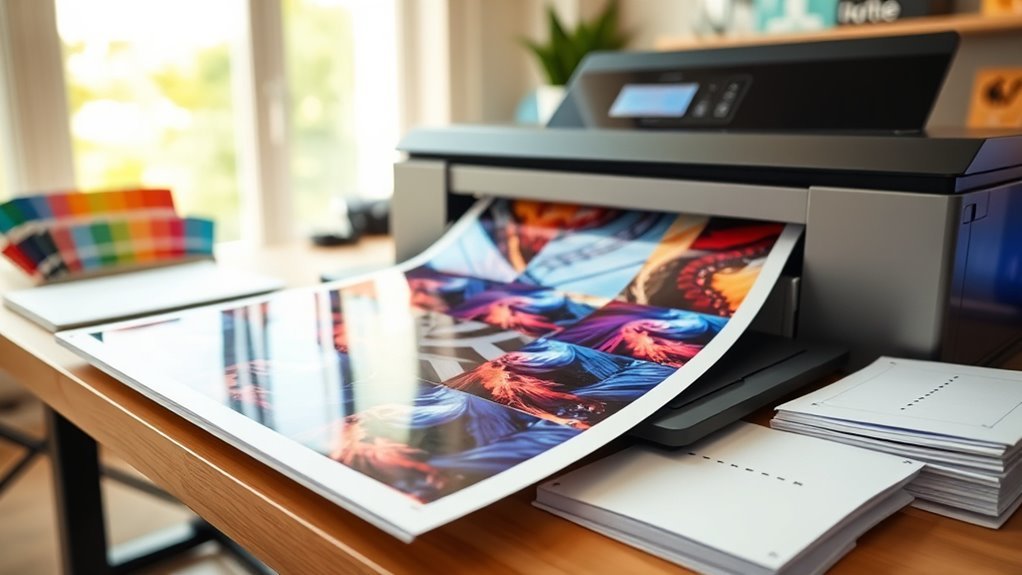
Once you’ve split your large image into printable tiles, it’s time to configure your printer settings to handle the tiled layout correctly. Many printer drivers and programs like Acrobat Reader offer a poster or tile print option that automatically divides your image into multiple pages.
Set the scale to 100% or uncheck “Fit to Page” to keep your image size accurate. Specify how many tiles wide and high you want, and add an overlap—usually between 1/4″ and 1/2″—to guarantee edges align perfectly when assembling.
Double-check paper size and orientation, then preview the layout to avoid clipping. If your software lacks tiling, export to a PDF and use Adobe’s poster settings or free online tools for precise tiled printing with proper overlap.
Print and Assemble Your Large Image Pages
Start by printing all the tiled pages at 100% scale with actual size settings. Make sure your printer orientation matches the layout preview.
Your large photo file should be split into multiple pages using tiling, with an overlap of about 0.25–0.5 inches to help alignment. If your software lacks tiling, use a high-resolution PDF and an online tool to generate the tiled file.
After printing, carefully trim the margins where necessary to remove excess white space. Then, align each page using the overlaps, starting from the top-left corner and working row by row.
This method guarantees your large image assembles smoothly and accurately. It keeps the intended size intact without distortion or gaps.
Following these steps will make your large photo look seamless once combined. It’s a simple way to get a professional-looking result.
Tape, Mount, and Finish Your Large Poster
After printing and trimming your tiled pages, you’ll want to carefully tape them together to create a seamless large image. Remember to leave a 1/4″–1/2″ overlap when printing, which helps align sheets whether your paper size is Portrait or Landscape.
Trim only the outer white margins, preserving overlap edges for clean joins. Use clear packing tape on the back or 1″ double-sided tape within overlaps for a smooth front surface.
Next, mount your large format poster to foam board or thin plywood using spray adhesive or wide double-sided mounting tape to keep it wrinkle-free. This way, your poster stays flat and looks great.
Finally, finish by applying clear contact paper or self-adhesive laminate for protection. This step adds durability and a polished look to your work.
- Align and tape sheets with overlap for seamless assembly.
- Mount securely to prevent wrinkles and ease hanging.
- Add a protective finish for durability and a polished look.
Frequently Asked Questions
How Do I Resize an Image to Print Larger?
You resize by multiplying your desired print size in inches by your printer’s DPI to get pixel dimensions.
Then, upscale your image using quality software like Photoshop’s Preserve Details 2.0 to maintain sharpness and reduce artifacts.
It’s pretty straightforward once you know the steps. Just take it slow and make sure you keep an eye on the image quality as you go.
What Is the Largest Size Photo Walgreens Will Print?
Imagine your photo blossoming like a giant sunflower—Walgreens will print it up to 30×40 inches.
You can choose glossy, matte, or canvas finishes, making your image truly stand out on any wall you pick.
It’s a great way to turn your favorite moments into big, beautiful statements.
How to Print Poster Size in Word?
You insert your image in Word, resize it to your poster dimensions under Picture Format, then save the document as a PDF.
Next, open the PDF and print using tiling or scale options. This way, you can create your poster across multiple pages.
It’s a simple method that works well if you don’t have specialized printing software. Just make sure your image is high quality before resizing!
Where Can I Get a Photo Printed Really Large?
You can get your photo printed really large at local print shops, office supply stores like Staples, or online services such as Shutterfly.
Big-box retailers like Walmart also offer affordable large prints with quick pickup options.
It’s pretty easy to find a place that suits your needs, whether you want to do it in person or from the comfort of your home.
Conclusion
Now that you know the secret steps to print large-scale images on your regular printer, imagine the possibilities waiting right at your fingertips. You’re just a few clicks away from transforming ordinary paper into stunning, oversized art.
But here’s the twist—this method isn’t just about printing; it’s about creating something uniquely yours. Ready to see your vision come alive in a way you never thought possible?
Let’s get started! Printing large scale images on a regular printer opens up a world of creative opportunities. Whether it’s for home decor, presentations, or personalized gifts, you can easily produce impressive, high-quality visuals without expensive equipment. So why wait? Grab your image, follow these simple steps, and watch your ideas expand beyond the limits of standard paper size. It’s time to make your art big and bold with a regular printer!