How to Build a 3D Printer in 5 Simple Steps
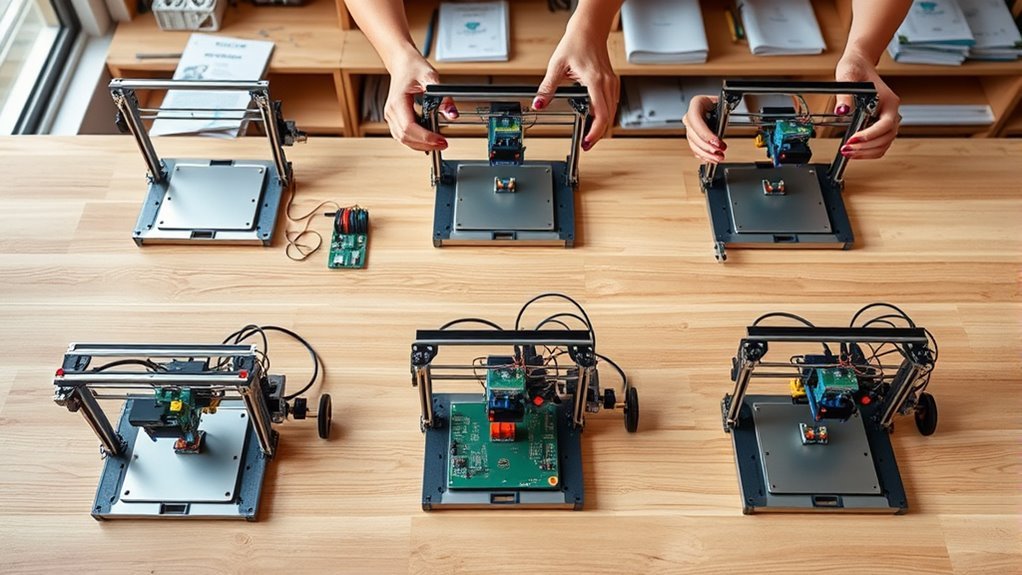
Start by designing a rigid aluminum frame with a hybrid motion system: belt-driven X-axis, Y-axis moving bed, and Z-axis height adjustment. This solid foundation is key for building a reliable 3D printer that delivers precision. Using aluminum ensures durability and stability throughout your prints.
Next, pick quality parts like NEMA 17 steppers, belts, and heated nozzle components. These parts will make a huge difference in print quality and machine longevity. Trust me, investing in the right components upfront saves you headaches later.
Then, assemble the frame and install guides, motors, and belts carefully. Taking your time here ensures everything moves smoothly and accurately. Don’t rush this step—it’s the backbone of your printer’s performance.
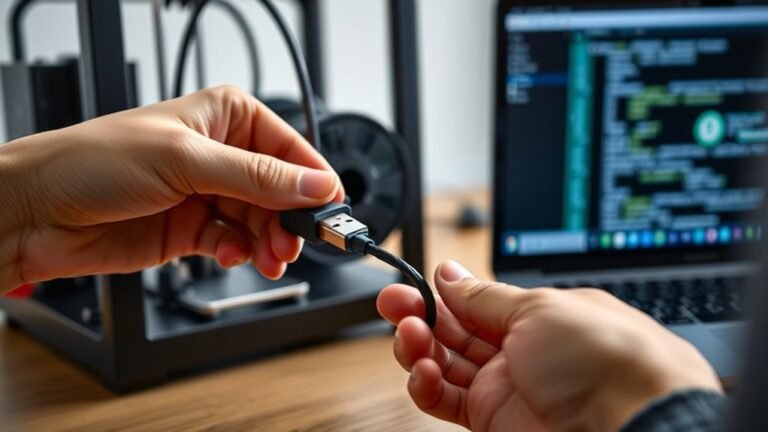
After that, set up electronics with proper wiring and flash your firmware. Proper wiring keeps your printer safe and responsive, while firmware controls how everything works together. You’ll want to double-check connections before powering up.
Finally, calibrate motors, level the bed, and run test prints to make certain accuracy. Calibration is where your printer really comes to life. With these basics down, you’ll soon master precise 3D printing and enjoy creating amazing projects.
Key Takeaways
- Assemble a rigid aluminum frame with linear guides sized for your target build volume. This will give your printer a sturdy foundation to work on.
- Install X/Y belt-driven motors and Z-axis dual threaded rods. These parts help achieve precise multi-axis motion, which is key for quality prints.
- Wire stepper motors, endstops, heaters, and sensors to the control board. Make sure you set the proper current for each component to avoid issues.
- Flash and configure the firmware for your hardware. Don’t forget to set the steps-per-mm and bed dimensions correctly.
- Finally, calibrate the movement, level the bed, and perform PID tuning. Run a test print to fine-tune your settings and get everything just right.
Design Your 3D Printer Frame and Motion System
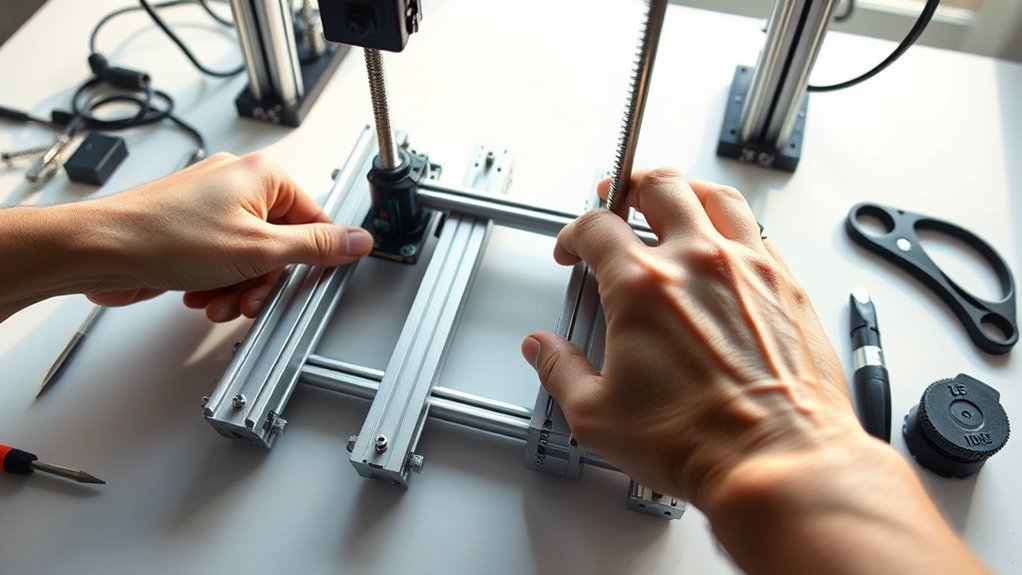
Before you begin assembling, decide on a motion configuration that balances simplicity and stability. A hybrid setup with a Y-axis moving bed and an X-axis belt-driven print head plus Z-axis height adjustment works well.
Choose a motion setup that balances ease and stability, like a Y-axis moving bed with belt-driven X-axis and Z-axis adjustment.
Build your frame from aluminum profiles—they’re rigid, easy to find in the U.S., and support modular assembly with internal screws. Design the footprint to match your target build volume, like 140 × 140 × 135 mm. That way, it’s easier to find parts that fit.
Use linear guidance with gliders or metal studs vertically and profile-mounted rails horizontally to minimize wobble. Drive the X and Y axes with stepper motors and timing belts for precision. Meanwhile, the Z-axis uses a stepper turning dual threaded rods for reliable height control.
Keep belts, motors, and wiring accessible for maintenance. This makes troubleshooting and upgrades way simpler down the road.
Choose Mechanical Parts and Electronics for Your 3D Printer
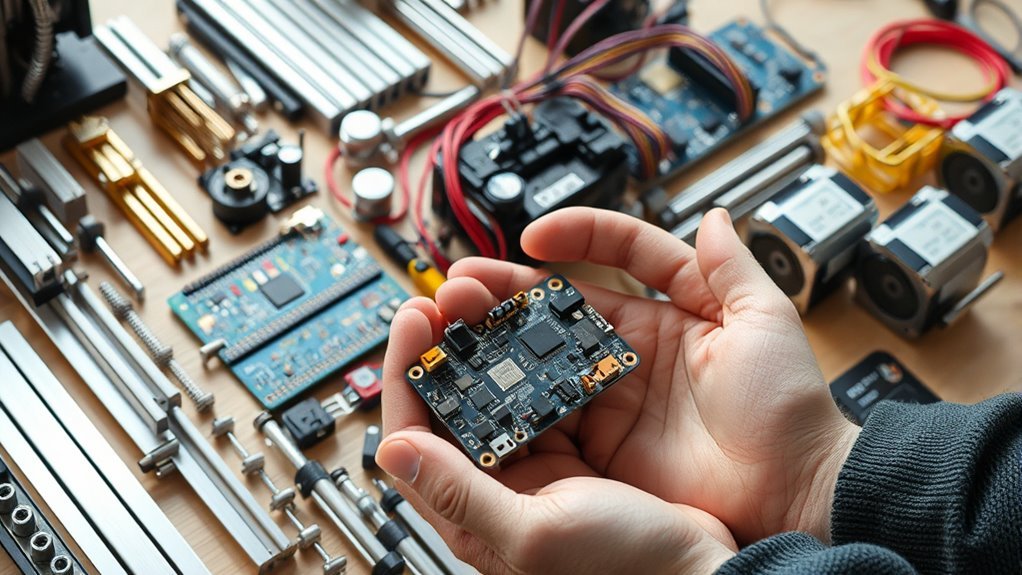
With your frame and motion system set, it’s time to select the mechanical parts and electronics that bring your 3D printer to life. Choose a motion setup that moves the printhead on X, the bed on Y, and uses a Z-axis for vertical travel.
Use rigid aluminum extrusion and linear guides for accuracy and stability. Drive X and Y with NEMA 17 stepper motors and belts, and control Z with threaded rods.
Pick a filament extrusion system feeding 1.75 mm or 3 mm filament into a heated nozzle. Finally, select an electronics stack with a microcontroller, stepper drivers, MOSFETs, and sensors.
Make sure the power supply meets your hotend and bed requirements. It’s all about getting the right parts to keep everything running smoothly.
| Component | Recommendation |
|---|---|
| Motion System | X/Y belts, Z threaded rods |
| Frame & Guides | Aluminum extrusion, linear guides |
| Electronics | Microcontroller, stepper drivers |
Assemble the Frame and Install Motion Hardware
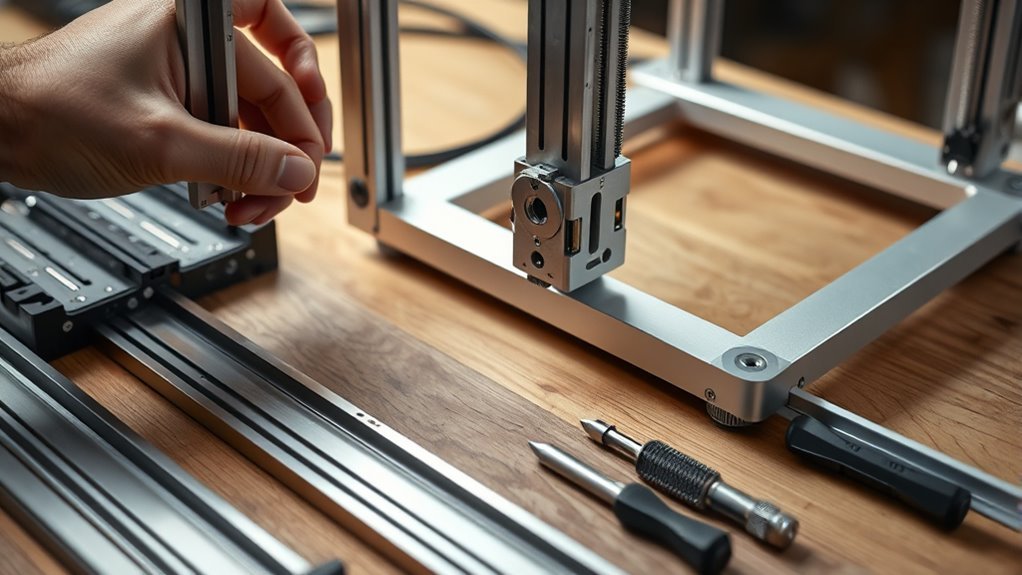
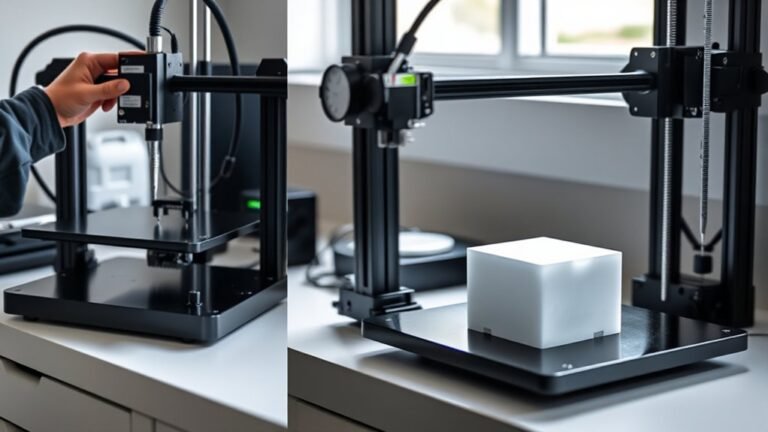
Start by constructing a rigid rectangular base using aluminum extrusion profiles fastened with internal screws. This base should support the V3 build volume (~140 × 140 × 135 mm) and provide mounting points for motors and gliders.
Next, mount a glider and two metal studs vertically on the base to guide the carrier assembly. This will ensure smooth and aligned Z-axis movement.
Now, install the motion hardware:
- Attach the Y-axis stepper motor with a toothed belt fixed to the table. This setup allows for reliable front-back translation.
- Mount the X-axis stepper motor and carriage on the moving carrier. Use tensioners and linear guides here for precise left-right movement.
- Add the Z-axis stepper motor driving two synchronized threaded rods via a belt. This converts rotation into accurate vertical travel.
With your frame and motion hardware assembled, you’re good to go for the next step.
Set Up 3D Printer Electronics, Firmware, and Calibrate Motors
Once you’ve assembled the frame and motion hardware, it’s time to wire the stepper motors to their drivers. Make sure you carefully match coil pairs and secure connector orientation to guarantee reliable operation.
Set each driver’s current limit to about 70–80% of the motor’s rated current to avoid overheating. Next, connect and test endstops on the controller board’s X/Y/Z min/max inputs by triggering them and checking LEDs or host software feedback.
Flash firmware like Marlin configured with your board, steps-per-mm, and bed size. Then, calibrate motor steps by commanding a 100 mm move, measuring actual travel, and updating steps-per-mm accordingly. Don’t forget to save your settings.
Finally, wire heaters and thermistors, verify safe temperature readings, and run PID autotune for the hotend and bed. Make sure thermal runaway protection is enabled before moving on.
Level the Build Platform and Run First Test Prints
A properly leveled build platform is essential to make sure your first prints adhere well and come out accurately. Start by heating the bed to your target temperature—this avoids gaps caused by thermal expansion.
Level your build platform after heating the bed to prevent gaps and ensure perfect first-layer adhesion.
Then, adjust the three leveling screws under your machined glass or aluminum plate until a 0.2 mm feeler or doubled paper slides with slight drag at all corners and the center.
Next, perform a Z-offset calibration by homing Z, lowering the nozzle to touch the paper, and setting this gap in firmware.
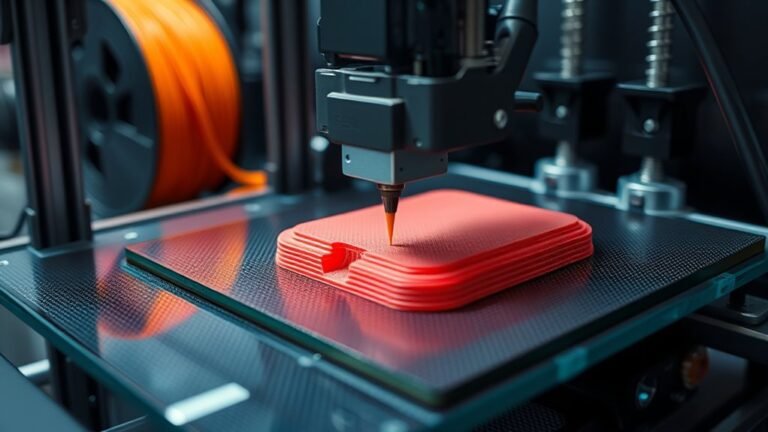
Finally, run a single-layer 20×20 mm test print at your chosen speed and temperature. If adhesion or extrusion isn’t perfect, tweak these:
- Lower Z-offset by 0.05 mm increments
- Raise bed temperature by 5°C
- Repeat test prints until lines are smooth and bonded
Frequently Asked Questions
Is It Legal to 3D Print a House?
You can legally 3D print a house, but you’ll need permits, inspections, and must follow local building codes.
Always check with your municipality to guarantee compliance and get approvals. This way, you can avoid fines or demolition orders.
What Is the Most Profitable Item to 3D Print?
Think of 3D printing like baking a rare cake: customized dental aligners top the list, earning you $100–$1,000 each.
Their steady demand from dentists makes them the sweetest, most profitable treat you can create.
Is 4D Printing Possible?
Yes, 4D printing is possible. You can create objects that change shape or properties over time using programmable materials like shape-memory polymers.
It’s still an emerging technology, but it’s a fascinating step beyond traditional 3D printing. Imagine things that don’t just sit there but actually transform as time goes on!
How Can I Create My Own 3D Model?
You can create your own 3D model by using beginner-friendly software like Tinkercad or FreeCAD. Start by designing simple shapes and adjusting their dimensions to fit your idea.
Once you’re happy with your design, you can export it as an STL file. This file is ready for 3D printing or for further editing if you want to make more changes later on.
Conclusion
Building your own 3D printer might seem like climbing a mountain, but with these five simple steps, you’re well on your way to reaching the summit. By carefully designing your frame and selecting parts, you set a strong foundation for your project.
Next, assembling hardware and setting up electronics bring your ideas closer to reality. After that, calibrating your machine ensures everything runs smoothly.
You’ll turn a pile of components into a creative powerhouse. Soon enough, you’ll watch your first print come to life, proving that every great journey starts with a single step.
Building a 3D printer is a rewarding experience that combines design, technical skills, and creativity. With patience and attention to detail, you’ll master the process from frame construction to precise calibration. This hands-on approach not only saves money but also gives you a deeper understanding of how your 3D printer works. So, roll up your sleeves and get ready to create amazing 3D prints that showcase your hard work and innovation.