How to Print From iPhone to Epson Printer in 3 Easy Steps
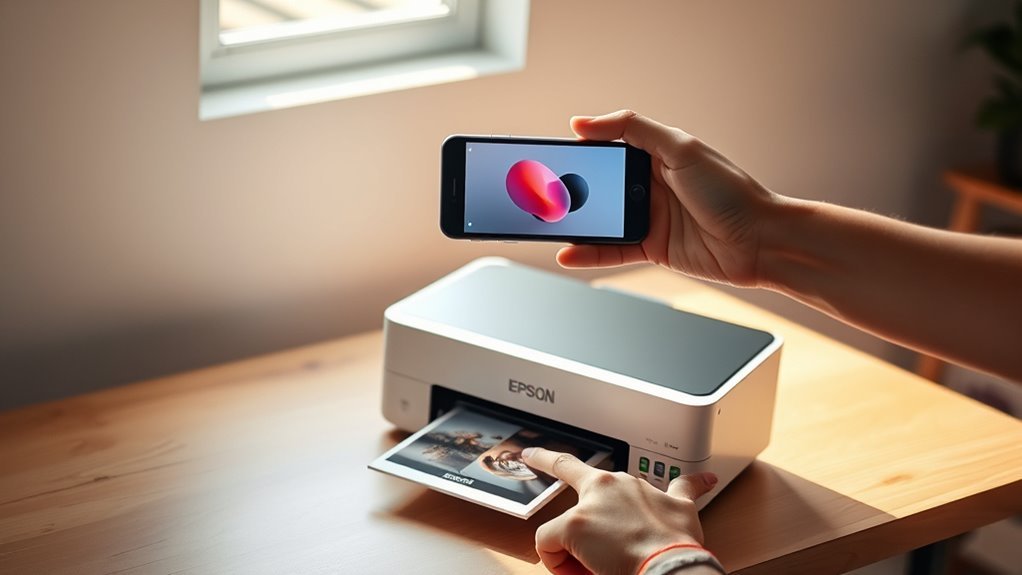
To print from your iPhone to an Epson printer in three easy steps, first make sure your printer is set up, powered on, and within Bluetooth range. It’s important that your printer is ready to go before you start. This way, you won’t run into any surprises when you try to print.
Next, connect your iPhone to the same Wi-Fi network as the printer and enable Bluetooth. This ensures both devices can communicate smoothly. Don’t forget to double-check your Wi-Fi settings if something seems off.
Finally, open the Epson Smart Panel app, let it detect your printer, then enter your Wi-Fi details to complete the connection and start printing. The app makes the process super simple and user-friendly.
For tips to fix any connection hiccups, keep following along. We’ll help you troubleshoot so you can get back to printing in no time!
Key Takeaways
- Ensure your Epson printer is powered on and has ink installed. Make sure it’s within Bluetooth range of your iPhone.
- Connect your iPhone to the same Wi‑Fi network that you want your printer to use.
- Next, install and open the Epson Smart Panel app on your iPhone. Don’t forget to enable Bluetooth.
- Use the app to find your printer via Bluetooth. Then, enter your Wi‑Fi credentials to get the printer connected.
- Once connected, you can print directly from the app. You’ll also be able to keep an eye on ink levels and manage your print jobs with ease.
Prepare Your iPhone and Epson Printer for Wireless Printing
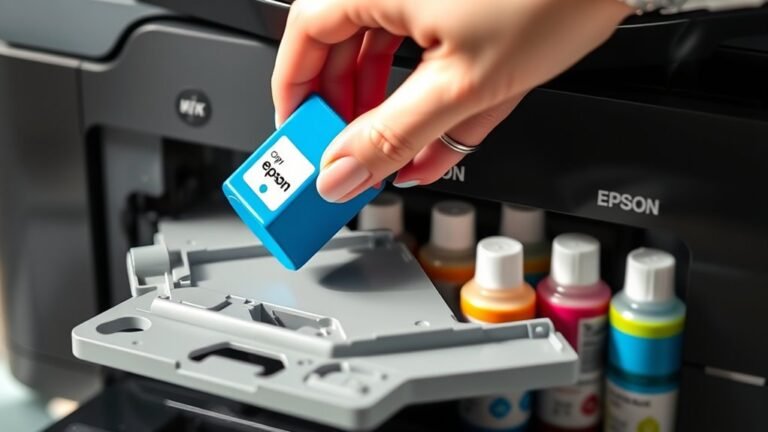
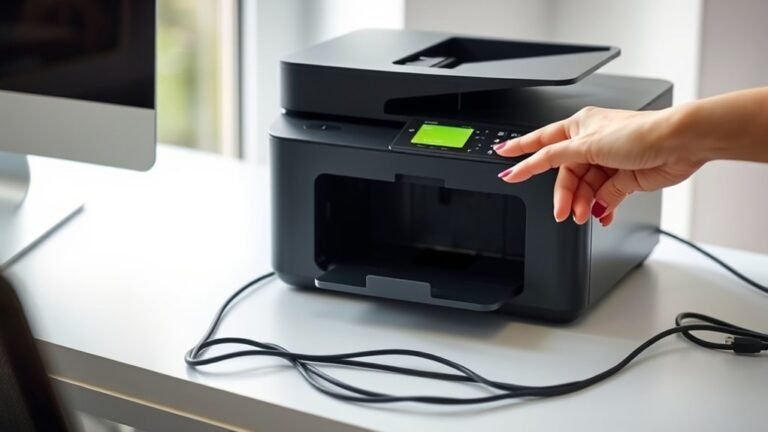
Start by making sure your Epson printer is fully set up, powered on, and within Bluetooth range of your iPhone. To get started with wireless printing, confirm your printer has completed initial setup and ink installation.
Next, connect your iPhone to the same Wi-Fi network you plan to use for the printer, and have the password ready. You’ll also need to turn on Bluetooth on your iPhone since the Epson Smart Panel app uses Bluetooth to discover and maintain a connection with many Epson models.
Install the Epson Smart Panel app from the App Store and open it to detect your printer automatically. If your iPhone doesn’t find the printer, move closer or press the printer’s Bluetooth button to improve connectivity.
Connect Your iPhone to Epson Printer Using the Smart Panel App
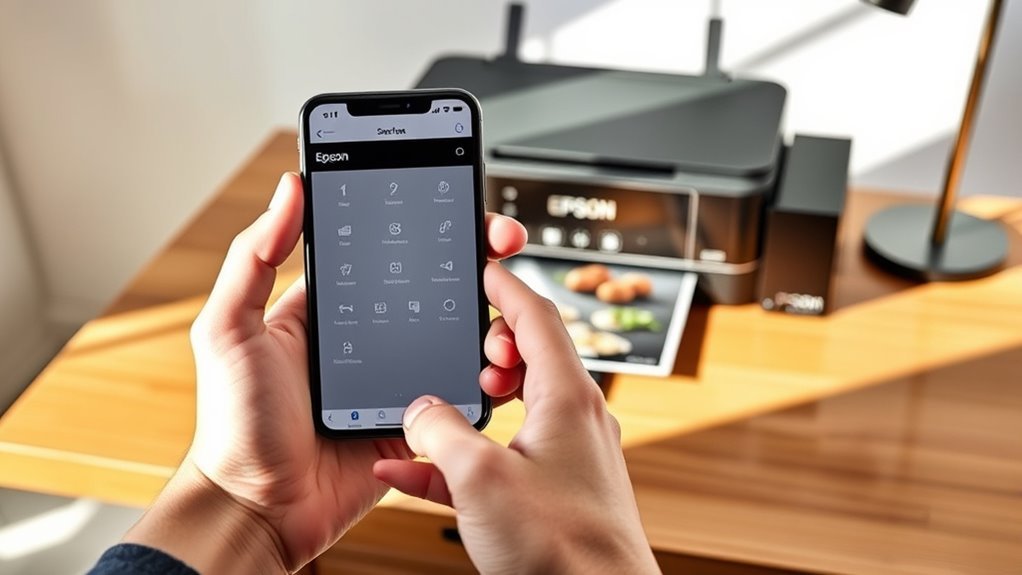
Getting your iPhone connected to your Epson printer using the Smart Panel app is a straightforward process. First, install the Epson Smart Panel app from the App Store, then open it with Bluetooth enabled on your iPhone.
Connecting your iPhone to Epson printers is easy with the Smart Panel app and Bluetooth enabled.
Next, make sure your Epson 500W-II printer is powered on and within Bluetooth range. If the app doesn’t detect your printer automatically, don’t worry — just follow these steps:
Tap the + icon, select “Start setting up,” and enter your Wi‑Fi network name (SSID) and password to connect the printer. If needed, press the printer’s Bluetooth button or connect it to Wi‑Fi via its control panel.
Once connected, the app lets you monitor ink levels, manage print jobs, and print directly from your iPhone. This seamless Bluetooth and Wi‑Fi setup guarantees efficient printing with Epson Smart Panel.
Troubleshoot Common Wireless Connection Issues Between iPhone and Epson Printer
Once your iPhone and Epson printer are set up using the Smart Panel app, you might still run into wireless connection issues. First, make certain Bluetooth is enabled on your iPhone and the Epson Smart Panel app is open, as many Epson models use Bluetooth to establish and maintain the initial Wi‑Fi connection.
Make sure your printer is on, fully set up, and close enough to your iPhone to avoid Bluetooth drops. Confirm your iPhone connects to the same Wi‑Fi network the printer will use.
If the printer doesn’t appear in the app, move closer, tap + in Smart Panel, or connect via the printer’s control panel. If problems persist, restart devices, toggle Bluetooth and Wi‑Fi, or contact Epson support for help.
Frequently Asked Questions
How to Print a Document Using an Epson Printer?
You open the document on your iPhone, tap the Share icon, and select Print. Then, choose your Epson printer from the list.
Adjust the settings if you need to, then tap Print. Just make sure your printer and iPhone are connected to the same Wi-Fi network. That way, everything will work smoothly!
What Is the Epson Printer App for Android?
You’ll find the Epson iPrint app perfect for Android, letting you print photos, documents, and web pages directly to Epson Wi-Fi printers.
Over 10 million users enjoy its easy, versatile printing capabilities worldwide every day. It’s pretty handy and makes printing on the go super simple.
How to Print From iPhone to Epson Printer?
You just open your document or photo, tap the Share icon, and select Print. Then, choose your Epson printer from the AirPrint list.
If you need a hand connecting or want more control, try using Epson’s Smart Panel app. It makes printing super easy and straightforward.
How Do I Connect My Epson Printer to My Laptop?
Like unsealing a secret door, you connect your Epson printer to your laptop by joining the same Wi-Fi network. Then, you add the printer through your laptop’s settings or install Epson drivers for seamless printing and full control.
It’s pretty straightforward once you get the hang of it. Just follow the steps, and you’ll be printing in no time!
Conclusion
Now that you’ve prepped your iPhone and Epson printer, connected with the Smart Panel app, and tackled common troubles, you’re ready to print with ease.
Enjoy effortless, efficient, and excellent printing every time. Just remember to keep your devices connected and your app updated to avoid any annoying app or airwave issues.
With these simple steps, you’ll swiftly send stunning prints straight from your smartphone, saving time and stress! Printing from your iPhone to your Epson printer has never been easier. Stay connected, keep your Smart Panel app current, and you’ll enjoy seamless printing whenever you need it. This quick and reliable process ensures your photos and documents look great every time, making mobile printing a breeze.