How to Connect to Pixma Printer in 5 Easy Steps
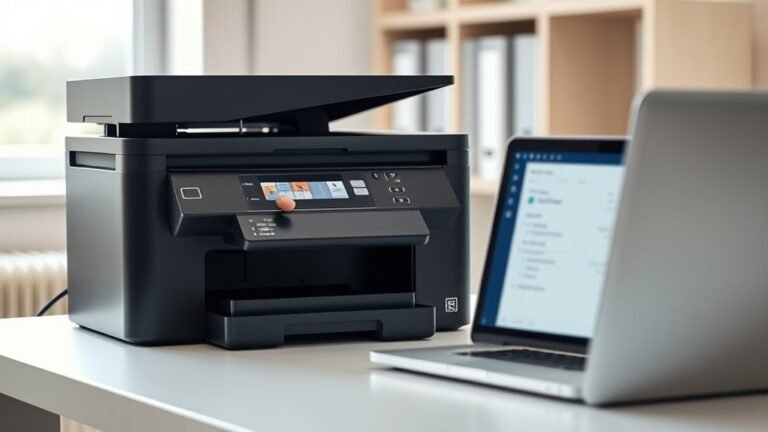
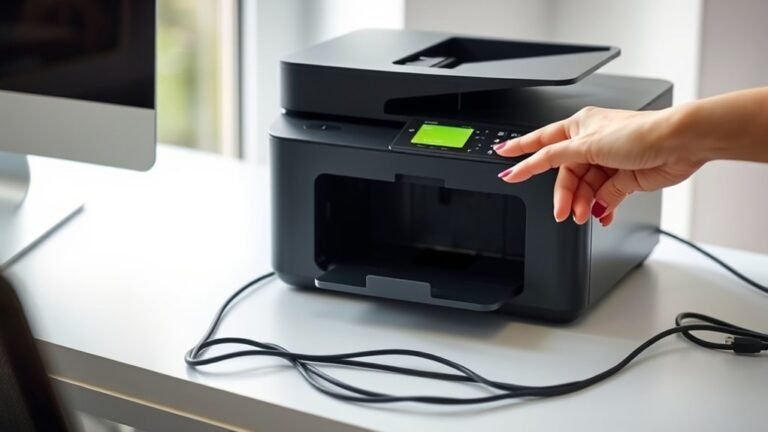
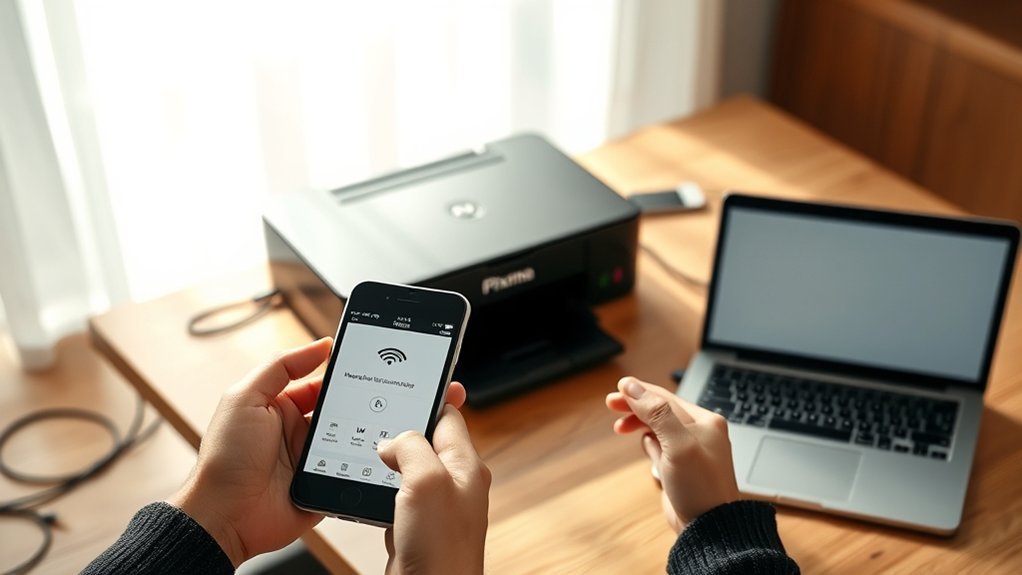
To connect your Pixma printer quickly and easily, start by making sure it’s powered on and close to your Wi-Fi router. Also, double-check that your device is connected to the same network. This helps your printer and device “talk” to each other without any issues.
Next, you have two options to connect: use WPS by pressing the printer’s wireless button followed by your router’s WPS button, or run the setup software for a more standard connection. Both methods are straightforward and get your printer online in no time.
After that, install the Canon wireless drivers on your Windows or Mac device. Once that’s done, add the printer through your system settings. Almost there!
Finally, print a test page to make sure everything’s working perfectly. Keep reading for some handy troubleshooting and setup tips if you hit any bumps along the way.
Key Takeaways
- Ensure the Pixma printer is powered on and within Wi-Fi range. Also, make sure your device is connected to the same network.
- You can use WPS by pressing the printer’s Wireless button, then the router’s WPS button. Or, run the wireless setup software instead.
- Download and run the Canon wireless setup software on your Windows or Mac computer. Just follow the on-screen instructions to connect the printer to Wi-Fi.
- Next, install the latest Canon PIXMA drivers. Choose the wireless connection option, then add the printer through your device’s printer settings.
- Finally, print a test page to confirm everything’s working. If there’s a problem, check the Wi-Fi lights or try resetting the network.
Get Your Pixma Printer and Device Ready for Wireless Setup
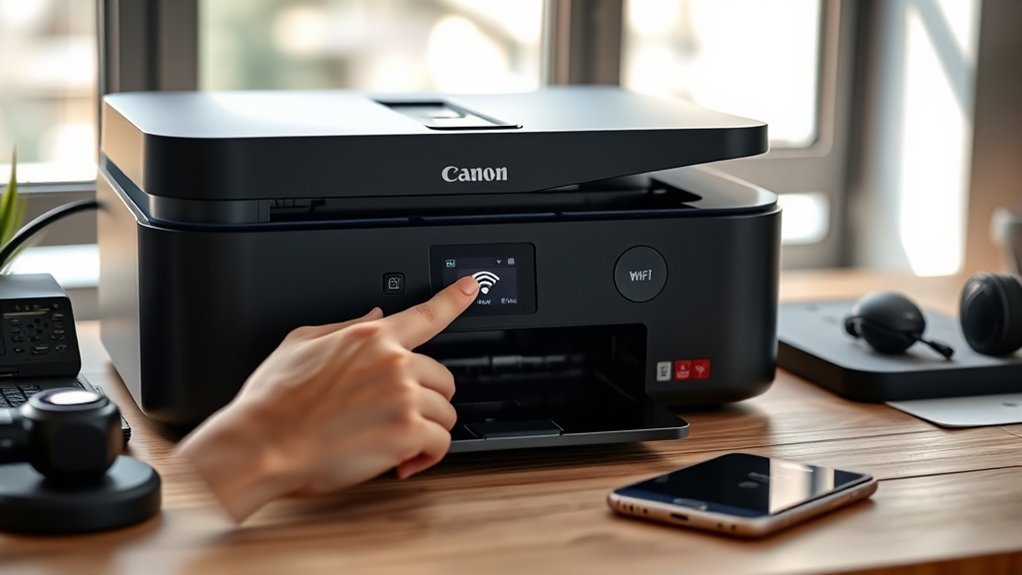
Before you begin the wireless setup, make sure your Pixma printer is powered on and within range of your Wi-Fi network. Also, confirm your device—whether it’s a computer or mobile—is connected to the same wireless network’s Service Set Identifier (SSID) you plan to use for the printer.
Check the printer’s wireless indicator light. It should be blinking or steady, signaling it’s ready for setup.
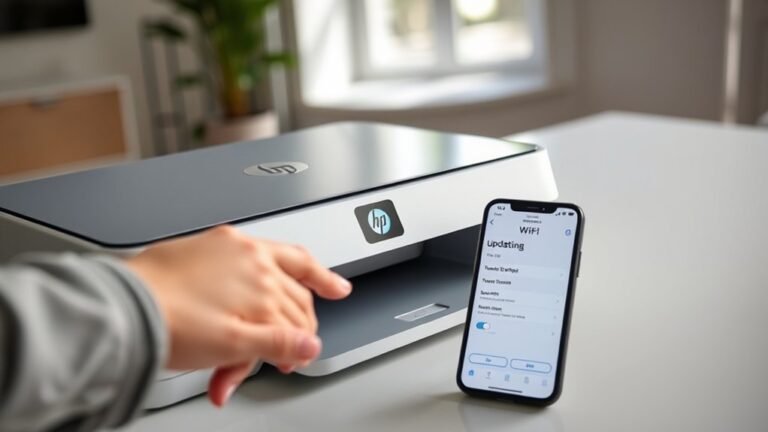
It’s a good idea to update your device’s operating system and wireless network drivers. This will help guarantee smooth compatibility with your Pixma printer.
Finally, gather your Wi-Fi network name (SSID) and password. You’ll need them during the connection process.
Getting these essentials in place helps you avoid common issues and makes sure your wireless network setup goes quickly and efficiently.
Connect Your Pixma Printer Wirelessly Using WPS or Standard Method
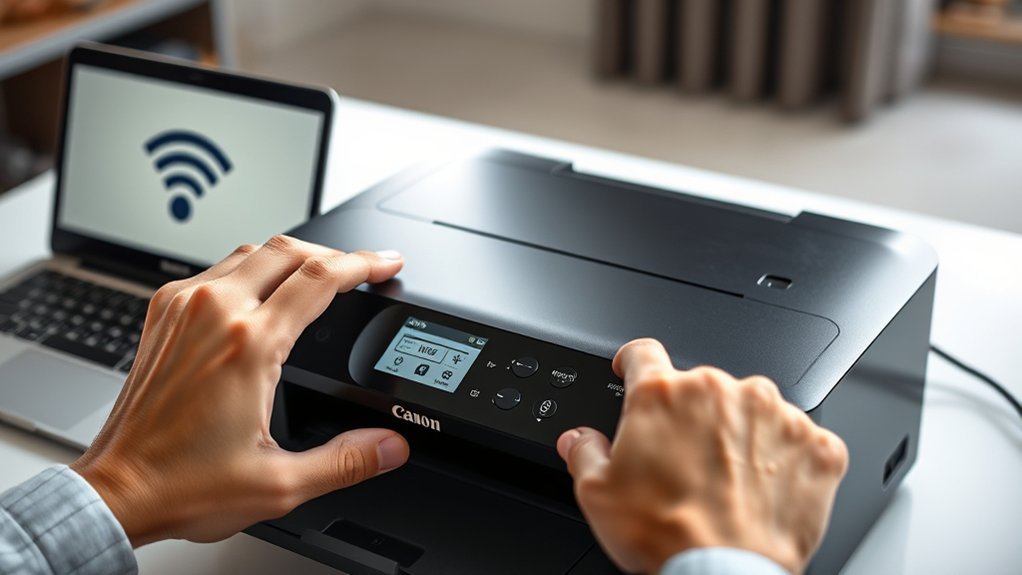
Once your Pixma printer and device are ready, you can connect the printer to your Wi-Fi network using either the WPS method or the standard setup.
Get your Pixma printer online easily with either WPS or a simple wireless setup.
For WPS, first verify your router supports WPS with a physical push button and WPA/WPA2 security. Press and hold the printer’s [Wireless] button until the wireless lamp flashes, then press the [Color] button followed by the [Wireless] button until the Direct lamp lights.
Within two minutes, press your router’s WPS button to link them. The connection is successful when the Power, Wi-Fi, and network lamps stay steady.
Alternatively, run the printer setup software on your computer, choose the wireless option, and follow the prompts to join your Wi-Fi.
Print the network info page to confirm the SSID matches your network and finish the setup. It’s pretty straightforward once you get started!
Set Up Your Pixma Printer Wirelessly on Windows or Mac
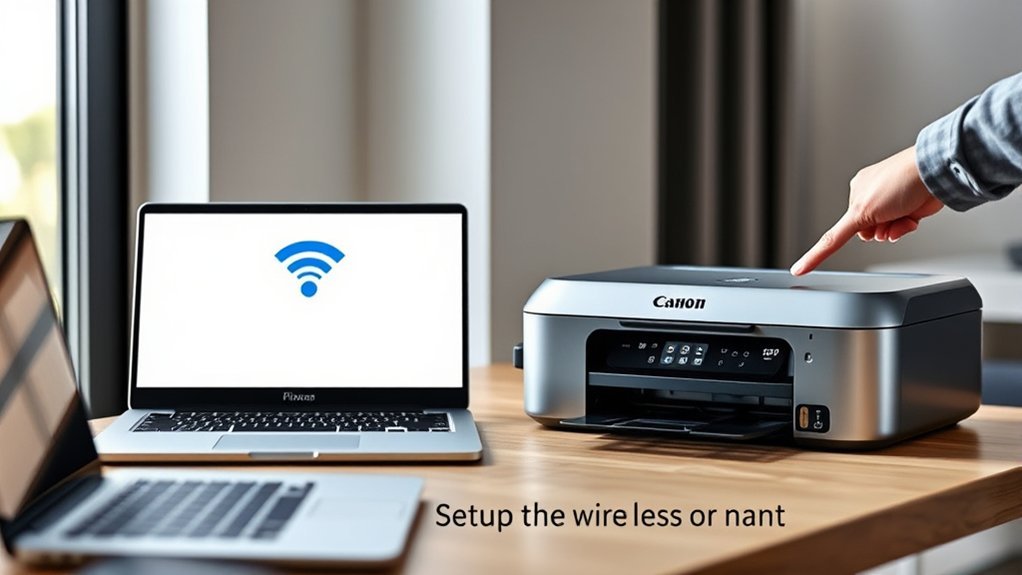
To set up your Pixma printer wirelessly on Windows or Mac, start by downloading and running the Canon wireless setup software on your computer. On Windows, select “Wireless LAN Connection,” then pick your printer from the list or create a new connection.
Follow the prompts to choose your wireless network and enter your Wi-Fi password. It’s pretty straightforward!
On a Mac, open the setup file, install the Helper Tool if asked, and proceed with the on-screen instructions to link your printer to Wi-Fi.
Once connected, add the printer through your computer’s printer settings. Finally, perform a test print to confirm your Pixma printer communicates properly over the wireless network.
This guarantees your printer is ready for seamless wireless printing. Easy, right?
Install Wireless Printer Drivers and Add Your Pixma Printer
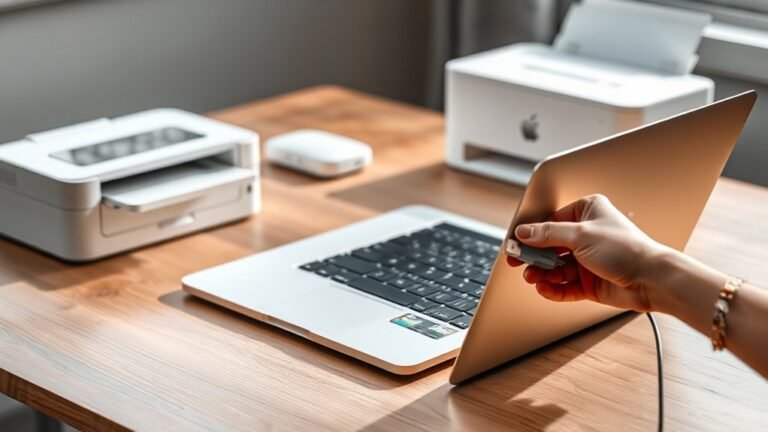
While ensuring your Pixma printer is connected to the same Wi-Fi network as your computer or mobile device, download and run the latest Canon PIXMA driver from the official website or installation CD. Follow the on-screen prompts to select your wireless connection type, such as Wi-Fi or WPS.
Complete the setup using the printer’s control panel or setup software to connect it properly. After the driver installation finishes, go to your device’s printer settings and add the Pixma printer to your list of available printers.
This process links your device and printer over the wireless network, enabling smooth printing without cables. Just make sure both devices stay on the same network throughout the setup for everything to work perfectly.
Confirm Connection With Test Print and Fix Common Issues
Although setting up your Pixma printer is straightforward, confirming the connection with a test print guarantees everything works correctly. Start by printing a network information page and verify that the SSID matches your wireless network.
Then, perform a test print from your computer or mobile device to ensure proper communication. If the test print fails, check the printer’s Wi-Fi status lights and confirm it’s connected to the same network as your device.
After any changes, print the network info page again to verify the connection details and active status. Common issues like wrong Wi-Fi settings or signal interference often cause problems.
Simply reset the network connection on your printer and run another test print to fix these issues and maintain a dependable connection.
Frequently Asked Questions
How Do I Get My Canon Pixma Printer to Connect?
You power on your Canon Pixma, access the wireless setup on its control panel, and follow prompts to join your Wi-Fi.
Then, download the Canon PRINT app to complete connection and verify by printing a network configuration page.
It’s pretty straightforward once you get started. Just take it step by step!
How Do You Connect the Canon Pixma Printer to Wi-Fi?
Connecting your Canon Pixma to Wi-Fi is like catching a wave—press the printer’s Wi-Fi button and then hit your router’s WPS button quickly.
Just ride the signal from there. Soon, you’ll be printing wirelessly with ease!
Why Is My Canon Pixma Printer Not Connecting to My Computer?
Your Canon Pixma printer might not connect because of outdated drivers, incorrect network settings, or weak Wi-Fi signals.
Make sure you update drivers, enter the right password, and place the printer close to your router.
Sometimes, just a small change can make a big difference! Give these steps a try and see if that helps.
How Do I Manually Connect My Printer to Wi-Fi?
You press and hold the Wireless button until the Wi-Fi lamp flashes, then release it.
Next, navigate your printer’s control panel to select your Wi-Fi network. Enter the password and confirm to connect manually.
It’s pretty straightforward once you get the hang of it! Just take it step by step.
Conclusion
Now that your Pixma printer is wirelessly connected, imagine the freedom of printing from anywhere in your room without tangled cords. You’ve set it up step by step, and your device and printer are now in perfect harmony.
With drivers installed and a test print in hand, you’re ready to bring your ideas to life effortlessly. Should any hiccups arise, you’ve got the know-how to fix them quickly and keep your creative flow going strong.
Connecting to your Pixma printer is simpler than you think. Once connected, you can enjoy seamless wireless printing, whether it’s documents or photos. Remember, having the right drivers installed ensures smooth communication between your device and the printer. So, take a moment to double-check your setup if anything feels off. With these easy steps, your Pixma printer will be a reliable partner for all your printing needs, making your workflow efficient and hassle-free.