How to Photocopy on a Printer in 5 Easy Steps
To photocopy on a printer in five easy steps, first make sure your printer is on and connected. Also, check if you need to log in before starting. This helps avoid any delays when you’re ready to copy.
Next, place your original page face down on the glass. Align it carefully with the corner markers so the copy comes out just right.
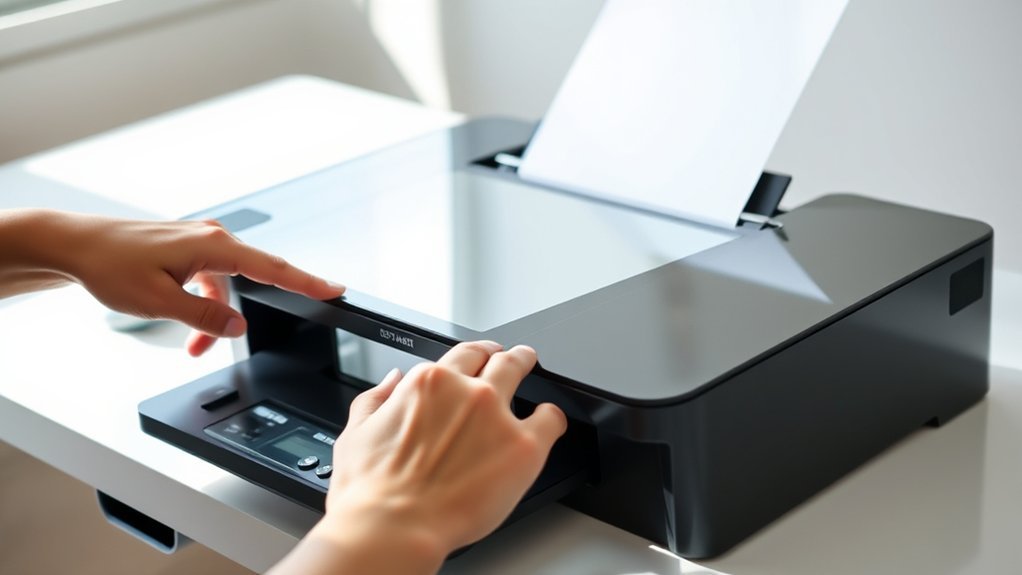
Then, use the control panel to adjust settings like the number of copies, color options, or size. It’s pretty simple once you get the hang of it.
Press the start button and watch the progress. If any alerts pop up, just follow the instructions to fix them.
Finally, collect your copies and check their quality. Keep practicing, and you’ll soon master perfect copying every time!
Key Takeaways
- Ensure the printer is powered on and connected. Also, make sure you’re logged in if the printer requires authentication.
- Place the original document face down on the glass. Align it with the corner markers, then close the lid.
- Use the control panel to select your copy settings, like paper size, color, and the number of copies you want.
- When you’re ready, press the start button to begin copying. Keep an eye on the printer in case any error messages pop up.
- Once the copies are done, collect them from the output tray. Take a quick look to check the quality and make sure everything copied correctly.
Set Up Your Printer and Authenticate Access
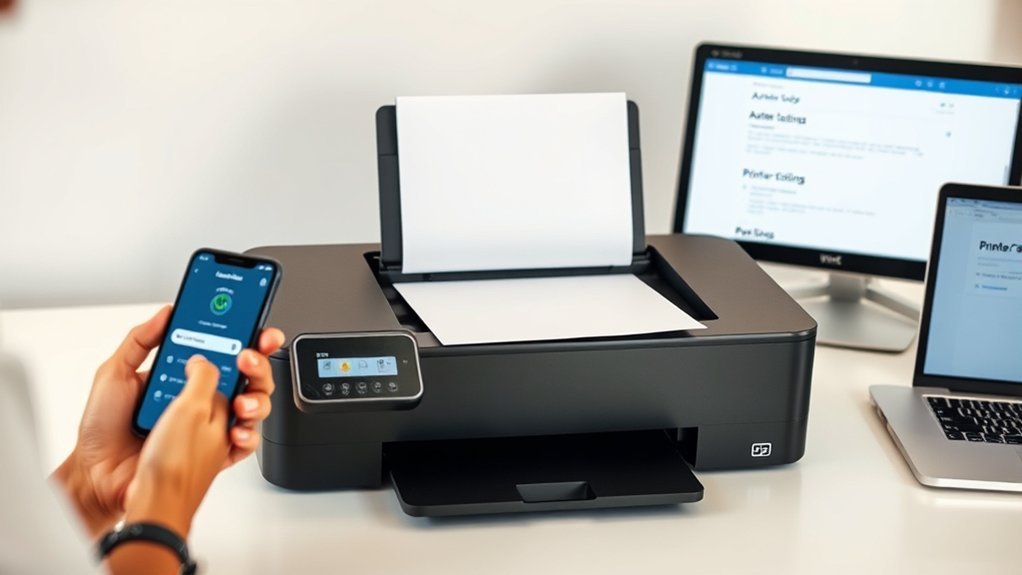
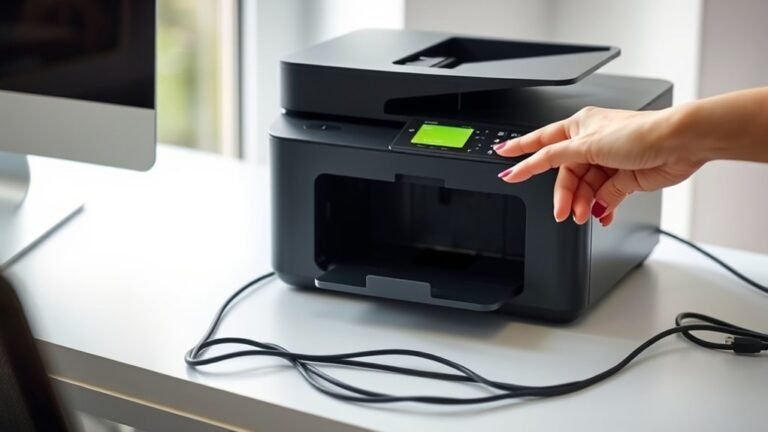
Before you start photocopying, make sure your printer is plugged in, connected to the network, and powered on. Once that’s done, approach the control panel to begin the setup process.
Ensure your printer is plugged in, network-connected, and powered on before starting photocopying.
If your printer requires authentication, use the touchscreen or control panel to navigate to the login section. Enter your authorized user credentials carefully to gain access.
For shared or network printers, confirm you have the necessary permissions to use the copying functions. If you run into any login issues or security settings problems, consult the printer’s manual or reach out to your IT support for help.
Properly setting up and verifying access ensures a smooth photocopying experience without interruptions. It’s worth taking a moment to get this right!
Load Originals Properly for Accurate Copies
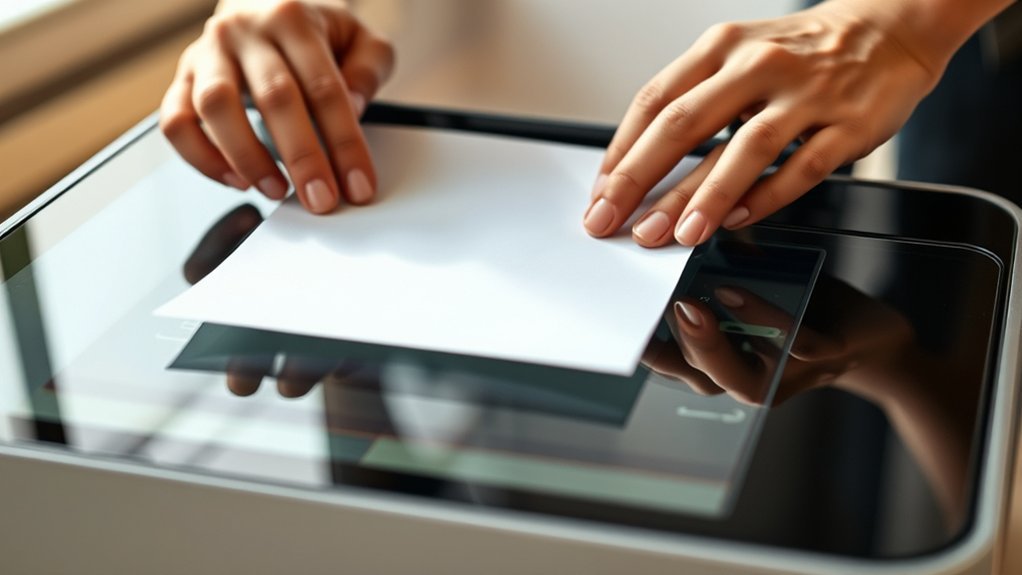
When you load originals onto the printer glass, make sure to place only one page at a time, face down, and align it precisely with the corner markers. This guarantees clear, accurate copies without any mirrored or reversed images.
Avoid stacking multiple pages or thick documents, as this can cause misalignment and reduce copy quality. Once the original is properly positioned, close the lid securely to keep it steady during copying.
| Correct Loading Practice | Reason |
|---|---|
| One page at a time | Prevents image overlap |
| Face down | Avoids mirrored copies |
| Align with corner markers | Ensures proper framing |
| Close lid securely | Keeps original steady |
| Avoid thick stacks | Maintains clarity |
Adjust Copy Settings to Match Your Needs
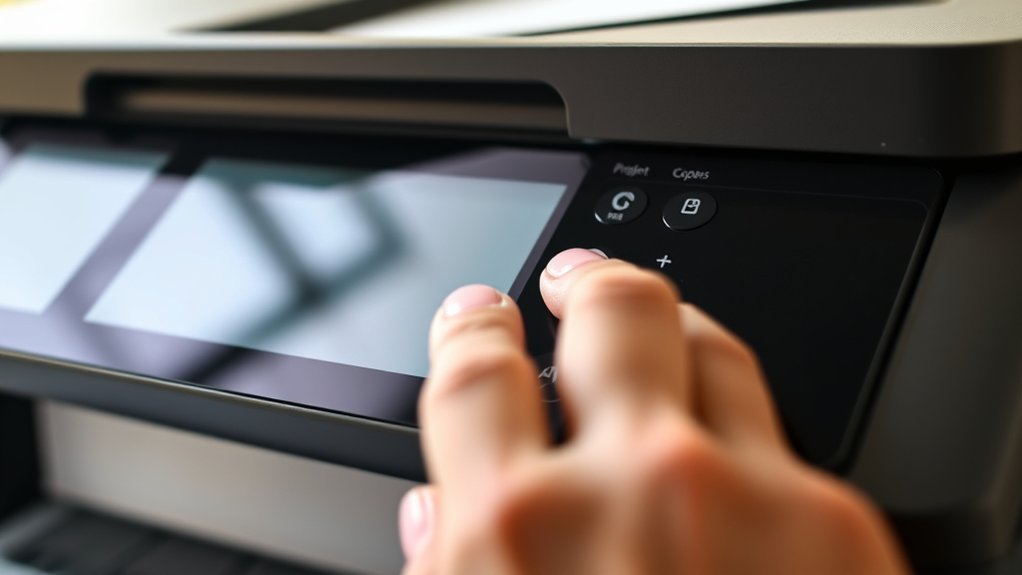
Although loading your originals correctly is essential, adjusting the copy settings lets you tailor the output to your exact needs. Use the printer’s control panel or touchscreen to make selections like paper size, color mode, and the number of copies.
You can also make your copies clearer by adjusting brightness and contrast. If you want your copies larger or smaller, set the enlargement or reduction ratios accordingly.
Many printers offer duplex options to make double-sided copies, saving paper and time. Before you start copying, preview your settings on the screen or through compatible apps to make sure everything looks right.
Taking these steps guarantees your copies come out just the way you want, with no surprises.
Start the Copy Job and Monitor Progress
Once you’ve confirmed all your settings, press the start button on the control panel to begin copying. As the printer starts, keep an eye on the display screen or indicator lights to monitor progress.
This helps you verify the job runs smoothly without interruptions. If any error messages or alerts pop up, address them right away to avoid delays or poor-quality copies.
Be patient and wait until the machine completes the entire scan and print cycle before touching the output tray. If something feels off or you need to stop the process, press the stop or cancel button immediately to prevent incomplete or incorrect copies.
Staying attentive during this phase ensures your copy job finishes successfully.
Collect Your Copies and Check the Quality
After the copy job finishes, promptly collect your copies from the output tray to avoid misplacing them. Take a moment to check each copy carefully for clarity, color accuracy, and overall quality.
Make certain the copies match the settings you selected, including size, color mode, and the number of copies. Inspect the edges and corners for any smudges, streaks, or incomplete prints.
If you notice any issues with the copies, don’t remove the original just yet. Adjust your copy settings and run a test copy before printing more.
This guarantees you save time and paper while getting the best results. By staying attentive during this step, you’ll guarantee your copies meet your expectations every time.
Frequently Asked Questions
How to Photocopy With a Photocopy Machine?
You place your document face down and close the lid. Then, select your settings on the control panel.
Next, press start. Wait for the copies to print.
Once they’re done, collect your copies. Don’t forget to retrieve your original document too.
How Long Do Printers Typically Last?
Printers typically last between 3 to 5 years, but high-quality laser models can reach up to 7 years. You’ll get the best lifespan by maintaining your printer regularly and replacing toner or ink cartridges on time.
It’s really about how well you take care of it. Regular maintenance can make a big difference in how long your printer keeps working smoothly. So, don’t forget to check those cartridges and keep everything clean!
Is It Cheaper to Print or Photocopy?
You’ll find photocopying is about 30% cheaper than printing, especially in bulk. That’s because it uses less ink and energy, helping you save money while getting the job done faster and more efficiently.
Why Is My Printer Not Printing?
Your printer’s not printing because it might be out of ink, have a paper jam, or face connection issues.
Check the cables, update the drivers, and clear any jams you find.
Also, make sure the printer has enough memory and that all the hardware is working properly.
Sometimes, just a quick check can get things back on track!
Conclusion
Now that you’ve danced through these five simple steps, your printer becomes a trusty partner turning originals into perfect copies. Like a painter with a brush, you’ve set the stage, loaded the canvas, and chosen the colors just right.
As the machine hums its tune, your work comes alive on paper. So grab your copies, give them a quick glance, and enjoy the smooth rhythm of effortless photocopying every time.
Photocopying on a printer doesn’t have to be complicated. With these easy steps, you can create clear, accurate copies in no time. Whether you’re copying documents for work, school, or personal use, your printer handles it all with ease. Keep this simple process in mind, and photocopying will always be quick, convenient, and reliable whenever you need it.