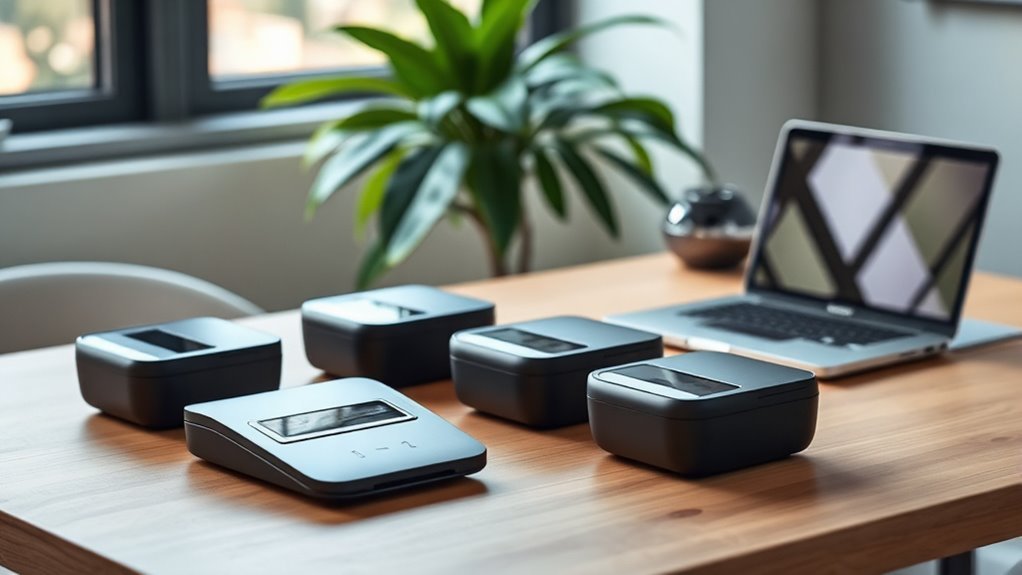
5 Best Bluetooth Printers for MacBook Pro in 2027
You’ll find top Bluetooth printers like the HP DeskJet 2923 and Canon PIXMA TS6520 perfect for crisp, versatile prints from your MacBook Pro.
These printers work seamlessly with macOS, giving you smooth connectivity and high-quality results every time. Whether you’re printing documents, photos, or labels, they’ve got you covered.
The Gloryang Inkless Portable offers lightweight, ink-free convenience that’s great for on-the-go printing. No need to worry about cartridges or ink refills—just print whenever and wherever you need.
Meanwhile, the Brother Work Smart 1360 and Epson Workforce Pro WF-4920 deliver fast, reliable all-in-one performance. These models combine printing, scanning, and copying with strong Bluetooth connectivity, making them perfect for busy users.
These options blend smooth Mac compatibility with strong connectivity and portability. Keep exploring to discover which model fits your specific printing needs best.
| Image | Name | Editor's Rating | Price |
|---|---|---|---|

|
|
||

|
|
||

|
|
||

|
|
||

|
|
HP DeskJet 2923 Color Inkjet Printer | Wireless | All-in-One
- Perfect for basic printing needs – Print everyday color documents like to-do lists, letters, financial documents and recipes
- KEY FEATURES – Color print, copy, scan, and a 60-sheet input tray, plus mobile and wireless printing
- OPTIMIZE PRINT FORMATTING WITH HP AI – Print web pages and emails with precision—no wasted pages or awkward layouts; HP AI easily removes unwanted content, so your...
- ICON LCD – Print your basic documents with ease from the intuitive control panel
- PRINT SPEED – Up to 7.5 ppm black, 5.5 ppm color

The HP DeskJet 2923 is a compact all-in-one printer designed to simplify your home office tasks. It handles printing, scanning, and copying with ease, making it a versatile addition to any workspace. Its lightweight design allows it to fit comfortably in tight spaces without sacrificing performance.
This printer offers clear, vibrant prints with resolutions up to 1200 x 1200 dpi for black and 4800 x 1200 optimized dpi for color. Dual-band Wi-Fi and Apple AirPrint support ensure smooth wireless connections, especially for MacBook Pro users. Setup and daily use are straightforward, reducing time spent on technical issues.
Maintenance is hassle-free thanks to its eco-friendly design, which incorporates 70% recycled plastics. This makes it a sustainable choice for environmentally conscious users. However, its moderate print speed and limited paper capacity are better suited for light to moderate use rather than high-volume tasks.
Best for: users needing a reliable, compact wireless printer that integrates well with Apple devices for everyday home use.
What We Like:
- Compact and lightweight for easy placement
- High-quality color and black print resolution
- Supports Apple AirPrint and dual-band Wi-Fi for seamless connectivity
Specification:
| Feature | Details |
|---|---|
| Manufacturer | HP |
| Dimensions | Compact (exact size not provided) |
| Weight | 7.6 lb (3.45 kg) |
| Color Options | Standard (not specified) |
| Connectivity | Dual-band Wi-Fi, Apple AirPrint |
Canon PIXMA TS6520 Wireless Color Inkjet Printer, 1.42″ OLED Display, White
- Affordable Versatility - A budget-friendly all-in-one printer perfect for both home users and hybrid workers, offering exceptional value
- Crisp, Vibrant Prints - Experience impressive print quality for both documents and photos, thanks to its 2-cartridge hybrid ink system that delivers sharp text and vivid...
- Effortless Setup & Use - Get started quickly with easy setup for your smartphone or computer, so you can print, scan, and copy without delay
- Reliable Wireless Connectivity - Enjoy stable and consistent connections with dual-band Wi-Fi (2.4GHz or 5GHz), ensuring smooth printing from anywhere in your home or...
- Scan & Copy Handling - Utilize the device’s integrated scanner for efficient scanning and copying operations
The Canon PIXMA TS6520 is designed to simplify your printing tasks with reliable wireless connectivity and versatile all-in-one functionality. Whether you need to print, scan, or copy, this printer delivers sharp text and vivid colors that enhance your documents and photos.
Its compact and stylish design fits effortlessly into any workspace. The 1.42″ OLED display provides clear updates on ink levels and device status, helping you stay informed and avoid unexpected interruptions. Dual-band Wi-Fi ensures a stable connection, making mobile printing from your devices smooth and hassle-free.
Maintenance is straightforward with its 2-cartridge hybrid ink system, though frequent cartridge replacements may be necessary for users with higher print volumes. Auto-duplex printing saves paper by enabling two-sided output, contributing to efficient document handling.
Print speeds reach up to 14 ppm for black and 9 ppm for color, suitable for everyday family and student use but potentially slow for heavy workloads. Overall, the PIXMA TS6520 balances functionality, design, and ease of use for a compact, wireless printer experience.
Best for: Users seeking a compact, user-friendly wireless all-in-one printer for home, family, or student needs.
What We Like:
- Versatile all-in-one functions with sharp print quality
- Stable dual-band Wi-Fi and smooth mobile printing
- Compact design with an intuitive OLED display
- Auto-duplex printing for efficient paper use
Specification:
| Feature | Details |
|---|---|
| Manufacturer | Canon |
| Dimensions | Compact (exact size not provided) |
| Weight | Not specified |
| Ink System | 2-cartridge hybrid ink |
| Connectivity | Dual-band Wi-Fi |
| Display | 1.42″ OLED |
| Color Options | White |
Gloryang Inkless Portable Wireless Thermal Printer Kit
- Inkless Printing – Gloryang portable printer uses advanced thermal technology, requiring no ink, toner, or ribbons. The package includes the printer, 3 thermal paper...
- Seamless Bluetooth Connectivity – The Gloryang mobile sticker printer connects easily to iOS and Android via Bluetooth through the “Jadens Printer” app. It also...
- Ultra-Portable Design - Weighing just 1.75lb and measuring 1.7in thick, the Gloryang portable printer is incredibly lightweight and compact. Perfect for on-the-go...
- Space-Saving Design - Say goodbye to clutter with the built-in paper bin of the Gloryang printer. It saves space and keeps your workspace tidy, whether you're on the go...
- Perfect Gift for Holiday-Gloryang thermal printer can print clear photos, image, design drawings and text. It's perfect for busy professionals and students. Come with a...
Experience hassle-free printing with the Gloryang Inkless Portable Wireless Thermal Printer Kit. Designed for on-the-go use, this compact printer eliminates the mess of ink and toner, making printing simple and clean. Its inkless thermal technology ensures you never worry about refilling or replacing cartridges.
Weighing just 1.75 pounds, it easily fits in your backpack or briefcase. This makes it perfect for professionals, students, and travelers who need quick, reliable printing anywhere. The printer supports 8.5 x 11-inch thermal paper, printing crisp monochrome documents efficiently at 35 pages per minute.
Connecting is seamless through Bluetooth via the Jadens Printer app, compatible with MacBook Pro and other smart devices. The built-in paper bin helps keep your workspace tidy, while extra paper rolls and a carrying case add convenience.
While it prints only in monochrome and uses a specific thermal paper size, the minimal upkeep and wireless design make it a practical choice for mobile document printing.
Best for: Busy professionals, students, and travelers needing a lightweight, ink-free printer for monochrome document printing on the go.
What We Like:
- Inkless technology reduces maintenance and printing costs
- Lightweight, portable design with built-in paper storage
- Wireless Bluetooth connectivity with easy app control
- Fast printing speed of 35 pages per minute
Specification:
| Feature | Details |
|---|---|
| Manufacturer | Gloryang |
| Dimensions | Not specified |
| Weight | 1.75 lb (0.79 kg) |
| Paper Size | 8.5 x 11 inches |
| Print Technology | Inkless Thermal |
| Print Speed | 35 pages per minute |
| Connectivity | Bluetooth via Jadens app |
Brother Work Smart 1360 Wireless Color Inkjet All-in-One Print, Scan, Copy
- AFFORDABLE ALL-IN-ONE FOR HOME AND HOME OFFICE: Print, copy, and scan on one compact wireless printer designed for everyday home office printing, schoolwork, documents...
- EASY TO USE WITH CLOUD APP CONNECTIONS: Print from and scan to popular Cloud apps(2), including Google Drive, Dropbox, Box, OneDrive, and more from the simple-to-use...
- FULL-SIZE FEATURES IN A COMPACT DESIGN: This printer includes automatic duplex (2-sided) printing, a 20-sheet single-sided Automatic Document Feeder (ADF)(3), and a...
- MULTIPLE CONNECTION OPTIONS: Connect your way. Interface with your printer on your wireless network or via USB.
- MOBILE PRINTING MADE EASY: Go mobile with the Brother Mobile Connect app(5) that delivers easy onscreen menu navigation for printing, copying, scanning, and device...
Experience hassle-free printing with the Brother Work Smart 1360 Wireless Color Inkjet All-in-One. This compact device is designed to simplify your home office tasks by combining printing, scanning, and copying into one efficient machine. It delivers sharp, high-resolution prints that enhance the clarity of your documents and images.
The printer’s wireless capabilities, including Wi-Fi Direct and AirPrint, allow seamless connectivity with your MacBook Pro and other devices. This means you can print or scan directly without tangled cables, keeping your workspace tidy and organized. The intuitive 1.8” color display makes operation straightforward, reducing time spent navigating menus.
Maintenance is easy with its energy-efficient design and automatic duplex printing, which cuts paper use in half. The 20-sheet automatic document feeder speeds up multi-page scanning and copying, but keep in mind the 150-sheet paper capacity may require regular refills during heavy use. While copy speeds are slower than print speeds, it still meets the needs of casual and home office users effectively.
Best for: Home office users and casual home users seeking a compact, versatile, and wireless all-in-one printer with efficient color and black-and-white printing capabilities.
What We Like:
- Fast, high-resolution printing with automatic duplexing
- Multiple wireless options including Wi-Fi Direct and AirPrint
- Easy-to-use color display and cloud connectivity
- Energy-efficient operation and compact design
Specification:
| Feature | Details |
|---|---|
| Manufacturer | Brother |
| Dimensions | Approx. 15.7 x 14.2 x 7.5 in (40 x 36 x 19 cm) |
| Weight | Approx. 12.1 lbs (5.5 kg) |
| Color Options | White |
| Connectivity | Wireless (Wi-Fi Direct, AirPrint, Brother Mobile Connect app) |
Epson Workforce Pro WF-4920 Wireless All-in-One Printer
- Built for Speed — PrecisionCore Heat-Free technology delivers fast, high-volume printing with 25 (black)/12 (color) ISO ppm and fast first-page-out
- High-Precision Office Printing — Accurate dot placement and DURABrite Ultra instant-dry pigment inks for professional-quality prints
- High-Volume Durability for Heavy Workloads — Innovative heat-free technology engineered for reliability and reduced downtime
- Designed for Productivity — All-in-one printer with auto 2-sided printing and 1-sided, 35-page ADF streamline workflow
- Maximize Printing Efficiency — High-performance office printer with large, 250-sheet paper capacity
Epson Workforce Pro WF-4920 transforms daily office tasks with fast, reliable printing designed to keep up with busy schedules. It tackles high-volume jobs efficiently, delivering sharp black-and-white prints at 25 ppm and vibrant color at 12 ppm. This printer helps reduce downtime with durable, long-lasting DURABrite Ultra pigment inks that resist smudges and fading.
The all-in-one design simplifies workflow by combining printing, scanning, copying, and faxing in one device. A 4.3-inch color touchscreen and a 35-page automatic document feeder make managing documents straightforward and quick. Wireless connectivity options like Wi-Fi Direct and Apple AirPrint enable smooth printing from multiple devices without complicated setup.
Maintenance is straightforward, but using Epson Genuine Cartridges ensures consistent quality and minimizes potential issues, though it may limit third-party ink choices. While inkjet technology offers excellent print quality, it may have higher running costs compared to laser printers for very large print volumes.
Built for small offices and professionals, the WF-4920 balances performance and versatility to support demanding workflows with ease.
Best for: professionals and small offices needing a versatile, high-volume all-in-one printer with fast wireless printing and reliable performance.
What We Like:
- High-speed printing with PrecisionCore Heat-Free technology
- Versatile all-in-one functionality including scan, copy, and fax
- Large, easy-to-use touchscreen and 35-page automatic document feeder
- Multiple wireless options including Wi-Fi Direct and Apple AirPrint
- Durable DURABrite Ultra pigment inks for crisp, long-lasting prints
Specification:
| Feature | Details |
|---|---|
| Manufacturer | Epson |
| Dimensions (W×D×H) | 18.1 × 18.7 × 11.9 inches |
| Weight | 18.5 lbs (8.4 kg) |
| Printing Technology | Inkjet (PrecisionCore Heat-Free) |
| Print Speed (Black) | Up to 25 ppm |
| Print Speed (Color) | Up to 12 ppm |
| Display | 4.3-inch color touchscreen |
| Paper Handling | 35-page Automatic Document Feeder |
| Connectivity | Wi-Fi Direct, Apple AirPrint, Epson Smart Panel app |
Factors to Consider When Choosing a Bluetooth Printer for MacBook Pro
When picking a Bluetooth printer for your MacBook Pro, make sure it supports the right Bluetooth standards for seamless connection. You want to avoid any annoying glitches or slow pairing.
Think about how important print quality and portability are for your needs. Also, check out the variety of connectivity options available — it’s good to have choices.
And don’t forget to look at battery life if you plan to use the printer on the go. Nothing worse than running out of juice right when you need to print!
Bluetooth Compatibility Standards
Although Bluetooth technology has evolved considerably, you’ll want to guarantee your printer and MacBook Pro support compatible Bluetooth standards to avoid connection issues. Bluetooth SIG sets these standards, ensuring devices from different brands communicate smoothly.
Currently, Bluetooth 5.0 is the most common version, offering longer range—up to 800 feet—and faster data transfer than earlier versions. To print wirelessly, your devices must support matching Bluetooth profiles like Serial Port Profile (SPP) or Object Push Profile (OPP).
Also, check that the printer’s Bluetooth version aligns with your MacBook Pro’s to prevent pairing failures. Don’t overlook security features embedded in Bluetooth standards, such as encryption and authentication protocols. These protect your data during transmission and keep your wireless connection safe.
Print Quality Requirements
Since print quality directly impacts the clarity and vibrancy of your documents and images, you’ll want to choose a Bluetooth printer that delivers high resolution and sharp detail. Aim for a printer with at least 1200 x 1200 dpi to guarantee crisp text and vivid colors. This is especially important if you print professional documents or photos.
Consider the ink type too—pigment-based inks generally offer better longevity and water resistance compared to dye-based ones. Also, check if the printer supports various media types like glossy photo paper. That can really enhance your print’s versatility.
To keep your prints looking their best, perform regular maintenance such as cleaning print heads and using high-quality paper. Trust me, this attention will help your Bluetooth printer consistently produce sharp, vibrant results.
Device Portability Needs
Choosing a Bluetooth printer that matches your portability needs means paying close attention to its size and weight. You’ll want a compact, lightweight model, ideally under 10 pounds, so it’s easy to carry and fits seamlessly into your workspace or travel bag.
Battery life plays a big role too—pick a printer with a rechargeable battery to keep printing on the go without hunting for power outlets.
Look for integrated design features like built-in paper bins and a slim profile. These make setup and use hassle-free wherever you are.
Ensuring your printer supports wireless connectivity via Bluetooth simplifies your mobile workflow. It lets you print without cables and maintain full mobility throughout your day.
Connectivity Options Variety
When picking a Bluetooth printer for your MacBook Pro, you’ll want to prioritize models that offer a variety of connectivity options to guarantee seamless and flexible use. Look for printers supporting dual-band Wi-Fi (2.4GHz and 5GHz) to assure stable connections whether you’re at home or in the office.
Mobile printing apps compatible with macOS can simplify printing directly from your device, while Apple AirPrint support lets you print without extra software. It’s also wise to choose printers with USB ports for reliable direct connections when wireless isn’t an option.
Finally, wireless direct printing allows you to print straight from your MacBook Pro to the printer without needing a network, adding another layer of convenience to your setup. This way, you’ve got plenty of options no matter where or how you need to print.
Battery Life Expectations
Although battery life varies widely among Bluetooth printers, understanding your typical printing needs will help you pick a model that keeps up with your workflow. Portable printers usually offer 2 to 10 hours on a single charge, but heavy users should consider models with optimized power management that enter sleep mode when idle.
The printing technology matters too—thermal printers, for example, consume less power and extend battery life. To get the most out of your printer’s battery, adjust settings like reducing print quality and limiting connectivity options.
Also, regular maintenance guarantees efficient operation and longer battery life. By balancing these factors, you’ll find a Bluetooth printer that matches your MacBook Pro’s mobility and keeps you productive without frequent recharging.
Supported Paper Sizes
Several key paper size options should be on your checklist before picking a Bluetooth printer for your MacBook Pro. First, verify the printer supports standard sizes like 8.5 x 11 inches, as these cover most everyday print jobs.
If you print photos or graphics, look for borderless printing to get edge-to-edge results. Also, consider whether the printer handles various media types, such as envelopes or smaller paper sizes, to cover diverse needs.
If you work with larger documents or designs, check if the printer supports bigger sizes like 11 x 17 inches. Knowing the maximum paper size your printer can handle prevents surprises and lets you print everything you need without limitations.
Prioritize a printer that matches your typical and occasional printing demands for the best experience. That way, you’ll be set no matter what kind of project comes your way.
App Integration Features
Since seamless connectivity is essential for a smooth printing experience, you’ll want to choose a Bluetooth printer that offers dedicated mobile apps compatible with your MacBook Pro and iOS devices. Look for apps that support printing, scanning, and copying directly from your devices.
Make certain the printer supports Apple AirPrint for driver-free printing. Check if the app lets you monitor ink levels, manage print jobs, and access cloud services, which adds convenience.
Consider voice control integration to enable hands-free operation, making printing even easier. Finally, evaluate the app’s user interface—an intuitive design helps you navigate features quickly and improves your overall experience.
Prioritizing these app integration features guarantees your Bluetooth printer works seamlessly with your MacBook Pro, streamlining your workflow effortlessly.
Frequently Asked Questions
How Secure Is Bluetooth Printing on a Macbook Pro?
Bluetooth printing on your MacBook Pro is fairly secure, but you should still use encryption and keep your devices updated. Avoid public networks, and enable authentication to prevent unauthorized access and protect your print jobs from interception.
That way, you’re adding extra layers of protection. It’s always better to be safe than sorry, especially with sensitive documents. Keeping everything updated also helps block out new security threats as they come up.
Can I Print Directly From macOS Apps Without Additional Software?
You can print directly from macOS apps without extra software because Apple supports AirPrint and many Bluetooth printers natively.
What Is the Average Battery Life of Portable Bluetooth Printers?
You can expect portable Bluetooth printers to last around 4 to 8 hours on a single charge, depending on usage and model.
Some high-end options might even stretch up to 10 hours before needing a recharge. Not too shabby, right? It really comes down to how you use them and which one you pick.
Are There Any Compatibility Issues With Future macOS Updates?
You might face compatibility issues after future macOS updates, especially if printers lack updated drivers.
To avoid this, choose models with strong manufacturer support and regular firmware updates. This helps ensure smooth connection and functionality over time.
How Does Bluetooth Printing Affect Print Speed Compared to USB?
Bluetooth printing can be up to 50% slower than USB due to limited bandwidth. You’ll notice longer wait times, especially with large files.
But hey, it’s more convenient since you don’t need cables cluttering your workspace. So, it’s a trade-off between speed and tidiness.
Conclusion
Choosing the perfect printer for your MacBook Pro can feel frustrating, but focusing on features, functionality, and finesse will fast-track your find. Whether you want wireless wonders, inkless innovation, or all-in-one adaptability, these five fantastic options fit flawlessly.
Don’t forget to factor in speed, connectivity, and compatibility to guarantee seamless setup and smooth sessions. With smart selections, you’ll swiftly secure a stylish, reliable solution that simplifies your printing and sparks satisfaction.
When picking the best Bluetooth printers for your MacBook Pro, prioritize models that offer fast printing speeds and strong wireless connections. Compatibility with macOS is key to avoid any hiccups during setup. Also, consider features like portability and ink efficiency if you’re often on the go.
In the end, choosing one of these top Bluetooth printers will enhance your printing experience. You’ll enjoy hassle-free wireless printing, excellent performance, and seamless integration with your MacBook Pro — making your workflow smoother and more enjoyable.