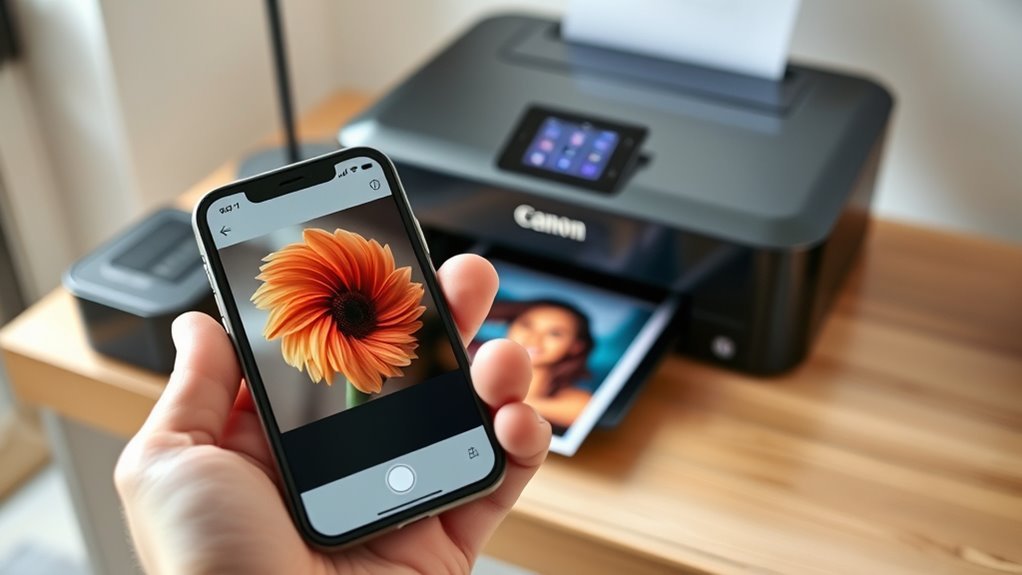
Print From iPhone to Canon Printer in 3 Easy Steps
To print from your iPhone to a Canon printer, start by making sure both your iPhone and Canon PIXMA printer are connected to the exact same Wi-Fi network. This connection is key to a smooth printing experience without any hiccups.
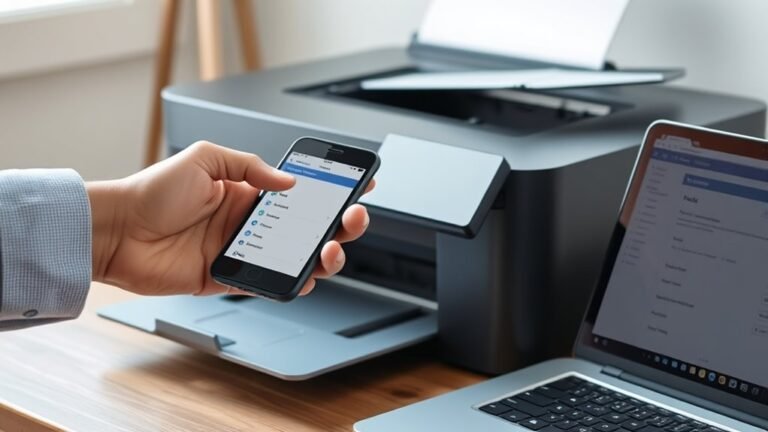
Next, open the photo or document you want to print. Tap the share icon, then select Print. From the list of available printers, pick your Canon PIXMA printer.
Finally, customize your print settings to your liking and tap Print. It’s that simple!
You can also easily check and cancel print jobs anytime via the Print Center on your iPhone.
Keep following for handy tips on troubleshooting and maintaining a solid connection between your devices. Printing from your iPhone to a Canon printer has never been easier!
Key Takeaways
- Connect both your iPhone and Canon PIXMA printer to the same Wi‑Fi network with the identical SSID.
- Open the document or photo on your iPhone, tap the Share icon, then select Print.
- Choose your Canon PIXMA printer from the Printer Options list.
- Set your print preferences like copies, color, and paper size before confirming the print.
- Just make sure your printer is on, connected, and has enough ink and paper before you start printing.
Get Your iPhone and Canon Printer on the Same Wi-Fi
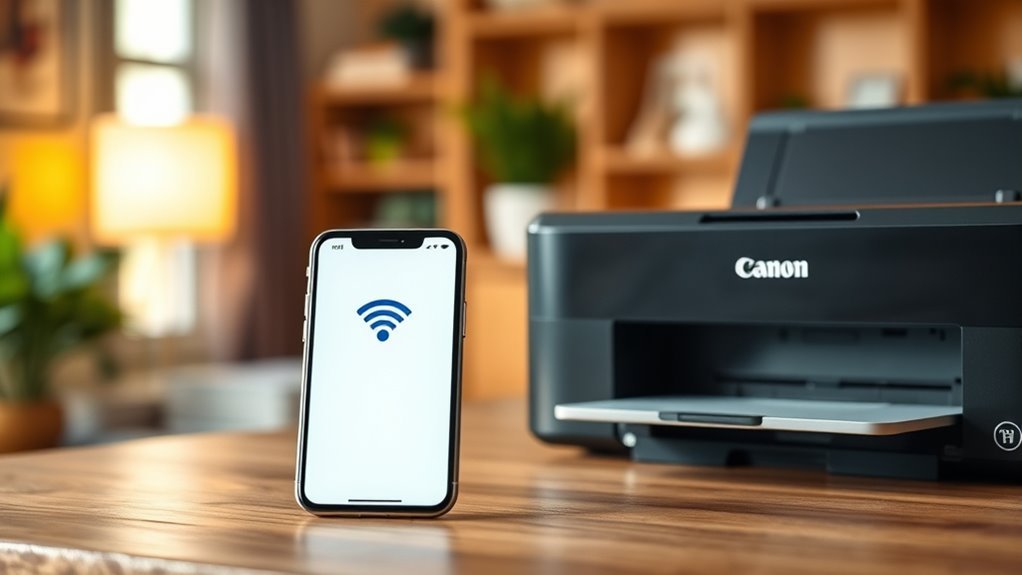
Before you can print from your iPhone, make sure both your device and Canon PIXMA printer are connected to the exact same Wi-Fi network. AirPrint needs your iPhone (iOS 4.2 or later) and printer to share the same WLAN network name (SSID).
Ensure your iPhone and Canon PIXMA printer are on the same Wi-Fi network for seamless AirPrint functionality.
Turn on your printer and wait a few minutes for it to join the wireless network before trying to print. It’s a good idea to check if your PIXMA model supports AirPrint by looking at Canon’s compatibility list.
Also, confirm the printer’s Bonjour service is enabled in the network settings. If the printer doesn’t show up on your iPhone, try printing its network settings page to check the IP address and connection.
If things still don’t work, you might want to redo the wireless setup or update the printer’s firmware, especially if you have an older model. This can really help improve AirPrint stability.
Print Photos and Documents From Your iPhone to Canon Printer
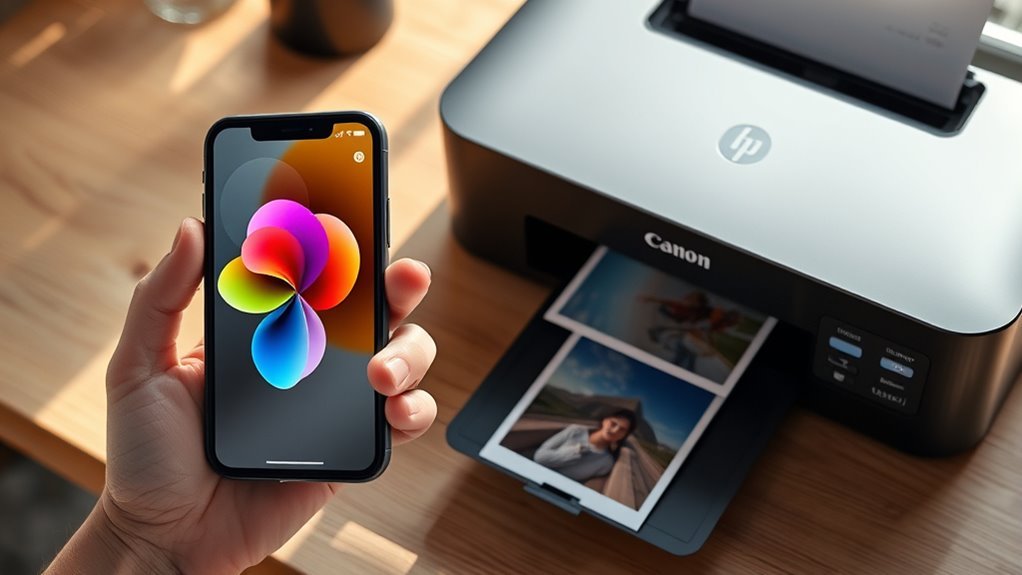
Once your iPhone and Canon PIXMA printer are connected to the same Wi-Fi network and the printer is ready, you can start printing photos and documents directly from your iPhone.
Just open the photo, web page, or document you want to print, tap the share or menu icon, then select Print.
Choose your PIXMA printer from the Printer Options list. You can set print preferences like the number of copies, double-sided printing, color settings, and paper size.
If your printer doesn’t show up, make sure Bonjour service is enabled and that the printer is fully connected to the network.
To keep things running smoothly, check that ink and paper levels are sufficient. Also, don’t forget to update the firmware regularly.
That way, printing web pages and documents from your iPhone stays easy and hassle-free.
Check and Cancel Print Jobs Easily on Your iPhone
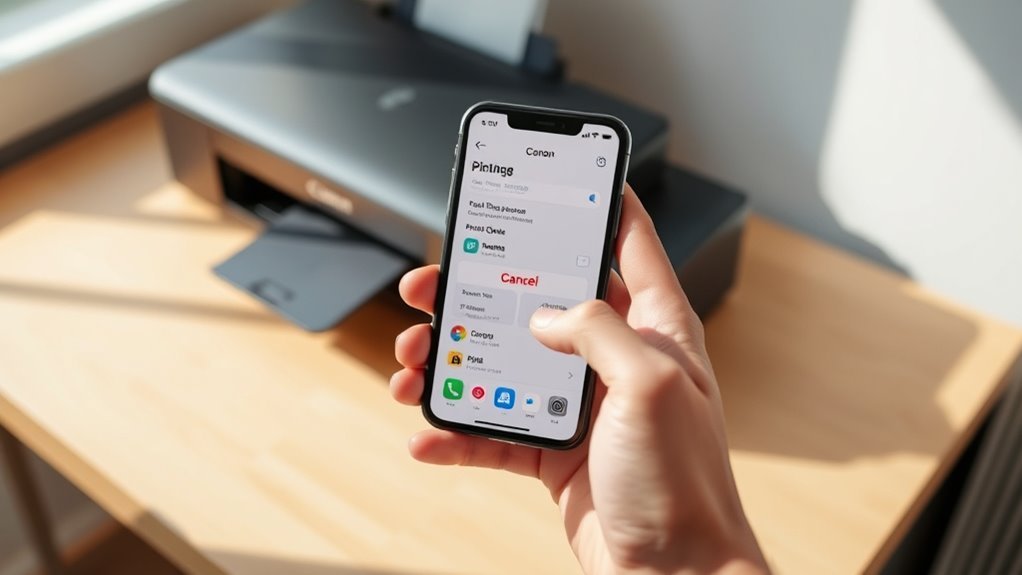
You can easily check the status of your print jobs right from your iPhone by opening the Print Center. Just double-press the Home button or swipe up and pause to access the app switcher, then tap the floating Print Center icon.
Here, you’ll see current print jobs and their progress. To cancel a job, tap it and select Cancel Printing, or swipe left on the job and choose Cancel.
View your active print jobs and cancel any by tapping or swiping left to select Cancel.
If your printer doesn’t appear or jobs won’t cancel, make sure your iPhone and AirPrint-compatible Canon printer share the same Wi-Fi network and the printer’s Bonjour service is active.
Keep in mind, email address settings and connection details might vary depending on your setup. If problems keep happening, try updating the printer firmware or reach out to Canon Support for help.
Frequently Asked Questions
How to Print From a Phone to a Canon Printer?
You just connect your phone and Canon printer to the same Wi-Fi. Then, open the document or photo you want to print.
Next, tap the share icon and select Print. Choose your Canon printer from the list.
After that, adjust any settings you need. Finally, hit Print to start printing instantly. Easy, right?
Why Can’t My iPad Find My Printer?
About 30% of iPad users face network issues. Your iPad can’t find your printer likely because they’re not on the same Wi-Fi, the printer isn’t AirPrint-compatible, or the Bonjour service is disabled.
Check these first. It’s usually something simple that you can fix quickly. Just make sure both devices are connected properly and your printer supports AirPrint.
What Is Apple Airprint?
Apple AirPrint is a built-in feature that lets you print directly from your iPhone without extra apps or drivers. It automatically finds compatible printers on your Wi-Fi and offers simple printing options like copies and color.
Pretty handy, right? You don’t have to fuss with any complicated setup. Just tap, print, and you’re good to go!
How to Print Double-Sided on iPhone?
Imagine your iPhone magically folding paper for you! Just tap Share, select Print, then Printer Options.
Toggle Duplex or Two-Sided if available. Make sure your printer supports it and you’re connected to the same Wi-Fi network.
It’s pretty simple once you’ve got everything set up! Just a couple of taps and you’re good to go.
Conclusion
Now that your iPhone and Canon printer are connected on the same Wi-Fi, printing feels as seamless as snapping a photo. Just like your favorite picture perfectly captures a moment, your documents and photos print effortlessly with a tap.
And if a print job needs stopping, you can cancel it right from your iPhone, as easily as swiping away a notification.
It’s all about making your printing experience as smooth and instant as your everyday phone use. With AirPrint technology built into your iPhone and Canon printer, you get quick, wireless printing without any hassle.
So whether it’s important documents or cherished photos, printing from your iPhone to your Canon printer is easy, fast, and reliable every time. This simple setup turns your printing tasks into a breeze, making your Canon printer the perfect wireless companion for your iPhone.