8 Best Budget Printers for MacBook Air in 2027
You’ll want a reliable, wireless all-in-one printer that works seamlessly with your MacBook Air. Make sure it supports AirPrint and macOS drivers for easy setup and smooth printing.
The HP DeskJet 2923 and Canon PIXMA TS4320 are fantastic compact options that won’t break the bank. They deliver good print quality, perfect for everyday use.
If vibrant color prints and eco-friendly features are your thing, consider the HP Envy 6155 or the Envy 6555 series. Both support Instant Ink, which can save you money on cartridges.
Looking for a balance between affordability and convenience? The Canon TS3720 and HP DeskJet 2855e are worth checking out. Keep scrolling to find the best budget printer that fits your MacBook Air and printing needs perfectly!
| Image | Name | Editor's Rating | Price |
|---|---|---|---|

|
|
||

|
|
||

|
|
||

|
|
||

|
|
HP DeskJet 2923 Color Inkjet Printer | Wireless | All-in-One
- Perfect for basic printing needs – Print everyday color documents like to-do lists, letters, financial documents and recipes
- KEY FEATURES – Color print, copy, scan, and a 60-sheet input tray, plus mobile and wireless printing
- OPTIMIZE PRINT FORMATTING WITH HP AI – Print web pages and emails with precision—no wasted pages or awkward layouts; HP AI easily removes unwanted content, so your...
- ICON LCD – Print your basic documents with ease from the intuitive control panel
- PRINT SPEED – Up to 7.5 ppm black, 5.5 ppm color

Looking for a straightforward and affordable all-in-one printer that fits seamlessly with your MacBook Air? The HP DeskJet 2923 is designed to meet everyday home printing needs without fuss. It handles printing, scanning, and copying tasks with ease, producing clear color documents that keep your projects looking sharp.
This printer supports dual-band Wi-Fi and Apple AirPrint, making wireless and mobile printing simple and convenient. You can print directly from your smartphone or tablet, eliminating the need for cables. Its compact design and lightweight build allow it to fit neatly into any workspace without taking up much room.
Maintenance is hassle-free thanks to the included 6-month Instant Ink trial, which helps you manage ink costs efficiently. The printer’s 60-sheet input tray is ideal for light to moderate use, though it may require frequent refilling for larger jobs. Environmentally conscious users will appreciate that it’s made with 70% recycled plastics.
While print speed and copying capabilities are moderate, the DeskJet 2923 covers basic home office demands effectively, balancing functionality with eco-friendly design.
Best for: Users needing a compact, budget-friendly all-in-one printer for light home use with smooth wireless connectivity.
What We Like:
- Dual-band Wi-Fi and Apple AirPrint enable hassle-free wireless printing
- Six-month Instant Ink trial helps reduce ongoing ink expenses
- Constructed with 70% recycled plastics for eco-friendly use
- Compact and lightweight, perfect for limited desk space
Specification:
| Feature | Details |
|---|---|
| Manufacturer | HP |
| Dimensions | Approx. 16.7 x 12.8 x 6.0 inches (42.4 x 32.5 x 15.2 cm) |
| Weight | Around 5.3 lbs (2.4 kg) |
| Material | Plastic (70% recycled) |
| Color Options | White with black accents |
Canon PIXMA TS4320 – Wireless Color Inkjet Printer with Print, Copy, Scan
- Affordable Versatility - A budget-friendly all-in-one printer perfect for both home users and hybrid workers, offering exceptional value
- Crisp, Vibrant Prints - Experience impressive print quality for both documents and photos, thanks to its 2-cartridge hybrid ink system that delivers sharp text and vivid...
- Effortless Setup & Use - Get started quickly with easy setup for your smartphone or computer, so you can print, scan, and copy without delay
- Reliable Wireless Connectivity - Enjoy stable and consistent connections with dual-band Wi-Fi (2.4GHz or 5GHz), ensuring smooth printing from anywhere in your home or...
- Scan & Copy Handling - Utilize the device’s integrated scanner for efficient scanning and copying operations
The Canon PIXMA TS4320 is designed to simplify your everyday printing tasks with ease and style. It produces sharp, vibrant color and crisp black-and-white prints up to 1200 dpi, making it ideal for school projects, recipes, and photos. Its compact design fits comfortably in small spaces without compromising performance.
This printer’s wireless dual-band Wi-Fi and mobile printing capabilities, including Apple AirPrint and Canon’s app, allow seamless printing from your MacBook Air or other devices. The automatic duplex feature saves paper by printing on both sides, while its versatile 100-sheet tray handles different media types efficiently.
Maintenance is straightforward thanks to its hybrid ink system, which balances color and black ink usage. Although it lacks an automatic document feeder (ADF) and an OLED display, its reliable, budget-friendly operation supports daily needs without hassle.
By focusing on essential functionality and convenience, the Canon PIXMA TS4320 meets the demands of basic home printing with reliable quality and ease of use.
Best for: Budget-conscious home users needing a compact, multi-function wireless printer for routine tasks like schoolwork, photos, and recipes.
What We Like:
- Compact design saves space without sacrificing quality.
- Wireless dual-band Wi-Fi and mobile printing ensure versatile connectivity.
- Automatic duplex printing reduces paper waste.
- Handles various paper types with a 100-sheet input tray.
Specification:
| Feature | Details |
|---|---|
| Manufacturer | Canon |
| Dimensions (W×D×H) | Approx. 12.7 × 9.5 × 5.0 in |
| Weight | Approx. 9.7 lbs (4.4 kg) |
| Printing Technology | Color Inkjet |
| Print Resolution | Up to 1200 dpi |
| Connectivity | Wireless dual-band Wi-Fi, USB |
| Ink System | 2-cartridge hybrid ink |
| Media Handling | 100-sheet input tray |
HP Envy 6155 Wireless All-in-One Inkjet Printer
- FROM AMERICA'S MOST TRUSTED PRINTER BRAND – The Envy 6155 is perfect for homes printing everyday high-quality color documents like homework and borderless photos. Print...
- 3 MONTH TRIAL OF INSTANT INK – Subscribe to the Instant Ink delivery service to get ink delivered directly to your door before you run out, and you save up to 50% on...
- KEY FEATURES – Color print, copy and scan, plus auto 2-sided printing and a 100-sheet input tray
- HP'S MOST INTUITIVE COLOR TOUCHSCREEN – Smoothly navigate your printer with the easy-to-use 2.4" touchscreen
- WIRELESS PRINTING – Stay connected with our most reliable dual-band Wi-Fi, which automatically detects and resolves connection issues
Experience hassle-free printing and scanning with the HP Envy 6155 Wireless All-in-One Inkjet Printer. This device is designed to handle your everyday printing needs with ease, delivering clear color documents and vibrant photos right from your home or office.
Its auto duplex printing and 100-sheet input tray help streamline your workflow, reducing paper waste and frequent refills. The dual-band Wi-Fi and HP App make printing or scanning from your smartphone seamless and convenient.
Maintenance is straightforward, but keep in mind it only supports original HP cartridges with chips, which ensures quality output but limits third-party ink options. The 2.4-inch color touchscreen offers simple navigation, though it may feel limited for advanced settings.
Built with an eco-friendly design and enhanced by HP AI technology, this printer optimizes web and email prints to save ink and paper, helping reduce your environmental impact. A 3-month Instant Ink trial adds value by keeping you stocked on ink without extra effort.
Best for: Home users and students needing a reliable, easy-to-use all-in-one printer for high-quality color documents and everyday tasks.
What We Like:
- Auto duplex printing for efficient double-sided documents
- Dual-band Wi-Fi and HP App enable wireless printing/scanning from smartphones
- HP AI optimizes print layouts to reduce ink and paper use
- 100-sheet input tray supports higher volume printing
Specification:
| Feature | Details |
|---|---|
| Manufacturer | HP |
| Dimensions | Approx. 17.3 x 14.5 x 5.7 in (44 x 36.8 x 14.5 cm) |
| Weight | Around 11.4 lbs (5.17 kg) |
| Material | Plastic |
| Color Options | Black and white |
HP DeskJet 2955 Color Inkjet Printer | Wireless | All-in-One
- PERFECT FOR BASIC PRINTING NEEDS – Print everyday color documents like to-do lists, letters, financial documents and recipes
- KEY FEATURES – Color print, copy, scan, and a 60-sheet input tray, plus mobile and wireless printing
- OPTIMIZE PRINT FORMATTING WITH HP AI – Print web pages and emails with precision—no wasted pages or awkward layouts; HP AI easily removes unwanted content, so your...
- ICON LCD – Print your basic documents with ease from the intuitive control panel
- PRINT SPEED – Up to 7.5 ppm black, 5.5 ppm color
Experience the convenience of the HP DeskJet 2955 Color Inkjet Printer, designed to streamline your home printing needs. This all-in-one printer offers printing, scanning, and copying in one compact device, making it ideal for small spaces. Its wireless capabilities eliminate cable clutter, allowing you to print effortlessly from multiple devices.
The printer supports dual-band Wi-Fi, Apple AirPrint, and the HP mobile app, enabling seamless mobile and wireless printing. With a print speed of up to 7.5 pages per minute in black, it handles everyday documents efficiently. The vibrant color output at 4800 x 1200 dpi ensures your photos and graphics look sharp and professional.
Maintenance is simplified with the HP Instant Ink program, which helps you save on ink costs by delivering cartridges before you run out. The 60-sheet input tray accommodates various paper sizes, though automatic double-sided printing isn’t supported, requiring manual handling for duplex tasks.
While the DeskJet 2955 suits light to moderate home use, its moderate print speed and limited copy capacity may not meet the demands of heavy users. However, its eco-friendly design, ENERGY STAR, and EPEAT certifications make it a responsible choice for environmentally conscious users.
Best for: Home users needing a compact, affordable all-in-one printer with wireless and mobile printing features for everyday tasks.
What We Like:
- Compact, lightweight design ideal for limited space
- Dual-band Wi-Fi and mobile app support for easy wireless printing
- HP Instant Ink program reduces ink replacement hassle
- High-quality color output for vibrant prints
Specification:
| Feature | Details |
|---|---|
| Manufacturer | HP |
| Dimensions (W x D x H) | Approx. 16.9 x 11.7 x 5.9 inches |
| Weight | 7.6 lbs (3.45 kg) |
| Color Options | White with gray accents |
| Connectivity | Dual-band Wi-Fi, Apple AirPrint |
Canon PIXMA TS3720 Wireless All-in-One Printer
No products found.
Experience hassle-free printing with the Canon PIXMA TS3720 Wireless All-in-One Printer, designed to keep up with your everyday tasks. This compact device effortlessly handles printing, copying, and scanning, delivering crisp text and vibrant photos. Its high resolution of up to 4800 x 1200 dpi ensures your documents and images look sharp and professional.
Setting up wireless printing is simple thanks to dual-band Wi-Fi and Apple AirPrint compatibility. Print directly from your MacBook Air, smartphone, or tablet without complicated cables. The printer’s 60-sheet tray supports various paper sizes, making it a practical choice for home environments.
Maintenance is straightforward with affordable ink plans that help reduce running costs. While the printer does not offer duplex printing and has a moderate print speed, it balances performance with convenience for everyday use.
Best for: Home users seeking a compact, affordable all-in-one printer with reliable wireless features and good print quality.
What We Like:
- Easy wireless and mobile printing via dual-band Wi-Fi and Apple AirPrint
- High print resolution for sharp text and rich photos
- Affordable ink plans to lower ongoing expenses
Specification:
| Feature | Details |
|---|---|
| Manufacturer | Canon |
| Dimensions | Compact size (exact not specified) |
| Weight | Not specified |
| Print Resolution | Up to 4800 x 1200 dpi |
| Paper Tray Capacity | 60 sheets |
| Connectivity | Dual-band Wi-Fi, Apple AirPrint |
HP Envy 6555 Wireless All-in-One Printer (C2XR6A)
- FROM AMERICA'S MOST TRUSTED PRINTER BRAND – The Envy 6555 is perfect for homes printing everyday high-quality color documents like homework and borderless photos. Print...
- 3 MONTH TRIAL OF INSTANT INK – Subscribe to the Instant Ink delivery service to get ink delivered directly to your door before you run out, and you save up to 50% on...
- KEY FEATURES – Color print, copy and scan, plus auto 2-sided printing, a 35-sheet auto document feeder and a 100-sheet input tray
- HP'S MOST INTUITIVE COLOR TOUCHSCREEN – Smoothly navigate your printer with the easy-to-use 2.4" touchscreen
- WIRELESS PRINTING – Stay connected with our most reliable dual-band Wi-Fi, which automatically detects and resolves connection issues
The HP Envy 6555 Wireless All-in-One Printer blends convenience with vibrant color printing to meet everyday home needs. It handles printing, scanning, and copying tasks efficiently, making it easier to manage your documents with minimal hassle. This printer is designed to reduce interruptions by supporting duplex printing and a 35-sheet auto document feeder, so you can get more done without constant supervision.
Its dual-band Wi-Fi and intuitive 2.4″ color touchscreen simplify setup and navigation. You can connect seamlessly from multiple devices, including your MacBook Air, enhancing your workflow. The inclusion of HP’s AI technology helps optimize print layouts for professional-looking results every time.
Maintenance is streamlined thanks to the Instant Ink program, which ensures you never run out of ink by delivering cartridges before you need them. However, this service requires a subscription after a 3-month trial. The printer’s eco-friendly design features 60% recycled plastic, making it a responsible choice for sustainable living.
Best for: Home users and families who want a reliable, eco-conscious all-in-one printer with vibrant color output and easy wireless connectivity.
What We Like:
- Auto duplex printing with a 35-sheet auto document feeder for multitasking
- Dual-band Wi-Fi and user-friendly 2.4″ color touchscreen
- HP AI enhances print quality and layout efficiency
- Instant Ink subscription offers convenient ink management
- Environmentally friendly design using recycled materials
Specification:
| Feature | Details |
|---|---|
| Manufacturer | HP |
| Dimensions (W×D×H) | 17.03 × 14.21 × 5.91 in |
| Weight | 13.78 lbs |
| Color Options | White/Black |
| Connectivity | Dual-band Wi-Fi |
| Display | 2.4″ color touchscreen |
HP Envy 6555e Color Inkjet Printer | Wireless | All-in-One

- The Envy 6555e is perfect for homes printing everyday quality color documents like homework and borderless photos. Print speeds up to 7 ppm color, 10 ppm black.
- PERFECTLY FORMATTED PRINTS WITH HP AI – Print web pages and emails with precision—no wasted pages or awkward layouts; HP AI easily removes unwanted content, so your...
- KEY FEATURES – Color print, copy and scan, plus auto 2-sided printing, a 35-sheet auto document feeder and a 100-sheet input tray
- HP'S MOST INTUITIVE COLOR TOUCHSCREEN – Smoothly navigate your printer with the easy-to-use 2.4" touchscreen
- 3 MONTHS OF INSTANT INK WITH HP+ ACTIVATION – Subscribe to Instant Ink delivery service to get ink delivered directly to your door before you run out. After 3 months...
Experience seamless printing that fits your busy home or office life with the HP Envy 6555e Color Inkjet Printer. This all-in-one device is tailored for MacBook Air users who need reliable, high-quality color printing without fuss. Its wireless design eliminates cables, making setup and use straightforward.
The printer’s auto duplex printing and 35-sheet automatic document feeder save time by managing double-sided documents and multi-page scans effortlessly. A bright 2.4″ touchscreen simplifies navigation, so you can print, scan, or fax with just a few taps. The HP Smart app enhances convenience by enabling wireless control from your MacBook Air or mobile device.
Maintaining the printer is easy with support for HP Instant Ink, which automates cartridge replacement and promotes sustainable printing. The device uses HP P3 technology for sharp, true-to-screen color and supports borderless photo printing, delivering vibrant results for both documents and photos.
While print speeds are moderate, the HP Envy 6555e balances quality and functionality for everyday use. Note that it requires genuine HP cartridges with embedded chips, which may limit third-party ink options.
Best for: MacBook Air users and home office workers needing a versatile all-in-one printer with wireless convenience and quality color output.
What We Like:
- Auto duplex printing and 35-sheet feeder boost productivity
- Intuitive 2.4″ color touchscreen for easy operation
- Wireless printing, scanning, and faxing via HP Smart app
- Sharp, vibrant prints with HP P3 technology and borderless photos
Specification:
| Feature | Details |
|---|---|
| Manufacturer | HP |
| Model | Envy 6555e |
| Printer Type | Color Inkjet |
| Connectivity | Wireless |
| Automatic Document Feeder | 35 sheets |
| Duplex Printing | Automatic |
| Touchscreen | 2.4 inches, color |
| Dimensions (W×D×H) | Not specified |
| Weight | Not specified |
HP DeskJet 2855e Color Inkjet Printer | Wireless | All-in-One
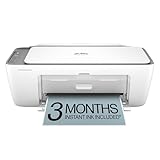
- The DeskJet 2855e is perfect for homes printing to-do lists, letters, financial documents and recipes. Print speeds up to 5.5 ppm color, 7.5 ppm black
- PERFECTLY FORMATTED PRINTS WITH HP AI – Print web pages and emails with precision—no wasted pages or awkward layouts; HP AI easily removes unwanted content, so your...
- KEY FEATURES – Color printing, copy, scan, and a 60-sheet input tray
- WIRELESS PRINTING – Stay connected with our most reliable Wii-Fi, which automatically detects and resolves connection issues.This printer is only 2.4 ghz capable.
- 3 MONTHS OF INSTANT INK WITH HP+ ACTIVATION – Subscribe to Instant Ink delivery service to get ink delivered directly to your door before you run out. After 3 months...
The HP DeskJet 2855e Color Inkjet Printer is designed to simplify your daily printing tasks. Whether you’re printing grocery lists or school projects, this all-in-one printer handles printing, scanning, and copying smoothly. Its compact design fits well in home offices where space is limited.
This model connects easily to your devices via reliable 2.4 GHz Wi-Fi, ensuring hassle-free wireless printing. The included HP app enhances convenience by letting you print directly from your smartphone or tablet. AI-powered features optimize print layouts, helping reduce ink and paper waste.
Maintenance is straightforward with a 60-sheet input tray that suits light to moderate home use. The printer supports both color and black-and-white printing at respectable speeds, making it a practical choice for everyday needs. Plus, you get three months of HP Instant Ink, which helps manage printing costs effectively.
Best for: Home users seeking an affordable, versatile all-in-one printer for everyday color and black-and-white printing, scanning, and copying.
What We Like:
- Reliable 2.4 GHz wireless connectivity for seamless device pairing
- AI features that optimize prints to save ink and paper
- Includes 3 months of HP Instant Ink for economical printing
- Compact, space-saving design ideal for home environments
- Supports multiple functions: print, scan, and copy
Specification:
| Feature | Details |
|---|---|
| Manufacturer | HP |
| Dimensions (W×D×H) | Approx. 16.5 × 11.7 × 5.8 in |
| Weight | Approx. 5.1 lb (2.3 kg) |
| Color Options | White with gray accents |
| Connectivity | Wireless 2.4 GHz Wi-Fi only |
Factors to Consider When Choosing a Budget Printer for Macbook Air
You’ll want to make sure the printer works smoothly with macOS and offers reliable wireless connectivity.
Think about print quality, speed, and how much ink it uses to keep running costs low.
Also, consider if you need extra features like scanning or copying to get the most value.
Compatibility With Macos
When choosing a budget printer for your MacBook Air, make sure it plays nicely with macOS to avoid compatibility headaches. First, confirm it supports AirPrint or offers a native macOS driver—AirPrint lets you print without installing extra software.
Also, check if the printer is compatible with your macOS version, such as Ventura, Monterey, or Big Sur. This helps guarantee all features work smoothly.
Look for connectivity options like Wi-Fi (including 5 GHz), Bluetooth, or USB-C/USB-A so your MacBook Air can connect reliably. It’s worth making sure these options fit how you plan to use the printer.
If you need scanning or multifunction features, verify they support macOS scanning software or Apple’s Image Capture/Twain. That way, you won’t run into any surprises when scanning documents.
Finally, pick a printer with regularly updated firmware and drivers tailored to your macOS version. Keeping things updated helps maintain security and keeps compatibility issues at bay.
Wireless Connectivity Options
Wireless connectivity plays a big role in how smoothly your MacBook Air interacts with a budget printer. Make sure the printer supports both 2.4 GHz and 5 GHz Wi-Fi bands. Connecting over the 5 GHz band means faster, more reliable transfers with less interference.
Look for AirPrint or native macOS printing protocols so you can print directly from your apps without extra drivers. If you sometimes print without a network, choose a printer with Wi-Fi Direct for secure peer-to-peer connections.
Don’t forget to verify WPA3/WPA2 security compatibility to protect your print jobs and network credentials. Finally, if you use cloud or mobile printing, pick a model that supports secure cloud protocols and automatic firmware updates to keep your connection safe and stable.
Print Quality and Speed
Print quality and speed often determine how satisfied you’ll be with a budget printer for your MacBook Air. Aim for at least 1200 x 1200 dpi resolution to get sharp text and decent color graphics.
Separate black text speed from color speed—expect around 7–14 ppm for black and 4–9 ppm for color, depending on your printing habits. Check the first-page-out and warm-up times too; shorter waits (9–22 seconds) save you time during quick jobs.
If photos are your focus, prioritize higher optimized color dpi and features like borderless printing and glossy media support instead of raw ppm. Also, keep in mind duplexing can slow things down, so if you print two-sided often, plan for a bit less sustained speed.
Ink Efficiency and Cost
You’ll often find that ink efficiency plays a crucial role in keeping your overall printing costs down. Start by checking the printer’s page yield and calculate the cost per page by dividing the cartridge price by the yield.
Choose printers with separate black and color cartridges so you only replace what’s empty. This way, you save money on mixed prints.
Look for XL or high-yield cartridges and subscription plans that clearly state yield and pricing. These often lower your cost per page.
Consider ink types too—pigment black ink is more durable and economical for text, while dye inks might be cheaper but need frequent replacement.
Also, factor in duplex printing and draft modes to reduce ink use. Estimate your monthly volume to decide whether standard or high-yield supplies suit you best.
Multi-functionality Features
When choosing a budget printer for your MacBook Air, you should often prioritize multi-functionality to maximize value and save space. Look for a device that combines print, scan, and copy functions in one unit, so you don’t clutter your desk with separate gadgets.
A flatbed scanner is essential, and if you scan multi-page documents frequently, an automatic document feeder (ADF) with a 20–30 sheet capacity will save time. Automatic duplex printing and scanning reduce paper use and speed up double-sided tasks.
Make certain the scanner offers at least 600 x 600 dpi resolution for documents, or 1200+ dpi for detailed images. Finally, confirm the printer supports mobile scanning and printing with macOS-compatible software features like OCR and PDF creation to keep your workflow smooth.
Physical Size and Portability
Although budget printers often come with great features, their physical size and portability can make a big difference in your workspace setup. You should check the printer’s dimensions to guarantee it fits your desk or storage space—compact models are usually under 15″ wide and 7″ tall.
If you plan to move your printer frequently, consider its weight; portable options weigh less than 10 pounds, while full-size models can exceed 15 pounds. Pay attention to paper tray design—trays that fold or tuck away reduce the printer’s footprint.
Also, verify if the printer needs extra clearance for lid opening or paper paths, as scanner lids and rear feed trays add depth. For travel or multi-location work, choose slim, lightweight models with USB-C or common AC adapter power options for easier portability.
Frequently Asked Questions
How Do I Set up a Printer on Macos Ventura?
You just open System Settings, click Printers & Scanners, then hit the “Add Printer” button.
Select your printer from the list, follow the prompts, and you’re set. Your Mac will handle the rest automatically.
Can These Printers Handle Photo Printing on Glossy Paper?
Absolutely, these budget printers can handle glossy photo paper—because nothing says “professional photographer” like your cat’s blurry selfie printed with budget ink.
Just don’t expect museum-quality art, but hey, memories still shine!
What Are the Environmental Impacts of Inkjet vs. Laser Printers?
You’ll find inkjet printers use less power but produce more waste with frequent cartridge changes.
On the other hand, laser printers consume more energy but have longer-lasting toner, which helps reduce waste.
Both types impact the environment, so it’s important to recycle cartridges responsibly.
Are There Any Printer Apps Optimized for Macbook Air?
Like a tailor-made suit, apps like HP Smart and Epson iPrint fit your MacBook Air perfectly.
You’ll find them optimized for seamless printing, scanning, and managing tasks without any hiccups or delays.
They make the whole process super smooth, so you don’t have to worry about compatibility issues.
Just install, connect, and you’re good to go!
How Do I Troubleshoot Common Wi-Fi Connectivity Issues With Printers?
You’ll want to restart your printer and router. This simple step can often fix connectivity glitches.
Make sure your MacBook Air’s Wi-Fi is connected. Sometimes it’s easy to overlook if the Wi-Fi drops or switches networks.
Next, update your printer drivers. Outdated drivers can cause communication problems between your devices.
Also, check for interference. Things like microwaves or cordless phones can mess with the Wi-Fi signal.
Finally, confirm that your printer’s network settings match your Wi-Fi. If needed, try reconnecting the printer to your network.
Conclusion
Choosing the perfect budget printer for your MacBook Air doesn’t have to feel like rocket science. With options like the HP DeskJet or Canon PIXMA, you’ll practically have a printing powerhouse at your fingertips without breaking the bank.
These printers deliver such crisp, vibrant results, you might start questioning if you accidentally bought a professional-grade machine. So, grab one now and watch your documents spring to life like magic.
Finding the best budget printer for MacBook Air means you get quality without the hefty price tag. Whether it’s for work, school, or personal projects, these printers offer reliable performance and seamless compatibility.
Investing in a budget-friendly printer designed for MacBook Air ensures you enjoy sharp prints and smooth connectivity, boosting your productivity without stress. Don’t wait—upgrade your setup today with one of these top budget printers for MacBook Air!