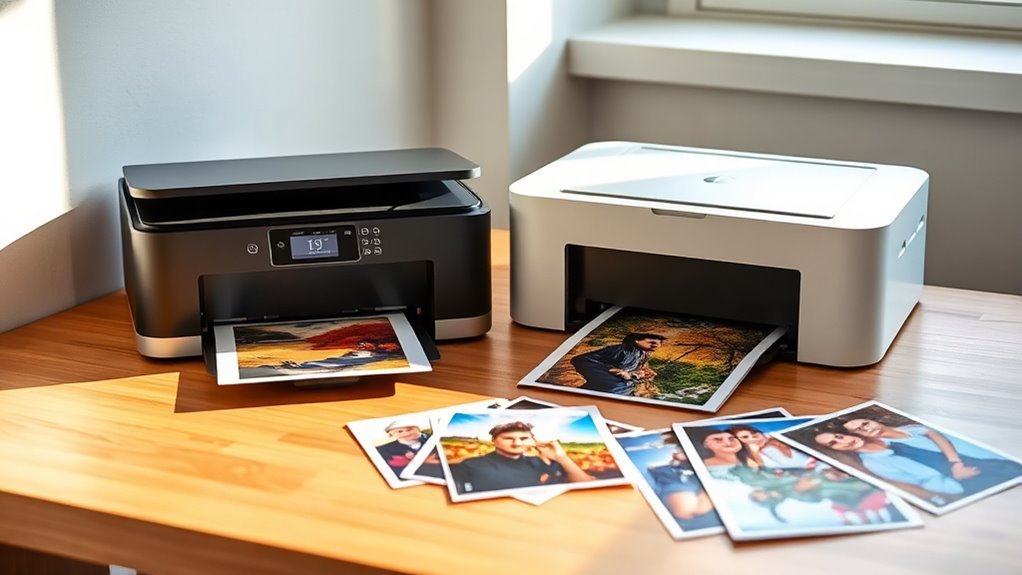
2 Best Budget All-in-One Photo Printers for 2027
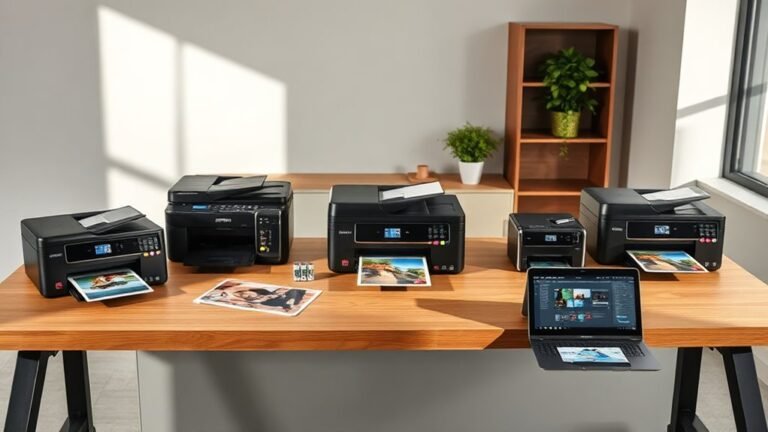
For the best budget all-in-one photo printers in 2027, you’ll want to check out the Canon PIXMA G620 and TS4320. These printers are great choices if you’re looking for quality without breaking the bank. The G620 stands out with its 6-color MegaTank system, which means you get vibrant photos and ink that lasts a long time.
On the other hand, the TS4320 is perfect if you need versatile media handling and duplex printing. Plus, its compact design makes it easy to fit anywhere. Both models deliver sharp print quality and offer convenient wireless features. They’re also designed to keep running costs low, which is always a bonus.
When picking the right printer for you, think about what matters most—print quality, how efficient the ink is, what types of media you’ll print on, and how much space you have. That way, you’ll get the best all-in-one photo printer that fits your budget and needs perfectly.
| Image | Name | Editor's Rating | Price |
|---|---|---|---|

|
|
||

|
|
Canon PIXMA G620 Wireless MegaTank Printer
- Never run out of ink. Connect your printer to Alexa and receive notifications when you’re running low. Alexa can even place a smart reorder from Amazon on your behalf...
- Enrolling in Smart Reorders with Alexa ensures that you never have too much or too little ink supplies. No subscription needed.
- MEGATANK HIGH PAGE YIELD: Print up to 3,800 4” x 6” color photos on a full set of ink.
- LOW COST PER PRINT with approx. ink cost of 2.5 cents per 4” x 6” color photo.2
- 6-COLOR DYE-BASED INK SYSTEM including Red and Gray inks for a wider color gamut.

The Canon PIXMA G620 Wireless MegaTank printer is designed to deliver vibrant, high-quality photos without the hassle of frequent ink changes. Its 6-color dye-based MegaTank system allows users to print up to 3,800 4×6 color photos per refill, helping you save time and reduce running costs.
This all-in-one device offers sharp printing and scanning with resolutions up to 4800 x 1200 dpi. It handles everyday tasks like copying and scanning with ease, making it ideal for home or small office use. The printer’s wireless and USB connectivity simplify setup and provide flexible options for printing from multiple devices.
Maintenance is straightforward, thanks to the large ink tanks that minimize replacements. Alexa compatibility adds convenience by allowing you to monitor ink levels and reorder supplies smartly. Although the print speed is modest and paper capacity limited to 50 sheets, it fits well for users who prioritize quality over volume.
Compact and efficient, the PIXMA G620 supports various paper sizes, making it a versatile choice for photo enthusiasts and casual users alike.
Best for: Users seeking an affordable, easy-to-maintain all-in-one photo printer with reliable wireless features and low running costs.
What We Like:
- High yield of up to 3,800 4″ x 6″ photos per ink refill.
- Sharp 4800 x 1200 dpi resolution for vibrant, long-lasting photos.
- Wireless and USB connectivity with Alexa compatibility.
- Large ink tanks reduce frequent replacements.
- Compact design supports multiple paper sizes.
Specification:
| Feature | Details |
|---|---|
| Manufacturer | Canon |
| Dimensions | Not specified |
| Weight | Not specified |
| Ink System | 6-color dye-based MegaTank |
| Print Resolution | Up to 4800 x 1200 dpi |
| Connectivity | Wireless, USB |
| Paper Capacity | 50 sheets |
Canon PIXMA TS4320 – Wireless Color Inkjet Printer with Print, Copy, Scan
- Affordable Versatility - A budget-friendly all-in-one printer perfect for both home users and hybrid workers, offering exceptional value
- Crisp, Vibrant Prints - Experience impressive print quality for both documents and photos, thanks to its 2-cartridge hybrid ink system that delivers sharp text and vivid...
- Effortless Setup & Use - Get started quickly with easy setup for your smartphone or computer, so you can print, scan, and copy without delay
- Reliable Wireless Connectivity - Enjoy stable and consistent connections with dual-band Wi-Fi (2.4GHz or 5GHz), ensuring smooth printing from anywhere in your home or...
- Scan & Copy Handling - Utilize the device’s integrated scanner for efficient scanning and copying operations
The Canon PIXMA TS4320 is an ideal choice for those needing a compact all-in-one printer that handles everyday tasks with ease. Its wireless connectivity allows seamless printing from smartphones and laptops, making it effortless to manage documents whether at home or in a hybrid work setup. This printer delivers crisp color and black-and-white prints up to 1200 dpi, ensuring clear and vibrant results.
Designed with a small footprint and a 100-sheet capacity, it fits comfortably in tight spaces without compromising on versatility. The PIXMA TS4320 supports duplex printing, reducing paper usage and adding convenience for double-sided documents. It also accommodates various media types like cardstock and glossy photo paper, perfect for creative projects or important paperwork.
Maintenance is straightforward, though frequent users should be mindful that the starter ink tanks might need replacing sooner. The single paper tray means swapping media types requires manual changes, which may slow down high-volume work. Print speed is moderate, making it best suited for light to occasional printing rather than heavy-duty tasks.
Overall, this printer balances functionality and style for users seeking reliable performance in a compact design. Its wireless features and media versatility make it a practical solution for everyday printing, copying, and scanning needs.
Best for: Home users and hybrid workers needing a compact, versatile all-in-one printer for light, occasional use.
What We Like:
- Wireless dual-band Wi-Fi and mobile app control for easy device printing
- Sharp print resolution up to 1200 x 1200 dpi with duplex printing
- Compact design with 100-sheet capacity and support for various media types
Specification:
| Feature | Description |
|---|---|
| Manufacturer | Canon |
| Dimensions | Compact footprint (exact size not specified) |
| Weight | Not specified |
| Color Options | Not specified |
| Connectivity | Wireless dual-band Wi-Fi |
| Print Resolution | Up to 1200 x 1200 dpi |
| Paper Capacity | 100 sheets |
Factors to Consider When Choosing a Budget All in One Photo Printer
When picking a budget all-in-one photo printer, you’ll want to focus on print quality and resolution to get sharp images. Consider ink efficiency and cost to keep running expenses low.
Also, check the connectivity options to match your devices. It’s important to think about print speed and media size compatibility too, so the printer fits your needs perfectly.
Print Quality and Resolution
Expect sharp, vibrant photos by prioritizing print quality and resolution when choosing a budget all-in-one photo printer. Look for color resolutions of at least 1200 x 1200 dpi for good home prints, with up to 4800 x 1200 dpi offering finer photo details.
Printers with multi-color dye- or pigment-based ink sets, typically 4 to 6 colors, reproduce wider color gamuts and smoother tonal gradations than basic two-cartridge models. True photo color technologies, like extra gray or red inks, reduce banding and improve skin tones and shadow details.
Don’t overlook printer drivers and color management support—features like ICC profiles and color correction options greatly enhance color accuracy and saturation. And finally, check measured output and fade resistance to make sure your prints retain detail and vibrancy over time.
Ink Efficiency and Cost
Sharp print quality and rich colors mean little if your ink runs out quickly or costs too much to replace. To avoid surprise expenses, compare the page or photo yield per full ink set—thousands of 4″ x 6″ photos versus just hundreds can make a big difference.
Calculate the cost per print by dividing the replacement ink price by its yield to see real expenses in cents per photo. Printers with large refillable tanks or high-capacity bottles usually offer much lower costs than those using small cartridges.
Also, consider the number of ink colors; extra or gray inks may boost quality but raise replacement costs. Finally, trust manufacturer yields only if backed by independent tests or standardized measurements to get a realistic sense of ink efficiency.
Connectivity Options Available
Among the key factors to take into account when choosing a budget all-in-one photo printer, connectivity options play a crucial role in how easily you can print from various devices. Wi-Fi (single or dual-band) lets you print wirelessly from smartphones, tablets, and computers, supporting mobile apps and cloud printing.
USB connections offer a reliable, direct link to one computer, minimizing lag. Ethernet is ideal if you need fast, stable network access in shared or heavy-use environments.
Bluetooth and Wi-Fi Direct let you quickly print from nearby devices without joining a network, which is perfect for spontaneous photo transfers. Additionally, smart assistant integrations and app controls enable voice-activated printing and remote management, but they typically require internet access and account setup.
Print Speed Requirements
When choosing a budget all-in-one photo printer, consider how fast it prints to match your daily needs. For everyday documents, look for printers offering 8–12 ppm in black and 6–10 ppm in color to keep wait times short.
Remember, photo prints take longer—expect several minutes for a high-resolution 4″ x 6″ or 5″ x 7″ image. So, prioritize speed only if you print photos often.
Check the first-page-out time; under 15 seconds means quicker responses for single pages. If you print multi-page documents, an automatic duplexer and good batch throughput improve efficiency.
Keep in mind, faster speeds can reduce print quality and increase costs. So, balance speed with your actual workload to avoid overspending on features you won’t fully use.
Media Size Compatibility
After considering how fast your printer works, it’s just as important to check the sizes of paper and photos it can handle. Verify the maximum media size supported—like legal 8.5″ x 14″—so you can print letters, envelopes, and larger documents without restrictions.
Make certain it supports common photo sizes you use, such as 4″ x 6″, 5″ x 7″, or 8″ x 10″. Don’t forget specialty formats like square prints, panorama, card stock, or DL/Monarch envelopes if those matter to you.
Also, check the input and output tray capacities and feed types to guarantee the printer can handle your media’s thickness and size. Finally, confirm if it offers borderless printing for full-bleed photos, so your images print edge to edge without unwanted borders.
Scanner and Copy Features
Although you might prioritize printing speed and media compatibility, don’t overlook your printer’s scanning and copying capabilities. Check the scanner’s resolution—aim for 600 dpi or higher to get sharp scans ideal for cropping or enlarging photos and documents.
Flatbed scanners are best for delicate originals, as automatic document feeders can cause damage. Also, look at scan color depth and supported file formats like JPEG, PNG, PDF, or TIFF to guarantee accurate colors and flexible use.
When it comes to copying, verify the resolution and features such as multi-page copying, scaling, and contrast adjustment for clear, customizable reproductions. If you often digitize multi-page documents, consider scanning speed and duplex capability to save time and effort.
These factors will make your all-in-one printer truly versatile. So, keep them in mind to get the most out of your device!
Device Size and Weight
Beyond scanning and copying features, the size and weight of your all-in-one photo printer can greatly affect where and how you use it. Check the printer’s footprint to make certain it fits your intended space. Compact models can be as small as 14″ x 7″, while larger units may exceed 17″ x 19″.
Consider weight too—lightweight models around 15 lbs are easier to move and store, whereas heavier ones near 20 lbs need a sturdy, dedicated surface. Don’t forget clearance for paper trays and scanner lids when open. Depth and height measurements should include these extensions.
If shelf or cabinet space is limited, opt for slim-profile designs. Also, review folded or transport dimensions. For shared or mobile workspaces, prioritize smaller, lighter models to simplify repositioning and keep airflow unobstructed.
Warranty and Support
When choosing a budget all-in-one photo printer, you should carefully review the warranty and support options to guarantee your investment. Check the warranty length and type, like a 1-year limited warranty versus longer coverage, to see how long defects and failures are covered.
Find out if the warranty offers InstantExchange or rapid replacement to reduce downtime if your printer breaks. Also, confirm what’s covered—parts, labor, ink, or accidental damage—as policies vary and ink is often excluded.
Explore support channels such as phone, chat, email, or online resources, and check typical response times to guarantee quick help. Finally, review the retailer’s return policy, including the return window and any restocking rules, so you know your options if the printer doesn’t meet your expectations.
Frequently Asked Questions
How Do I Recycle Used Ink Cartridges Responsibly?
You can recycle used ink cartridges responsibly by returning them to store drop-off points, using manufacturer mail-back programs, or finding local recycling centers.
Don’t toss them in the trash—you’ll help reduce waste and protect the environment.
It’s pretty easy once you know where to go, and every little bit helps!
Can I Use Third-Party Ink With These Printers?
You can totally use third-party ink, but it’s like playing with fire—sometimes it works fine, other times it can ruin your printer or void warranties.
Always check compatibility and reviews before taking the risk. Better safe than sorry, right?
What Is the Average Print Speed for Photo Printing?
You can expect an average photo print speed of about 1 to 3 minutes per 4×6 inch photo. It varies by model, but budget printers often prioritize quality over speed.
Are These Printers Compatible With Mobile Printing Apps?
Like having a magic wand, these printers work seamlessly with mobile printing apps. You’ll easily print photos straight from your phone or tablet without hassle.
It makes your creative process smooth and fast wherever you are. Pretty handy, right?
How Do I Troubleshoot Paper Jams in All-In-One Printers?
You’ll want to turn off your printer first. Then, gently remove any stuck paper and check inside for torn bits.
Clear out the paper tray and realign the sheets properly. After that, restart your printer.
If you’re still having trouble, consult the manual or use the app for model-specific steps. That usually helps clear things up!
Conclusion
Choosing between the Canon PIXMA G620 and TS4320 feels like picking between a powerhouse and a sleek artist’s tool. One delivers unbeatable ink efficiency and volume, while the other offers vibrant color and compact design. Both fit tight budgets but serve different needs.
By weighing print quality against size and cost, you’ll find the perfect all-in-one photo printer that balances performance and practicality. Whether you’re looking for budget-friendly photo printers in 2027 or a reliable all-in-one device for home or office use, these models stand out.
In the end, it’s all about what matters most to you—ink efficiency and volume for heavy printing or vivid colors and stylish design for occasional photo projects. Either way, these budget all-in-one photo printers combine affordability with great features to meet your printing needs without breaking the bank.