3 Best All-In-One Printers for Macos Catalina in 2027
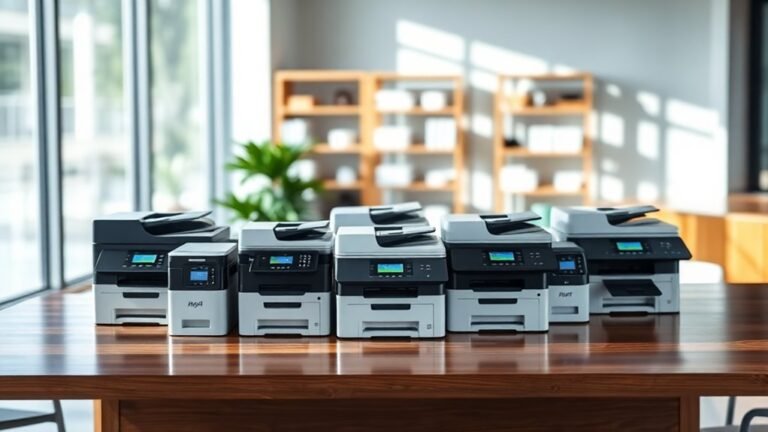
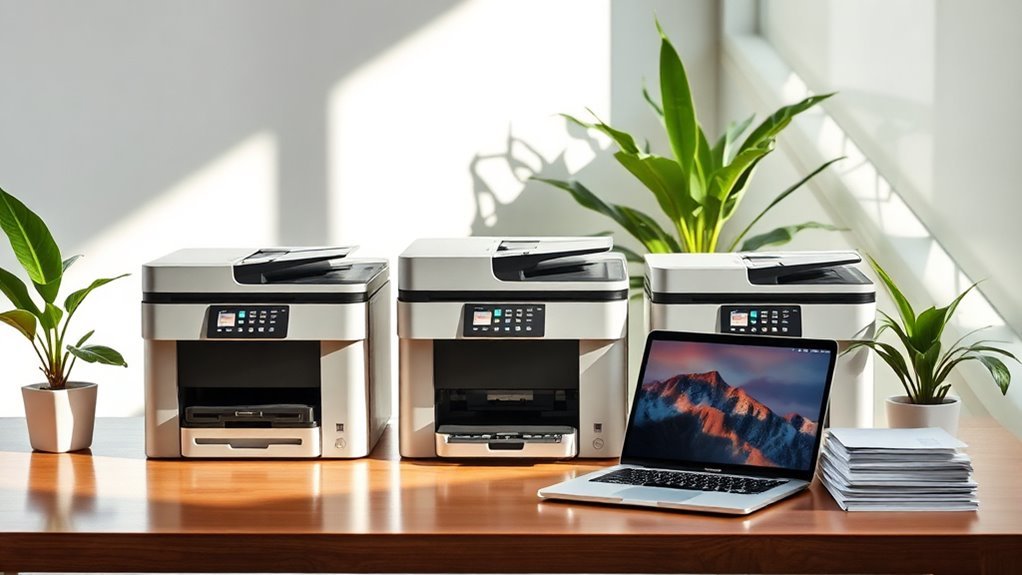
You’ll want all-in-one printers like the Canon PIXMA TR8620a with AirPrint for smooth macOS Catalina compatibility. It’s perfect for those who want hassle-free wireless printing without worrying about driver issues.
Epson’s EcoTank ET-4800 is another great choice, especially if you’re after low-cost, high-volume printing with refillable tanks. This helps you save money while handling lots of documents.
Then there’s the Epson Workforce WF-2860, known for fast, reliable everyday office performance. All these printers support wireless connections and multifunction tasks such as scanning and faxing, which are essential for Mac users.
If you’re looking for the best fit for your needs, keep reading. We’ll dive into useful details on features, costs, and workflow to help you decide.
| Image | Name | Editor's Rating | Price |
|---|---|---|---|

|
|
||

|
|
||

|
|
Canon PIXMA TR8620a All-in-One Printer Black
- Never run out of ink. Connect your printer to Alexa and receive notifications when you’re running low. Alexa can even place a smart reorder from Amazon on your behalf...
- Enrolling in Smart Reorders with Alexa ensures that you never have too much or too little ink supplies. No subscription needed.
- Wireless 4-in-1 (Print | Copy | Scan | Fax)
- 15 / 10 ipm Print Speed
- 200 Sheet Capacity (100 Cassette, 100 Rear Feed)

Experience a new level of productivity with the Canon PIXMA TR8620a, a versatile all-in-one printer designed to simplify your workflow. Whether you need to print, scan, copy, or fax, this printer handles it all efficiently. Its wireless features, including AirPrint and Alexa integration, allow you to print effortlessly from your MacOS Catalina device or smart home system.
Maintenance is straightforward with five individual ink tanks, meaning you only replace the color that runs out. The 20-sheet automatic document feeder (ADF) and flatbed scanner support multitasking, saving you time on repetitive tasks. With sharp, high-resolution prints at 4800 x 1200 dpi and automatic two-sided printing, your documents look professional every time.
The PIXMA TR8620a’s compact design fits well in home offices or small workspaces without sacrificing performance. It supports up to 200 sheets of paper, reducing frequent refills during busy periods. However, its 1,000-page monthly duty cycle suits moderate use rather than heavy office environments.
Best for: Home or small office users seeking a reliable, compact all-in-one printer with wireless and AirPrint compatibility for seamless MacOS Catalina integration.
What We Like:
- Multifunctional print, scan, copy, and fax capabilities with a 20-sheet ADF
- Five individual ink tanks reduce waste and maintenance costs
- Wireless connectivity with AirPrint and Alexa for easy remote printing
- Compact design fits neatly into small spaces
- Automatic duplex printing for efficient, professional output
Specification:
| Feature | Details |
|---|---|
| Manufacturer | Canon |
| Dimensions | Approx. 14.5 x 11.7 x 7.7 inches (36.8 x 29.7 x 19.6 cm) |
| Weight | 17.4 pounds (7.9 kg) |
| Color Options | Black |
| Ink Tanks | Five individual tanks |
| Paper Capacity | 200 sheets |
Epson EcoTank ET-4800 Wireless Color All-in-One Supertank Printer
- INNOVATIVE CARTRIDGE-FREE PRINTING — High-capacity ink tanks mean no more dealing with lots of tiny ink cartridges; Epson’s exclusive EcoFit ink bottles make filling...
- CLEAR AND VIBRANT PRINT QUALITY ― Create memorable prints and projects; Unique Micro Piezo Heat-Free Technology allows wireless color printer to produce sharp text and...
- ZERO CARTRIDGE WASTE — By using an Epson EcoTank printer you can help reduce the amount of cartridge waste ending up in landfills
- BUILT IN SCANNER AND COPIER ― All-In-One Epson EcoTank is more than a printer; High-resolution flatbed scanner and color display come together for easy document copying...
- LESS FREQUENT INK REPLACEMENT — Replacement ink bottles don't have to be changed nearly as often as ink cartridges¹; Printer, scanner and copier lets you print up to...
The Epson EcoTank ET-4800 Wireless Color All-in-One Supertank Printer is designed to tackle high ink costs while delivering quality prints. Its refillable EcoTank ink system reduces frequent cartridge changes, helping you save money and minimize waste. This makes it an ideal choice for users who print regularly without wanting to deal with constant ink replacements.
This printer supports multiple functions—print, copy, scan, and fax—covering all essential office tasks in one compact device. It offers both Wi-Fi and Ethernet connectivity, allowing flexible setup options at home or in a small office environment. You can also control it via voice commands for added convenience.
The ET-4800 produces sharp prints with a resolution of up to 5760 x 1440 dpi, ensuring crisp text and vibrant images. While duplex printing is manual, it still helps reduce paper use. Its Micro Piezo technology enhances print accuracy on different media types, delivering consistent results.
Maintenance is straightforward with high-capacity ink bottles that last longer than standard cartridges. This reduces downtime and interruptions, making it easier to focus on your work without worrying about frequent refills.
Best for: Home users and small offices seeking a cost-effective, multifunction printer with reliable wireless and wired connections.
What We Like:
- Refillable EcoTank ink tanks significantly cut ink costs and waste
- Multifunctional with print, copy, scan, and fax capabilities
- Versatile connectivity including Wi-Fi, Ethernet, and voice control
- High print resolution with precise color output
- Easy maintenance with long-lasting ink bottles
Specification:
| Feature | Details |
|---|---|
| Manufacturer | Epson |
| Dimensions | Approx. 14.8 x 13.9 x 9.8 in (37.6 x 35.3 x 24.9 cm) |
| Weight | Approx. 9.7 lbs (4.4 kg) |
| Color Options | White |
| Connectivity | Wi-Fi, Ethernet, USB |
Epson Workforce WF-2860 Wireless All-in-One Printer
- Epson printing system is designed to be used exclusively with Epson Genuine Cartridges. Use of non-genuine ink could cause damage not covered under the printer’s ltd...
- Get laser-quality performance — The workforce WF-2860, powered by PrecisionCore
- Packed with features — All in one compact, space-saving design
- Enhance your productivity — 150-sheet paper capacity; plus, a 30-page auto document feeder for copying and scanning
- Everything you need, right at your fingertips — 2.4" Color touchscreen to easily print, copy, scan and fax
The Epson Workforce WF-2860 is designed to simplify your daily tasks by integrating printing, scanning, copying, and faxing into one compact wireless device. Its PrecisionCore inkjet technology delivers sharp prints at speeds up to 14 pages per minute in black and 7.5 in color, helping you handle moderate workloads efficiently. The intuitive 2.4″ color touchscreen makes navigation straightforward, reducing setup time.
This model supports duplex printing and features a 30-page auto document feeder, which cuts down manual effort on double-sided documents. Connectivity options like Wi-Fi, Ethernet, and NFC allow easy integration with your home or office network. Plus, voice control via Alexa or Vera adds convenience for hands-free operation.
Maintenance focuses on using genuine Epson cartridges to ensure print quality and reliability, though this may increase running costs. The 150-sheet paper capacity is suitable for typical daily use but may require more frequent refills during large print jobs. While setup on MacOS Catalina might need some patience, the device performs reliably once configured.
Best for: Individuals and small offices requiring a versatile, wireless all-in-one printer optimized for MacOS Catalina with efficient, high-quality color printing and multifunction capabilities.
What We Like:
- Fast, clear printing with up to 14 ppm black and 7.5 ppm color
- Easy navigation via 2.4″ color touchscreen and auto document feeder
- Multiple connectivity options including Wi-Fi, Ethernet, NFC, and voice control
- Duplex printing saves paper and time
- Compact design fits well in small workspaces
Specification:
| Feature | Details |
|---|---|
| Manufacturer | Epson |
| Dimensions (W×D×H) | 14.8 × 13.2 × 9.8 inches |
| Weight | Approximately 14.7 lbs (6.7 kg) |
| Connectivity | Wi-Fi, Ethernet, NFC |
| Display | 2.4″ color touchscreen |
Factors to Consider When Choosing an All in One Printer for Macos Catalina

When choosing an all-in-one printer for MacOS Catalina, you’ll want to make sure it’s fully compatible with your system and offers the connectivity options you need.
Think about print quality and speed, too. And don’t forget to check how cost-effective the ink is to keep your expenses low.
Also, look out for extra features that can boost your productivity and convenience. These little bonuses can make a big difference!
Compatibility With Macos Catalina
Although choosing an all-in-one printer might seem straightforward, assuring compatibility with macOS Catalina requires careful attention. You need to verify that the printer supports 64-bit signed drivers or is AirPrint-compatible since Catalina dropped support for 32-bit drivers.
Check if the manufacturer provides notarized, 64-bit drivers or uses driverless protocols like AirPrint or IPP. This helps guarantee full functionality, including printing, scanning, and faxing.
Don’t forget to confirm scanner and multifunction features work by reviewing driver notes or testing. Some scanning utilities rely on outdated 32-bit software, so that could be a problem.
Also, make sure bundled apps are notarized and compatible to avoid macOS security blocks. If you use USB or network scanning, verify compatibility with Catalina’s security prompts.
Follow any vendor-documented permission steps for smooth operation. It might sound like a lot, but taking these steps ensures your all-in-one printer works seamlessly with Catalina.
Connectivity Options Available
Since macOS Catalina emphasizes seamless wireless printing, choosing an all-in-one printer with AirPrint support or a native macOS driver is essential for hassle-free connectivity. Look for Wi-Fi connectivity that supports both 2.4 GHz and 5 GHz bands or Wi-Fi Direct to guarantee faster, more stable wireless printing and easy device pairing.
If you prefer a wired setup, check for USB 2.0/3.0 or Ethernet ports for reliability and quicker large file transfers. Bluetooth or NFC support is useful only if you plan to print directly from nearby mobile devices, as Catalina mainly uses AirPrint, USB, or Ethernet for Macs.
Also, confirm the printer supports TWAIN or ICA scanning drivers and macOS-compatible fax software. This will help you smoothly handle scanning and faxing tasks on your Mac.
Print Quality and Speed
Choosing an all-in-one printer that delivers high print quality and speed guarantees your MacOS Catalina experience stays efficient and professional. Look for printers with high optical resolutions, like 4800 x 1200 dpi or higher, to make certain sharp photos, graphics, and crisp small text.
Check the black and color print speeds, usually measured in ipm or ppm, to match your workflow—typical inkjets offer around 10–15 ipm black and 5–10 ipm color. If you often print single pages, consider first-page-out or warm-up times to reduce waiting.
For duplex printing, verify automatic duplex speeds and whether they impact overall throughput. Finally, review the ink type—pigment inks favor sharp text, while dye inks produce vibrant photos—so your mixed jobs look their best on MacOS Catalina.
Ink Efficiency and Cost
When managing your printing costs on MacOS Catalina, focusing on ink efficiency can save you a significant amount over time. Look for printers with high-yield or refillable ink systems, like bottles or XL cartridges. These offer thousands of pages per refill to lower your cost per page.
Compare the price of replacement ink to the page yield to calculate the true cost. It’s a good idea to choose models with individual color tanks. That way, you only replace the color you use, reducing waste and expenses.
Also, utilize automatic duplex printing and draft modes to cut ink use on everyday documents. Don’t forget to consider the manufacturer’s duty cycle and recommended monthly volume. This helps make certain the ink system matches your print needs, preventing frequent cartridge replacements and keeping costs manageable.
Additional Features and Functions
Beyond ink efficiency and cost, you’ll want to take into account the additional features that make an all-in-one printer truly compatible with macOS Catalina. First, make certain it supports Catalina’s drivers or AirPrint to avoid third-party software issues, since Catalina dropped some legacy 32-bit support.
Look for built-in duplex printing and an automatic document feeder (ADF) to save time when handling multi-page tasks. A color touchscreen or user-friendly app simplifies Wi-Fi setup, scanning destinations, and maintenance.
Secure networking features like WPA3/WPA2, guest Wi-Fi, and PIN release secure sensitive documents in shared environments. Finally, check if it supports cloud services, network scanning targets like SMB or Google Drive, and can save scans as searchable PDFs with OCR for easy document management on your Mac.
Frequently Asked Questions
Can These Printers Connect via Bluetooth to Macos Catalina?
Yes, you can connect these printers via Bluetooth to macOS Catalina if your printer supports Bluetooth connectivity. Just make sure your Mac’s Bluetooth is on, then pair your printer through the Bluetooth settings for wireless printing convenience.
It’s pretty straightforward once you get the hang of it. Just follow the steps, and you should be good to go!
Do These Printers Support Airprint for Wireless Mac Printing?
Indeed, like a vintage quill that never falters, these printers support AirPrint. This means you can print wirelessly from your Mac without any fuss.
You’ll find setting up seamless and effortless—just connect and print instantly. It’s really that simple!
What Are the Average Cartridge Replacement Costs for These Printers?
You’ll typically spend between $30 and $70 per cartridge replacement, depending on the printer model and ink type.
High-yield cartridges can lower your cost per page, so consider those if you print frequently. They might seem a bit pricey upfront, but they usually save money in the long run.
Are There Any Eco-Friendly Printing Options Available on These Models?
Yes, many models offer eco-friendly options like duplex printing, recycled paper compatibility, and energy-saving modes.
You can also find printers using refillable ink tanks or biodegradable cartridges to reduce environmental impact while printing efficiently.
How Do These Printers Handle Duplex (Double-Sided) Scanning?
Like a skilled juggler, these printers handle duplex scanning effortlessly, capturing both sides in one smooth motion. You’ll save time and avoid flipping pages manually, making your workflow seamless and impressively efficient.
It’s like having an extra set of hands, letting you focus on what really matters. No more interruptions or fumbling with papers—just smooth, double-sided scanning done right.
Conclusion
Choosing the right all-in-one printer for macOS Catalina isn’t just a smart move—it’s practically life-changing. Imagine effortlessly printing, scanning, and copying without a single hiccup.
Models like the Canon PIXMA TR8620a or Epson EcoTank ET-4800 can turn your workspace into a productivity powerhouse. They make your daily printing tasks smooth and efficient.
Don’t settle for less when these machines can transform your everyday workflow into a seamless, almost magical experience. Your Mac deserves nothing short of perfection, and so do you.
In 2027, finding the best all-in-one printer for macOS Catalina means choosing reliability, ease of use, and top-notch compatibility. Whether you need quick scans or vibrant prints, these printers deliver everything you want and more. Make your printing experience hassle-free and perfectly synced with your Mac.