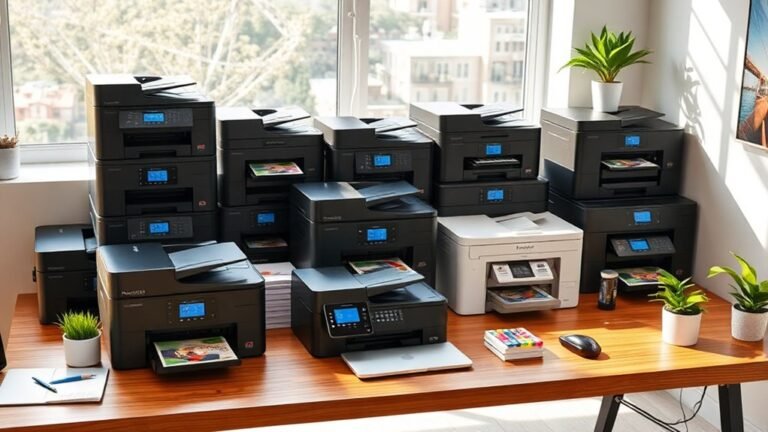

6 Best AirPrint Printers for Mac in 2026 You’ll Love
You’ll love how these six Canon AirPrint printers work seamlessly with your Mac, offering crisp prints and reliable wireless connections.
Whether you’re printing photos, documents, or creative projects, these printers make AirPrint easy and efficient.
From the versatile TS6520 with its vibrant color output to the compact TS702a perfect for home offices, and the multifunctional TR8620a with scanning and faxing, there’s a model for every need.
They combine easy setup, automatic duplexing, and quality inks that keep running costs reasonable.
Plus, you’ll appreciate how smoothly they integrate with your Mac’s ecosystem, making printing hassle-free.
Keep exploring to find the best fit for your workspace and projects.
| Image | Name | Editor's Rating | Price |
|---|---|---|---|

|
|
||
|
|
||

|
|
||

|
|
||
|
|
Canon PIXMA TS6520 Wireless Color Inkjet Printer, 1.42″ OLED Display, White
- Affordable Versatility - A budget-friendly all-in-one printer perfect for both home users and hybrid workers, offering exceptional value
- Crisp, Vibrant Prints - Experience impressive print quality for both documents and photos, thanks to its 2-cartridge hybrid ink system that delivers sharp text and vivid...
- Effortless Setup & Use - Get started quickly with easy setup for your smartphone or computer, so you can print, scan, and copy without delay
- Reliable Wireless Connectivity - Enjoy stable and consistent connections with dual-band Wi-Fi (2.4GHz or 5GHz), ensuring smooth printing from anywhere in your home or...
- Scan & Copy Handling - Utilize the device’s integrated scanner for efficient scanning and copying operations

The Canon PIXMA TS6520 is designed to fit seamlessly into your home workspace. Its compact size helps save space without compromising on essential functions like printing, scanning, and copying. This all-in-one printer is ideal for users who need reliable performance in a small footprint.
Maintaining the printer is straightforward thanks to the 1.42″ OLED display, which provides clear ink level updates and status notifications. The dual-band Wi-Fi and AirPrint compatibility simplify wireless printing from smartphones, tablets, and Macs, enhancing convenience for busy households or hybrid work setups.
This printer delivers sharp prints with resolutions up to 1200 dpi and supports automatic duplexing to save paper. Borderless photo printing adds versatility, letting you create vibrant images without the hassle of trimming. However, its single paper tray has a limited capacity, and the two-cartridge ink system may require frequent replacements if you print in color often.
Moderate print speeds make it suitable for occasional to moderate use but less ideal for high-volume tasks. Overall, the Canon PIXMA TS6520 balances functionality and ease of use in a compact package that fits well in limited spaces.
Best for: Families, students, and home users seeking a versatile all-in-one printer that combines compact design with wireless convenience.
What We Like:
- Compact footprint ideal for small home offices or workspaces
- Easy wireless printing with dual-band Wi-Fi and AirPrint support
- Sharp print quality with auto duplexing and borderless photo options
- Clear ink and status updates via the bright OLED display
Specification:
| Feature | Details |
|---|---|
| Manufacturer | Canon |
| Dimensions | Compact size (exact dimensions not specified) |
| Weight | Not specified |
| Display | 1.42″ OLED |
| Connectivity | Dual-band Wi-Fi, AirPrint |
| Ink System | Two cartridges |
| Print Resolution | Up to 1200 x 1200 dpi |
| Paper Handling | Single tray, auto duplexing |
Canon PIXMA TS702a Wireless Print-Only Printer Black
- Efficient Everyday Printing: It can print great looking borderless photos and even supports various paper types & sizes, from 3.5” x 3.5” Square up to legal size...
- Print Connectivity: Whether that is a smartphone, tablet or computer. Have peace of mind and connect with AirPrintFootnote4, Mopria Print ServiceFootnote...
- Big Performance with Compact Design: With a 350 SHEET plain paper capacity the PIXMA TS702 is ready to take on large print jobs.
- Wireless Single-Function: Print only featuring Auto 2-Sided (Duplex) Printing.
- Sharp Text: The hybrid ink system combines dye ink for rich colors and black pigment ink.
Experience hassle-free wireless printing with the Canon PIXMA TS702a, crafted to deliver high-quality printouts without the bulk of scanning or copying features. This sleek black inkjet printer is perfect for users who need sharp, vibrant documents and photos directly from their Mac or mobile devices.
Designed for convenience, it supports AirPrint and Mopria, enabling smooth mobile printing from smartphones and tablets. The automatic duplex printing feature helps reduce paper waste and saves time on double-sided documents. Its hybrid ink system combines pigment black ink for crisp text and dye ink for rich colors, ensuring professional results every time.
Maintenance is straightforward with easy ink replacement, though it’s important to note that compatible ink options are limited to Canon cartridges, which may affect ongoing costs. The compact design fits well in home offices and handles a variety of media sizes, including photo paper, with a sample pack included to get started quickly.
While it focuses solely on printing, this device excels in delivering sharp, high-resolution prints at speeds up to 15 ppm in black and 10 ppm in color. The single-sheet output may slow down large print jobs, but it remains ideal for everyday document and photo printing needs.
Best for: Mac users and home office professionals seeking a reliable, wireless printer focused on quality color and text printing without scanning or copying.
What We Like:
- Supports seamless mobile printing with AirPrint and Mopria compatibility
- Automatic duplex printing conserves paper and time
- High-resolution prints (4800 x 1200 dpi) with hybrid ink technology
- Compact design fits easily in small workspaces
- Includes photo paper sample pack for immediate use
Specification:
| Feature | Details |
|---|---|
| Manufacturer | Canon |
| Dimensions (W x D x H) | Approx. 17.9 x 12.4 x 5.3 inches (45.5 x 31.5 x 13.5 cm) |
| Weight | Approx. 9.3 lbs (4.2 kg) |
| Printer Type | Wireless Inkjet Printer |
| Color Options | Black |
Canon PIXMA TS4320 – Wireless Color Inkjet Printer with Print, Copy, Scan
- Affordable Versatility - A budget-friendly all-in-one printer perfect for both home users and hybrid workers, offering exceptional value
- Crisp, Vibrant Prints - Experience impressive print quality for both documents and photos, thanks to its 2-cartridge hybrid ink system that delivers sharp text and vivid...
- Effortless Setup & Use - Get started quickly with easy setup for your smartphone or computer, so you can print, scan, and copy without delay
- Reliable Wireless Connectivity - Enjoy stable and consistent connections with dual-band Wi-Fi (2.4GHz or 5GHz), ensuring smooth printing from anywhere in your home or...
- Scan & Copy Handling - Utilize the device’s integrated scanner for efficient scanning and copying operations
The Canon PIXMA TS4320 is designed to simplify your everyday printing needs. It delivers crisp color and black-and-white prints up to 1200 x 1200 dpi, ensuring your documents and photos look sharp and professional. Automatic duplex printing helps reduce paper waste, saving you both time and resources.
Its compact and stylish design fits neatly into small spaces, making it ideal for home offices or bedrooms without sacrificing print quality. Wireless dual-band Wi-Fi and AirPrint compatibility allow you to print directly from your smartphone, tablet, or Mac, enhancing convenience and flexibility.
Maintenance is straightforward, though the hybrid 2-cartridge ink system may require more frequent replacements. While it doesn’t have an automatic document feeder, the PIXMA TS4320 supports a variety of media types, including cardstock and glossy photo paper, broadening your creative possibilities.
This all-in-one printer covers printing, copying, and scanning tasks efficiently, meeting the needs of students, hobbyists, and home users. Its user-friendly features and reliable performance make it a practical choice for everyday document and photo projects.
Best for: Budget-conscious home users needing a versatile, space-saving all-in-one printer for schoolwork, photos, and daily documents.
What We Like:
- Sharp prints up to 1200 x 1200 dpi with automatic duplex to save paper
- Compact design fits easily in tight spaces
- Supports diverse media types, including photo and cardstock
- Wireless dual-band Wi-Fi and AirPrint for easy mobile printing
- Simple setup and operation suitable for beginners
Specification:
| Feature | Details |
|---|---|
| Manufacturer | Canon |
| Dimensions | Approx. 12.0 x 14.5 x 5.5 inches (W x D x H) |
| Weight | Approx. 9.9 lbs (4.5 kg) |
| Ink System | 2-cartridge hybrid ink |
| Connectivity | Dual-band Wi-Fi, AirPrint |
| Media Types | Plain, cardstock, glossy photo paper |
Canon PIXMA TR8620a All-in-One Printer Black
- Never run out of ink. Connect your printer to Alexa and receive notifications when you’re running low. Alexa can even place a smart reorder from Amazon on your behalf...
- Enrolling in Smart Reorders with Alexa ensures that you never have too much or too little ink supplies. No subscription needed.
- Wireless 4-in-1 (Print | Copy | Scan | Fax)
- 15 / 10 ipm Print Speed
- 200 Sheet Capacity (100 Cassette, 100 Rear Feed)
Step up your home office or creative workspace with the Canon PIXMA TR8620a All-in-One Printer. This versatile device handles printing, scanning, copying, and faxing, helping you streamline daily tasks. Its compact black design fits neatly on your desk, saving space without compromising functionality.
Wireless printing is simplified through AirPrint, allowing seamless connection with your Mac. The printer’s 20-sheet Auto Document Feeder and automatic duplex printing reduce manual effort and save time, ideal for managing multiple-page documents efficiently.
High-quality output is guaranteed with a sharp 4800 x 1200 dpi resolution and five individual ink tanks, delivering vibrant photos and crisp documents. The touchscreen LCD enhances ease of use, while Alexa compatibility offers convenient voice-activated control.
Maintenance is straightforward, though the 1,000-page monthly duty cycle suits moderate workloads better than very high-volume printing. The 20-sheet output tray may require frequent emptying during large jobs, and wired connectivity is limited to a single USB 2.0 port.
Best for: Busy home offices and creative professionals needing a compact all-in-one printer with reliable wireless printing and high-quality output.
What We Like:
- Efficient 4-in-1 functionality with a 20-sheet Auto Document Feeder
- High-resolution printing using five individual ink tanks
- Wireless printing via AirPrint and Alexa voice control
- Compact design that fits snugly on a desk
- Easy-to-use touchscreen interface
Specification:
| Feature | Details |
|---|---|
| Manufacturer | Canon |
| Dimensions (W x D x H) | Approx. 14.5 x 12.7 x 7.5 inches (36.8 x 32.3 x 19.1 cm) |
| Weight | Approx. 14.3 lbs (6.5 kg) |
| Color | Black |
| Connectivity | Wireless (AirPrint), USB 2.0 |
| Monthly Duty Cycle | Up to 1,000 pages |
Canon TS5320 All-in-One Wireless Printer Black
- With a 1.44 inch OLED display & LED status bar easily navigate and view your printer status; The OLED display displays deep, accurate color and the LED status bar...
- The Pixma TS5320 has a compact & stylish design that fits your space and personality; Not only is it small, but it comes in 4 distinct colors; Black, white, green, and...
- Designed for ease of use and simple replacement, the Pixma TS5320 only needs 2 fine cartridges for great print quality; Enjoy sharp text documents and great looking...
- With Air Print, easily print from your iPhone, iPad, and Mac without additional apps; (4) Air Print allows you to wirelessly print photos and documents without the need...
Experience the convenience of high-quality printing in a compact design with the Canon TS5320 All-in-One Wireless Printer Black. This versatile printer fits easily into tight spaces, making it ideal for home offices or small work areas. It produces sharp documents and vibrant photos thanks to its high 4800 x 1200 dpi resolution.
The Canon TS5320 simplifies your workflow with automatic duplex printing, enabling two-sided print, scan, and copy without manual effort. Its wireless capabilities include Wi-Fi, Bluetooth, AirPrint, and voice control, allowing seamless printing from various devices, including Macs and smartphones.
Maintenance is straightforward, though the printer uses a standard 2-cartridge ink system, which may lead to higher ink replacement costs compared to refillable tank printers. The single 100-sheet paper tray requires occasional refilling but keeps the design compact and user-friendly.
With a lightweight build of just 13.8 pounds, this printer is easy to move and fits comfortably on any desk. Its foldable design adds to its space-saving benefits, making it a practical choice for everyday printing needs.
Best for: users needing a compact, all-in-one wireless printer that delivers crisp photos and sharp documents while fitting into limited spaces.
What We Like:
- High-resolution output for detailed text and photos
- Automatic duplex printing for double-sided tasks
- Multiple wireless connectivity options, including voice control
- Compact, lightweight design ideal for small spaces
- Easy setup and operation with supported apps and AirPrint
Specification:
| Attribute | Details |
|---|---|
| Manufacturer | Canon |
| Dimensions | Not specified |
| Weight | 13.8 lb (6.26 kg) |
| Material | Not specified |
| Color Options | Black |
Canon PIXMA TR7520 Wireless All-in-One Printer

Experience efficient and versatile printing with the Canon PIXMA TR7520, designed to meet the demands of your home office. This all-in-one wireless printer simplifies daily tasks by combining printing, scanning, copying, and faxing into one compact device. Its dual paper trays allow easy switching between plain and photo paper, helping you manage different projects without hassle.
The printer delivers sharp, vibrant prints with a resolution up to 4800 x 1200 dpi, ensuring your documents and photos look professional. Duplex printing saves you time and reduces paper waste, making it an eco-friendly choice. Connectivity is straightforward through Wi-Fi, AirPrint, or the Canon Print App, and it even supports Alexa voice commands for hands-free operation.
Maintenance is straightforward, though the printer holds a maximum of 20 sheets in its trays, which might require frequent refills during heavy use. While it advertises fast print speeds, actual output may vary, especially with color prints. The included setup CD-ROM may be less practical for newer devices without optical drives, but alternative installation methods are available.
Best for: Home office users and small businesses that need an all-in-one wireless printer with versatile media handling and high-quality output.
What We Like:
- Combines printing, scanning, copying, and faxing with duplex printing.
- High-resolution color printing (4800 x 1200 dpi) with quick output.
- Multiple easy connectivity options including Wi-Fi, AirPrint, and Alexa voice control.
- Dual paper trays for handling different paper types conveniently.
Specification:
| Feature | Details |
|---|---|
| Manufacturer | Canon |
| Model | PIXMA TR7520 |
| Dimensions | Approximately 17.7 x 12.4 x 7.5 inches (45 x 31.5 x 19 cm) |
| Weight | Around 12.4 lbs (5.6 kg) |
| Color Options | Black |
Factors to Consider When Choosing an Airprint Printer for Mac 2026

When choosing an AirPrint printer for your Mac in 2026, you’ll want to focus on wireless connectivity options and print quality standards. Make sure the printer is fully compatible with the latest macOS and offers speed and efficiency that match your needs.
Don’t forget to take into account the types of ink and cartridges it uses to keep running costs manageable. It’s always better to check how easy it is to find replacements and how often you’ll need them. That way, you avoid surprises down the line!
Wireless Connectivity Options
Choosing the right wireless connectivity options guarantees your AirPrint printer works seamlessly with your Mac and other devices. Make certain your printer supports native AirPrint without needing drivers and works on both 2.4 GHz and 5 GHz Wi-Fi bands to boost compatibility and reduce network congestion.
Prioritize WPA3 and WPA2 security and automatic firmware updates to protect against vulnerabilities. If you have multiple devices or a small office, look for dual-band Wi-Fi plus an Ethernet port for stable, low-latency wired fallback.
Also, check for Wi-Fi Direct or Bluetooth pairing to print without a local network. Finally, verify support for IPv6 and Bonjour/mDNS to make certain your Mac quickly discovers the printer and speeds up AirPrint device detection.
Print Quality Standards
Although wireless features are essential, you’ll want to focus on print quality standards to get the best results from your AirPrint printer on Mac. Look for printers supporting at least 1200 x 1200 dpi, or higher for sharp color photos.
Choose models using pigment black ink or multi-black systems for crisp, long-lasting text and archival-grade photo prints. Check the color gamut coverage—printers closer to 100% sRGB deliver more accurate, vibrant colors.
If you print photos or designs professionally, prioritize support for 16-bit color depth and high-resolution engines like 4800 x 1200 dpi for smooth gradients. Also, consider media handling capabilities, such as borderless printing, various photo sizes, paper weights up to 300 g/m², and consistent duplex alignment to maintain quality across different print jobs.
Compatibility With Macos
To guarantee seamless printing on your Mac, you’ll want an AirPrint printer that supports native AirPrint functionality so macOS can detect it without extra drivers or software. Make sure your printer’s firmware stays updated and aligns with your macOS version, including major updates and security patches.
Both your Mac and printer need to be on the same network segment—whether 2.4 GHz, 5 GHz Wi-Fi, or the same Ethernet—to secure AirPrint’s local discovery works smoothly. Confirm that your macOS system supports AirPrint’s Bonjour/mDNS protocols and meets system requirements to avoid conflicts with new OS features like sandboxing or privacy prompts.
Finally, for advanced printing needs, verify your printer offers AirPrint options like duplex, paper sizes, color modes, and resolution so macOS print dialogs show all essential functions. That way, you get the full printing experience without any hassle.
Speed and Efficiency
After confirming that your AirPrint printer fully supports macOS compatibility and advanced print options, you’ll want to focus on speed and efficiency to keep your workflow smooth. Look for printers with high pages-per-minute (ppm) ratings—ideally 15–30 ppm for black and 10–20 ppm for color—to get your documents faster.
Check first-page-out and warm-up times; shorter waits mean less downtime, especially for quick jobs. Prioritize models with automatic duplexing and large multi-sheet trays (100+ sheets) to handle multi-page tasks effortlessly.
Secure a fast, stable wireless connection using dual-band Wi‑Fi or Ethernet to avoid delays during AirPrint transfers. Finally, consider the monthly duty cycle and processor specs—higher values let you print large volumes without slowdowns, keeping your Mac printing experience seamless and efficient.
Ink and Cartridge Types
When choosing an AirPrint printer for your Mac, you’ll want to zero in on the ink and cartridge types since they directly affect print quality and ongoing costs. Opt for printers that use pigment black ink for crisp, durable text and dye-based color inks for vibrant photos. Each impacts longevity and saturation differently, so it’s good to keep that in mind.
Consider cartridge setup—individual CMYK tanks let you replace only the empty color, which can save you money compared to combined cartridges. It’s a nice way to avoid wasting ink when just one color runs out.
Check ink and page yields to get a sense of how often you’ll need to replace cartridges and what the cost per page looks like. Also, look for models supporting high-capacity or XL cartridges and third-party refills if you want to cut costs even more.
Finally, verify if the printer uses a hybrid pigment/dye system. This kind of setup balances sharp documents and rich photos, making your printing more versatile overall.
Multi-function Capabilities
Although multi-function AirPrint printers usually cost more upfront, they can save you space and money by combining printing, scanning, copying, and faxing in one device. First, decide if you really need all these functions or just print-only capabilities.
If scanning’s important, look for a flatbed scanner with at least 600 x 600 dpi optical resolution; 1200 dpi is better for detailed images. An automatic document feeder (ADF) with duplex scanning is a must if you handle multi-page scans often—typical ADFs hold 20–50 sheets.
For copying and faxing, check features like duplex copy, copy speed, and fax modem reliability. Also, consider how the ink cartridge setup affects running costs, especially if you want to replace only depleted colors in your multi-function printer.
Size and Footprint
Choosing the right AirPrint printer means paying close attention to its size and footprint to guarantee it fits your workspace comfortably. Start by measuring the desk or shelf space available, ensuring the printer’s depth and width allow 2–3 inches clearance for paper trays and ventilation.
Don’t forget to check the height—compact models stay under 7 inches, but multifunction units with automatic document feeders often exceed 7–8 inches. Consider how many trays you need and their placement; rear-feed trays increase depth, and dual trays expand horizontal space.
If you share a small office, opt for low-profile or foldable designs under 15″ x 15″. Finally, leave extra room (3–6 inches) for service access to replace ink or clear jams without hassle.
Price and Warranty
Since the upfront price only tells part of the story, you should weigh it against the total cost of ownership, including monthly ink or toner expenses, maintenance, and any subscription fees for ink replenishment over the printer’s lifespan.
Check the warranty length—usually one year for consumer models—and make certain it covers parts and labor. Be cautious: using third-party ink or service might void coverage.
Look for included support options like phone or chat, and see if extended warranties are available and worth the cost compared to potential repairs.
Confirm firmware updates and driver support during and after warranty for ongoing AirPrint compatibility. Finally, consider return policies or trial periods; flexible options can lower your risk if the printer doesn’t meet your needs.
Frequently Asked Questions
How Does Airprint Differ From Other Wireless Printing Technologies?
AirPrint lets you print directly from your Apple device without installing drivers, unlike other wireless tech requiring apps or setup.
It’s seamless, secure, and works over Wi-Fi, making printing effortless and quick for you.
Can Airprint Printers Work With Iphones and Ipads as Well?
Yes, AirPrint printers work seamlessly with your iPhones and iPads. You don’t need extra apps or drivers. Just connect to the same Wi-Fi, and you can print directly from your Apple devices.
It’s effortless and wireless, making printing super easy. So, you’re good to go right out of the box!
What Should I Do if My Mac Doesn’T Recognize the Airprint Printer?
If your Mac ignores your AirPrint printer like a friend who forgot your name, restart both devices. Make sure they’re on the same Wi-Fi network.
Also, update the software on both your Mac and the printer. Don’t forget to check the printer settings too.
This’ll help your Mac remember and connect smoothly. Easy fix, right?
Are There Any Security Concerns With Using Airprint on Public Wi-Fi?
Yes, you should be cautious using AirPrint on public Wi-Fi since it can expose your data to hackers.
Always use a VPN or trusted network to keep your printing secure. This helps avoid potential interception of sensitive information.
How Do Firmware Updates Affect Airprint Functionality on Printers?
Firmware updates can feel like rocket science, but they actually improve AirPrint functionality by fixing bugs, enhancing security, and adding features.
You’ll want to install them promptly to keep your printer running smoothly and securely every time.
It’s pretty straightforward once you get the hang of it, and it really pays off in the long run.
Conclusion
Imagine the seamless flow of your ideas turning into vibrant prints, all effortlessly connected through AirPrint on your Mac. Choosing the right printer from these top Canon models means you’ll enjoy crisp colors, sharp scans, and swift wireless convenience, right on your desk.
Whether it’s for work or creativity, these printers blend performance and ease. They make every print feel like a brushstroke on a digital canvas. Your perfect AirPrint companion awaits—just a click away.
With AirPrint printers for Mac, you get hassle-free wireless printing that fits perfectly into your workflow. These Canon models offer reliability and quality, ensuring your documents and photos always look their best. So, if you want a printer that combines convenience, speed, and stunning print quality, these AirPrint printers for Mac are the perfect choice for your home or office setup.