How to Get HP Printer Online With Step-By-Step Instructions
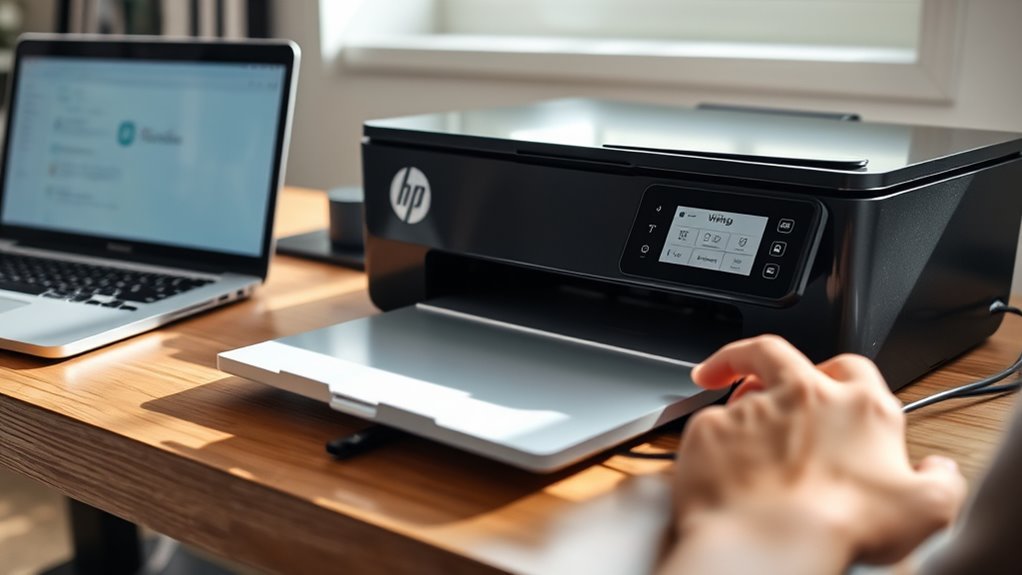
To get your HP printer online, start by making sure your printer, device, and router are all powered on and close to each other—ideally within 6 to 10 feet. Being this close helps ensure a strong Wi-Fi connection, which is key to getting your printer up and running smoothly.
Next, connect your device to the correct Wi-Fi network. This step is crucial because your printer and device need to be on the same network to communicate.
Once your device is connected, use the HP Smart app or your printer’s control panel to begin the setup process. You’ll have a few options here: Auto Wireless Connect, manual setup, or WPS. Each one links your printer to Wi-Fi in a slightly different way, so pick the method that works best for you.
If you run into problems, don’t worry—sometimes just restarting your devices can fix the issue. After that, try printing a test page to make sure the connection is solid.
And if your printer is still offline, updating the firmware or reinstalling drivers often does the trick. Keep these tips in mind, and you’ll have your HP printer online in no time!
Key Takeaways
- Ensure your printer, device, and router are all powered on. Keep them within 6–10 feet of each other, and make sure they’re connected to the same Wi-Fi network SSID.
- Use the HP Smart app to set up your new printer. You can do this either through Auto Wireless Connect or the Manual Wireless Setup Wizard.
- If the connection fails, try restarting your printer, device, and router. Then, give the wireless setup another shot.
- After that, check your connection by printing a network configuration page. This helps confirm whether the printer is online.
- If your printer still shows offline, reset its network settings to the defaults. Then, run the Wireless Setup Wizard again to reconnect.
- Don’t forget to update your printer’s firmware using the HP Smart app. If you’re still having trouble, reinstall the drivers to fix any lingering connectivity issues.
Prepare Your HP Printer and Devices for Wi‑Fi Setup
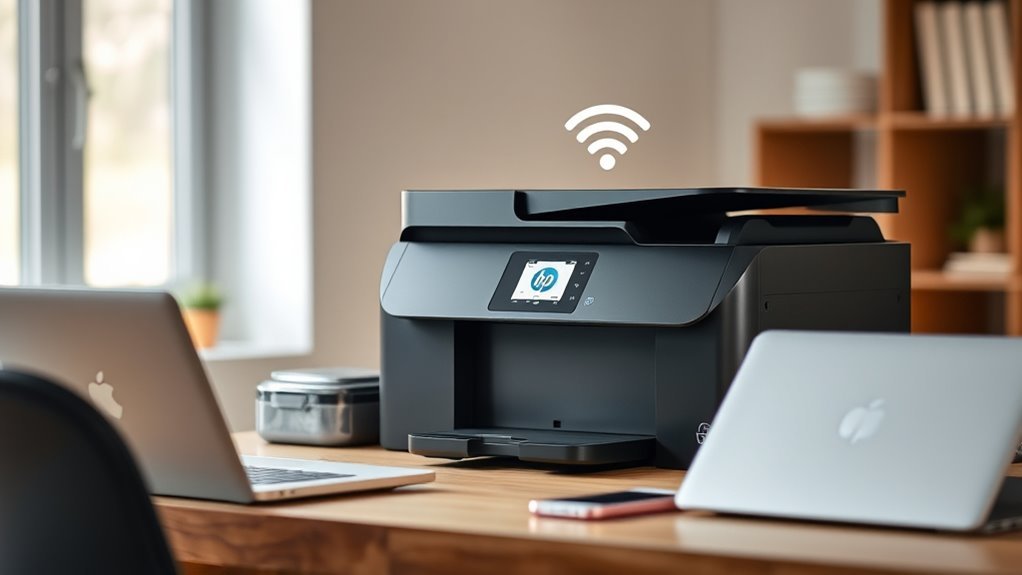
Before you begin setting up your HP printer on Wi‑Fi, make sure your printer, device, and router are all powered on and placed within 6 to 10 feet of each other to avoid connectivity issues. Check that your device—whether it’s a laptop or phone—is connected to Wi‑Fi, specifically the correct network name (SSID).
Many HP printers require connection to the 2.4 GHz band, so verify this in your router settings. It’s a good idea to restart your printer and device to clear any temporary glitches before starting.
Next, install the HP Smart app on your device or visit 123.hp.com to guide you through the setup. The app will help you connect your printer smoothly and make certain it’s properly connected to Wi‑Fi for seamless printing.
Connect Your HP Printer Using Auto Wireless Connect
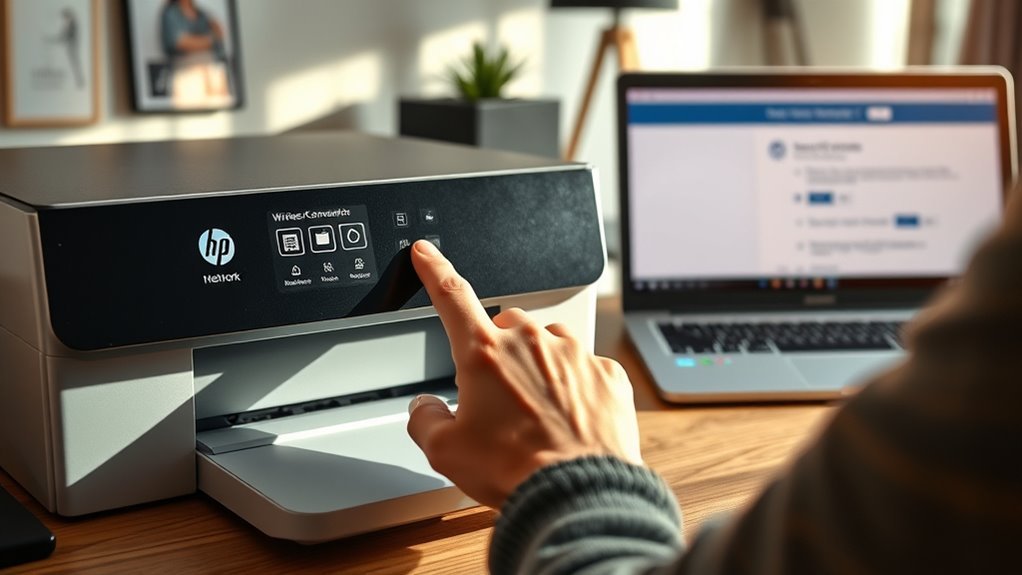
Getting your HP printer online is easy when you use Auto Wireless Connect. First, make sure your HP printer is powered on and within 6–10 feet of your Wi-Fi router.
Install the HP Smart app on your computer or smartphone, then sign in or create an HP account. In the app, select “Set up a new printer” and follow the prompts.
Auto Wireless Connect will automatically detect your printer and link it to the same Wi-Fi network your device uses. If asked, enter your Wi-Fi network name (SSID) and password.
This process sends your network credentials to the printer, completing the setup. If the connection fails, restart your printer and router.
Make sure your device is on the correct network, then try the Auto Wireless Connect setup again. It usually works like a charm!
Set Up Your HP Printer Manually From the Control Panel
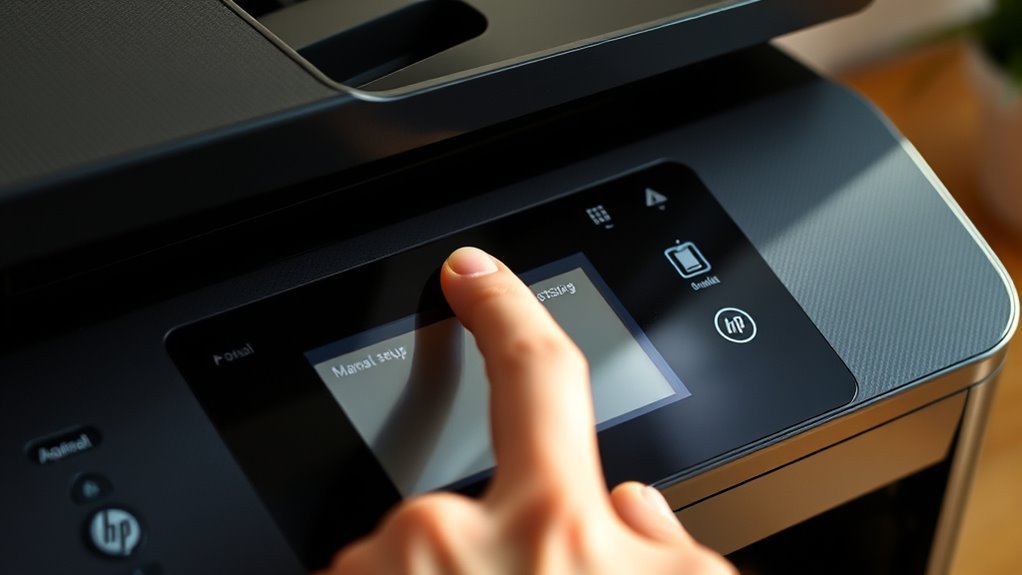
If the Auto Wireless Connect method doesn’t work for you, setting up your HP printer manually from the control panel is a reliable alternative. Start by opening Settings or Wireless/Menu, then select Network Setup or Wireless Setup Wizard.
Choose your Wi-Fi network SSID and enter the exact password to connect your printer to Wi-Fi. For printers without a touchscreen, use the Wireless button and follow LED prompts, or print a network configuration page to confirm the connection.
If the setup fails, restore network defaults from Settings > Network Settings, then repeat the setup. Once connected to Wi-Fi, print a Wireless Test or Network Configuration page to verify your printer is connected and note the IP address for future use on your computer.
Use WPS to Quickly Link Your HP Printer to Wi‑Fi
You can quickly link your HP printer to Wi-Fi by using the WPS feature, which simplifies the connection process without needing to enter a password. First, make certain your router supports WPS and both devices are powered on.
On many HP models, press the printer’s Wireless button until its light blinks. Then, within two minutes, press the WPS button on your router or activate WPS via the router’s admin panel. This initiates automatic pairing with your Wi-Fi network.
When the printer’s wireless light turns steady or shows a control panel message, it’s connected. If it doesn’t connect, move the printer closer to the router, check that WPS is enabled on your router, and retry the process.
Connect an HP Printer Using the HP Smart App
To connect your HP printer using the HP Smart app, start by downloading and opening the app on your iOS, Android, or Windows device. The HP Smart app guides you through the wireless setup smoothly.
Follow these steps:
- Tap “Set up a new printer” and make sure your device is on the same Wi-Fi network as your printer. Have your network password handy for the app’s prompts.
- Power on the printer and confirm the wireless light is blinking or use the Wireless Setup Wizard on the printer’s control panel. The app will detect your printer and connect it.
- Once connected, install any updates through the HP Smart app, then print a test page or check the printer’s IP address to confirm it’s online.
This method simplifies wireless setup and gets your HP printer ready quickly. It’s pretty straightforward, so you’ll be printing in no time!
Troubleshoot HP Printer Wi‑Fi Connection Issues
First, make sure your printer and device are connected to the same Wi-Fi network to avoid connection conflicts.
If the printer still won’t connect, reset its wireless settings. Then, try reconnecting using the Wireless Setup Wizard or the HP Smart app.
This often resolves common network issues and gets your printer back online quickly. Give it a shot!
Verify Network Connection
How can you make certain your HP printer stays connected to your Wi-Fi network? First, verify that both your printer and your computer or phone are connected to the exact same network name (SSID). Different SSIDs or using a guest network will cause a Printer Offline error.
Next, check your printer’s wireless icon or Network Settings to confirm it has a strong signal and a valid IP address, typically on the 2.4 GHz band.
Finally, reboot your printer, device, and router by powering them off for 30 seconds to clear any temporary network issues. Doing this helps prevent connection drops and keeps your printer online for smooth printing.
Reset Wireless Settings
If your HP printer keeps showing offline errors even though your network connection is strong, resetting its wireless settings can often fix those stubborn Wi-Fi problems. To do this, head over to the printer’s control panel and find Settings → Network Settings → Restore Network Defaults or Reset Wireless.
This action will clear out any saved SSIDs and passwords, basically restoring the wireless settings back to factory defaults. After that, restart your printer.
Next, run the Wireless Setup Wizard to pick your network SSID and enter the Wi-Fi password exactly as it is. If your printer supports WPS, you can try this quick method: press the printer’s WPS button, then press the router’s WPS button within two minutes. This should reconnect your printer automatically.
Finally, open the HP Smart app or go to 123.hp.com to detect your printer and finish the setup. Just make sure your device is connected to the same network SSID for everything to work smoothly.
Get Your HP Printer Back Online (Change Printer Status)
When your HP printer shows as offline, you can quickly switch it back online by adjusting its status through your computer’s settings. If your HP printer won’t connect, start by checking the printer’s status and network connection.
If your HP printer shows offline, check its status and network connection to get it back online quickly.
Here’s how:
- On Windows, go to Settings > Bluetooth & devices > Printers & scanners, select your printer, open the print queue, then uncheck “Use Printer Offline” under the Printer menu.
- Restart the Print Spooler service (Services > Print Spooler > Restart) to clear stuck print jobs causing offline status.
- Set your HP printer as the default device to make certain print jobs route correctly.
These steps help resolve offline issues without needing driver updates. They get your printer back online quickly and easily.
Update or Reinstall Drivers to Fix Connection Problems
To fix connection problems, start by updating your printer’s firmware to make certain it’s compatible with the drivers.
Then, uninstall the old drivers and reinstall the latest ones from HP’s official site for your exact model. This process helps clear corrupted files and restores proper communication between your computer and printer.
It’s a straightforward way to get things running smoothly again! Just follow these steps, and you should be good to go.
Update Printer Firmware
Since outdated firmware or corrupted drivers often cause connection problems, updating or reinstalling them can quickly bring your HP printer back online.
To update your printer’s firmware, first check the current version on the printer control panel or HP Smart app and compare it to the latest version online. Then:
- Use the HP Smart app to select your printer, go to Settings or Advanced, and follow the Firmware Update prompts.
- Download and install the full driver and software package from HP’s official site to replace any corrupted drivers.
- After updating, reboot both printer and computer, reconnect to the correct network, and print a network configuration page to confirm the printer might be online with a valid IP address.
This process guarantees your device has the newest fixes and avoids offline issues.
Reinstall Printer Drivers
Updating your printer’s firmware often resolves many connectivity issues, but if problems persist, reinstalling your printer drivers can help eliminate corrupted files causing the offline status.
First, download the latest drivers and full-feature software for your exact HP printer model from the HP Support site (hp.com/support or HP Software and Driver Downloads) and save the installer to your computer.
Next, unplug the printer USB or disconnect Wi‑Fi, then uninstall the existing printer driver and software via Windows Settings > Bluetooth & devices > Printers & scanners > remove device (or macOS System Settings > Printers & Scanners and use “–”) to make certain corrupted drivers are removed.
Finally, run the installer and follow prompts to reconnect. It’s pretty straightforward once you get going.
| Step | Action Description |
|---|---|
| Download Drivers | Get the latest HP drivers from the support site |
| Uninstall Existing Drivers | Remove old drivers via system settings |
| Reinstall & Connect | Run installer and follow connection prompts |
Frequently Asked Questions
How Do I Set up My HP Printer on a New Wi-Fi Network?
You connect your HP printer to a new Wi-Fi by accessing its wireless setup wizard, selecting your network, and entering the password.
Alternatively, you can use the HP Smart app. It makes setup pretty straightforward.
Or, if your router supports it, try WPS for a quick, password-free setup. It’s super convenient!
My HP Printer Is Offline. What Can I Do to Fix It?
Isn’t it frustrating when your HP printer goes offline? Restart both devices first.
Make sure they’re connected to the same Wi-Fi network. Then, check your printer settings and set it to online if it’s showing offline.
Don’t forget to clear the print queue—it can get stuck sometimes. Also, updating your printer drivers can really help get it back up and running smoothly.
How to Connect HP Deskjet 2700 to Wi-Fi?
You’ll power on your DeskJet 2700 and open the HP Smart app. Then, tap “Set up a new printer” and follow the prompts to join your Wi-Fi.
If you prefer, you can also use the Wireless Setup Wizard on the printer itself. Another option is to press the WPS button on your router to connect quickly.
How Do I Check if My HP Printer Is Connected to the Internet?
You might think your HP printer isn’t online, but just check its control panel or use the HP Smart app to see the Wi-Fi icon, SSID, and IP address.
That confirms if it’s connected to the internet. Easy, right? Just a quick look and you’ll know for sure.
Conclusion
By following these simple steps, you’ll get your HP printer online in no time—almost like it knew you needed it ready right away. Whether you choose Auto Wireless Connect, WPS, or the HP Smart App, your printer is ready to team up with your devices effortlessly.
And if a hiccup happens, troubleshooting and driver updates are just a few clicks away. Coincidentally, getting your printer online has never been this easy!
With these easy-to-follow instructions, connecting your HP printer online becomes a breeze. From setup to troubleshooting, you’ll have your printer working seamlessly with your computer or mobile device. So don’t worry if you’re not tech-savvy—these steps are designed to make the process smooth and stress-free. Getting your HP printer online means you’re ready to print whenever you need, without hassle. Just follow the guide, and you’ll enjoy quick connections, reliable printing, and easy maintenance every time.