How to Identify the Type of Printer Paper
You can identify printer paper by checking its weight, finish, and coating. Look for weight in pounds (lb) or grams per square meter (gsm) on the package—heavier papers like cardstock are thicker. This helps you know how sturdy or delicate your paper is.
Feel the surface: coated papers are smooth and glossy or matte, while uncoated ones feel rough and porous. Brightness ratings also matter—they affect print quality and color vibrancy, making your images pop or look dull.
Also, make sure the paper suits your inkjet or laser printer. Different printers need different types of paper to work best. Keep going to discover how these features impact your print results. It’s easier than you think!
Key Takeaways
- Check the paper weight and thickness, usually labeled in pounds (lb) or grams per square meter (gsm), to distinguish paper types like office paper or cardstock. It’s a quick way to know what you’re dealing with.
- Examine the paper surface; coated papers feel smooth or glossy, while uncoated papers feel porous or fibrous. This little touch test can tell you a lot.
- Identify the finish type: matte for low glare and writable surfaces, glossy for shiny vibrant prints, and satin for balanced color saturation. Each finish has its own vibe, depending on what you need.
- Look for brightness ratings (92–100) and opacity on packaging to assess print quality and suitability for double-sided printing. Brightness affects how crisp and clear your prints will look.
- Verify printer compatibility and packaging labels indicating paper type (photo, multipurpose, cardstock) and recommended printer settings. Following these tips makes sure your prints come out just right.
How To Read Printer Paper Weight And Thickness
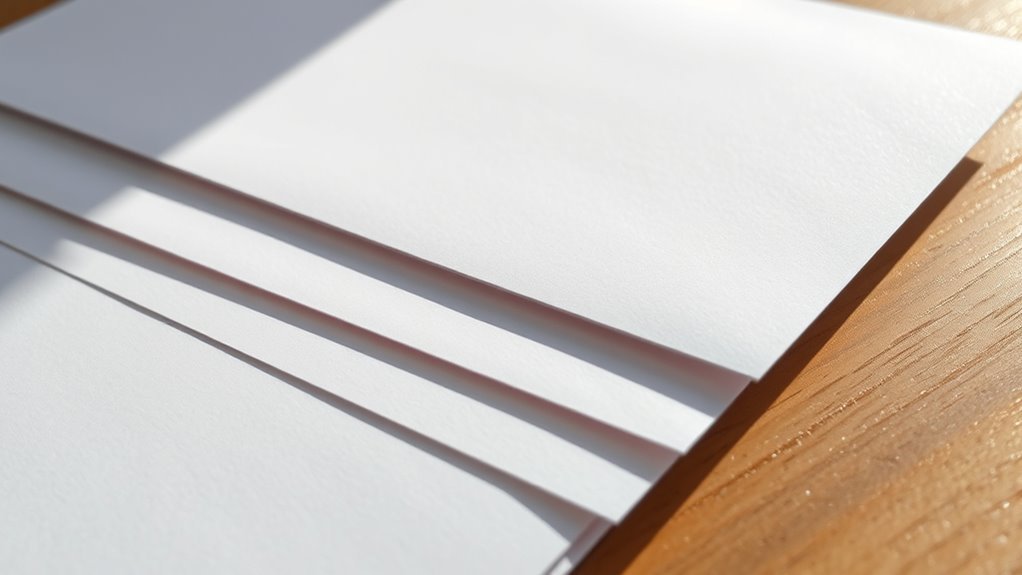
Understanding printer paper weight and thickness helps you choose the right paper for your project. Paper weight is commonly shown in pounds (lb) in the US, representing the weight of 500 sheets of the basic size.
Knowing paper weight and thickness ensures you select the perfect paper for your printing needs.
Typical office paper ranges from 20 to 24 lb. In metric terms, paper weight is measured in grams per square meter (gsm), with standard office paper around 75–90 gsm and heavier stocks exceeding 300 gsm.
Thickness, or caliper, is measured in mils (thousandths of an inch) or microns, with normal copy paper about 3.5–4.0 mils thick. Cardstock often uses point (pt) to indicate thickness, where 12 pt corresponds roughly to 300–350 gsm.
You’ll also want to take into account opacity and brightness, as these affect print quality and readability when selecting your paper.
Understanding Matte, Glossy, And Satin Paper Finishes
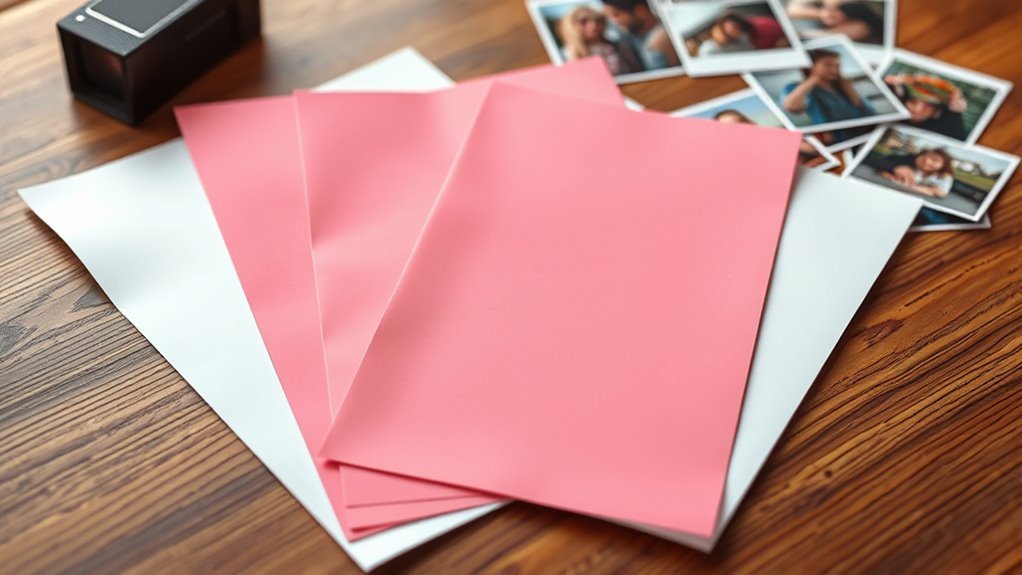
Choosing the right paper finish can markedly affect the look and feel of your printed materials. Matte finish offers a non-reflective surface with low glare, perfect for text-heavy prints and writing with pen.
Glossy finish provides a shiny, high-reflectivity coating that enhances color vibrancy and photographic detail. Satin finish strikes a balance with reduced glare and strong color saturation, ideal for professional photos and brochures.
All are types of coated paper designed for inkjet and laser printers, improving color reproduction and image sharpness. You can distinguish them by their surface reflectivity:
- Matte finish scatters light, minimizing glare
- Glossy finish produces clear, sharp reflections
- Satin finish shows muted, soft reflections
Understanding these finishes helps you choose paper that best suits your project’s needs. It really makes a difference once you know what each finish brings to the table.
How To Identify Coated Vs. Uncoated Printer Paper
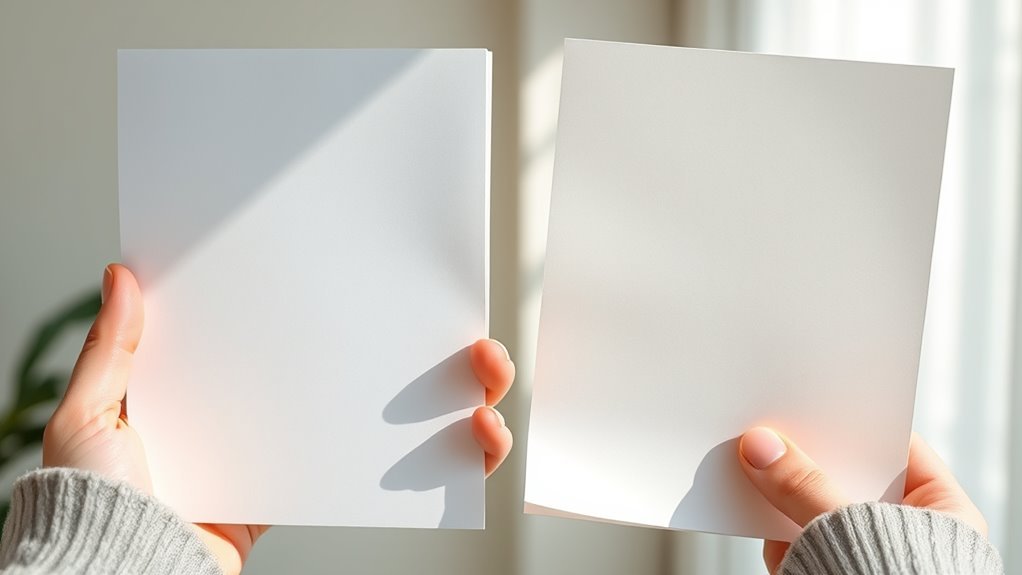
You can quickly tell coated and uncoated printer paper apart by their look and feel. Coated paper has a smooth, often glossy or matte finish, created by a chemical layer that reduces ink absorption. This results in sharper, vibrant prints.
Coated paper features a smooth, glossy or matte finish that enhances print sharpness and vibrancy.
Uncoated paper feels porous or fibrous, absorbing ink more readily and producing softer, muted images. Use a touch test: coated paper feels slick or slightly plastic-like, while uncoated paper feels toothy and writable without ink bleed.
Check the paper weight—coated papers usually weigh between 48–80 lbs (150–200 gsm) and have higher sheen. Meanwhile, uncoated bond paper is lighter, around 20–24 lbs (75–90 gsm).
Also, consider printer compatibility; coated paper often requires specific settings. Uncoated paper works well with most inkjet and laser printers.
What Paper Brightness Means For Your Prints
While the finish and weight of your paper affect print quality, brightness plays a big role in how your images and text appear. Brightness, measured on a scale from 92 to 100, influences contrast, color vividness, and readability.
Bright White papers at 100 brightness resist yellowing and enhance sharpness, ideal for professional prints.
Here’s why brightness matters for your prints:
- Higher brightness improves color separation and sharpness, vital for photo-rich documents.
- Papers with ColorLok technology and high brightness dry ink faster and boost color vibrancy.
- Double-sided business printing benefits from bright paper, guaranteeing text clarity on both sides.
Choosing the right brightness guarantees your prints look crisp and professional every time. It really makes a difference you can see!
Choosing Paper For Inkjet And Laser Printers
Because inkjet and laser printers use different printing technologies, selecting the right paper type is essential for achieving the best results. Inkjet paper features a special coated paper surface to prevent ink spread, ideal for photo-grade prints and vibrant graphics.
In contrast, laser paper is heat-resistant to handle toner fusing, optimizing sharp text output. While multipurpose paper works for everyday printing in both printers, it offers lower image quality than dedicated options.
Laser paper withstands heat for sharp text, while multipurpose paper suits everyday use but with lower image quality.
Pay close attention to paper weight: inkjet photo papers range from 48–80 lbs, while laser presentation papers often weigh 80–100 lbs. For double-sided printing, choose higher opacity papers to reduce show-through and confirm your printer supports the selected paper type.
Matching paper weight and driver settings guarantees crisp, professional results every time. So, take a moment to match your paper choice with your printer to get the best results possible.
Checking Paper Size And Format For Your Printing Needs
You’ll want to start by identifying standard paper sizes like Letter, Legal, and A4. These fit most everyday printing tasks.
Don’t forget nonstandard formats such as photo sizes or large posters. They may require special printers or trays.
Checking your printer’s compatibility with these sizes helps avoid jams. It also guarantees your documents look just right.
Standard Paper Sizes
When selecting paper for your printing projects, knowing the standard sizes guarantees your documents come out perfectly. Most office printers handle Letter size (8.5″ x 11″), which is ideal for everyday business documents.
If you’re printing contracts or legal forms, Legal size (8.5″ x 14″) fits the bill but needs a printer supporting extended media. For brochures or small posters, Ledger/Tabloid (11″ x 17″) works best and usually requires wide-format printers.
Outside North America, A4 size (210 × 297 mm) is standard for most documents. Meanwhile, A3 size (297 × 420 mm) suits larger prints.
Before printing, always check your printer tray capacity and manual-feed settings. This helps prevent jams and ensures proper scaling.
Here are key sizes to remember:
- Letter, Legal, Ledger/Tabloid
- A4, A3
- Printer tray capacity and manual-feed settings
Nonstandard Formats Usage
Although many printers handle standard paper sizes with ease, nonstandard formats require extra attention to guarantee compatibility and print quality. First, verify your paper’s exact dimensions against common standards and confirm your printer tray capacity supports nonstandard sizes like ledger or tabloid.
Larger or specialty papers often come with higher paper weight or GSM, so check these specs carefully. Heavy cardstock or coated specialty paper may need you to use manual feed trays or adjust printer settings to avoid jams.
Also, printer compatibility is vital—some older models can’t handle certain coated sheets or unique formats like iron-on or sticker paper. By matching paper size, weight, and type with your printer’s capabilities, you’ll make certain smooth printing and professional results every time.
Finding Manufacturer Labels And Recycling Symbols On Paper
Start by checking the packaging for manufacturer labels and recycling symbols—they hold key information about the paper’s quality and sustainability. Look for FSC or SFI logos, which guarantee the paper comes from responsibly managed forests.
The label also lists the paper weight (like 20 lb or 80 gsm) and brightness rating (usually between 92 and 100), helping you understand the paper’s thickness and whiteness.
Also, pay attention to ColorLok® or coating type (gloss, matte, satin) for inkjet compatibility and ink drying. These details can really affect how your ink sets and how your prints look.
Don’t forget to check recycling symbols and recycled content percentages—they confirm if the paper is eco-friendly. Plus, look for paper type designations such as Multipurpose, Copy, or Photo to match your printer needs.
All this info guides you in choosing the right paper for quality prints and sustainability. It’s worth taking a moment to make sure you’re picking the best option.
Adjust Print Settings To Match Your Paper Type
Because every paper type reacts differently to ink and heat, you should adjust your printer settings to match the paper you’re using. Selecting the right paper type in your printer driver—such as coated paper, photo paper, or cardstock—optimizes ink density and fusing temperature. This helps improve your print quality.
Also, match the paper weight setting to your actual paper to avoid jams and misfeeds. Use high-quality print modes for coated or photo paper, and standard modes for plain paper.
Here’s a quick guide:
| Paper Type | Paper Weight (lb) | Print Mode |
|---|---|---|
| Plain Paper | 20–24 | Draft/Normal |
| Photo Paper | 48–80 | Best/High Quality |
| Cardstock | 65–110 | Best/High Quality |
Adjust these settings for best results every time.
Frequently Asked Questions
What Are the Different Types of Paper Used for Printing?
You’ll find bond paper for text, coated paper for vibrant colors, photo paper for sharp images, cardstock for sturdy prints, and recycled or multipurpose paper for everyday use.
Each suits different printing needs and finishes perfectly. It really depends on what you’re aiming for with your print job.
How Do I Know What Printer I Have?
You don’t need a detective’s magnifying glass—just peek at your printer’s model number on the back or inside.
Check its control panel or cartridges; ink means inkjet, powder means laser.
Simple, right?
Is 8.5 x11 Just Regular Printer Paper?
No, 8.5 x 11 isn’t just regular printer paper. You’ll find various types with different weights, finishes, and coatings.
How to Tell Which Way to Put Paper in a Printer?
You’ll want to match the paper’s short or long edge to the tray icon or diagram.
Load the printable side down for rear feed, and up for front feed.
Also, make sure to align the edges with the tray guides. This helps prevent jams or skewing.
Conclusion
Now that you know how to identify different printer paper types, you’ll make smarter choices for your projects. Did you know that 45% of print quality issues come from using the wrong paper?
Matching paper weight, finish, and coating to your printer can dramatically improve your results. Always check labels, brightness, and size before printing.
With the right paper and settings, your prints will look sharper and last longer—saving you time, money, and frustration. Choosing the correct printer paper type is key to achieving professional-quality prints every time. So, take a moment to identify your paper’s characteristics before you start printing, and you’ll notice the difference in your final output.