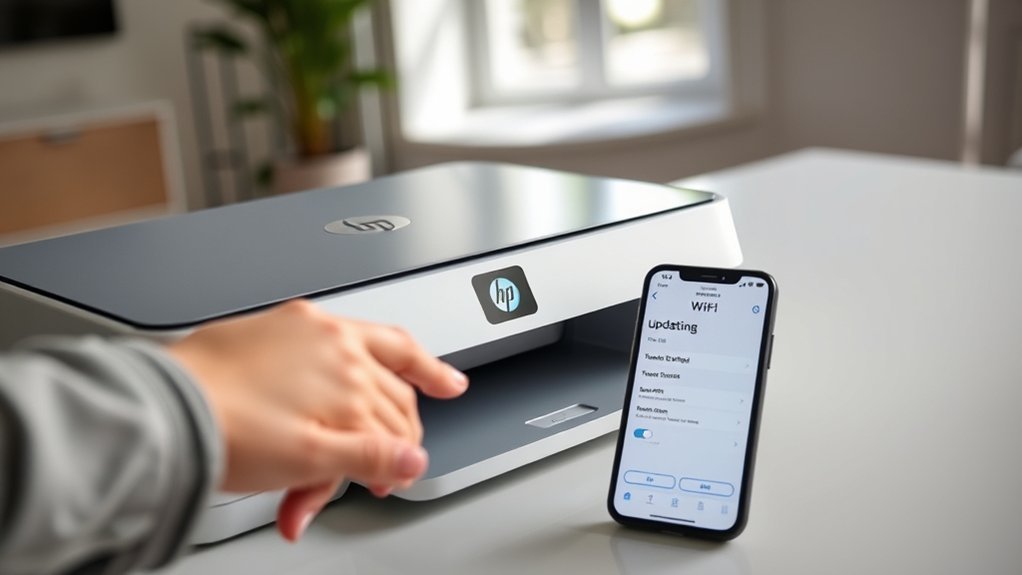
How to Change HP Printer WiFi in 3 Easy Steps
To change your HP printer Wi-Fi, start by accessing the printer’s network settings. You can do this either through the touchscreen menu or by using wireless button combinations to print the network page. This helps you check your current connection and get ready for the switch.
Next, connect to your new Wi-Fi network. On touchscreen models, run the Wireless Setup Wizard to guide you through the process. For other models, you might need to reset the wireless settings first.
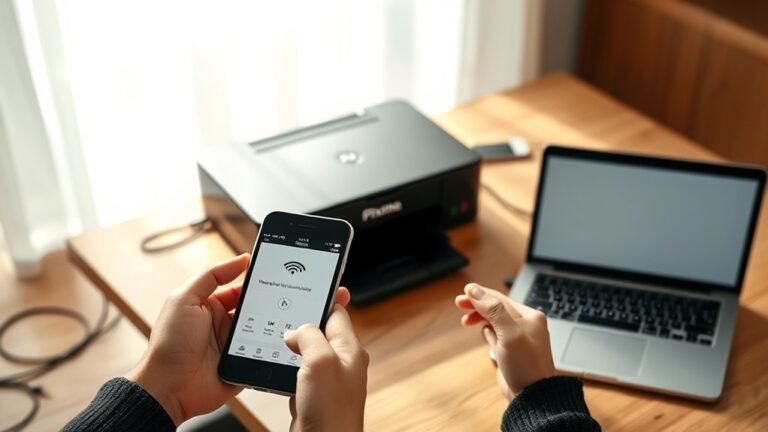
Then, enter your new network credentials using the HP Smart app — it makes things super easy.
Finally, verify your connection by printing a network test report. This step confirms your printer is online and ready to go.
Keep reading to discover helpful tips for troubleshooting and maintaining a strong, stable connection with your HP printer.
Key Takeaways
- Access the printer’s touchscreen or use the Wireless Setup Wizard to start changing Wi-Fi settings.
- If your printer doesn’t have a touchscreen, you can reset the wireless connection by holding the wireless and cancel buttons.
- Use the HP Smart app to enter new Wi-Fi network credentials easily.
- Make sure your printer is within Wi-Fi range and enter the correct password to connect.
- Finally, print a network test report to confirm your Wi-Fi connection was successful.
How to Find Your HP Printer’s Wi-Fi Network Settings
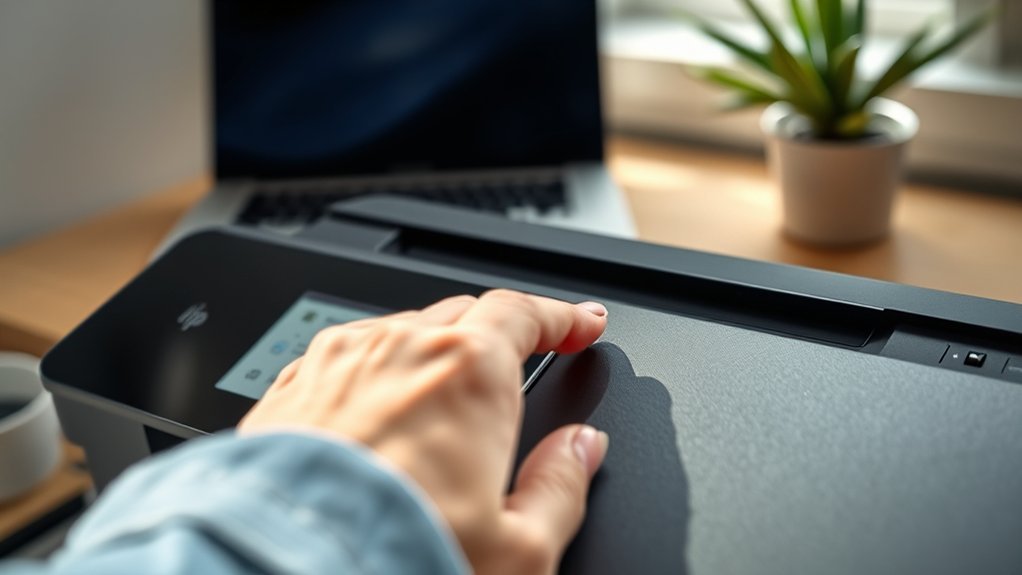
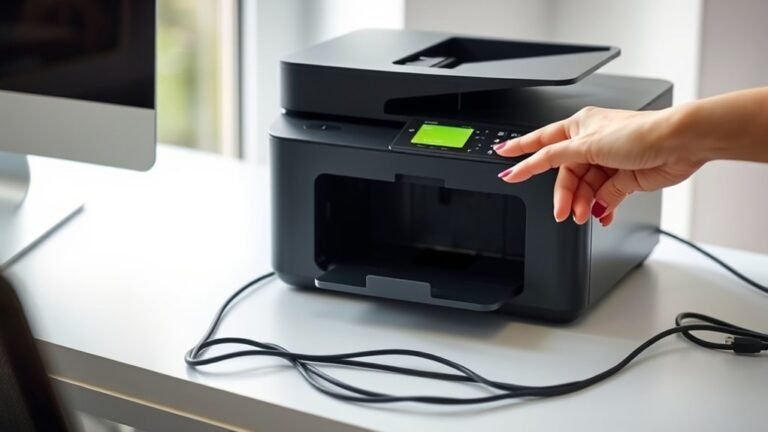
Before changing your HP printer’s Wi-Fi settings, you’ll need to locate its current network details. If your HP printer has a touchscreen, go to the Settings icon, then select “Network” or “Wireless” to view the Wi-Fi information.
For models without a touchscreen, press the wireless button or hold both the wireless and cancel buttons to print a network configuration page. This page shows the connected network name (SSID) and the printer’s IP address.
You can also find these details using the HP Smart app or by accessing the printer’s embedded web server if your HP printer supports it. Knowing your printer’s current Wi-Fi settings guarantees a smoother changeover when you update or troubleshoot your connection later.
Connect Your HP Printer to a New Wi-Fi Network
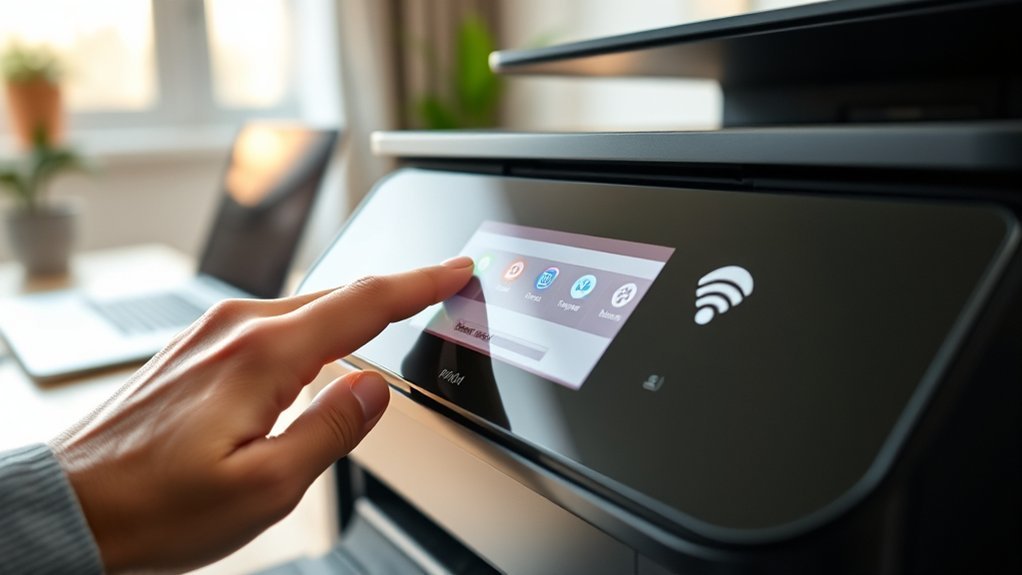
Once you’ve located your HP printer’s current Wi-Fi settings, you can proceed to connect it to a new network. For Printer Setup on models with a touchscreen, go to “Network Settings,” then select “Wireless Setup Wizard” to find and join your new Wi-Fi network.
If your printer lacks a touchscreen, reset the wireless settings by holding the Wireless and Cancel buttons simultaneously. Afterward, use the HP Smart app on your computer to add the new network credentials.
Make sure your printer is within range of the Wi-Fi router and enter the correct password. Finally, print a wireless network test report to confirm the connection.
If you encounter issues, HP support offers helpful guides and troubleshooting tips to guarantee your printer connects smoothly. Just reach out, and they’ll help you get everything set up right.
Fix Common HP Printer Wi-Fi Connection Problems
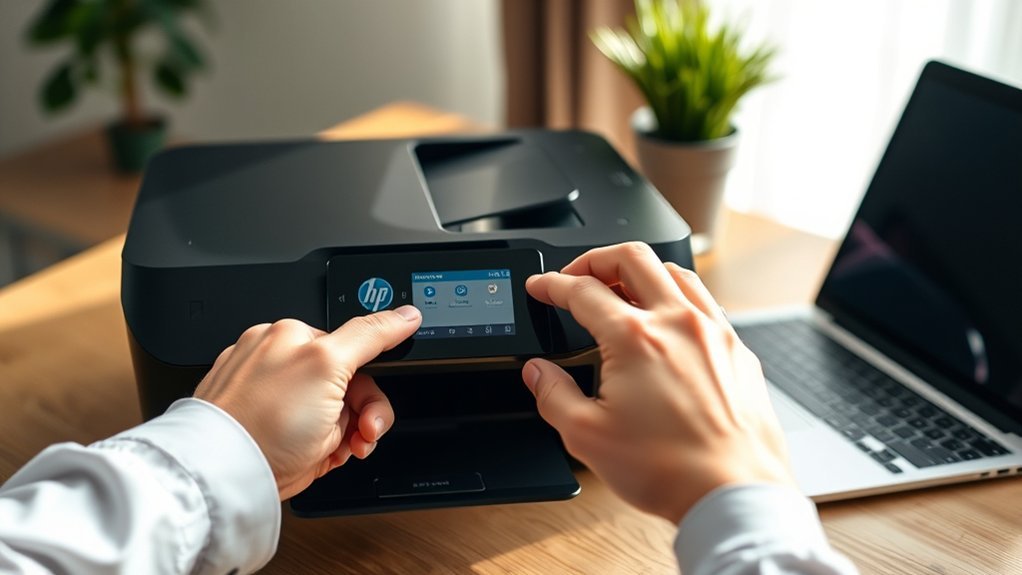
If your HP printer won’t connect to Wi-Fi, start by checking that it’s within range of your router. Then, restart both devices to refresh the connection.
Use the Wireless Setup Wizard on your printer’s touchscreen or the HP Smart app to reconnect to the correct network. If issues persist, reset the printer’s network settings by holding the Wireless and Cancel buttons for 10 seconds.
Use the Wireless Setup Wizard or HP Smart app to reconnect, or reset network settings by holding Wireless and Cancel buttons.
After that, set up Wi-Fi again. Make sure the wireless indicator light is steady and that the printer isn’t connected to an outdated network.
Updating your printer’s firmware and drivers via the HP Support Dashboard often resolves software-related problems. Also, remember to check your HP warranty information before attempting hardware fixes, as it may cover more complex connection issues.
Frequently Asked Questions
How Do I Change the Wi-Fi Connection on My HP Printer?
You’ll access your printer’s wireless settings, use the Wireless Setup Wizard to find your new network, and enter the password.
If it lacks a touchscreen, reset wireless settings and reconnect via the HP Smart app.
It’s pretty straightforward once you get to the right menu. Just follow the prompts, and you’ll be back online in no time!
How Do I Set up My HP Deskjet 3752 Printer Directly via Wi-Fi?
Like catching a signal in the air, press the Wireless button on your HP Deskjet 3752 until it blinks.
Then, use the Wireless Setup Wizard to select your network and enter the password to connect easily.
It’s pretty straightforward and gets your printer online in no time. Just follow the prompts, and you’re all set!
How Do I Reset the Wi-Fi Network on My HP Printer?
You can reset your HP printer’s Wi-Fi by pressing the Wireless button or holding the Wireless and Cancel buttons for 10 seconds.
After that, run the Wireless Setup Wizard to reconnect your printer to a new Wi-Fi network. It’s pretty straightforward once you get to this step. Just follow the prompts, and you’ll be back online in no time!
My HP Printer Isn’t Connecting to Wi-Fi. What Can I Do?
You should restart your printer and router, then make sure your printer’s within Wi-Fi range. Use the Wireless Setup Wizard or HP Smart app to reconnect.
If it still won’t connect, try updating the firmware. And if that doesn’t work, you might want to contact HP support for more help.
Conclusion
Now that you know how to navigate your HP printer’s network settings and connect to a new Wi-Fi with ease, you’re set to solve common connection challenges quickly. Staying savvy and steady with these simple steps guarantees smooth, seamless printing every time.
Don’t let tricky tech troubles trip you up—tackle them confidently and keep your printer performing perfectly. With a little practice, you’ll master your machine’s wireless wonders in no time!
By following these easy steps to change your HP printer WiFi, you ensure reliable wireless printing without the hassle. Whether you’re updating your network at home or at the office, knowing how to switch your HP printer’s Wi-Fi keeps your device connected and ready to print whenever you need. So, stay confident and enjoy hassle-free printing every day!