
4 Best All-in-One Printers for Windows 7 in 2027
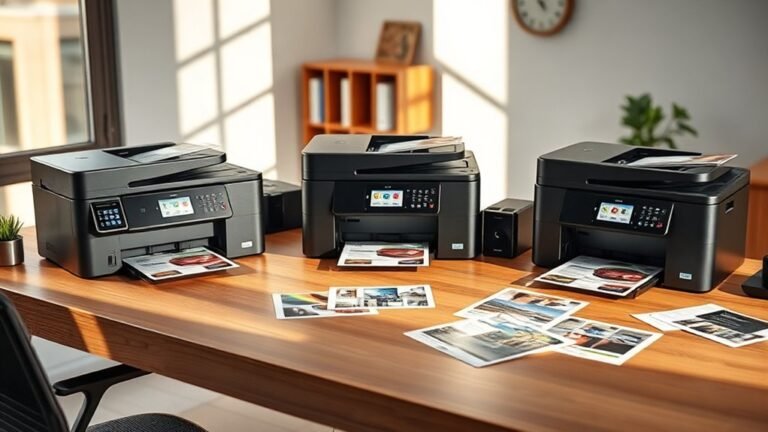
You’ll find the best all-in-one printers for Windows 7 in 2027 include some top picks that cater to various needs. Whether you’re printing at home or running a small business, there’s something for everyone. These printers combine printing, scanning, copying, and sometimes faxing, making your workflow smoother and more efficient.
The HP DeskJet 2923 is ideal for basic home use with an easy wireless setup. It’s perfect if you want something simple and reliable without too many bells and whistles.
Then there’s the Brother INKvestment 5010, which is great for small businesses needing fast, high-capacity printing. It handles larger print jobs without slowing down your day.
For more versatile office tasks, check out the Brother INKvestment 1365. It includes fax and duplex scanning, so you can tackle multiple tasks with one machine.
Finally, the Epson XP-5250 offers sharp photo prints and a compact design. It’s a fantastic choice if you want quality photos without sacrificing space.
Explore their features to match your printing needs perfectly.
| Image | Name | Editor's Rating | Price |
|---|---|---|---|

|
|
||

|
|
||
|
|
||

|
|
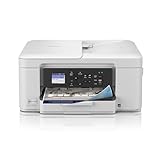
HP DeskJet 2923 Color Inkjet Printer | Wireless | All-in-One
- Perfect for basic printing needs – Print everyday color documents like to-do lists, letters, financial documents and recipes
- KEY FEATURES – Color print, copy, scan, and a 60-sheet input tray, plus mobile and wireless printing
- OPTIMIZE PRINT FORMATTING WITH HP AI – Print web pages and emails with precision—no wasted pages or awkward layouts; HP AI easily removes unwanted content, so your...
- ICON LCD – Print your basic documents with ease from the intuitive control panel
- PRINT SPEED – Up to 7.5 ppm black, 5.5 ppm color

The HP DeskJet 2923 Color Inkjet Printer brings reliable all-in-one functionality to your home office. It handles everyday printing, scanning, and copying with ease, making it a practical choice for busy households. Its compact design fits neatly on any desk, saving valuable space.
This printer supports dual-band Wi-Fi, Apple AirPrint, and USB connections, allowing smooth printing from laptops, PCs, and smartphones. You won’t have to worry about complicated setups or limited device compatibility. The 60-sheet input tray keeps your workflow steady, though frequent refills might be needed for larger tasks.
Maintenance is straightforward, especially with the included six-month Instant Ink trial that helps reduce ink expenses. While it offers manual duplex printing, it requires user effort to print on both sides, which might slow down some projects.
With print speeds up to 7.5 ppm for black and sharp color resolution, it is suited for basic documents and casual photo printing. Eco-conscious users will appreciate its use of recycled plastics and ENERGY STAR certification.
Best for: Home users needing a compact and affordable all-in-one printer for color printing, scanning, and copying with easy wireless connectivity.
What We Like:
- Versatile connectivity with dual-band Wi-Fi, Apple AirPrint, and USB support
- Six-month Instant Ink trial helps save on ink costs
- Compact, eco-friendly design using recycled plastics and ENERGY STAR certified
- Easy setup and operation for everyday home tasks
Specification:
| Feature | Details |
|---|---|
| Manufacturer | HP |
| Dimensions (W×D×H) | Approx. 16.7 × 12.2 × 5.9 in |
| Weight | Approx. 4.3 lb (1.95 kg) |
| Technology | Color Inkjet |
| Connectivity | Dual-band Wi-Fi, USB, Apple AirPrint |
| Input Tray Capacity | 60 sheets |
Brother INKvestment 5010 Wireless Color Inkjet Printer
- BEST FOR SMALL BUSINESS: Print, copy, scan, and fax with one powerful device, with advanced security features for business. Includes one 1,800-page yield black ink...
- PRODUCTIVITY-FOCUSED FEATURES: A 250-sheet paper tray, 50-page single-pass duplex (2-sided) automatic document feeder (ADF), and automatic duplex printing on paper up to...
- SUPERIOR PRINTING: Engineered with the Brother PerfectPrint Auto Detection System, which helps ensure reliable, consistent print quality and performance you can depend on...
- SEAMLESS CONNECTIONS: Simplify your workflow with Wi-Fi Direct and multiple connection options, including wireless network interfacing, Ethernet, and USB. Plus, print...
- THE BROTHER MOBILE CONNECT APP: Put the power of printing at your fingertips. Go mobile with the simple-to-use Brother Mobile Connect app, which delivers easy on-screen...
The Brother INKvestment 5010 Wireless Color Inkjet Printer offers a smart solution for small businesses and home offices looking to streamline their printing tasks. It delivers fast print speeds of up to 28 ppm in black and 26 ppm in color, reducing wait times and boosting productivity. Its wireless connectivity simplifies printing from multiple devices without the hassle of cables.
Designed to save on ink costs, the printer features the INKvestment ink system with high-yield cartridges that minimize maintenance and replacement frequency. Automatic duplex printing and a 50-page duplex automatic document feeder make scanning and copying more efficient, handling multi-page documents with ease.
The 2.7″ color touchscreen paired with the Brother Mobile Connect app provides a user-friendly interface for easy setup and mobile printing. While the 250-sheet paper tray supports moderate volumes, it may require refills during heavy use. The printer’s compact design fits well in limited spaces without sacrificing functionality.
Best for: Small businesses and home offices needing a reliable, cost-effective wireless all-in-one printer with strong mobile and cloud integration.
What We Like:
- Fast printing with automatic duplex for double-sided documents
- Cost-saving INKvestment system with high-yield ink cartridges
- Easy operation via 2.7″ touchscreen and mobile app
- Efficient 50-page duplex ADF streamlines scanning and copying
Specification:
| Feature | Details |
|---|---|
| Manufacturer | Brother |
| Dimensions (W x D x H) | Approx. 16.7 x 14.7 x 7.2 in |
| Weight | Approx. 17.4 lbs (7.9 kg) |
| Ink Type | INKvestment high-yield cartridges |
| Connectivity | Wireless (Wi-Fi) |
| Paper Capacity | 250-sheet main tray |
| Display | 2.7-inch color touchscreen |
Brother INKvestment 1365 Wireless Color Inkjet Printer
- BEST FOR HOME AND HOME OFFICE: This multifunction printer makes it easy to print, copy, and scan—all in one compact printer. Includes one 1,200-page yield black...
- WIRELESS, MOBILE, AND USB CONNECTIVITY: Connect your way. Interface with your printer on your wireless network or via USB. Enhance your workflow with Wi-Fi Direct, which...
- CLOUD APP CONNECTIONS: Print from and scan to popular Cloud apps(3), including Google Drive, Dropbox, Box, OneDrive, and more, from an impressive 1.8” color display...
- PRODUCTIVITY-FOCUSED FEATURES: A 150-sheet paper tray(4), 20-page single-sided automatic document feeder (ADF)(4), and automatic duplex (2-sided) printing. Prints at fast...
- THE BROTHER MOBILE CONNECT APP: Put the power of printing at your fingertips. Go mobile with the Brother Mobile Connect app(6) that delivers easy onscreen menu navigation...
Experience efficient printing with the Brother INKvestment 1365 Wireless Color Inkjet Printer. Designed to simplify your workflow, it handles printing, scanning, copying, and faxing with ease. Whether for home offices or small businesses, this printer’s wireless setup reduces clutter and boosts productivity.
Its 150-sheet tray and 20-page automatic document feeder allow you to manage multiple tasks quickly. Print sharp, vibrant color documents with a resolution up to 1,200 x 6,000 dpi. Automatic duplex printing helps save paper, making it an eco-friendly option.
Maintenance is straightforward with high-yield ink cartridges that lower replacement frequency. An optional ink subscription service helps control ongoing costs, while the Brother Mobile Connect app provides convenient remote management from your smartphone.
While print speeds are moderate, this printer balances quality and functionality well. Note that some features depend on an internet connection, and subscription availability may vary by location.
Best for: Home offices and small businesses seeking a versatile all-in-one wireless printer that combines quality output and cost-effective ink solutions.
What We Like:
- Crisp color printing with high resolution up to 1,200 x 6,000 dpi
- Large input capacity with a 150-sheet tray and 20-page automatic feeder
- Cost-saving high-yield cartridges and optional ink subscription
- Wireless connectivity for flexible placement and remote management
- Automatic duplex printing to reduce paper use
Specification:
| Feature | Details |
|---|---|
| Manufacturer | Brother |
| Model | INKvestment 1365 Wireless |
| Printer Type | Color Inkjet All-in-One |
| Connectivity | Wireless |
| Input Tray Capacity | 150 sheets |
| Automatic Document Feeder | 20 pages |
| Maximum Print Resolution | 1,200 x 6,000 dpi |
| Duplex Printing | Automatic |
Epson Expression Home XP-5250 Wireless All-in-One Printer
- Remarkable Prints and Photos — Home printer with Epson's leading-edge printing technology produces crystal clear prints and rich colors
- Our Fastest Expression Home Printer — Plus, a 150-sheet paper tray for convenient paper handling
- Convenient Operation — Large 2.4" color display for effortless navigation
- Epson Smart Panel App¹ — Transforms your mobile device into a high-performance command center and adds time-saving features like Smart Setup
- Engineered for Reliability — Consistently delivers high-quality prints with PrecisionCore Heat-Free technology and a permanent printhead designed to last the life of...
Experience hassle-free printing with the Epson Expression Home XP-5250 Wireless All-in-One Printer. This compact device is designed to handle your printing, scanning, and copying needs effortlessly, making everyday tasks more efficient. Its PrecisionCore Heat-Free technology produces sharp, clear prints quickly, helping you save time without compromising quality.
Maintaining this printer is simple thanks to individual ink cartridges. You replace only the colors you need, which reduces waste and lowers running costs. The automatic duplex printing feature lets you print on both sides of the paper, saving resources and adding convenience.
Ideal for home offices or individuals, it supports wireless printing through Wi-Fi Direct, allowing you to print directly from your smartphone or tablet without needing a router. The 2.4″ color display and Epson Smart Panel App make setup and control straightforward, even for users new to wireless printing.
While the paper tray holds up to 150 sheets, it may require frequent refilling during heavy use. Color print speeds are moderate, so large photo projects might take a bit longer. Also, using non-genuine Epson cartridges can damage the printer and void the warranty.
Best for: Home users and small offices seeking a compact, easy-to-use wireless all-in-one printer with quality color photo printing.
What We Like:
- Sharp prints with fast speeds thanks to PrecisionCore Heat-Free technology
- Convenient duplex and borderless photo printing on various paper sizes
- Wireless printing via Wi-Fi Direct and easy control through Epson Smart Panel App
Specification:
| Feature | Details |
|---|---|
| Manufacturer | Epson |
| Dimensions (W×D×H) | 14.8 × 12.2 × 5.8 inches |
| Weight | 8.2 lbs (3.7 kg) |
| Color Options | White |
| Display | 2.4″ color LCD |
| Paper Tray Capacity | 150 sheets |
Factors to Consider When Choosing an All in One Printer for Windows 7
When choosing an all-in-one printer for Windows 7, you’ll want to make sure it’s fully compatible with your system and offers the connectivity options you need.
Think about print quality and speed too. And don’t forget to check how efficient the ink usage is — it can really help keep your running costs low.
Also, take a good look at the multifunction features included. That way, you can be sure your printer fits all your needs in one device.
Compatibility With Windows 7
To make sure your all-in-one printer works smoothly with Windows 7, start by checking that the manufacturer offers official drivers specifically for your version—32-bit or 64-bit. Make sure these drivers are available for download on their support site.
Next, confirm the driver package supports full functionality like printing, scanning, faxing, and ADF, not just basic printing. It’s important the printer uses standard Windows 7 protocols such as WSD or USB for seamless integration.
Also, double-check any bundled software like scanning utilities explicitly supports Windows 7. This helps avoid any compatibility issues down the line.
Review the driver’s release date and compatibility notes to confirm ongoing support and security updates. Finally, if you plan network printing, check that the printer’s networking features align with Windows 7’s network protocols to guarantee smooth operation.
Connectivity Options Available
How can you guarantee your all-in-one printer connects seamlessly with your Windows 7 PC? First, ensure it supports USB 2.0 or 1.1 for a stable wired connection. This is vital for driver installation on Windows 7 systems.
If you share printing across a network, look for built-in Gigabit Ethernet to integrate smoothly with older Windows 7 workgroups. For wireless flexibility, verify Wi-Fi compatibility (802.11 b/g/n). Also, check if it offers Wi-Fi Direct or ad-hoc modes for router-less printing.
Confirm it supports standard Windows protocols like WSD or IPP. Make sure the drivers specifically include Windows 7 x86/x64 support.
Finally, if you print from mobile devices, choose printers with SMB, FTP, or scan-to-network features compatible with Windows 7. Avoid cloud-only services that might complicate your workflow.
Print Quality and Speed
You’ll often find that print quality and speed are the key factors in choosing an all-in-one printer for Windows 7. Start by checking the maximum print resolution—higher dpi like 1200 x 1200 or 4800 x 1200 delivers sharper text and finer photo details.
Compare rated print speeds (ppm) for black and color, but remember real-world speeds, especially for color or high-quality modes, tend to be slower than manufacturer claims. Look for printers offering different print modes (draft, standard, best/photo) with estimated ppm per mode, since higher quality slows printing.
Also, consider first-page-out time and warm-up speed for quick jobs, improving responsiveness. Finally, make certain the printer’s driver supports Windows 7 color management and scaling for accurate colors and proper sizing.
Ink Efficiency and Costs
When shopping for an all-in-one printer for Windows 7, pay close attention to ink efficiency and costs, as they can quickly add up over time. Choose printers with individual color cartridges or high-yield XL cartridges to lower your per-page ink expenses by replacing only what’s empty.
Check manufacturer or third-party ISO/IEC page-yield numbers and calculate cost per page by dividing cartridge price by yield. It’s a smart way to see which printer gives you more bang for your buck.
Consider subscription or automatic-replenishment programs, but make sure to compare their monthly fees and long-term costs with buying cartridges outright. You don’t want to get locked into a plan that ends up costing you more.
Avoid printers with integrated ink tanks or non-replaceable cartridges, which often have costly replacements due to low starter yields. Also, factor in duplex printing and software that optimizes layouts to reduce paper use. This can indirectly cut your overall printing costs and save you money in the long run.
Multifunction Features Included
Although all-in-one printers are designed to handle multiple tasks, you should confirm they support at least printing, scanning, and copying.
If you need faxing, make sure the unit explicitly includes fax capability and an automatic document feeder (ADF) for multi-page fax or scan workflows.
Check if duplex printing and scanning are built-in to save paper and time, especially for multi-page documents.
Look for a flatbed scanner with at least 600 dpi optical resolution for clear scans, plus an ADF if you scan or copy batches regularly.
Verify copy limits like maximum copies per run and resolution to match your needs.
Finally, reassure the device supports your required scan-to options—email, file, or cloud—and the necessary file formats such as PDF or searchable PDF.
Size and Space Requirements
Since all-in-one printers vary in size, measuring your available desk or shelf space before purchasing is essential. Most models with automatic document feeders (ADFs) or front/output trays need about 12–18 inches depth and 16–20 inches width when closed.
Remember to allow extra clearance—3 to 5 inches above the lid for ADFs and 6 to 10 inches in front for paper loading and output trays. For tight spaces or mobile setups, choose compact, lightweight designs and consider manual duplexing or single-tray models to save space.
Don’t forget to leave 2 to 4 inches behind the printer for ventilation, cable routing, and easy cartridge access. Accurate measurements help you pick a printer that fits your workspace without hassles.
Frequently Asked Questions
Can These Printers Support Duplex Scanning on Windows 7?
Yes, many all-in-one printers support duplex scanning on Windows 7. You’ll need compatible drivers and software installed, but once set up, you can easily scan double-sided documents without flipping pages manually.
It’s pretty convenient, right? Just make sure your printer model specifically mentions duplex scanning support for Windows 7 to avoid any surprises.
Are Replacement Ink Cartridges Compatible With Windows 7 Drivers?
Don’t worry—you’ll find replacement ink cartridges fully compatible with Windows 7 drivers.
Just make sure you choose cartridges designed for your specific printer model, and your system will recognize them without any hassle or extra setup.
Do These Printers Offer Mobile Printing via Windows 7 Devices?
Yes, many of these printers support mobile printing from Windows 7 devices through compatible apps or Wi-Fi Direct.
You’ll just need to make sure your device’s drivers are updated and the printer’s mobile features are enabled.
That way, you can easily print from your Windows 7 device without any hassle. Just double-check those settings, and you should be good to go!
What Is the Average Lifespan of These Printers Under Normal Use?
Think of your printer like a reliable car: with proper maintenance, it lasts around 3 to 5 years under normal use.
Just as you wouldn’t skip oil changes, regular care keeps your printer running smoothly.
Treat it right, and it won’t let you down anytime soon!
Are Firmware Updates Necessary for Windows 7 Compatibility?
Yes, you’ll need firmware updates to guarantee compatibility with Windows 7. Manufacturers release updates to fix bugs and improve performance, so keeping your printer’s firmware current helps it work smoothly with your operating system.
It’s kind of like giving your printer a little tune-up. This way, you avoid glitches and can make the most out of the features Windows 7 offers. So, definitely keep an eye out for those updates!
Conclusion
When choosing an all-in-one printer for Windows 7, you might think newer models won’t support your system—but that’s not always true. Many printers, like the ones listed, still offer compatibility and reliable wireless features.
Don’t let outdated assumptions hold you back. By focusing on your actual needs—print quality, connectivity, and ease of use—you’ll find the perfect fit that keeps your workflow smooth, even in 2027.
Remember, finding the best all-in-one printer for Windows 7 isn’t about settling for old tech. It’s about choosing a device that balances modern features with system compatibility. Whether you need fast printing, scanning, or wireless convenience, there are options designed to keep your setup efficient and hassle-free well into the future. So go ahead, explore the choices, and enjoy seamless printing with your trusted Windows 7 system.